Access can be allowed or denied depending on location. From an entire country to a city. There are in fact two Access Control - Location policies. Access Control - Location and Access Control Location(IPV6)
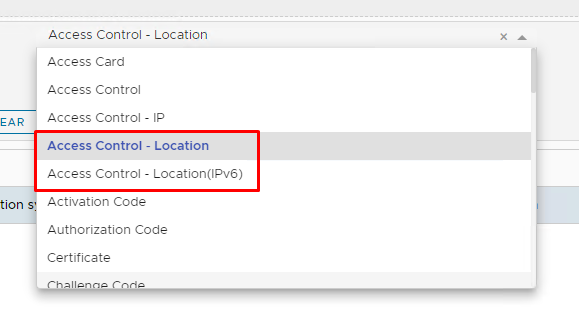
They both do the same thing, except one uses IPv4ocation addresses, the other IPv6Location addresses
Before you can create the policies you first need to download and import an IP geolocation database.
Control by geographic locations allows you to restrict access to applications by users from some specific countries or cities.
A pre-requisite to implementing access control by geo location is to have the geo-location data.
...
| Expand | ||
|---|---|---|
| ||
- |
How to import IP2Location-IPV4 Geo Location database into DualShield |
...
- How to import IP2Location-IPV6 Geo Location database into DualShield |
...
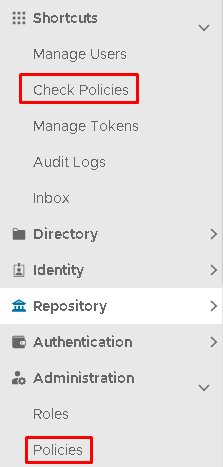
Once imported you can then follow the next steps to create the policies.
| Section | ||
|---|---|---|
| ||
| Column | ||
|
| Panel | ||
|---|---|---|
| ||
|
| border | true |
|---|
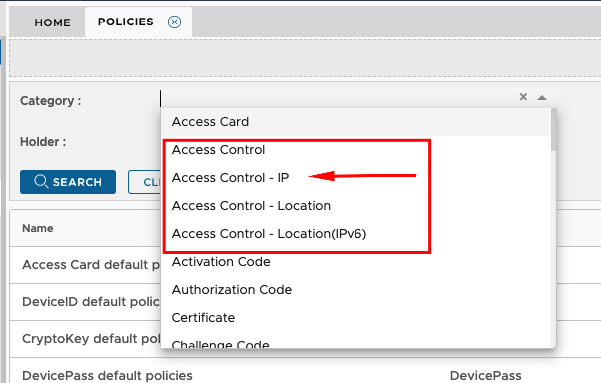
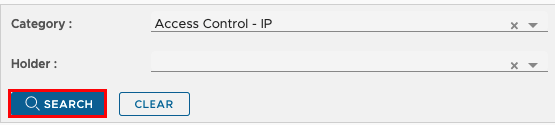
In the Category dropdown, you will see four Access Control policies. Select Access Control - IP
Click Search
| width | 60% |
|---|
| Panel | ||
|---|---|---|
| ||
|
| border | true |
|---|
A list of Access Control policies will appear underneath, If you have not yet created one then only the default system policy will display.
The default policy allows system-wide access to all applications at any time, by all users.
Do Not Delete or Edit the default system policy. Making any changes to this policy could result in you not being able to access the Administration Console even using the System Admin account.
It is best practice to create a seperate policy.
Click the Create button on the top right.
| width | 60% |
|---|
| Panel | ||
|---|---|---|
| ||
|

| border | true |
|---|
| width | 60% |
|---|
| Panel | ||
|---|---|---|
| ||
|
| border | true |
|---|
| Column |
|---|
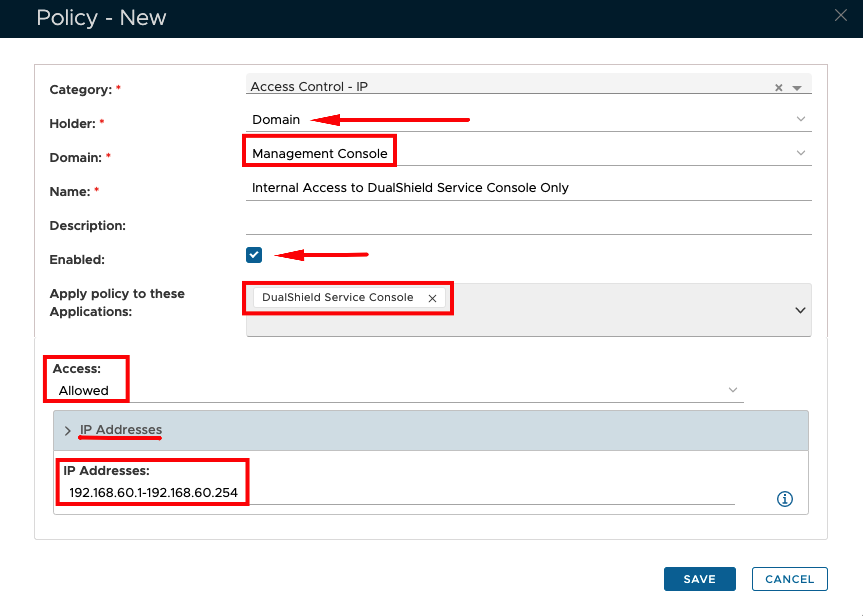
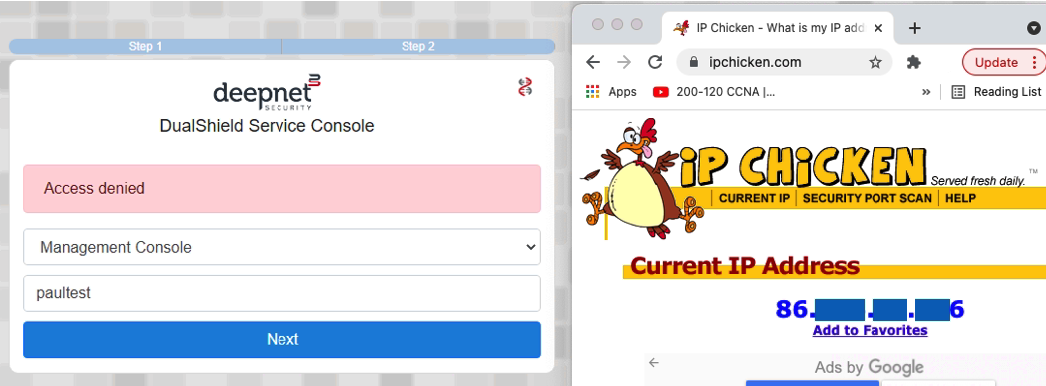
After setting up the policies as above, if an attempt is made to log on to Dualshield Service Console from a PC that is outside of the scope of the IP range set, then access will be denied. |
| width | 60% |
|---|
| bgColor | #FFFFFF |
|---|
Access control by Geo Location is implemented by creating an "Access Control - Location" policy. The example below creates an access control system that denies access to all applications if a user is located in Russia or Noth Korea.
Please note that with this policy in place, if a user is not located in Russia or North Korea, then the user will be allowed access to all applications.
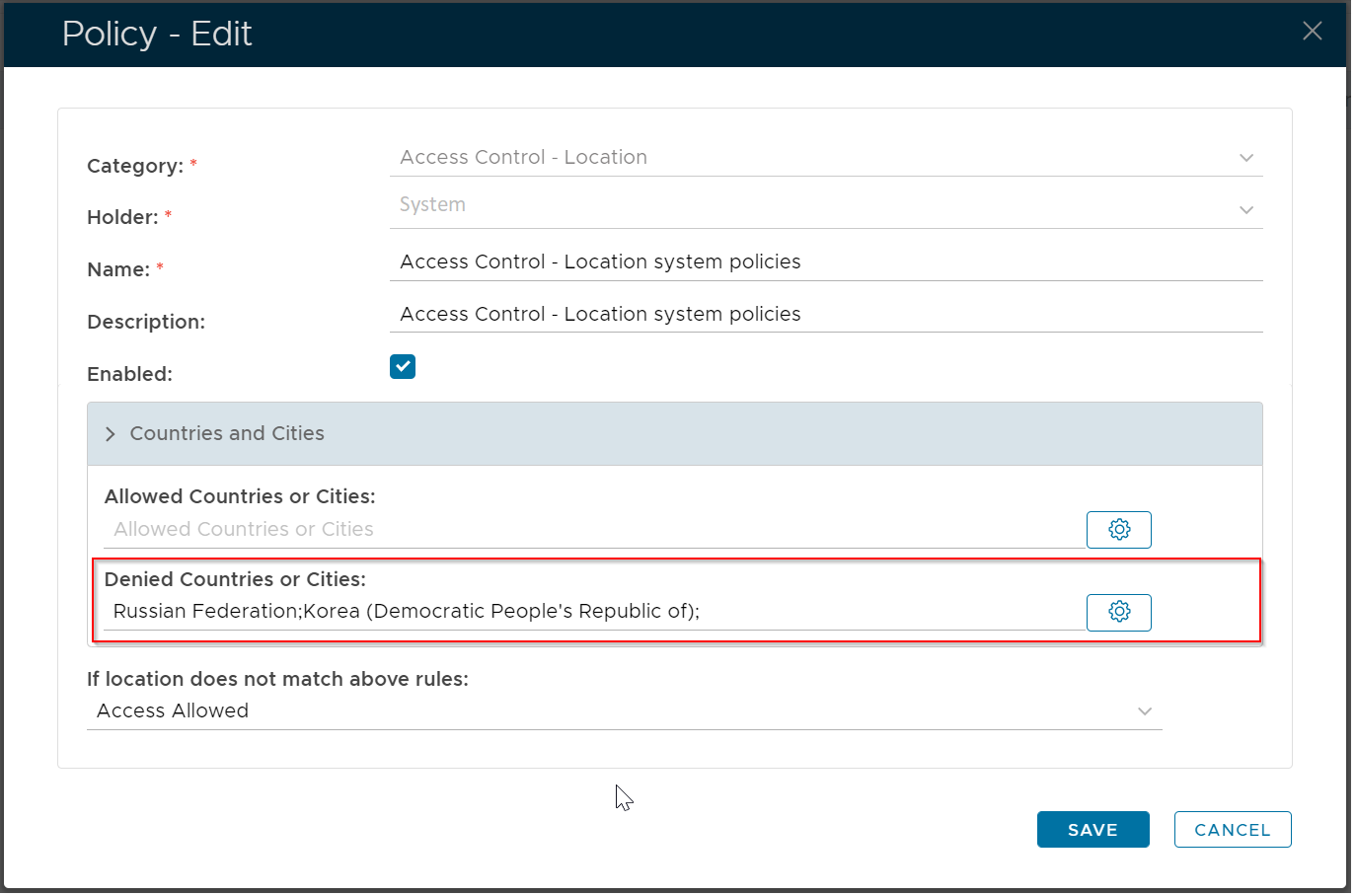
Please also note the following
- this policy applies to all users in the system, as the policyholder is "System"
- this policy applies to all applications, as there is no application specified