In order to implement Auto Logon, you have to disable compression on the OWA application node
Select the "owa" node in the navigation panel
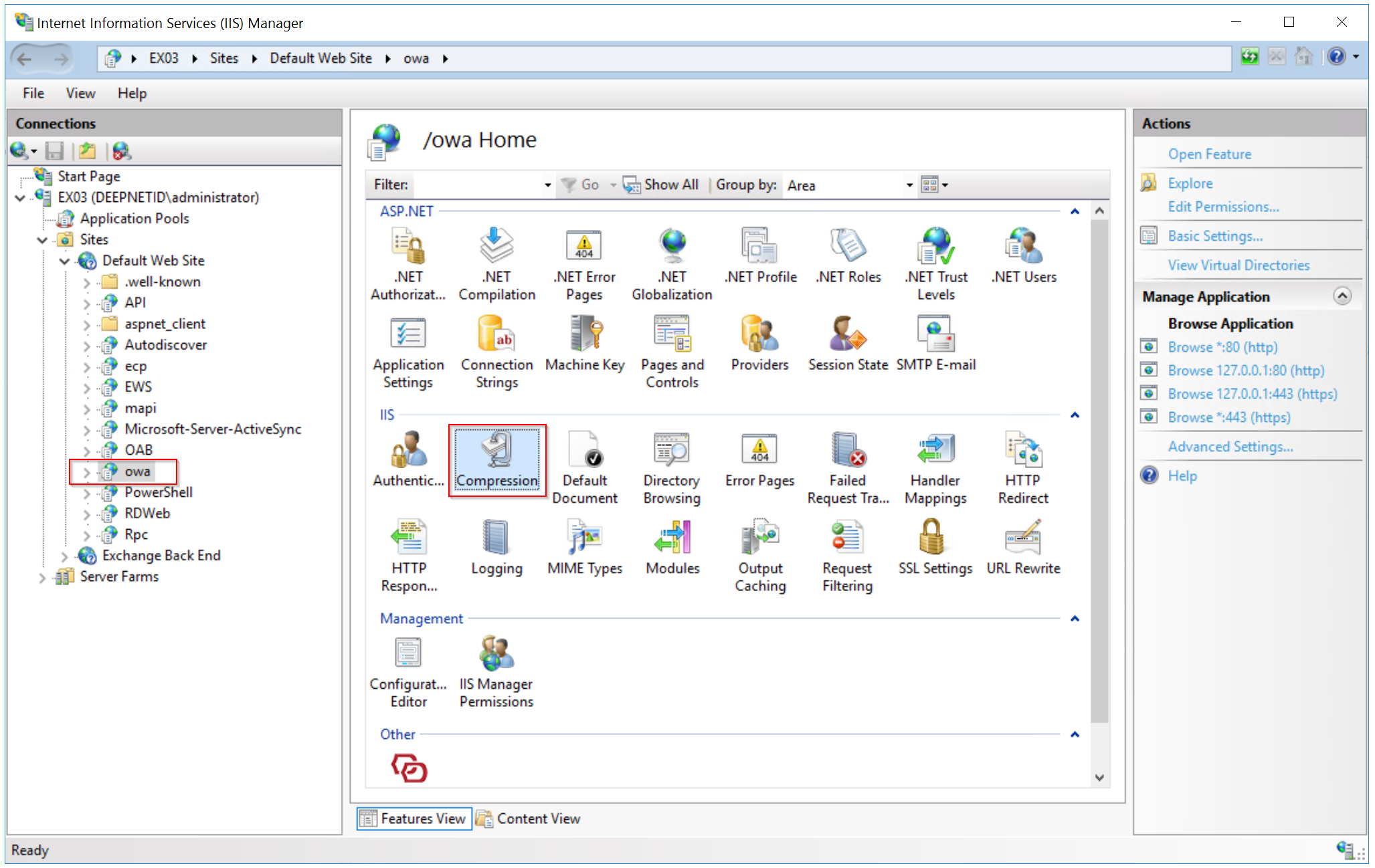
Click the "Compression" icon in the Features View panel
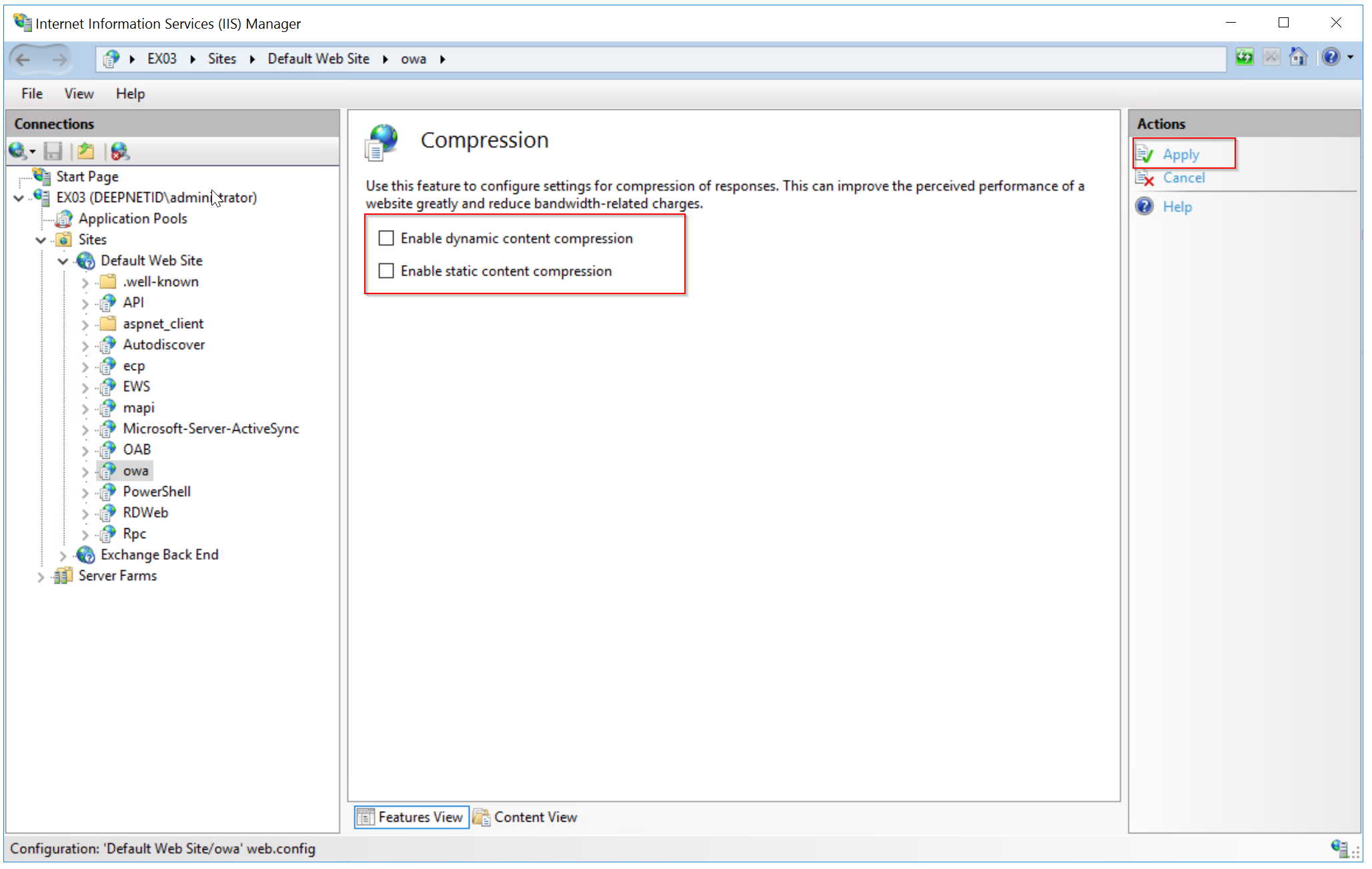
Make sure that both compression options are disabled, then click the "Apply" button to save changes
Now, select the "owa" node in the navigation panel again
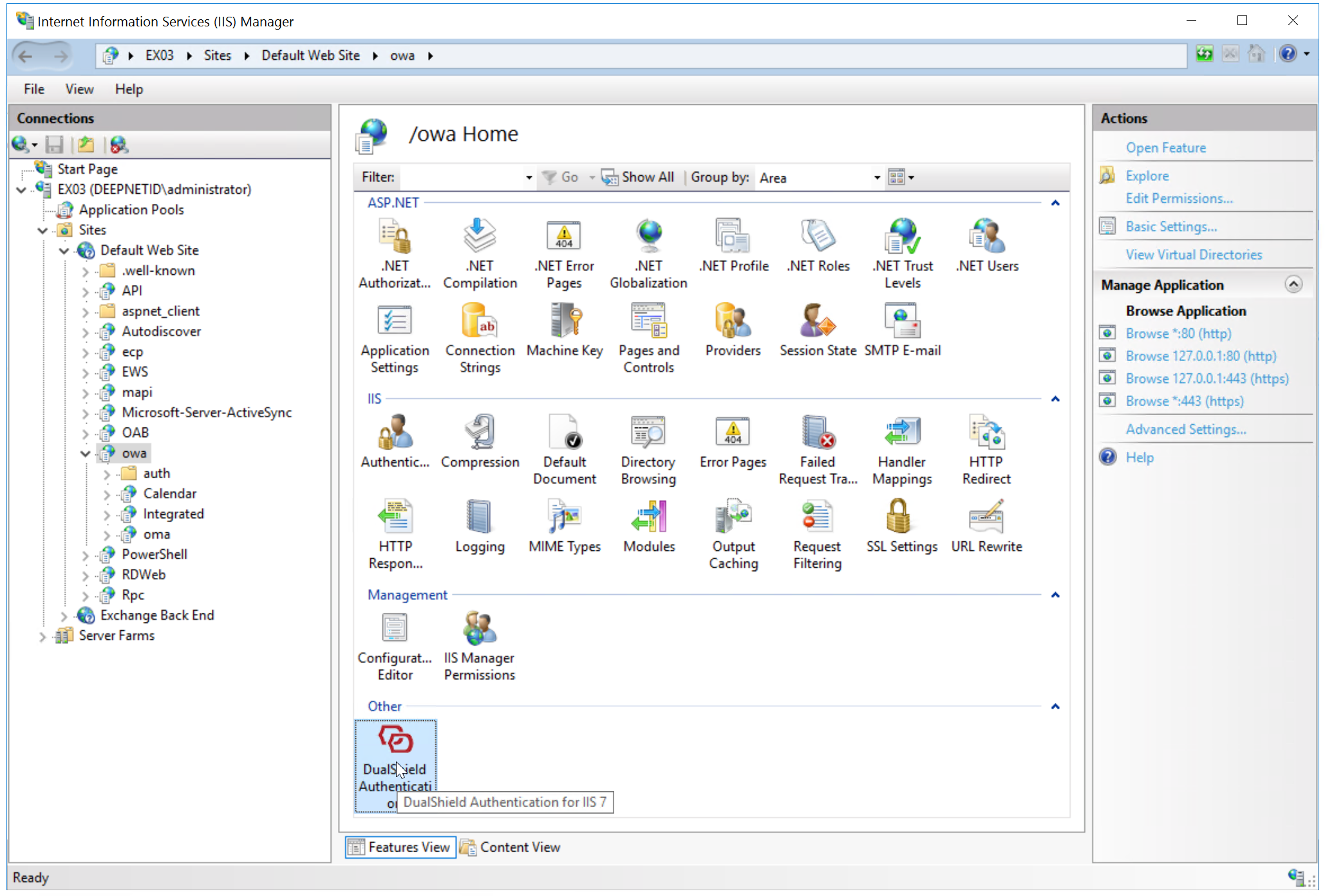
Double click "DuaLShield Authentication" icon in the Features View" to lanch the control panel of the DualShield IIS Agent
the IIS console, select the web application to be configured, e.g. "OWA"
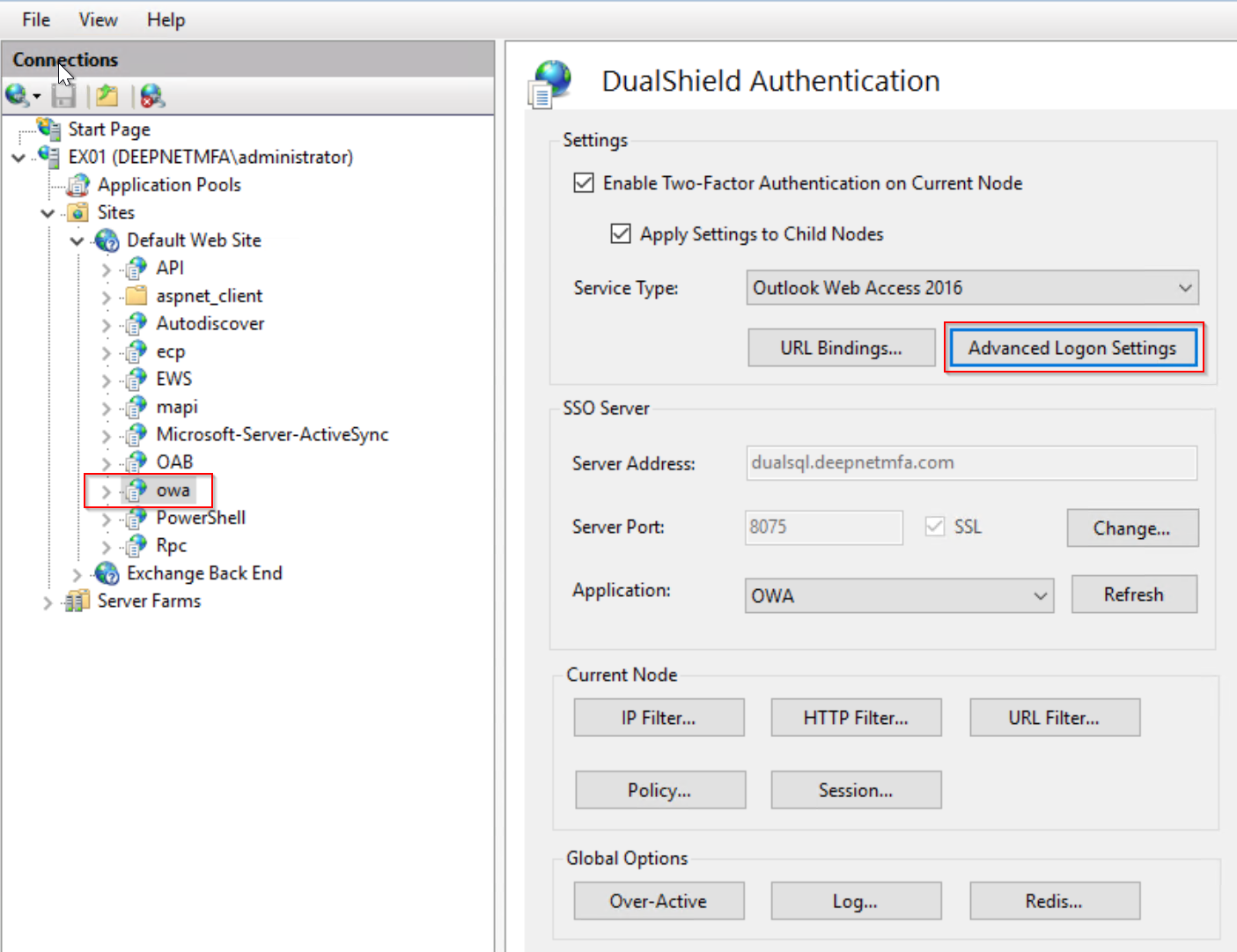
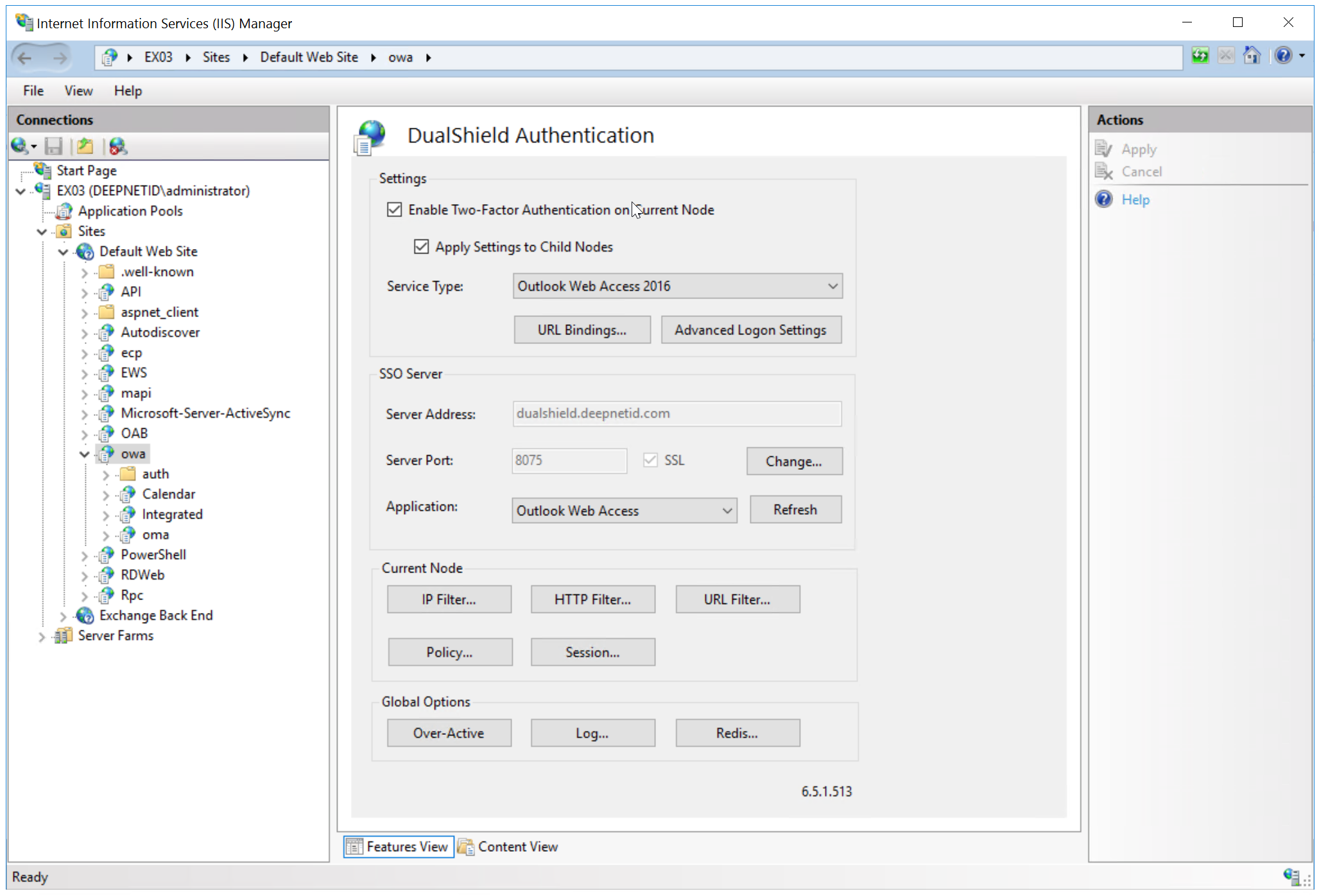
Click the "Advanced Logon Settings" button.
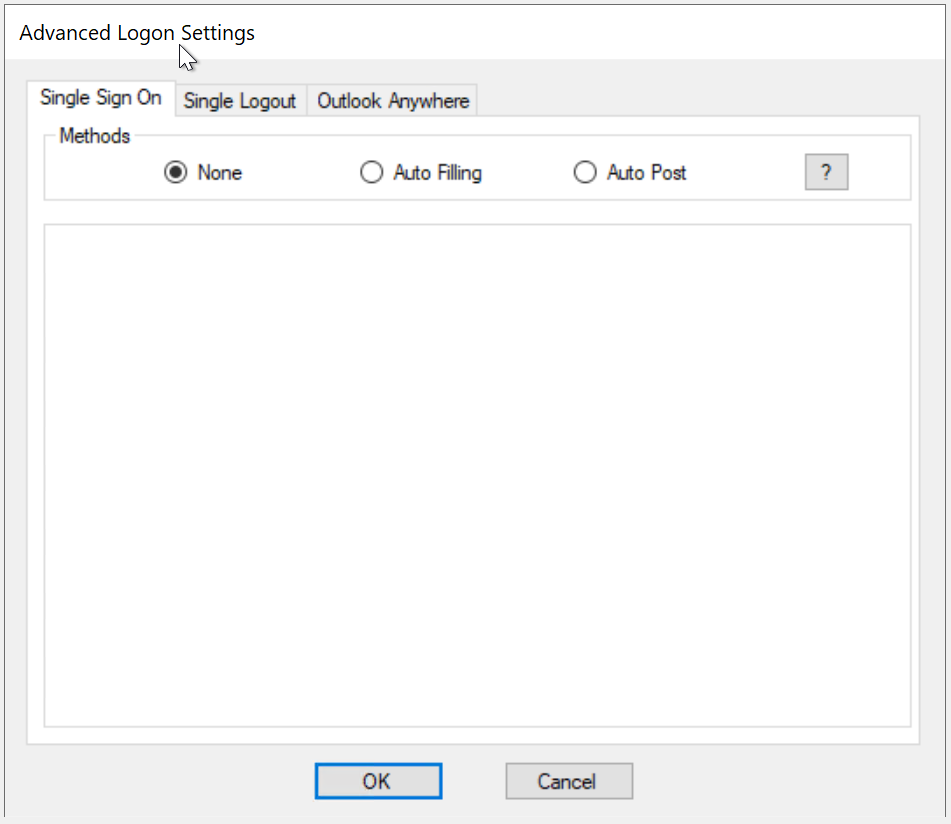
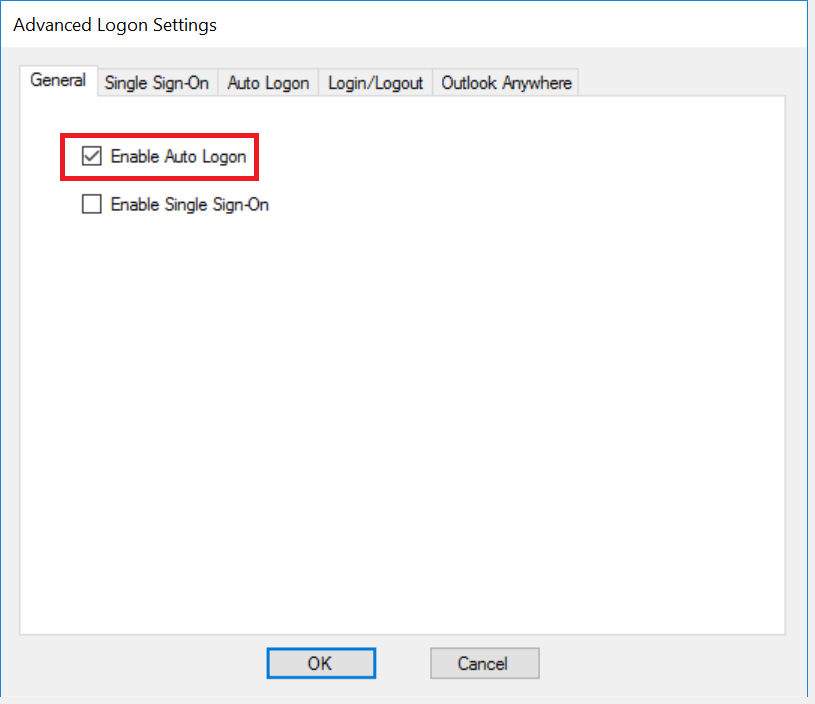
To enable Auto LogonSingle Sign-On by Auto-Post, tick the option "Enable Auto Logon" in the General tab
Then, click the "Auto Logon" tab
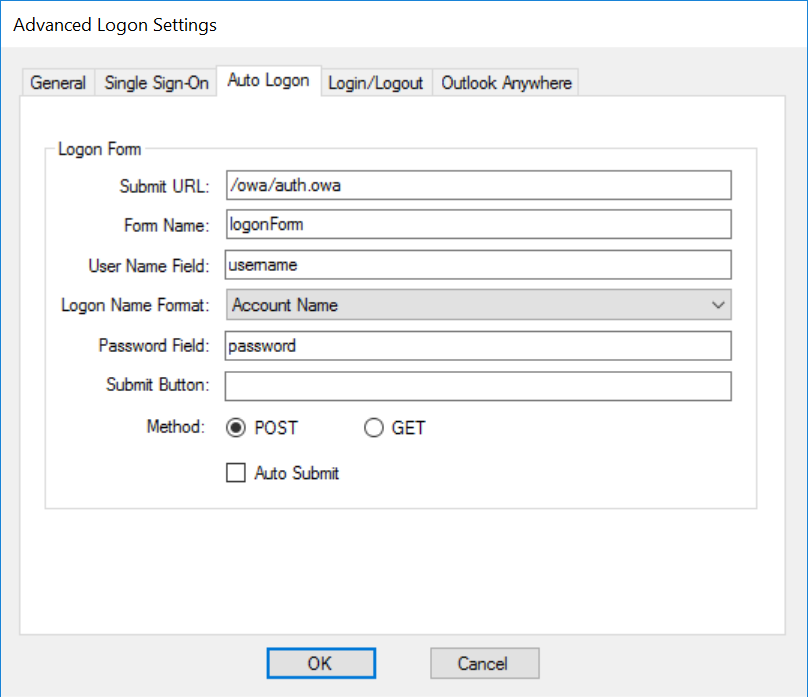
Filling"
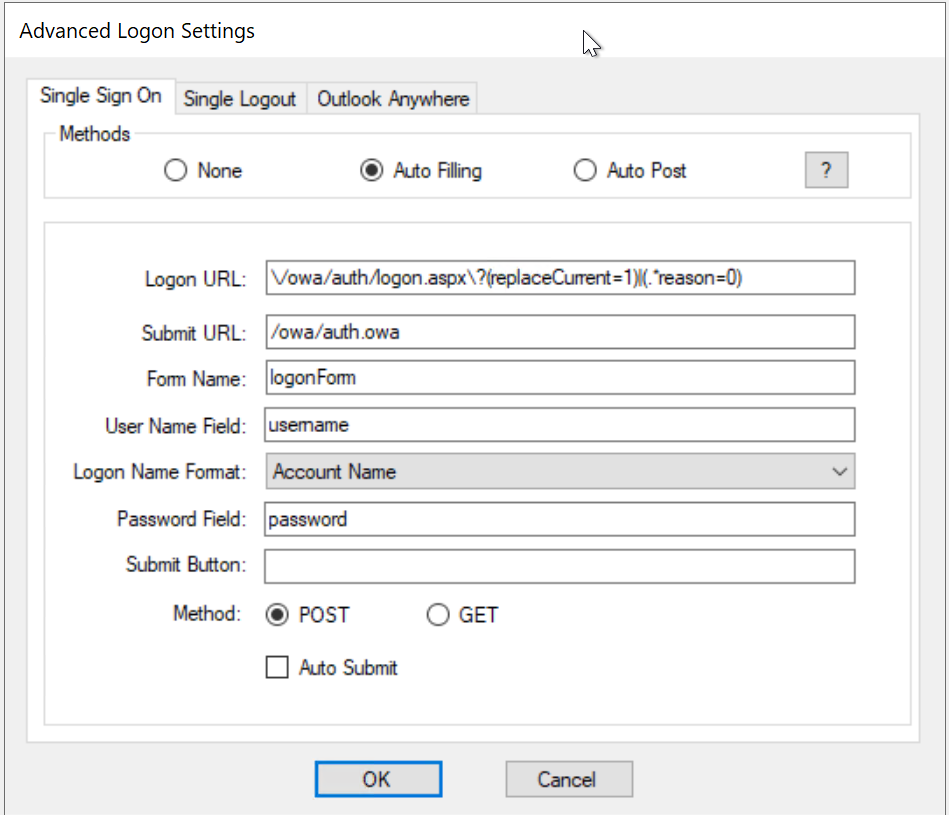
If the web application is one of the pre-configured server types such as OWA, then usually there is no need for any further configuration in this tab apart from ticking the "Auto Submit" option
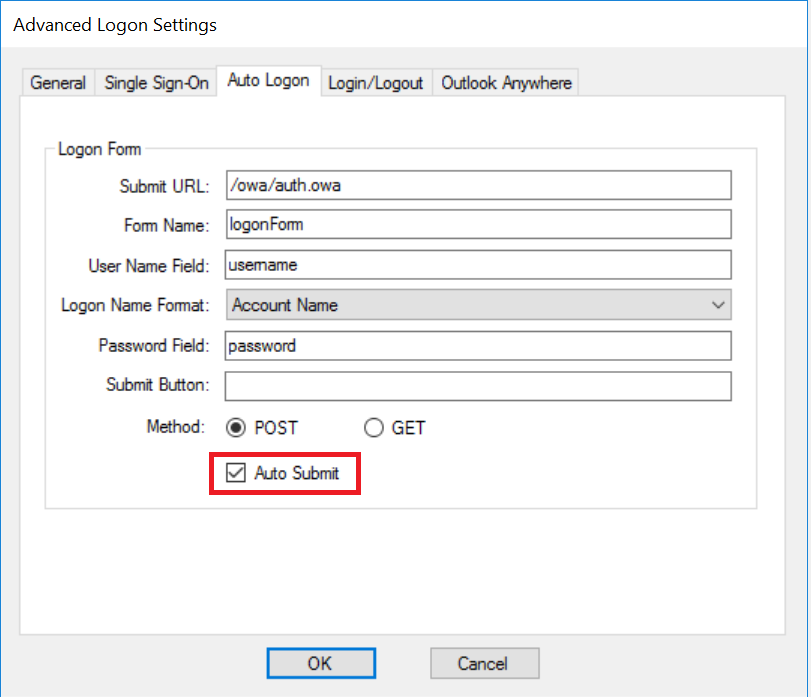
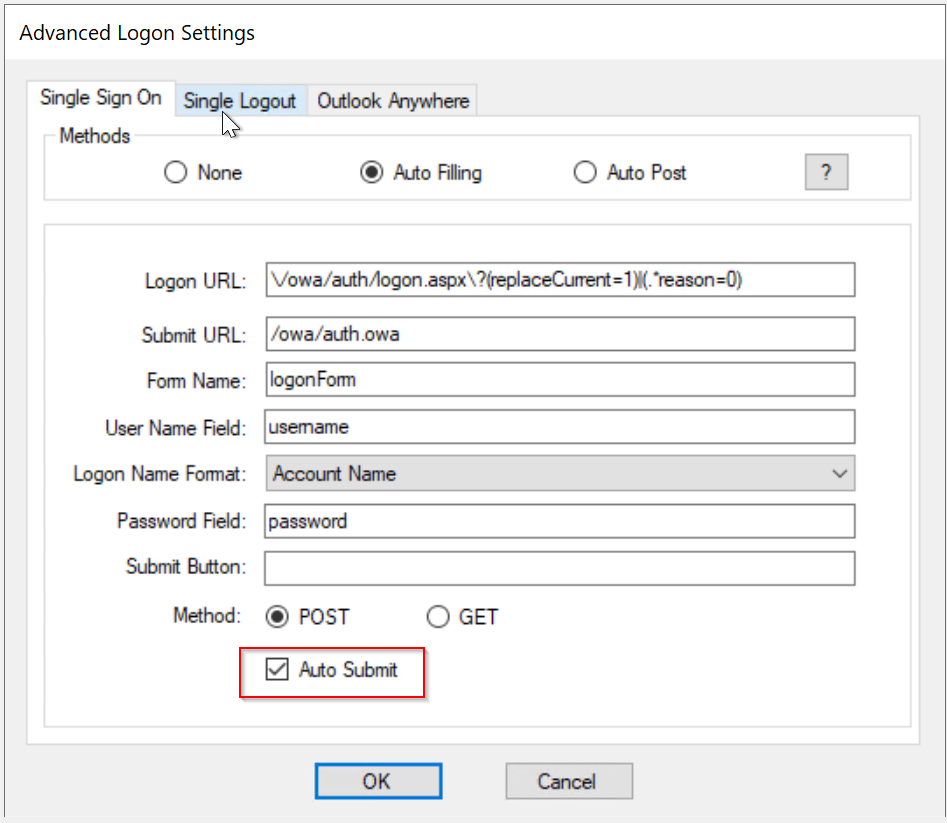
Click "OK" to save settings
...