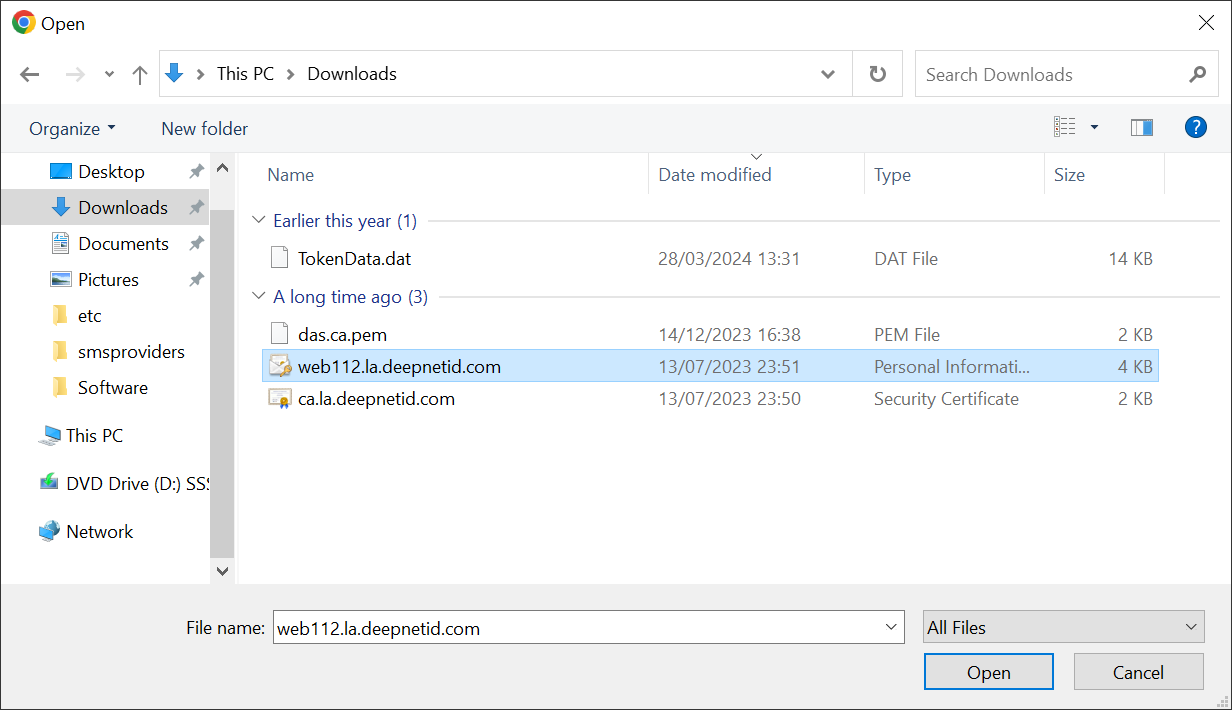
If you already have the PFX file of the new certificate generated from a 3rd-party tool, then please follow the guide below.
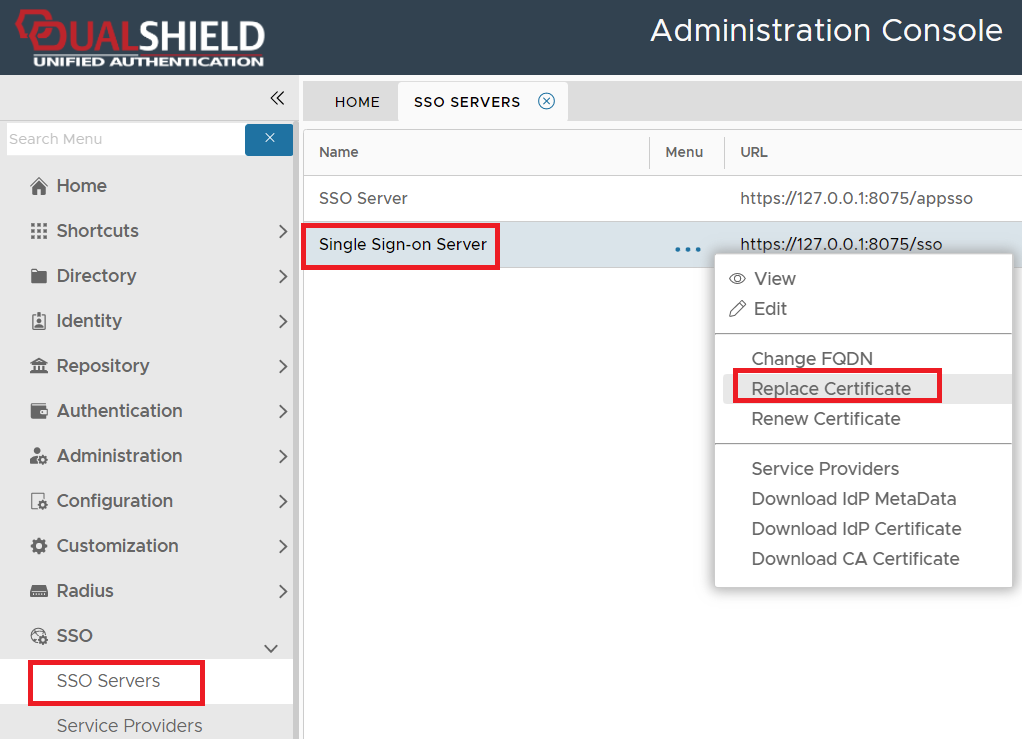
Navigate to "SSO | SSO Servers", click the context menu of "Single Sign-On Server"
Select "Replace Certificate" from the context menu
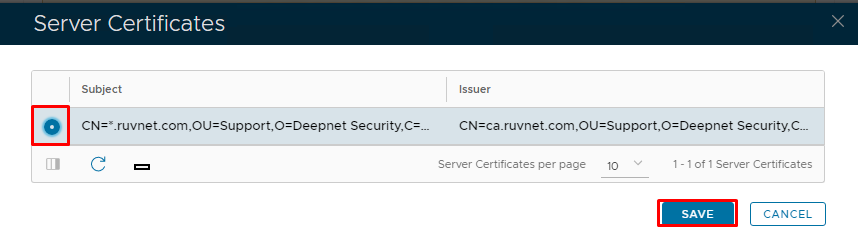
In the The "Replace Console Certificate" dialogue box either select the pfx file of your current commercial certificate (and CA certificates if required), enter the certificate password, and click on "Save".Alternatively, if you already have the certificate under "server certificate" in the Admin Console Repository, then click on "Select Server Certificate" instead, select window will pop up:
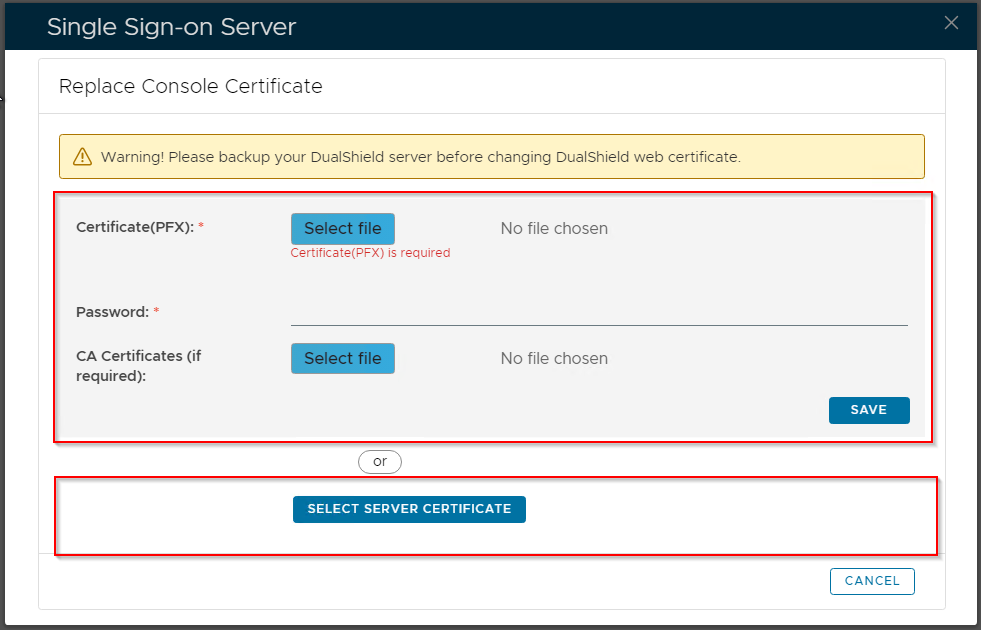
There are 2 options in this window
- Select File
- Select Server Certificate
If you already have the certificate imported into the "server certificate" repository, then click the "Select Server Certificate" option
| Expand |
|---|
Select the correct certificate from the Server Certificate list and click "Save" |
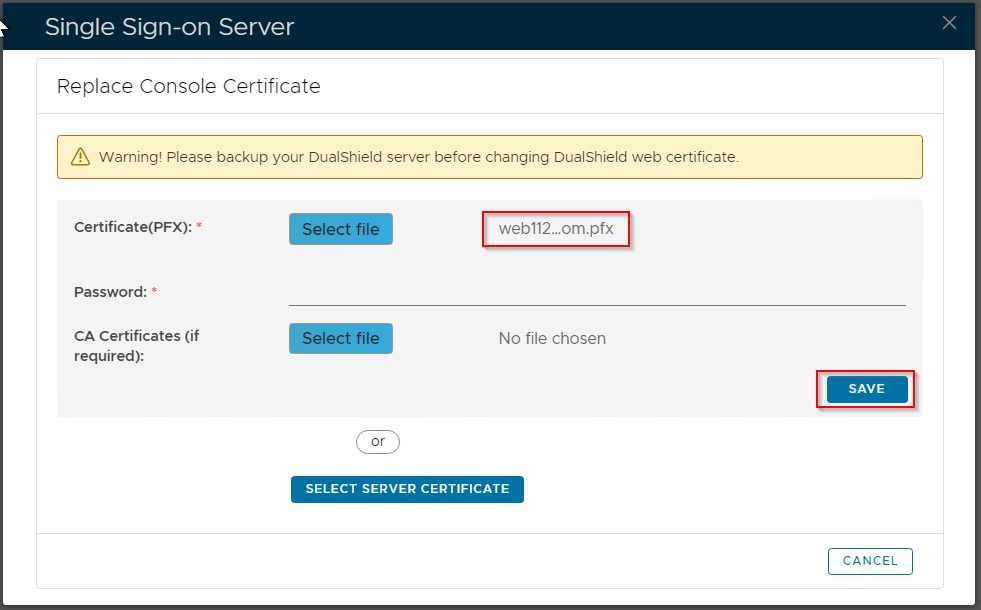
Otherwise, click the "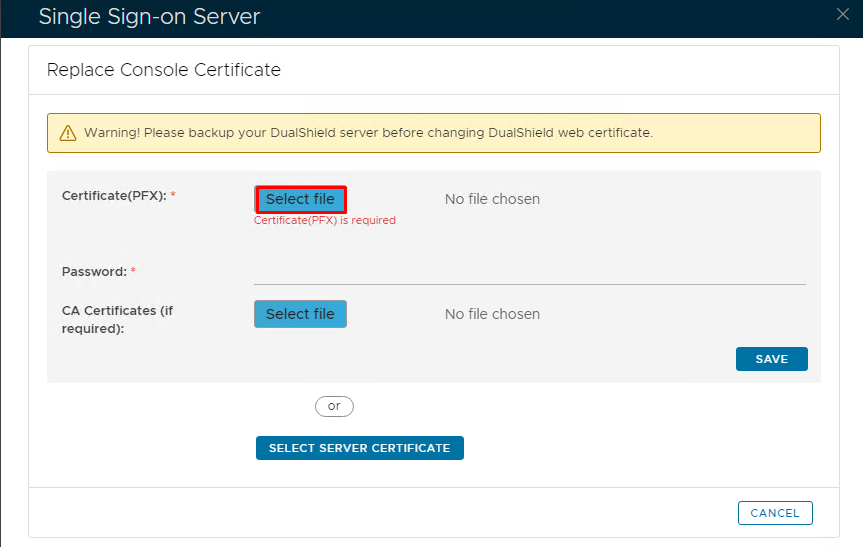 Select File" option to import a new certificate:
| Expand |
|---|
select the certificate to be imported
Then, click the "Save" button |