This instruction is for installing a fresh new instance of the DualShield backend server or an all-in-one server.
| Table of Contents |
|---|
Install DualShield Server
To start the installation, execute "DualShieldSetup64-xxx.yyyy-signed.exe", where xxx is the version number and yyyy is the build number, e.g. "DualShieldSetup64-6.0.0.0228-signed.exe"
...
You may install DualShield on a different drive, in a different folder. However, it is recommeded recommended to use the default drive and folder as suggested, for the sake of simplicity and transparancy transparency in future communications.
| Option 1: All-in-One Server | Option 2: Slim Backend Server |
|---|---|
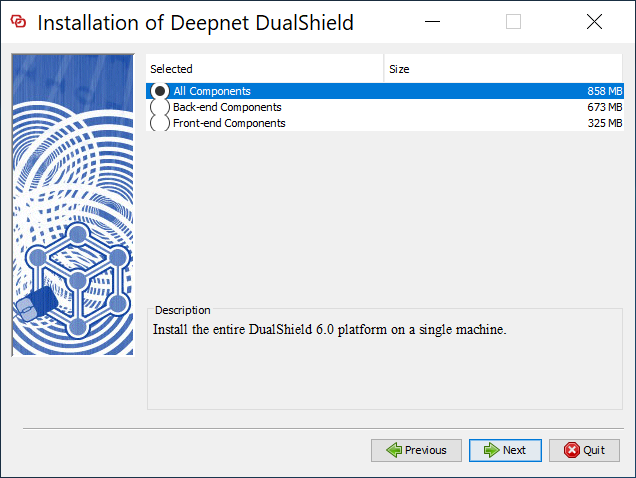
If you want to install a DualShield server that is to be used as both the backend and frontend, then you need to install all of its |
components. Select "All Components" |
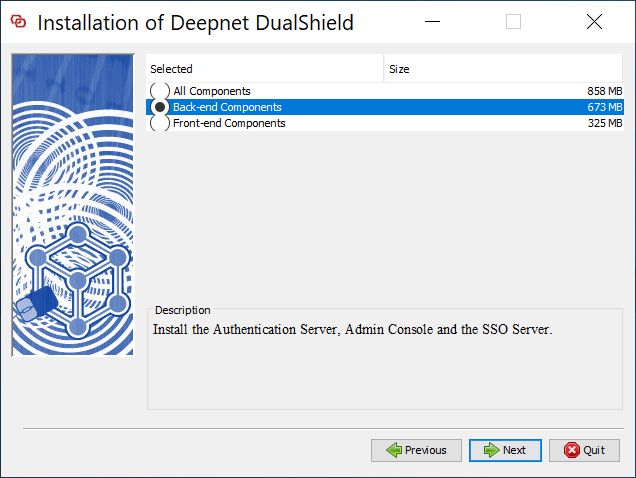
If you want to install a DualShield server as a pure backend server without the end-user services, then you can keep it slim. Select "Back-end Components" |
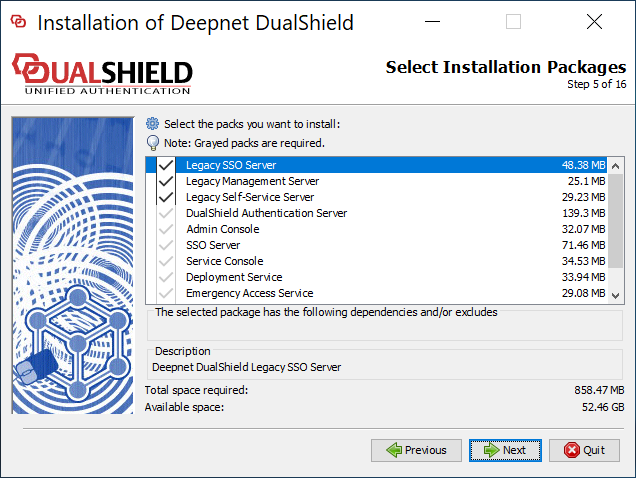
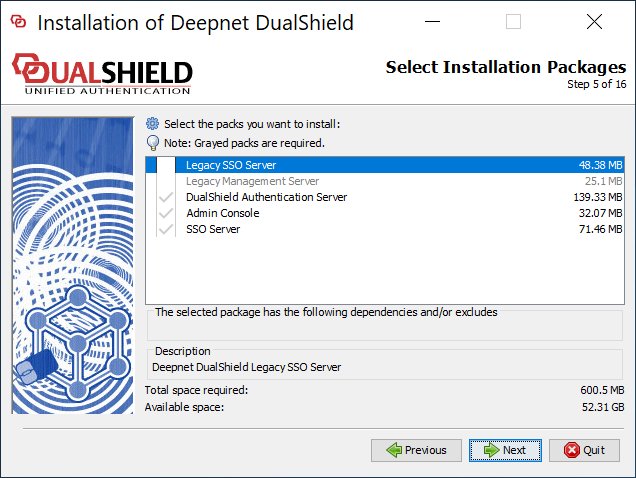
At the present time, the documentation for DualShield 6 is not yet complete. Therefore you might want to include the legacy Management Console so that you can refer to the old documentation if necessary. If you do select |
the legacy management server and/or self-service server, then you must also select the legacy SSO server.
|
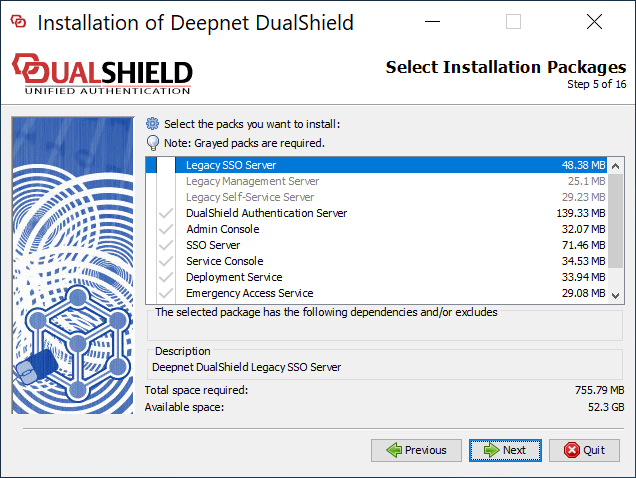
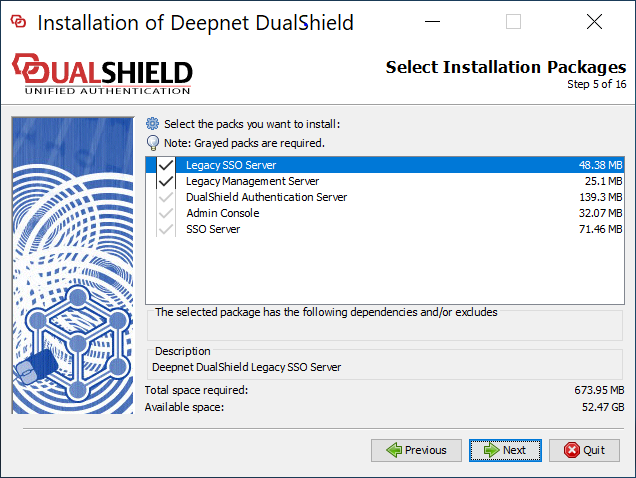
At the present time, the documentation for DualShield 6 is not yet complete. Therefore you might want to include the legacy Management Console so that you can refer to the old documentation if necessary. If you do select |
the legacy management server, then you must also select the legacy SSO server. |
|
| Option | Value |
|---|---|
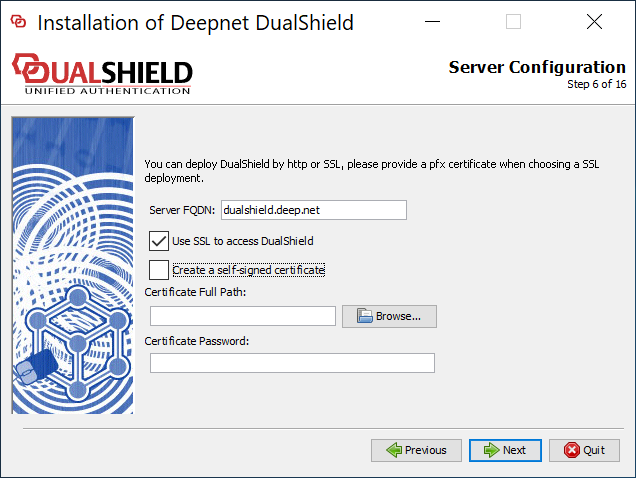
Server FQDN | Enter here the FQDN to be used for this DualShield server |
...
. Please choose the FQDN wisely and correctly, as it would be difficult to change after the |
...
installation.
| |||||||||||
Use SSL to access DualShield | You can install a DualShield without SSL. However, it is highly recommended that you |
...
| select "Use SSL to access DualShield", particularly if this is going to be used as a production server. | |
Create a self-signed certificate | A certificate is to be used for DualShield web consoles and portals. You may use a self-signed certificate, however, it is highly recommended that you should provide a commercial SSL certificate, particularly if this is going to be used as a production server. |
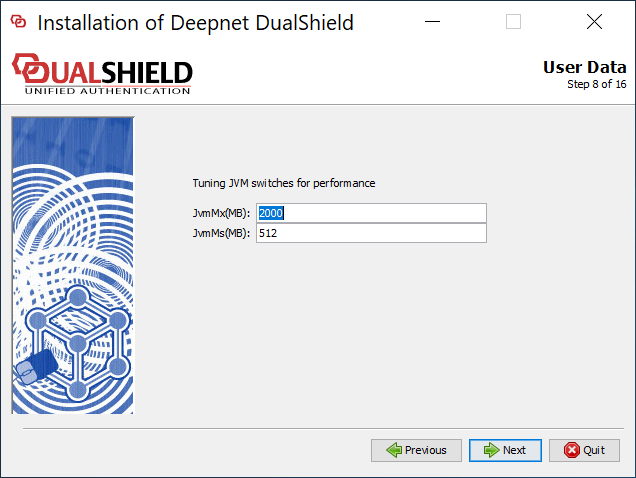
DualShield server is a JAVA application server. It runs in a Java Virtual Machine (JVM).
You can set the maximum memory size (JvmMx) and the minimum memory size (JvmMs) to be used by JVM. If you have a large active user base, then increase both of these values. It is not recommended to reduce them.
Those values can be changed after installation.
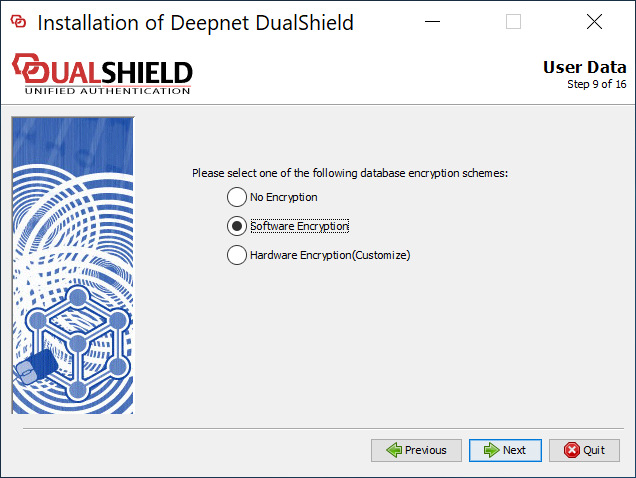
Please select "Software Encryption".
| Option 1: Local/Internal Database | Option 2: Remote/External Database |
|---|---|
DualShield uses a standard SQL database as its data store. If you select "Install a copy of MySQL server", then it will install an instance of MySQL server on the local machine.
| If your organisation has a SQL server, then it is recommended that you use your own SQL server, so that your DBA can manage all databases in one server.
|
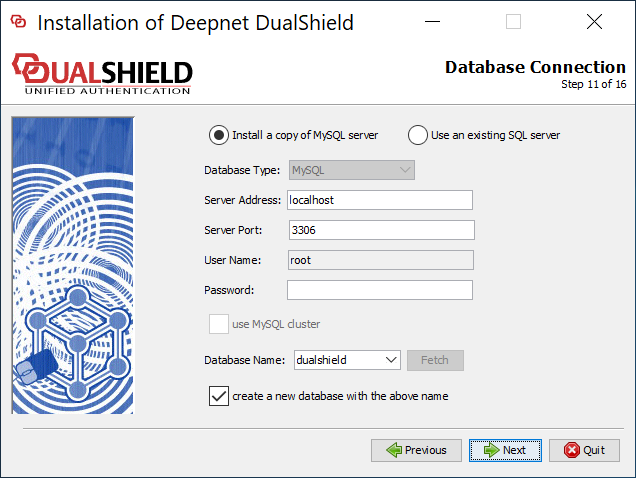
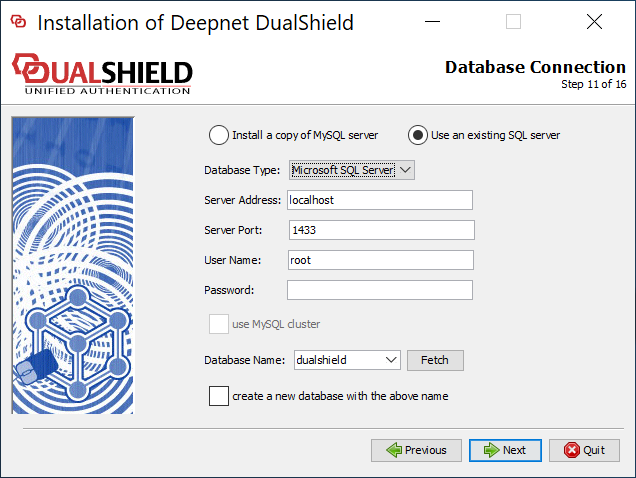
| Option | Value |
|---|---|
| Server Address | The address of the SQL server. You can enter its IP address or hostname. If it is a local SQL server, then keep it as is "localhost". |
| Server Port | The TCP port number of the SQL server. Keep the default value unless you have reasons to change it to a different value. |
| User Name | This is the account name to be used to access & manage the SQL database. |
| Password | This is the account password to be used to access & manage the SQL database. |
| Database Name | This is the name of the database to be used by DualShield. Keep the default name "DualShield" for simplicity and transparency in future communications. |
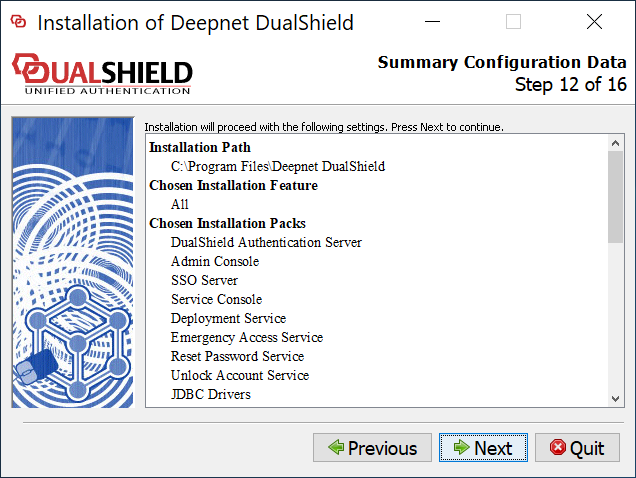
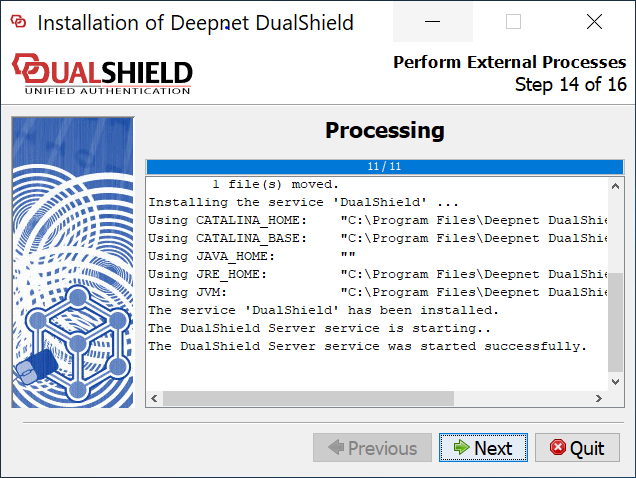
Wait for the DualShield server to be fully loaded
| Include Page | ||||
|---|---|---|---|---|
|
...