The DualShield 6.x Platform includes a certificate service that supports Let's Encrypt.
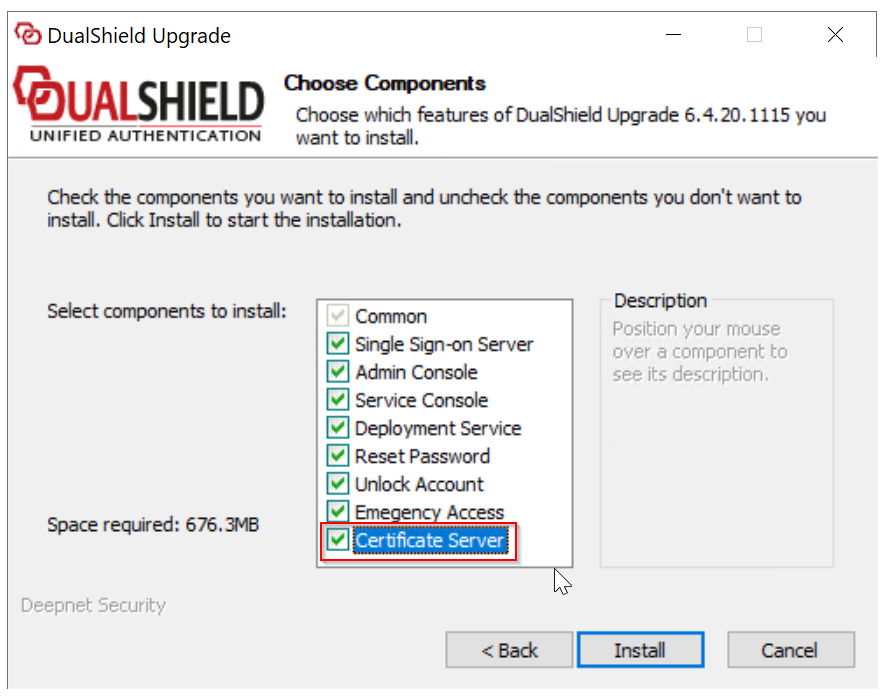
If you are upgrading an old DualShield 5.x server to the latest DualShield 6.x serverare installing a new Front-end DualShield Server, then you must select the "Certificate Server" component in the upgrading installation process (at Step 5):
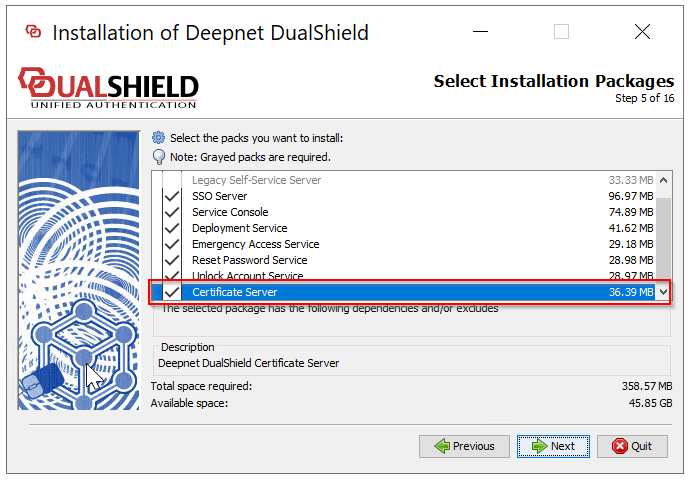
If are installing a new frontend DualShield you are upgrading an old DualShield 5.x / 6.x server to the latest DualShield 7.x server, then you must select the "Certificate Server" component in the installation upgrading process (at Step 5) :
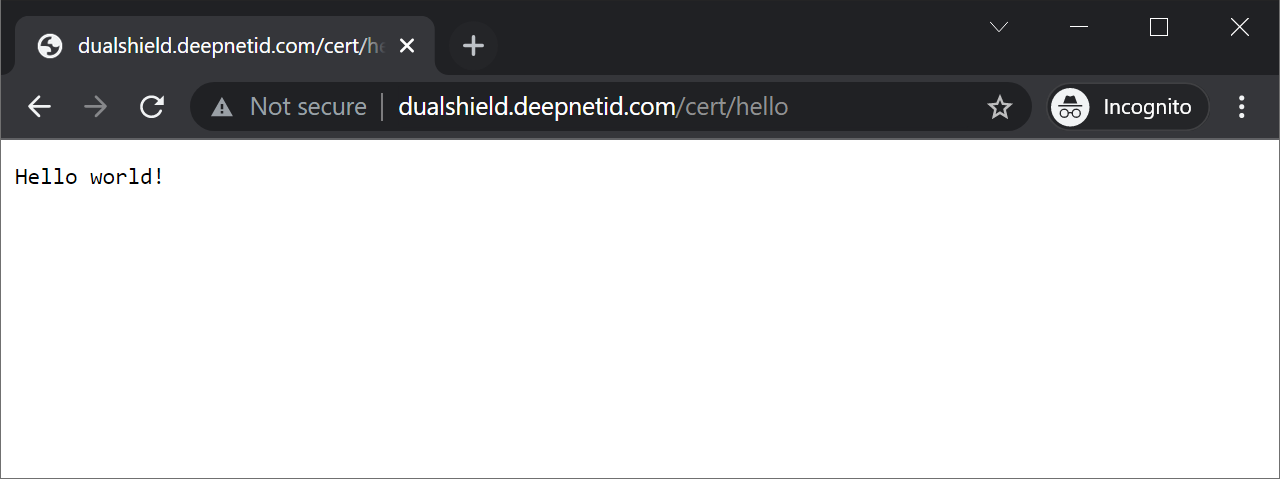
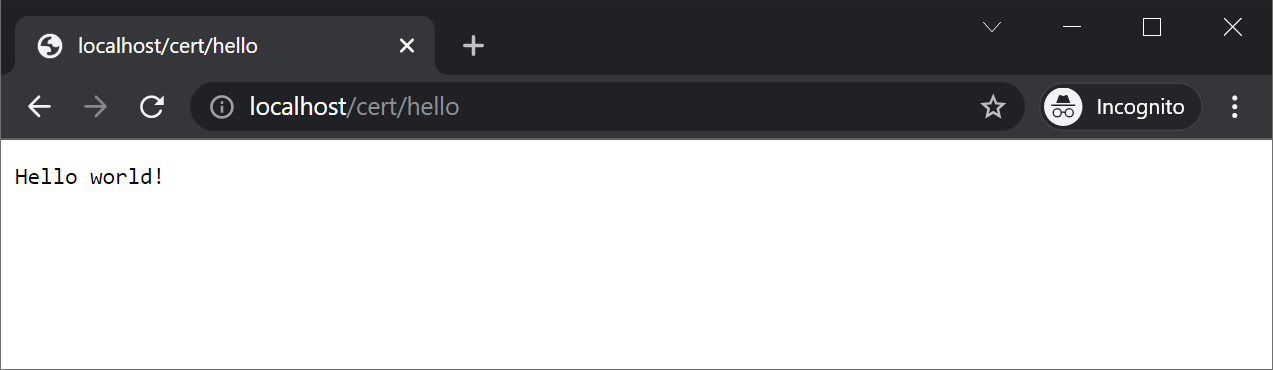
To check if the certificate server is in operation or not, navigate to "http://localhost/cert/hello"
Port 80
Port 443
DualShield will use Port 443 to apply a new certificate from Let's Encrypt, also when renewing an existing Let's Encrypt certificate.
Let's Encrypt requires port 80 to be open when a new certificate is being installed and when an existing certificate is being renewed. A Let's Encrypt certificate is valid for 90 days, which will be automatically renewed on the day it expires.. DualShield will attempt to automatically renew a Let's Encrypt recommends that you should keep port 80 open
https://letsencrypt.org/docs/allow-port-80/
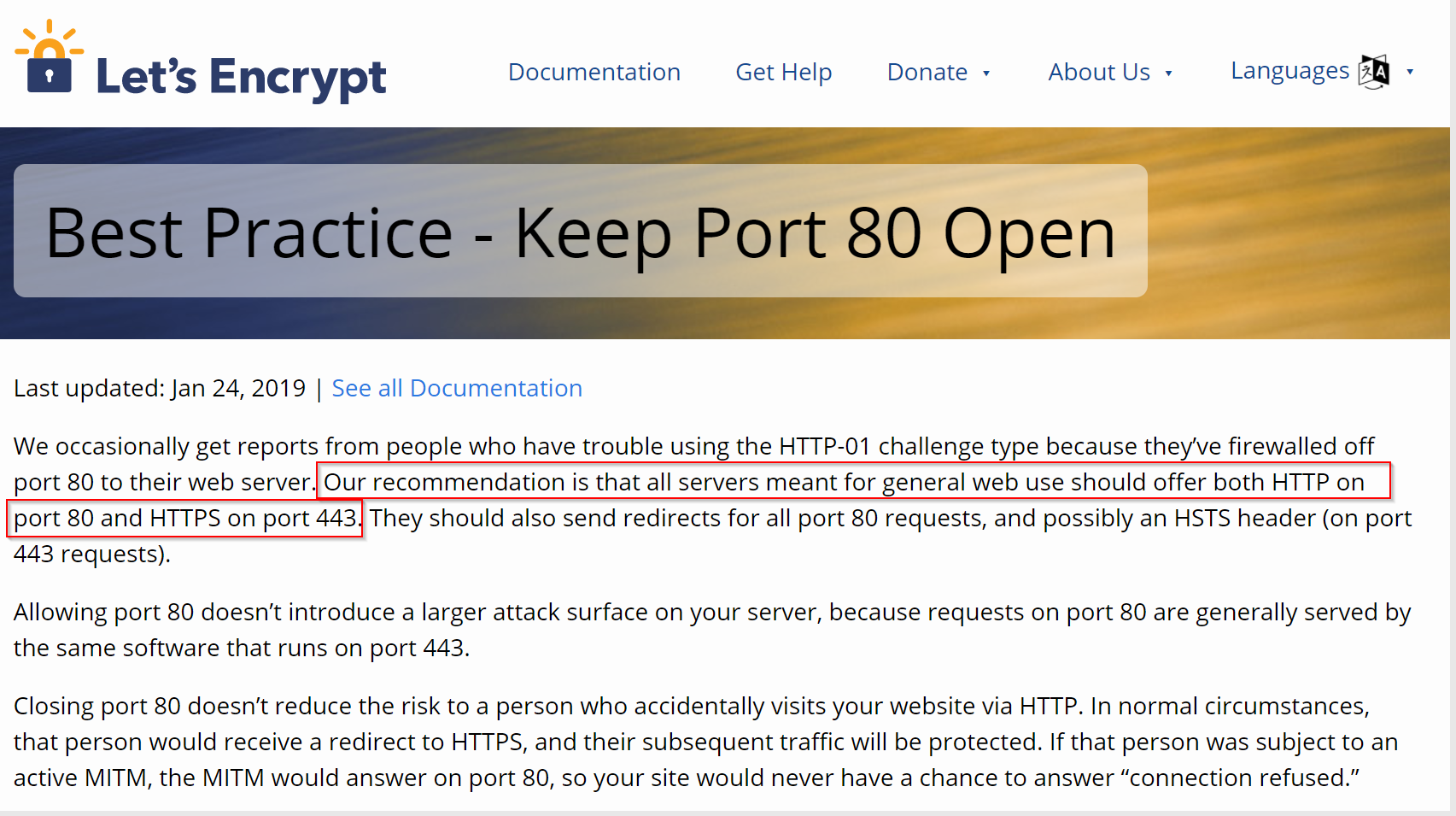
"Allowing port 80 doesn’t introduce a larger attack surface on your server", said Let's Encrypt, "because requests on port 80 are generally served by the same software that runs on port 443."
However, Let's Encrypt only needs to be able to access the /.well-known/acme-challenge/ path. You can configure your firewall to block access to everything else, if you want.
To check if or not port 80 is open to the Internet, navigate to http://your-dualshield-fqdn/cert/hello
certificate days before it expires.
LetsEncrypt Server - Port 443 Conflict
An issue has been identified where a Port conflict will occur, if another process on the same Server is already utilising Port 443.
In this scenario, the Certificate process will fail. This issue is being addressed and will be rectified in an upcoming DualShield Server upgrade.
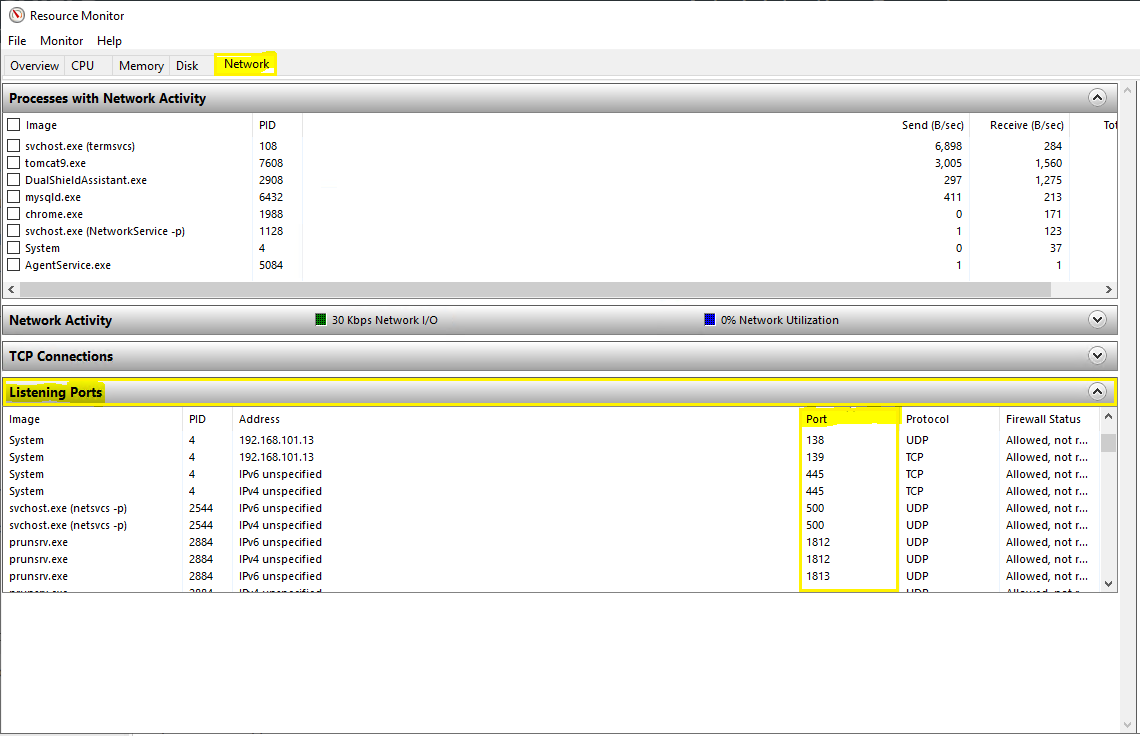
Troubleshooting this issue, you can ascertain what other Process is using Port 443, using 'Resource Monitor' (resmon.exe).
Select the "Network" tab in the main menu, then expand the section named "Listening Ports".
Columns are displayed for both Protocol plus Port number. All running Processes are listed, along with Port in use: