From DualShield Server perspective, Parallels (2X) Remote Application Server (RAS) is an authentication Agent. In order for Parallels (2X) Server to work with DualShield Server, you must register your Parallels (2X) Server with your DualShield Server.
First, enable the Agent Auto Registration function in your DualShield server. In the DualShield Administration Console, navigate to "Authentication | Agents", then click "AUTO REGISTRATION" button in the toolbar.
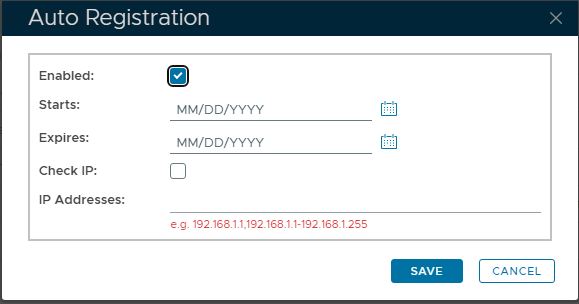
Select the "Enabled" tickbox, to allow registration of Agents.
You can specify a Start and End date, inclusive, where registration would be possible. With no dates specified, the allowance will remain ongoing.
For added security, you can specify the IP Address(es) of the remote system that will register the Agent with DualShield. Preventing any other remote appliance registering automatically.
Finally click "SAVE" to update settings.
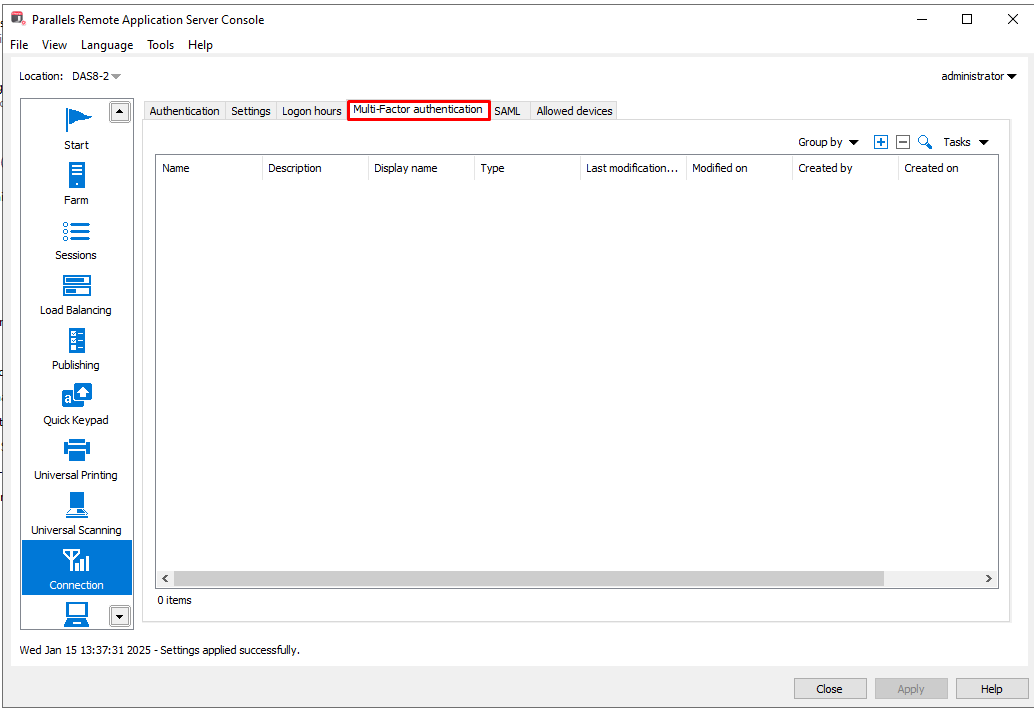
Log in to your Parallels (2X) Remote Application Server Console
- Select "Connection" on the left pane.
- Select the "Second Level Authentication" tab.
- Click on the '+' button on the top right
4. Select Deepnet DualShield from the dropdown
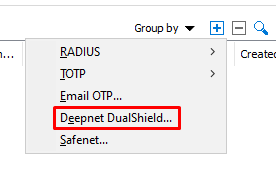
- Click "Settings…".
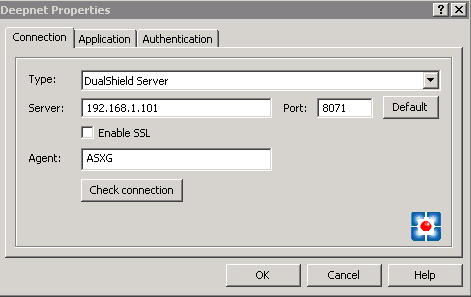
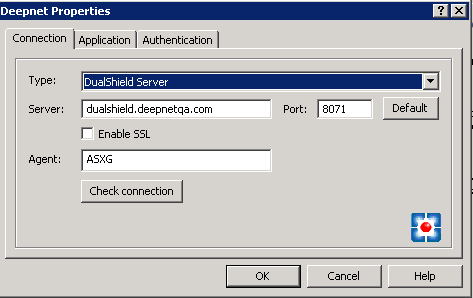
- Select "DualShield Server" on the Type list.
- In the "Server" enter the FQDN or IP of your DualShield Authentication Server.
- Select "Enable SSL" if your DualShield Server is installed to operate on SSL mode.
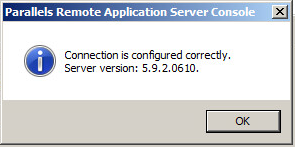
- Click "OK", if all settings are correct then you’ll see the message box below:
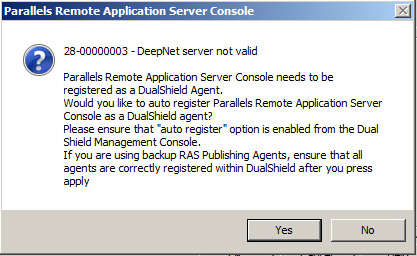
Simply click "Yes", the DualShield 2X Agent will be registered.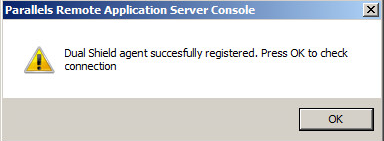
- Click "OK", you will see the following message box: