Setup Netcaler (ADC) Intergration with Xenapps using SAML 2fa Authentication
This document will assume you have already set up storefront (I shall cover setup of Storefront in another document.)
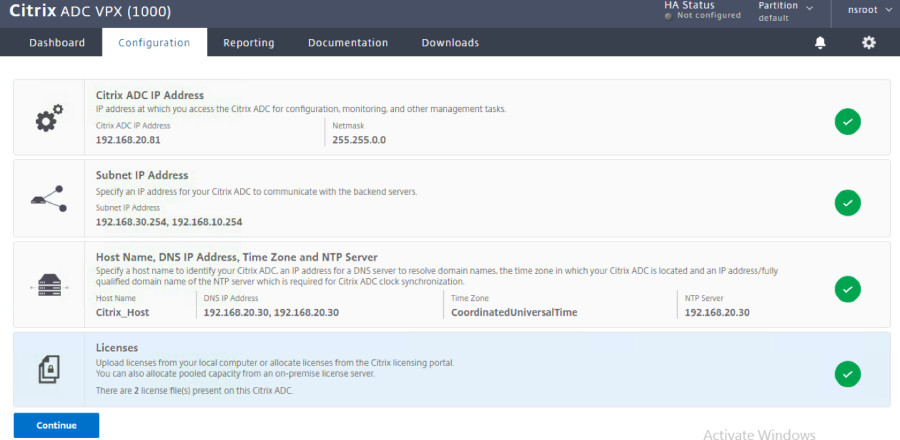
It will also assume you have installed Netscaler(ADC) appliance and done initial configuration in terms of, licensing, ip, subnet, hostname etc:
CA and server certificates.
Because the Microsoft Certificate Server is known to Active Directory the trusted CA certificate is automatically installed on all domain-joined systems. The engineers then have to manually add the trusted CA certificate to non-domain-joined systems including domestic PCs, thin clients, tablets and smart phones
On the Microsoft Certificate Server (Usually the domain controller)
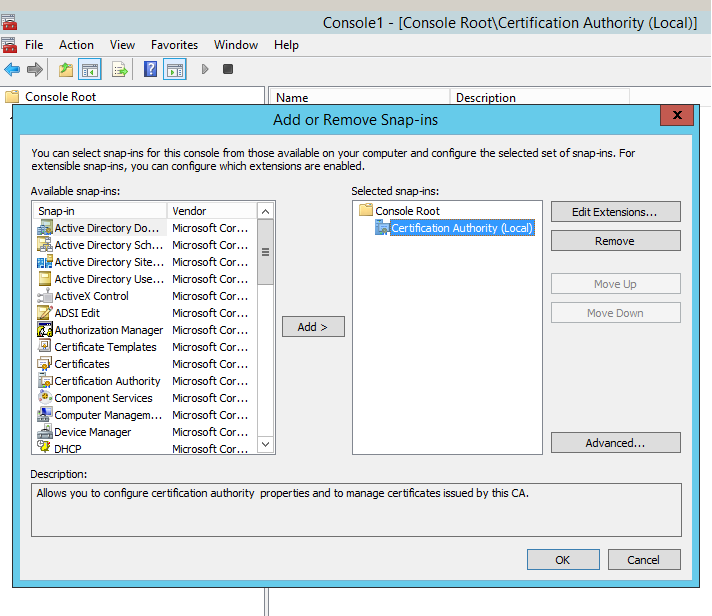
1. Run mmc and load the Certification Authority Snap-in.
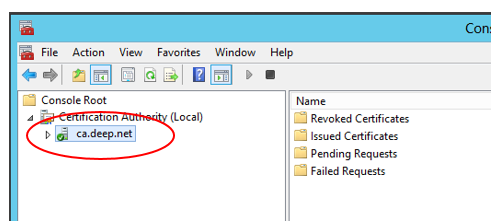
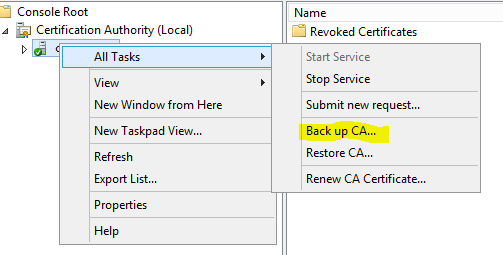
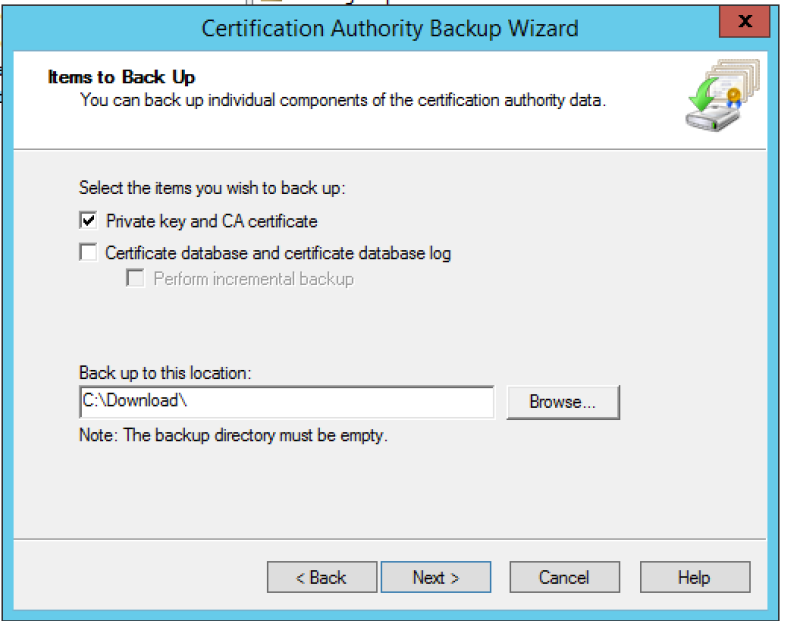
2. Right click the authority > All Tasks > Back up CA.
3. Back up the Private key and CA certificate to a convenient location.
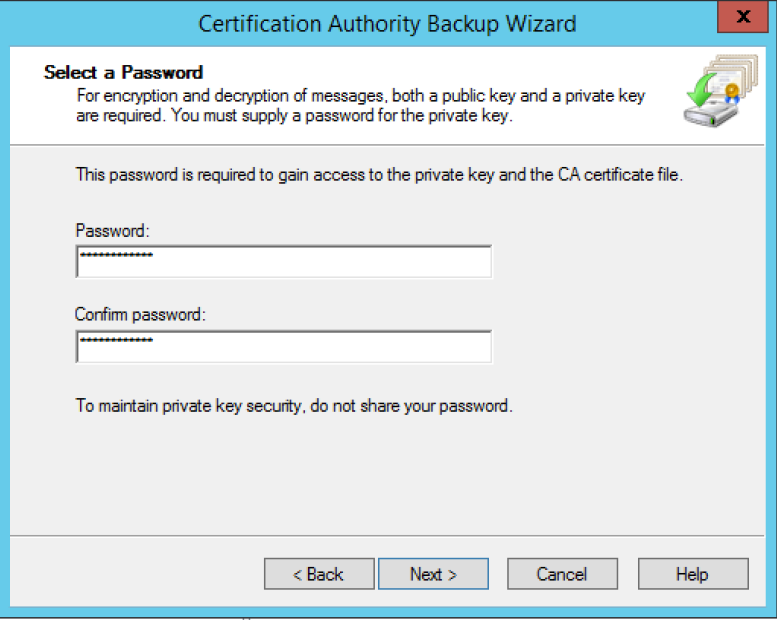
4. Create a password.
5. Click Next.
6. Click Finish.
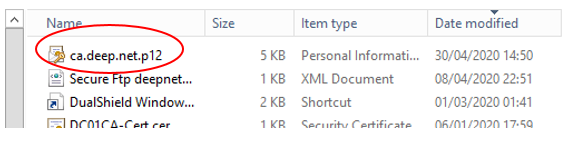
The backup creates a .p12 file with the name of your Certificate authority.
On the NetScaler GUI
To import the backed up key and certificate, complete the following steps:
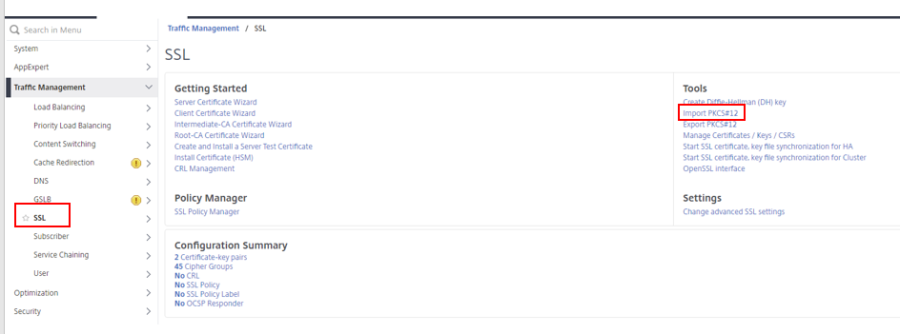
1. Go to Traffic Management > SSL > Tools > Import PKCS#12.
2. Output file name is xxxxx.pem in the /flash/nsconfig/ssl folder on the appliance. PKCS12 File is the p12 backup file created.* Password is the password used during the backup
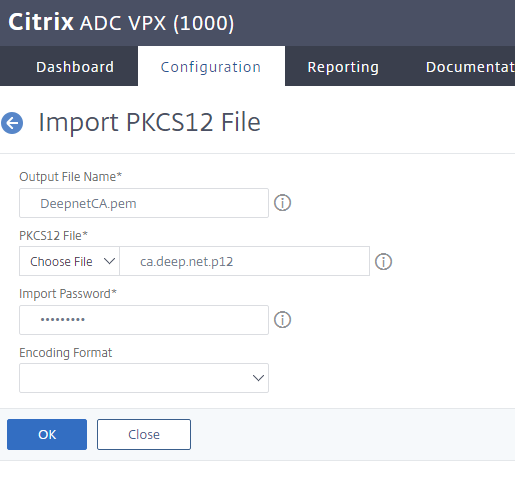
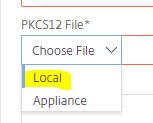
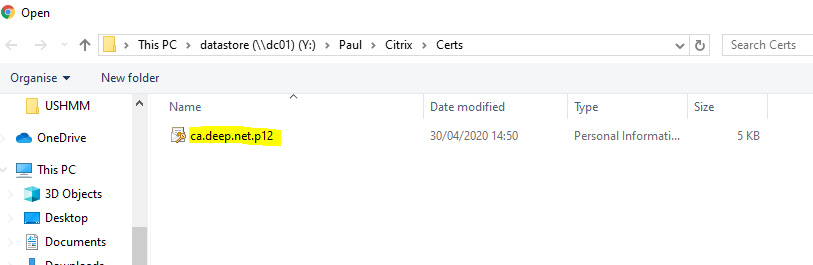
*NOTE: By using the dropdown arrows where it says Choose File, it is possible to read the .p12 file from the local PC/Server where you did the Backup.
Install the CA certificate
Install the CA certificate if you want to use SSL to communicate from the NetScaler Gateway to your StoreFront.
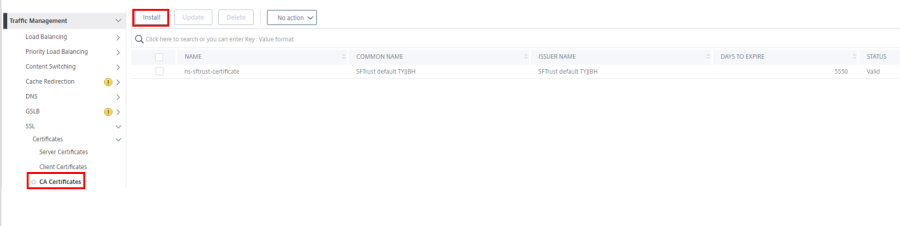
1. Go to Traffic Management > SSL > Certificates > CA Certificates.
Click on Install at the top
Type in the a name for the key-pair.
For the certificate file name, I found I had to select the p12 file I had saved locally.
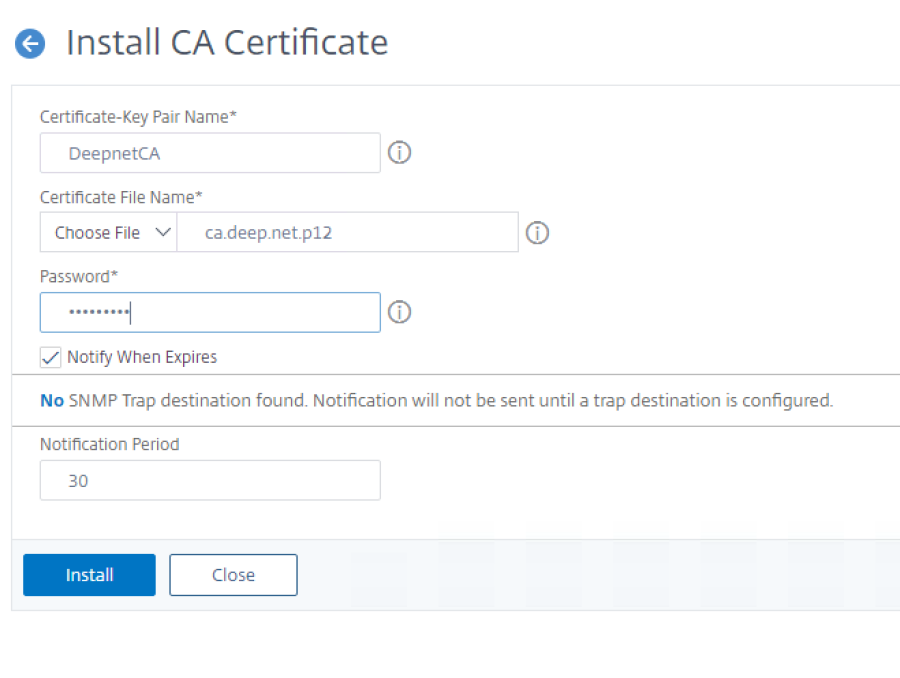
Click on Install
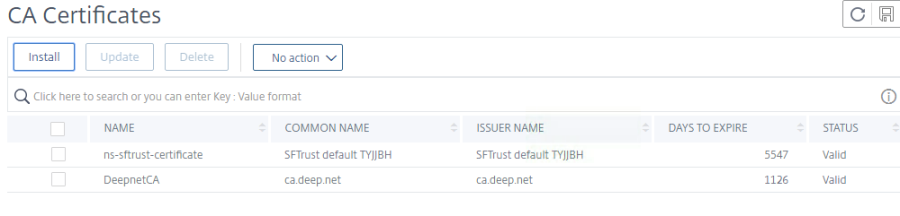
Create the server certificate
To create the server certificate, complete the following steps:
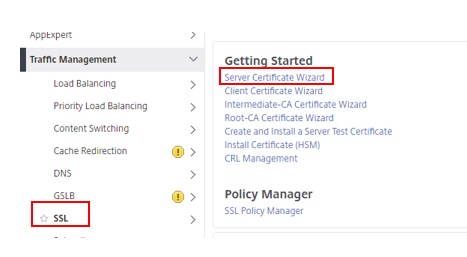
1. Go to Traffic Management > SSL > Getting Started > Server Certificate Wizard.
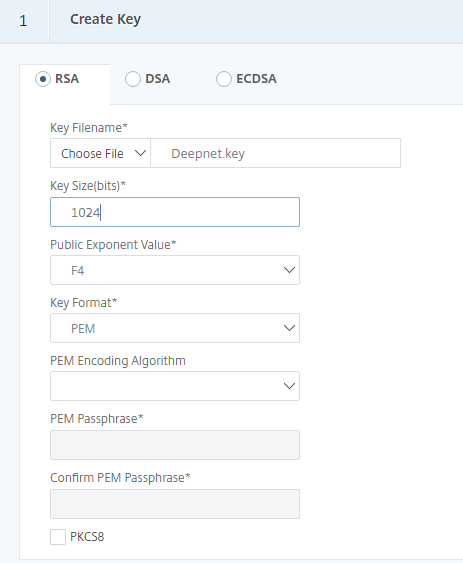
First part gets you to create an RSA encryption key.
For my test setup I left the Public Exponent Value and Key format as the defaulted F4 and PEM.
For the CSR I left Key Format defaulted to PEM and Digest Method as SHA1
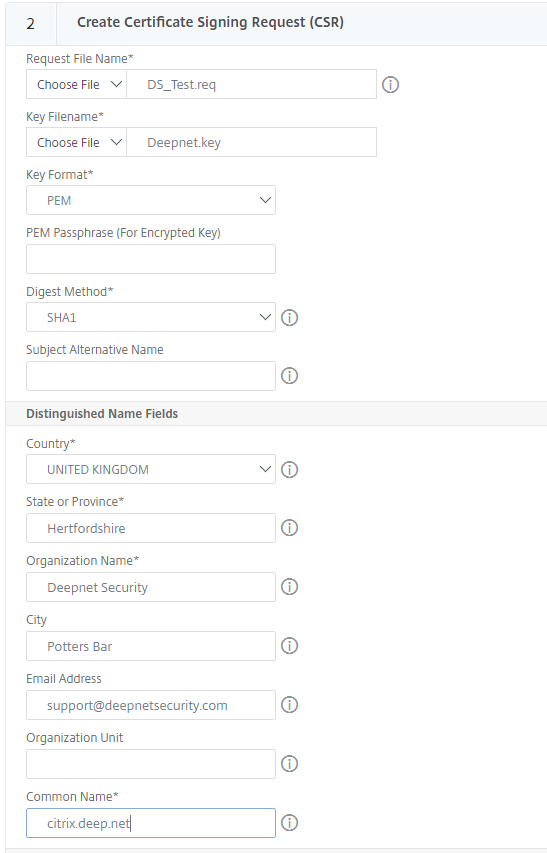
The common name will be the same as the FQDN for the Citrix Gateway name
Here I left the Key Format and Validity Period as Defaults
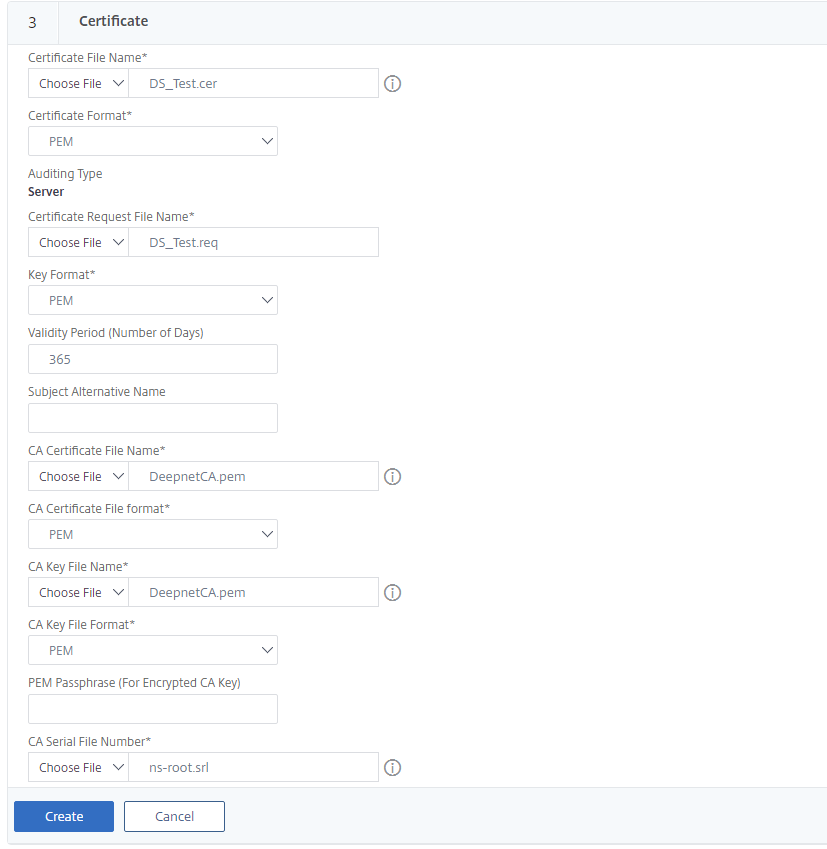
For Serial Key File Format browse appliance for ns-root.srl
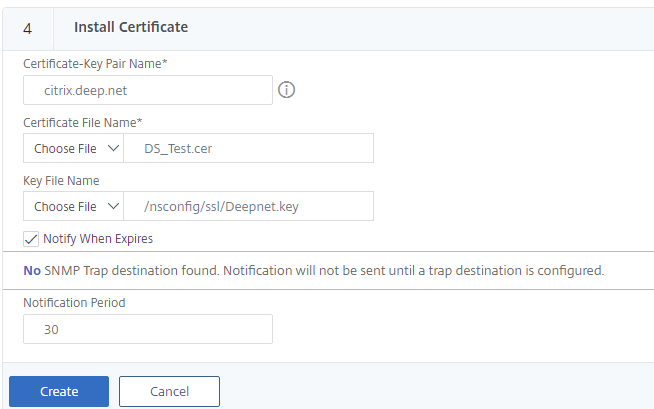
If you get the green tick it means you have installed the Server certificate successfully
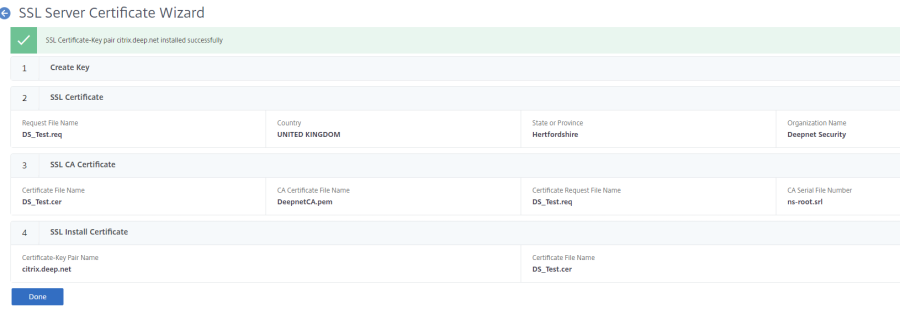
You can check for it under Traffic Management > SSL >Certificates > Server Certificates

Setup Citrix Gateway for integration with Storefront.
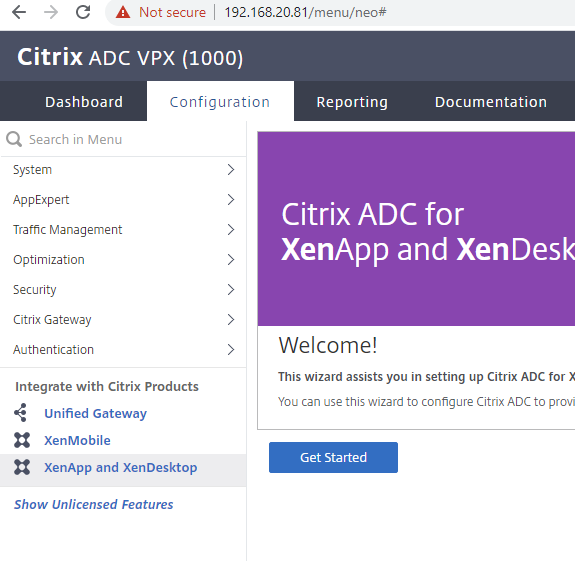
Select XenApp and XenDesktop, and click on Get Started
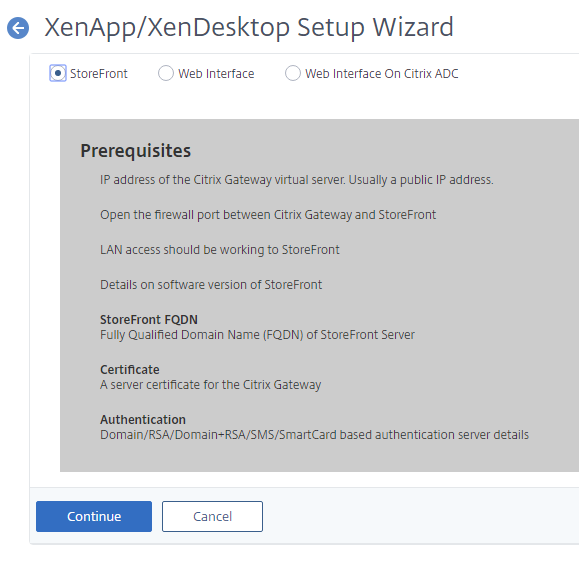
Select Storefront at the top of the Setup Wizard Page:
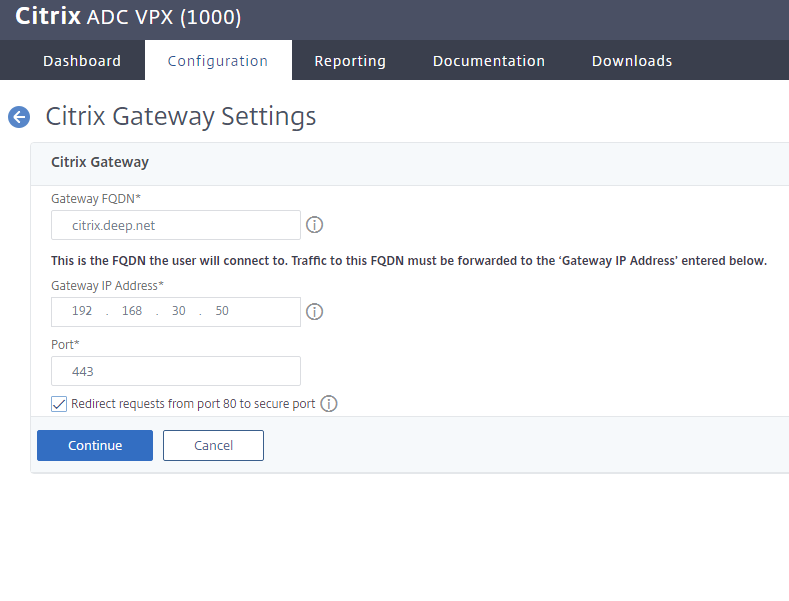
Type in the FQDN and IP address of your Citrix Gateway: (Also add this to your DNS records)
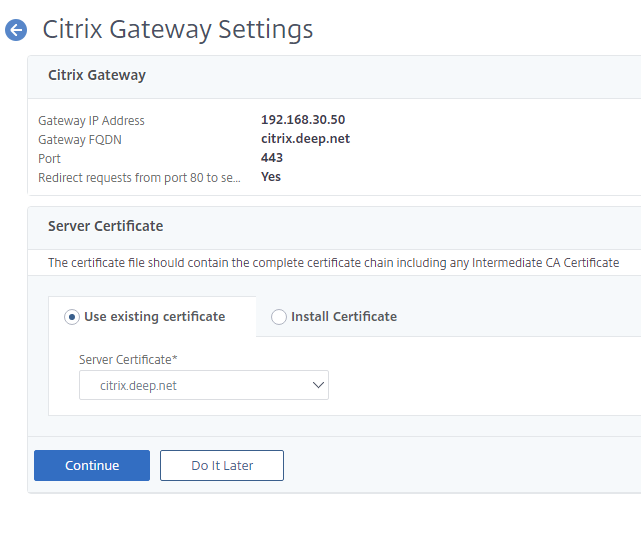
Select the Server certificate you created (in previous chapter) or one you have installed.
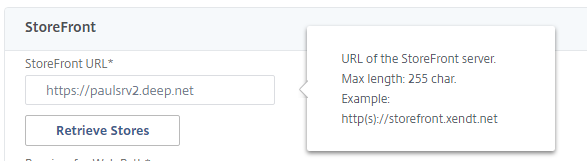
Next you will be ask for the details of your Storefront Server:
You only need to specify FQDN for the server at this point
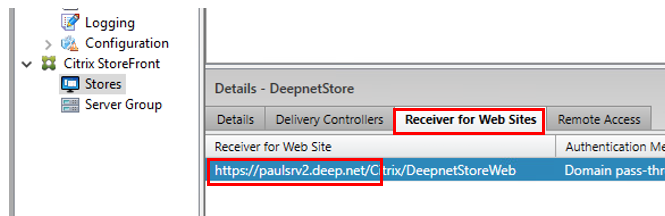
You can check the FQDN of your Storefront server under Stores > Receiver for websites on you Citrix StoreFront GUI.
Click on Retrieve Stores.
If you are presented by this error message..

Then you will need to enter the web path manually. Again you can get this information from here:
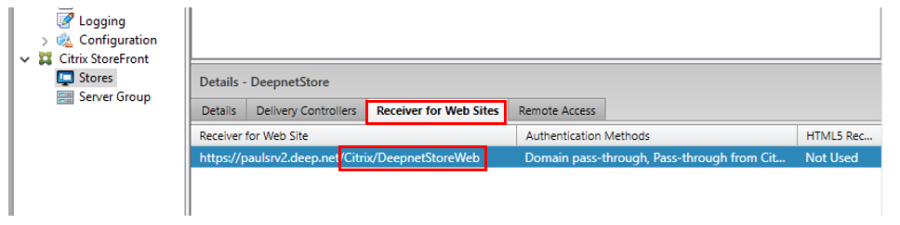
And enter under Receiver for Web Path
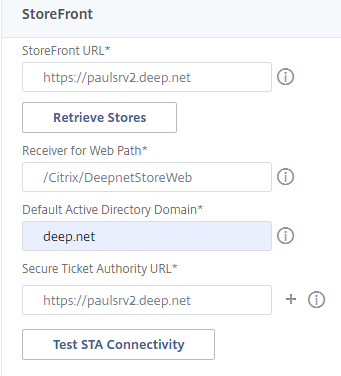
The Secure Ticket Authority (STA) is an XML web service that exchanges XenApp server information for randomly generated tickets. It is used to control access for a Citrix Secure Gateway server.
Click on Test STA.

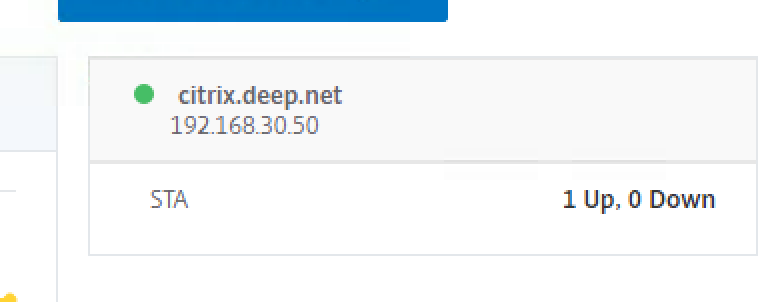
The STA (Secure Ticket Authority) status should show as should show as up.
Troubleshooting STA
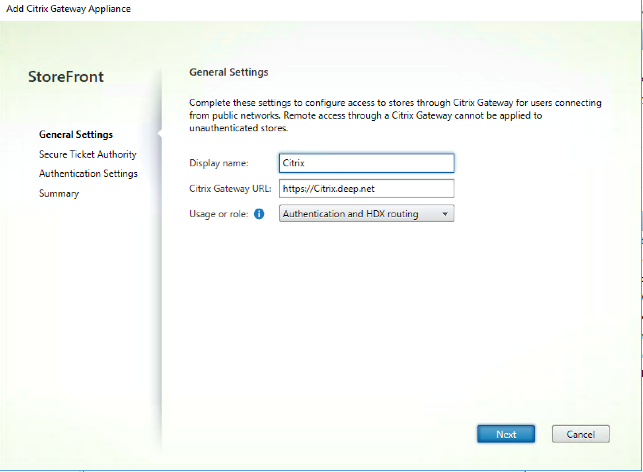
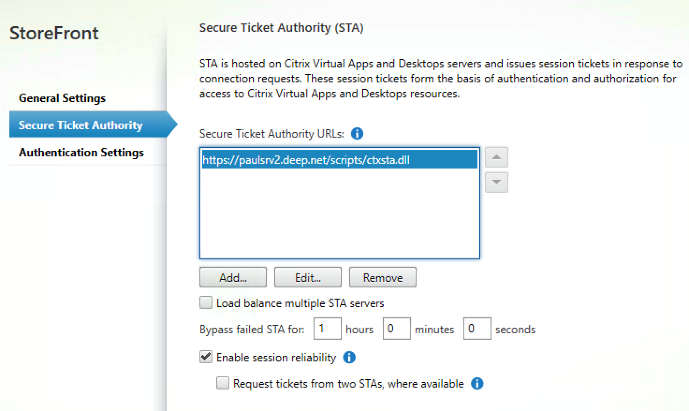
If the STA status is showing as down, check your STA server (This is the same server as your delivery controller) is up. Also check the Manage Citrix Gateway, on your Storefront GUI is configured correctly
Check the Gateway FQDN is correct,
Make sure the URL for the STA server is also correct.
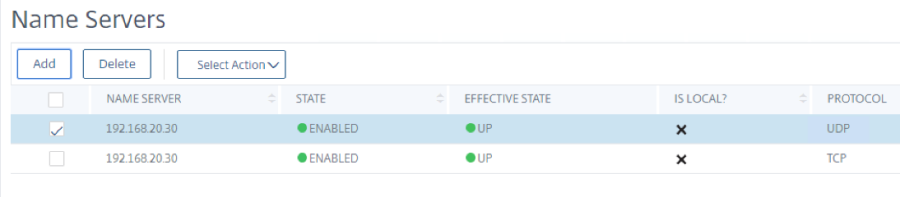
And make sure you have correctly specified DNS Name server correctly on the ADC
Next you will be asked for the Authentication server details. This will usually be your domain controller details.
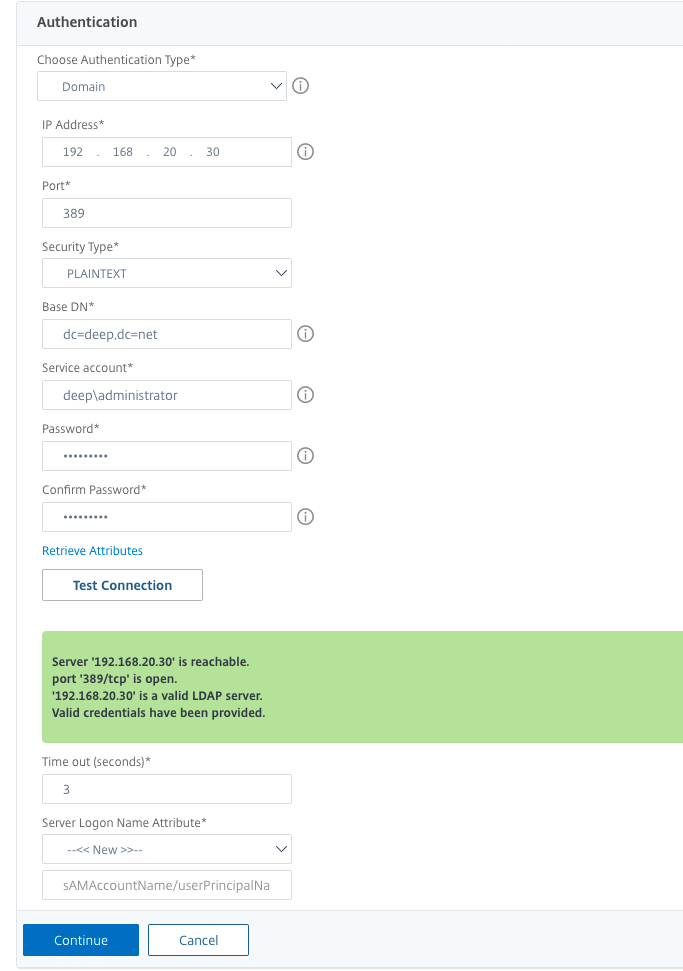
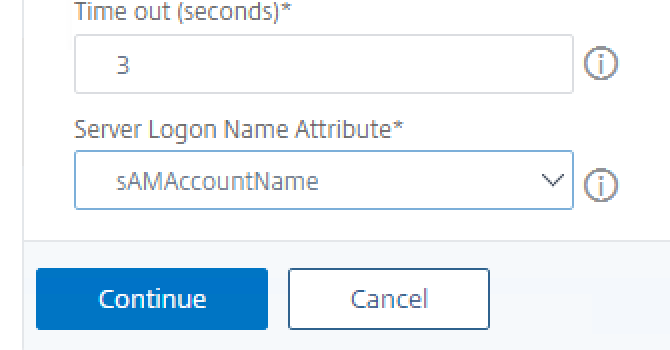
Remember to test the connection to your LDAP server
Also set the Server Logon Name Attribute as sAMAccountName:
And your Citrix Gateway Virtual server should be up and running.
Bind the CA certificate to the Citrix Gateway Virtual Sever
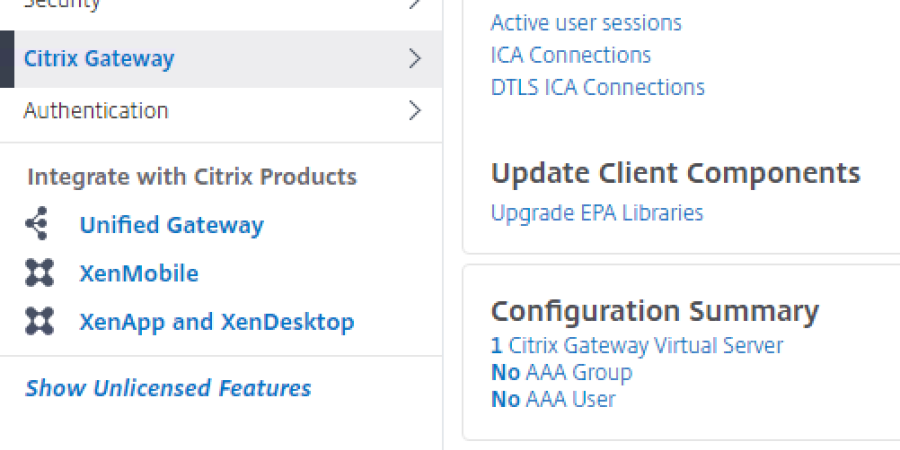
Click on Citrix Gateway and then Citrix Gateway Virtual Sever:
Click on the Virtual Server to edit:
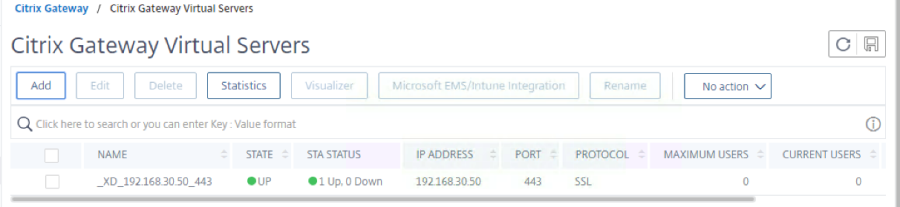
This will take you to the virtual server edit screen.
From here Locate Certificate

The server certificate is showing but not the CA
Click No CA Certificate.
Click on Add Binding:

Click to select CA Certificate:
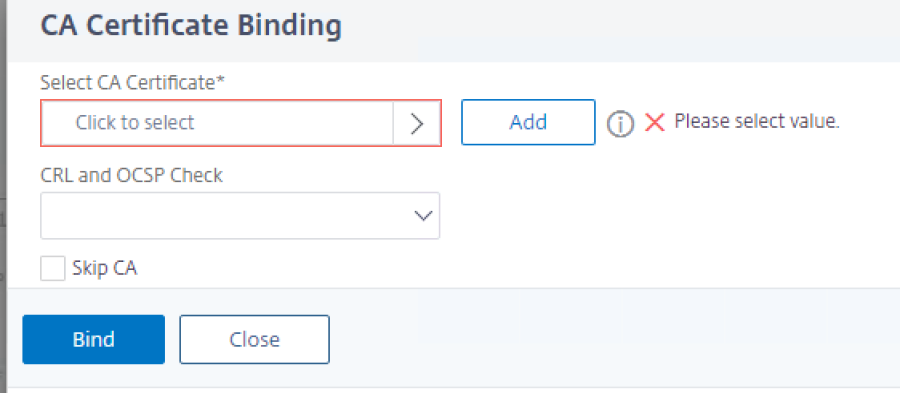
And choose the CA certificate that we installed earlier:
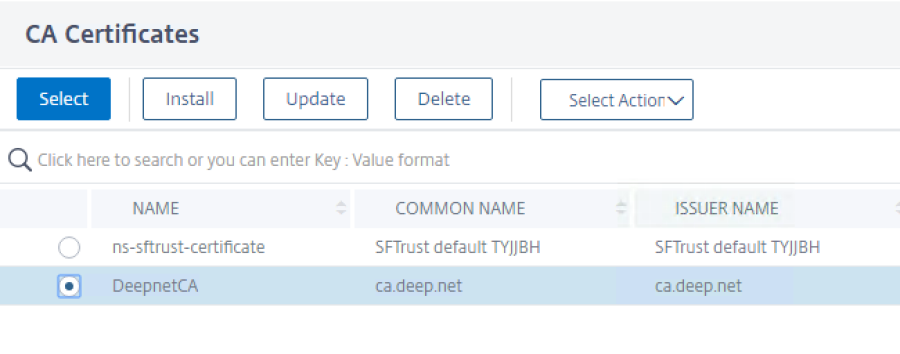
And then Click on Bind:
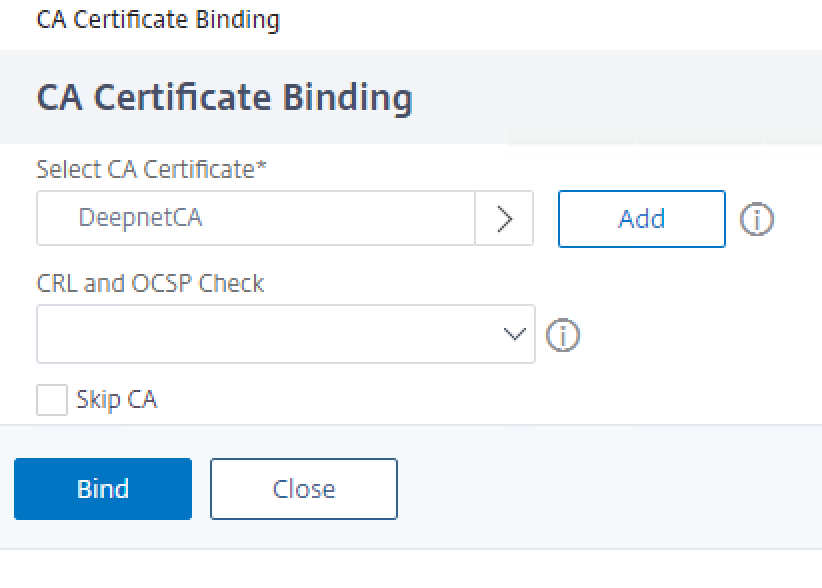
With the CA cert now bound to the virtual server, click on Done at the bottom of the edit page.
Pre DualShield Test
Before adding DualShield authentication, methods, lets makesure you are able to access your Xenapps via Citrix Gateway access alone.
Simply launch a browser and type in the FQDN address of the Citrix Gateway server.
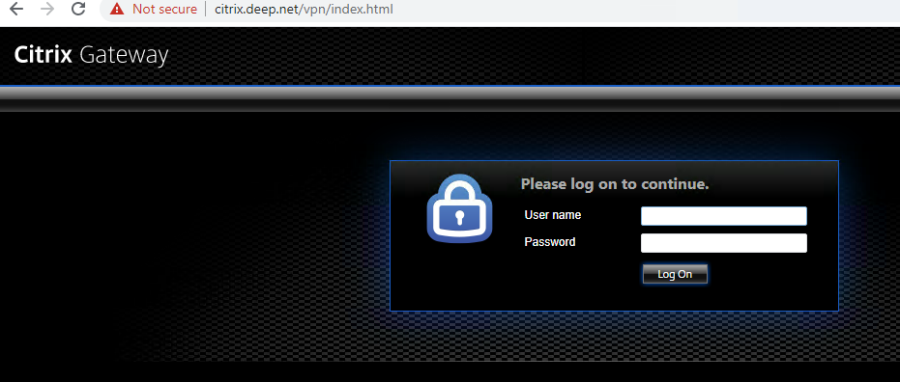
Logon using your usual windows username and password.
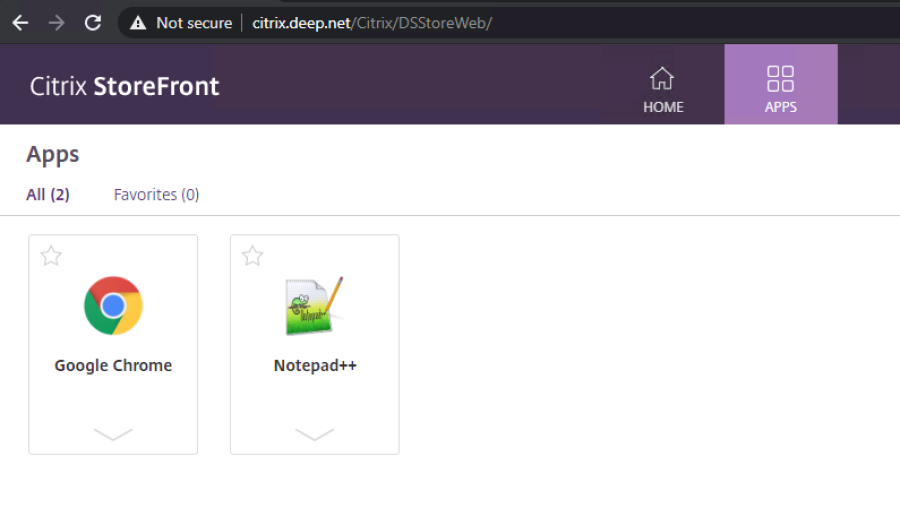
And there we have it. You can see the Citrix Gateway URL in the address bar, followed by the receiver for web path.
Configuring 2fa using DualShield SSO with SAML authentication
Part 1: Initial configuration on the DualShield Administration Console.

Overview
Content Tools