Download IdP Metadata
In your DualShield console, select "SSO | SSO Servers".
Click the context menu of the SSO server, then select "Download IdP Metadata"
Save the IdP Metadata to a file, eg. "dualdshield-idp-metadata.xml"
Enable SAML
Copy the script below into a text editor: (or click setup-federation.ps1 to download)
OFFICE-365-SAML-WSFED
If ($args.Count -lt 3)
{
     Write-Host "Usage: setup-federation.ps1 <protocol> <domain> <metadata file>"
     Write-Host ""
     Write-Host "protocol: WSFED or SAMLP"
     Write-Host "domain: the domain name of your Office 365"
     Write-Host "metadata file: the file name of the IdP metadata"
     Exit
}

IF (($args[0] -ne "WSFED") -and ($args[0] -ne "SAMLP"))
{
     Write-Host "protocol must be WSFED or SAMLP"
     Exit
}

#read xml file, make sure the correct path.
$metaxml = [xml](get-content $args[2])

IF ($metaxml -eq $null)
{
     Write-Host "The file " $args[2]  " doesn't exist!"
     Exit
}

$IssuerUri = $metaxml.GetElementsByTagName("md:EntityDescriptor").item(0).GetAttribute("entityID")
IF ($args[0] -eq "SAMLP")
{
   #for the SAML passive profile url, we're extracting it from the metadata
   $PassiveLogOnUri = $metaxml.GetElementsByTagName("md:SingleSignOnService").item(0).GetAttribute("Location")
}
ELSE
{
   #for the WSFED passive profile url, you have to enter it manually
   $PassiveLogOnUri="https://your-dualshield-FQDN:8074/appsso/wsfed/login/kvps/DASApplicationName/your-application-name/SPName/your-sp-name"
}
$LogOffUri = $metaxml.GetElementsByTagName("md:SingleLogoutService").item(0).GetAttribute("Location")

$SigningCertificate = $metaxml.GetElementsByTagName("ds:X509Certificate").item(0).InnerXML
$SigningCertificate = $SigningCertificate.replace("`n","");
$SigningCertificate = $SigningCertificate.replace("`r","");

#for the active profile url, you have to enter it manually
$ActiveLogonUri = "https://your-dualshield-FQDN:8074/appsso/ecp/login/kvps/DASApplicationName/your-application-name/SPName/your-sp-name"
$FederationBrandName = "Deepnet Security"

#Write-Host $IssuerUri
#Write-Host $PassiveLogOnUri
#Write-Host $LogOffUri
#Write-Host $SigningCertificate

#change back to managed first
Set-MsolDomainAuthentication -DomainName $args[1] -Authentication Managed
#now federated
Set-MsolDomainAuthentication -DomainName $args[1] -FederationBrandName $FederationBrandName -Authentication Federated -PassiveLogOnUri $PassiveLogOnUri -ActiveLogOnUri $ActiveLogonUri -SigningCertificate $SigningCertificate -IssuerUri $IssuerUri -LogOffUri $LogOffUri -PreferredAuthenticationProtocol $args[0]

#verify the settings
get-MsolDomainFederationSettings -domain $args[1] | fl
Replace the following text in the script according to your environment:
- your-dualshield-FQDN
- your-application-name
- your-sp-name
For instance:
- dualshield.opensid.net
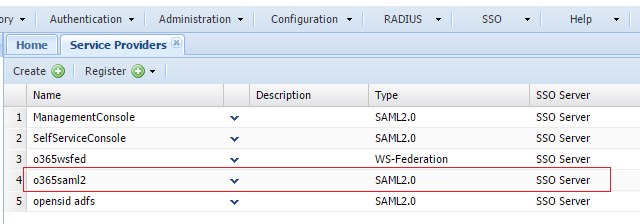
- o365saml2
- office365
Now, follow the steps below:
Connect to Office 365 Powershell as shown below:
- Run the following command in Office 365 PowerShell
.\setup-federation.ps1 SAMLPyour-domain-namedualshield-idp-metadata.xml - To verify that the change was successful, run the following command:
get-MsolDomainFederationSettings -domainyour-domain-name