If you are new to DualShield, then you might want to first refer to the general instruction on how to build an application in DualShield.
Complete the following steps to build an application for Excahnge ActiveSync.
Create logon procedure for Outlook Anywhere
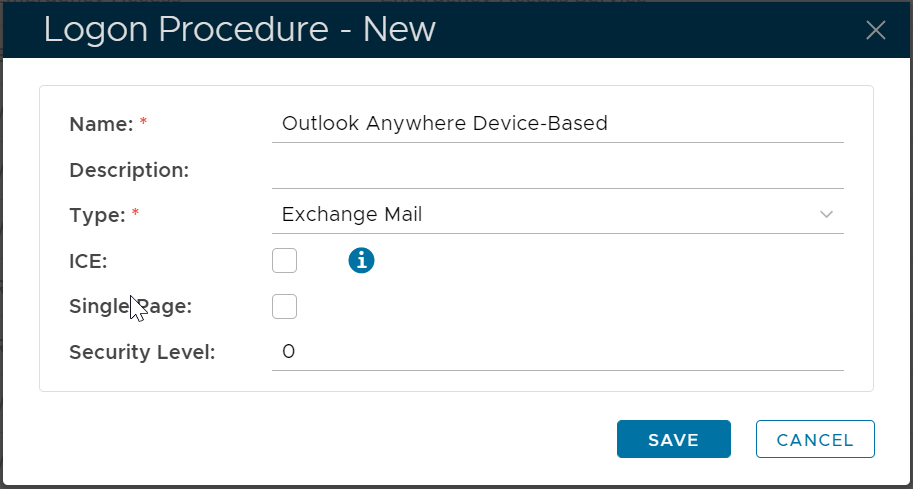
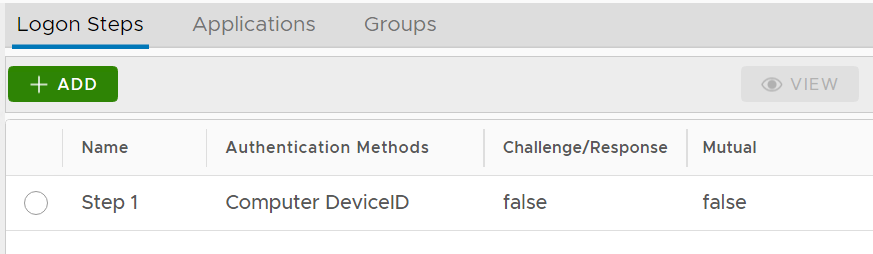
Once a logon procedure has been created, you need to add logon steps into the newly created logon procedure.
For Outlook Anywhere Device-Based Authentication, you only need to add one logon step and within the logon step you can only add "Computer DeviceID" as the authentication method.
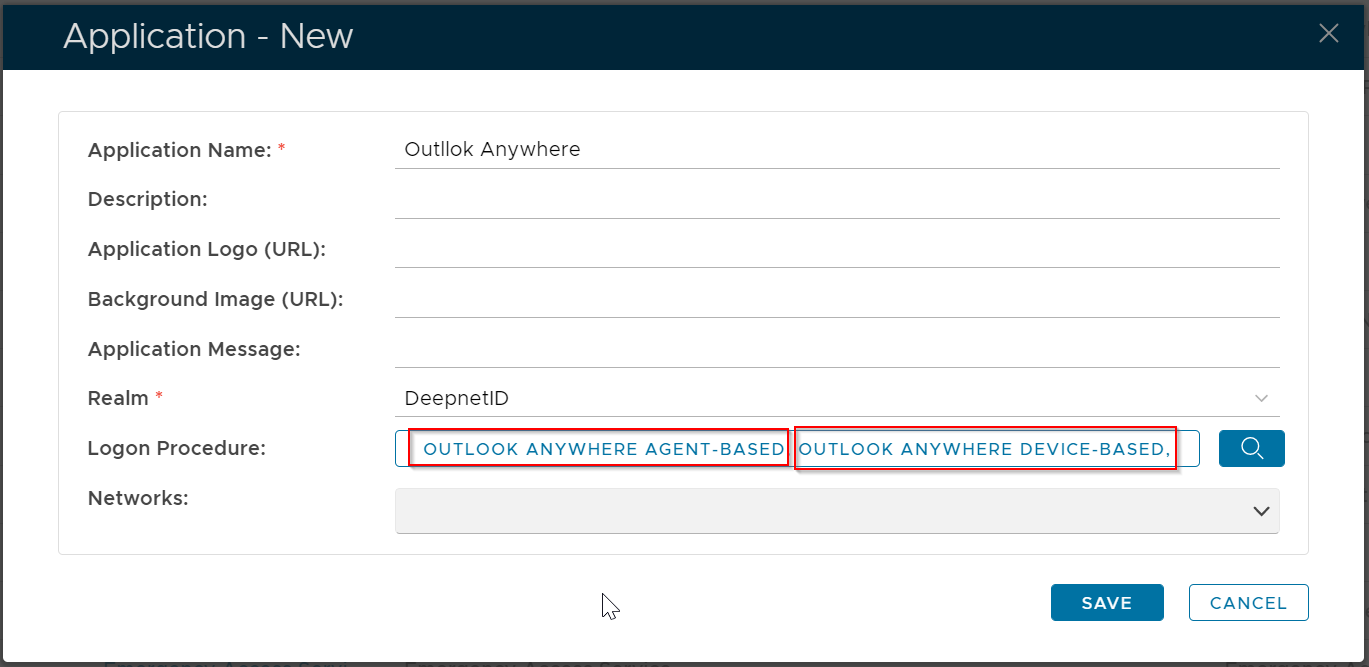
Create application for Outlook Anywhere
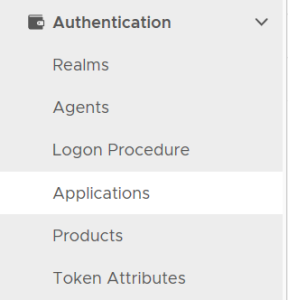
Select "CREATE" on the toolbar
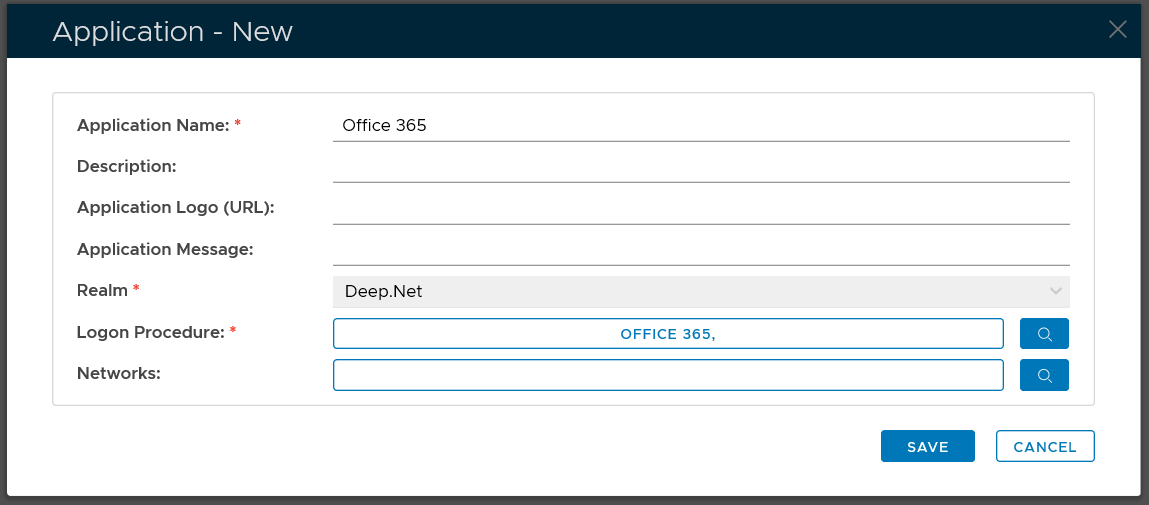
Select the Realm to be linked to this application, e.g. Deep.Net
Select the Logon Procedure to be used by this application, e.g.. Office 365
Click "SAVE" to save the application.
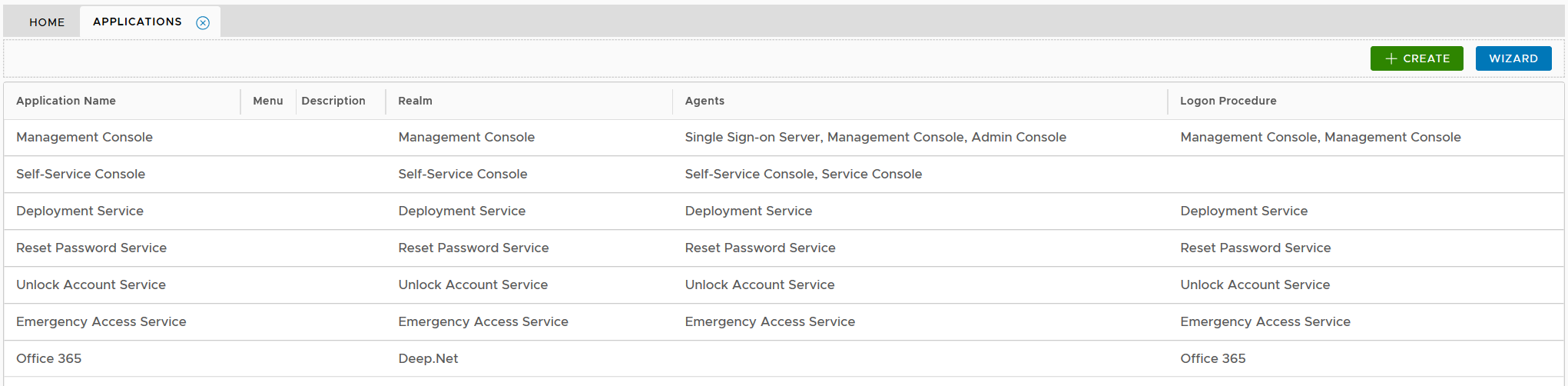
Please select the appropriate steps below:
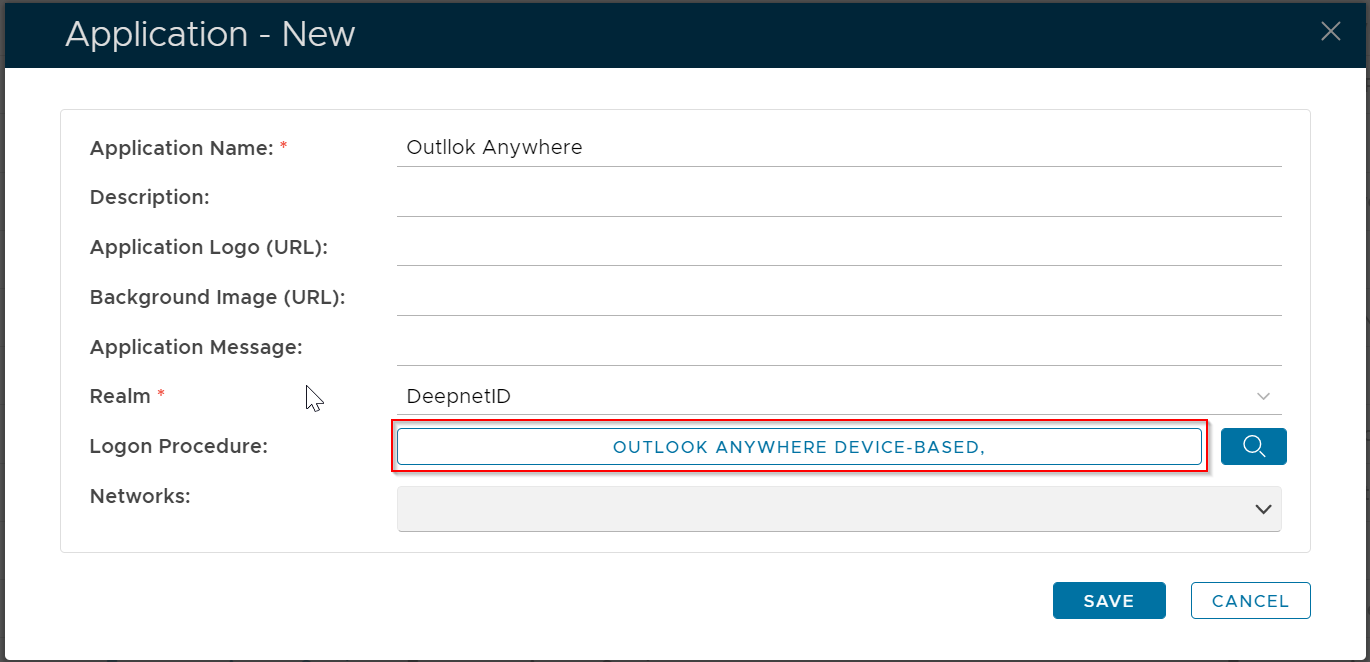
Device-Base Outlook Anywhere MFA
If you are implementing the Device-Base Outlook Anywhere MFA, then you must select the Logon Procedure that is of the type of Exchange Mails, e.g. "Outlook Anywhere Device-Based" that was created in the previous step
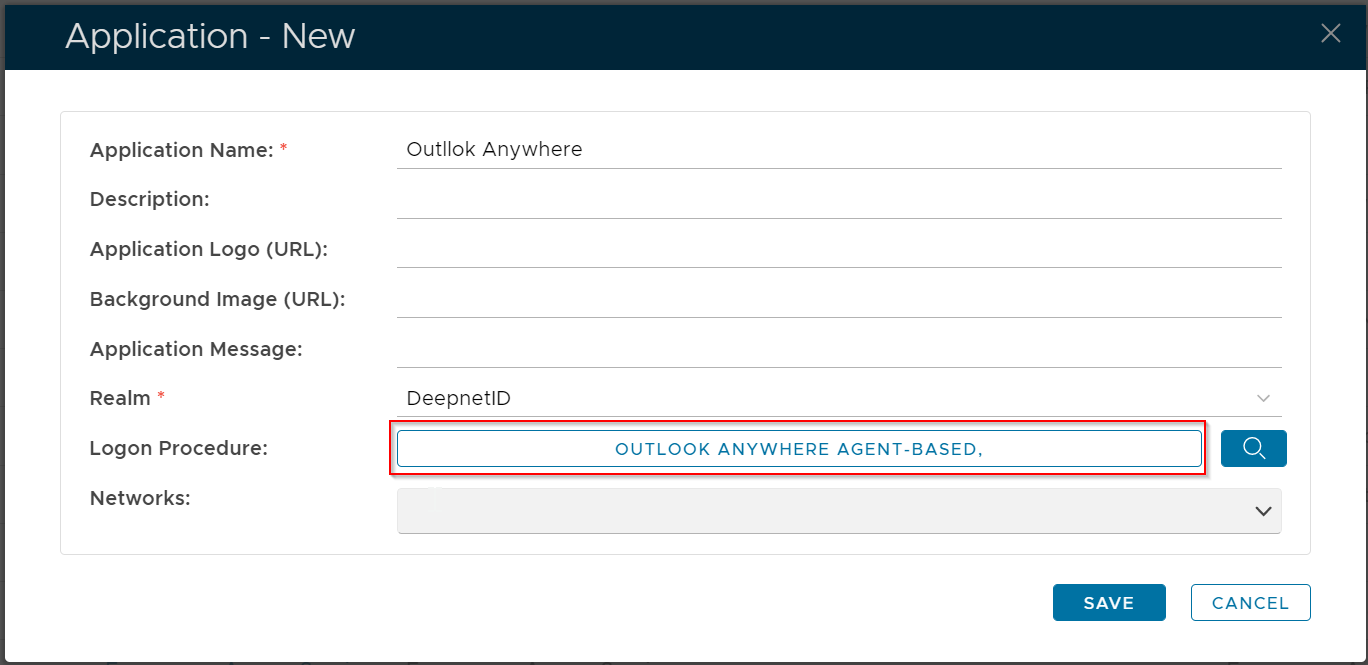
Agent-Base Outlook Anywhere MFA
If you are implementing the Agent-Base Outlook Anywhere MFA, then you must select the Logon Procedure that is of the type of Web SSO, e.g. "Outlook Anywhere Agent-Based" that was created in the previous step
Both Device-Based & Agent-Base Outlook Anywhere MFA
If you are implementing both the Agent-Base and Device Based Outlook Anywhere MFA, then you must select both Logon Procedures
Publish application for Outlook Anywhere

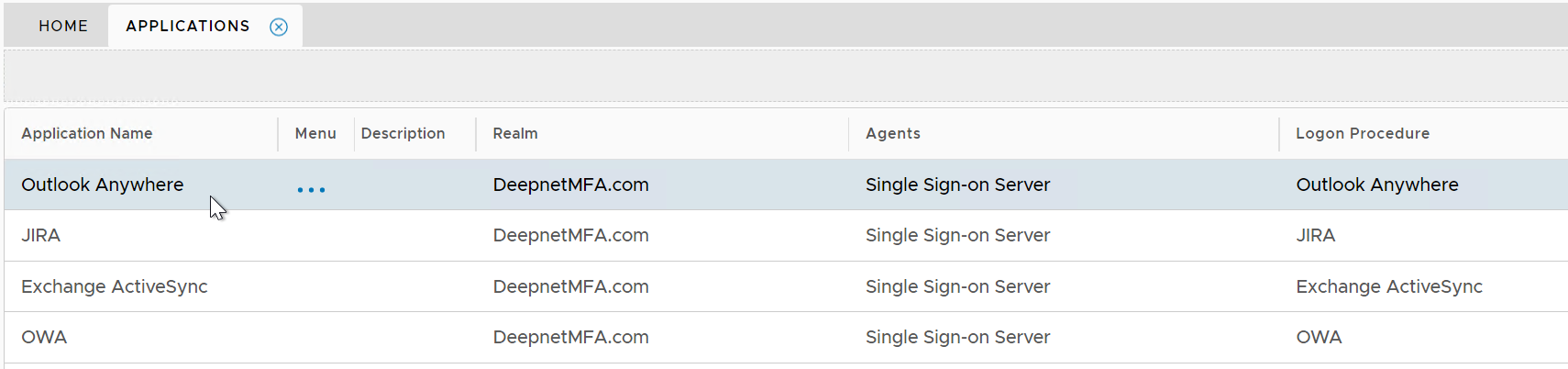
Click the context menu icon "..." of the application, e.g. "Office 365" to access its context menu

select "Agents" in the context menu

select the authentication agent on which the application is to be published, e.g. "Single-Sign-on Server"

Click "SAVE" button to save the settings
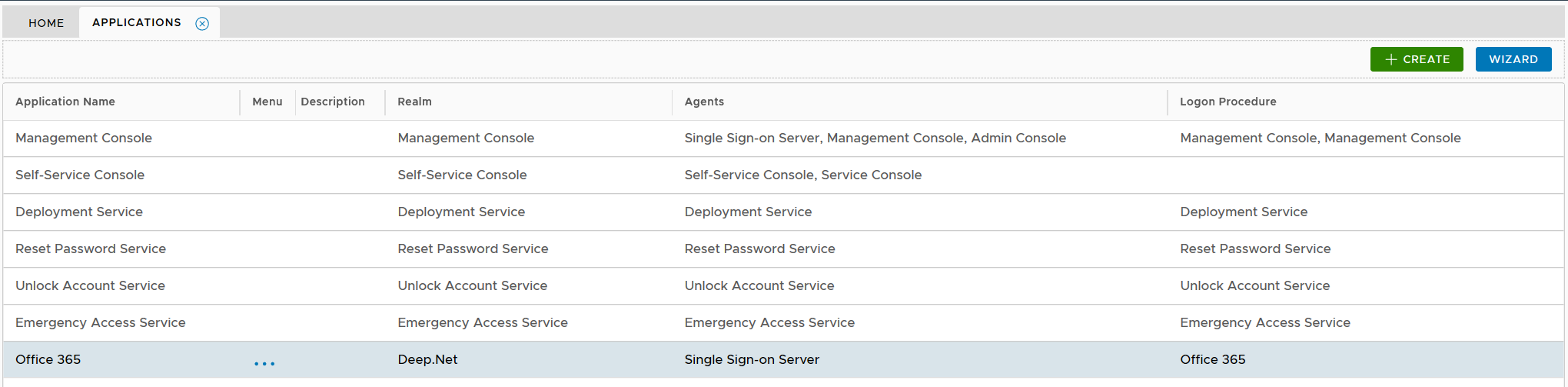
The Outlook Anywhere application has to be published on one or many Single Sign-On (SSO) servers.
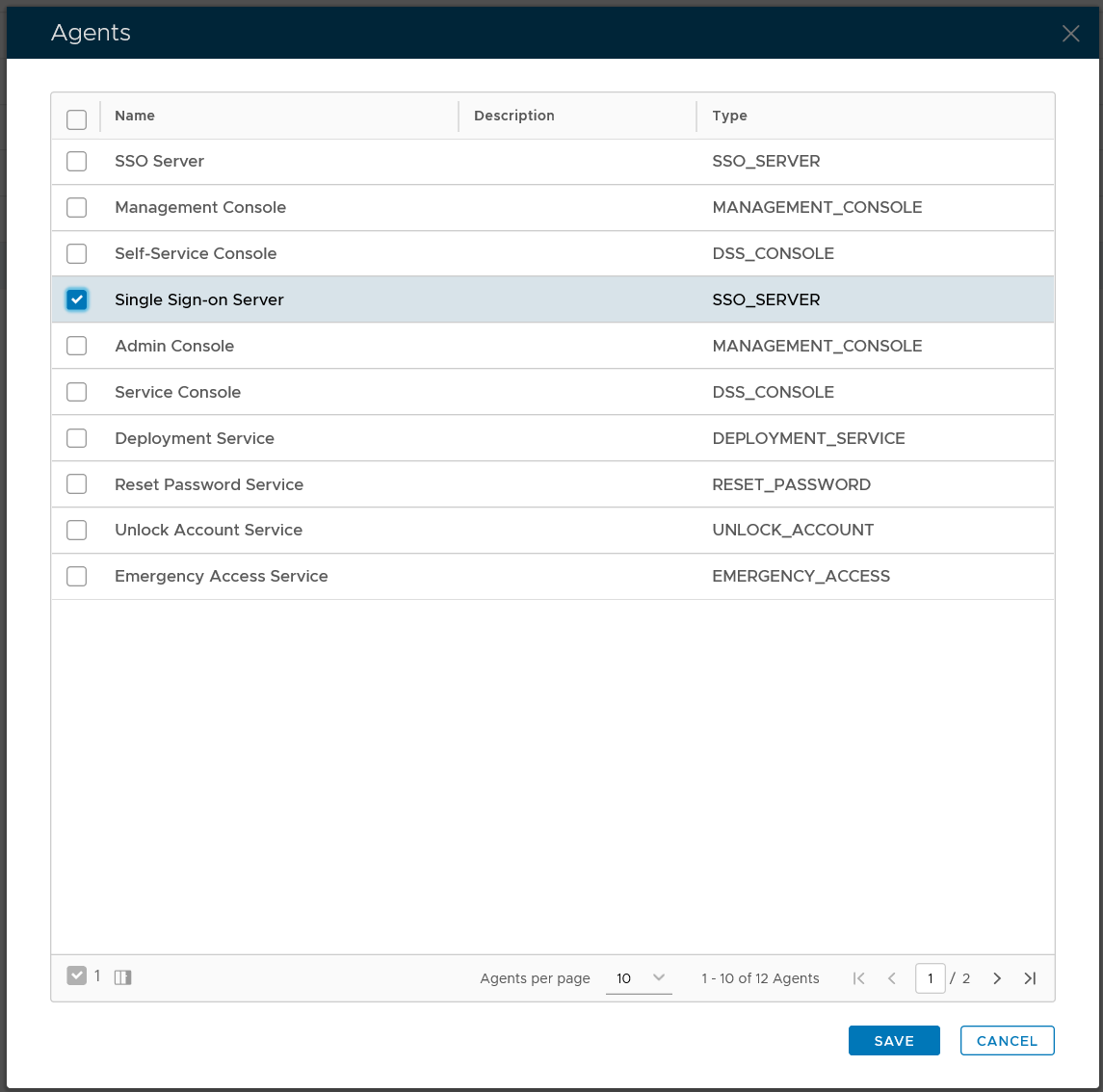
You might see two SSO servers in your DualShield platform, one called "SSO Server" and the other called "Single Sign-on Server". The so-called "SSO Server" is the legacy SSO server in DualShield 5 and the "Single Sign-on Server" is the new SSO server in DualShield 6.