You are viewing an old version of this page. View the current version.

Compare with Current View Page History

« Previous Version 16 Next »

Prior to the installation of the DualShield MFA server, prepare the following items:

  1. A Windows or Linux server machine (virtual or real machine) with 8GM RAM, 4-core CPU, and 10GB free disk space 
  2. An FQDN for your DualShield MFA server consoles, e.g. mfa.acme.com

    A DualShield server must be given a unique Fully Qualified Domain Name (FQDN) which is provided in the installation process.

    The DualShield server includes several web consoles, including

    • Admin Console
    • User Console
    • Single Sign-On Console (mainly used for SAML SSSO)
    • Deployment Console (for device and tokens)

    DualShield consoles are all web-based portals that can be accessed with a web browser. The FQDN is the web address of the DualShield consoles. 

    If the DualShield server is a backend server located in the internal network and to be accessed from internal PCs and workstations, then the DualShield's FQDN must be added into the internal DNS server.

    If the DualShield server is a frontend server located in the DMZ and to be accessed from external PCs and workstations, then the DualShield's FQDN must be added into the external DNS server.

    If the DualShield server is an all-in-one server that is accessed from both internal & external PCs and workstations, then its FQDN must be added into both the internal & external DNS servers. 

    If you do not plan to make your DualShield MFA server consoles accessible from the public network, then the FQDN can be an internal domain name. However, if you do plan to make one or some of your Dualshield server consoles accessible from the public network, then the FQDN must be an external domain name.

    Note: You can change the FQDN after the installation of the DualShield MFA server.


  3. An SSL certificate for your DualShield MFA server consoles in a PFX file (a wildcard certificate is acceptable, e.g. *.acme.com)

    DualShield consoles are web portals, therefore require an SSL certificate. You may use a self-signed SSL certificate which will be provided by the DualShield installer itself during the installation process. However, it is recommended that you use a commercial certificate, particularly for the DualShield Service Console that is going to be accessed by end-users from the Internet. (You can change the server certificate after the MFA server installation).

    Furthermore, if you are going to use the Out of Band Authentication (OOBA) from iOS and Android mobile devices, then you will have to make the DualShield Deployment Service and the Single Sign-On portals accessible by end users from the public network. In this case, you must not use a self-signed certificate because it will not be accepted by iOS and Android devices. 

    A web SSL certificate is issued to a specific FQDN (Fully Qualified Domain Name), e.g. "support.deepnetsecurity.com" in the certificate below:
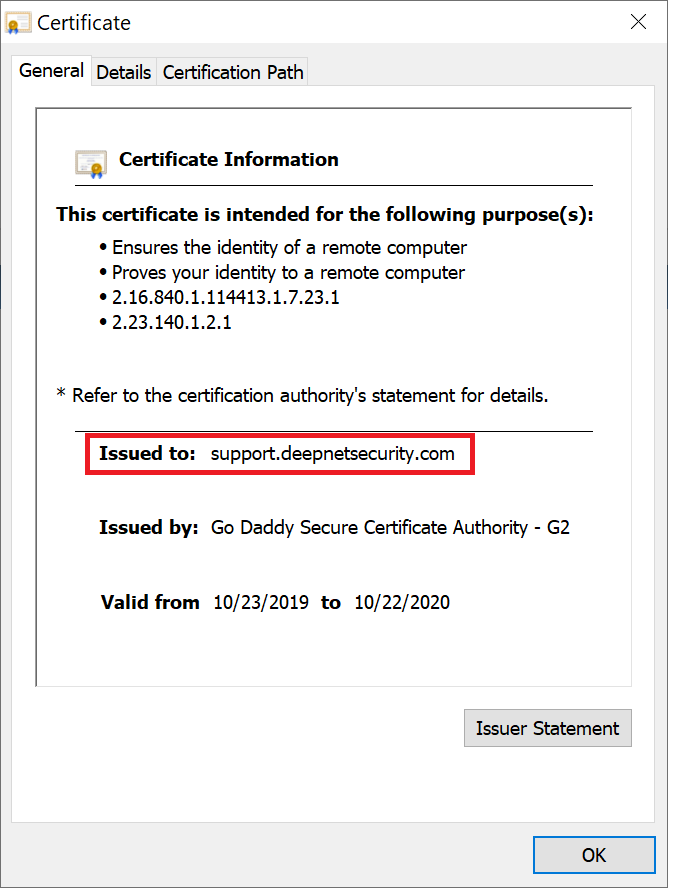
    Therefore, before you purchase a web SSL certificate from a commercial Certificate Providers such as GoDaddy, Comodo, DigiCert etc, you need to decide the FQDN for your DualShield server.

    A DualShield server must be given a unique Fully Qualified Domain Name (FQDN) which is provided in the installation process.

    The DualShield server includes several web consoles, including

    • Admin Console
    • User Console
    • Single Sign-On Console (mainly used for SAML SSSO)
    • Deployment Console (for device and tokens)

    DualShield consoles are all web-based portals that can be accessed with a web browser. The FQDN is the web address of the DualShield consoles. 

    If the DualShield server is a backend server located in the internal network and to be accessed from internal PCs and workstations, then the DualShield's FQDN must be added into the internal DNS server.

    If the DualShield server is a frontend server located in the DMZ and to be accessed from external PCs and workstations, then the DualShield's FQDN must be added into the external DNS server.

    If the DualShield server is an all-in-one server that is accessed from both internal & external PCs and workstations, then its FQDN must be added into both the internal & external DNS servers. 


    The certificate must be provided in the PFX format. There are various third-party tools that you can use to apply for and download an SSL certificate, or you can use the tool below:

    The Deepnet Certificate Tool is indispensable for anyone using SSL Certificates for Websites. It provides the following functions:

    Download Here - Deepnet Certificate Tool (2.0)

    The DualShield Administration Console includes a certificate management facility that allows you to apply, replace and renew certificates. 

    Certificate Management

    Therefore, for DualShield Administrators, they are recommended to use the Dualshield Admin Console instead of this tool.


  4. An AD service account (domain user) to be used for the connection between your MFA server and AD server
  5. An AD group for MFA – only users in the MFA group will be MFA enabled
  6. (Optional) If you need to implement one of the following functions or features, then you need to configure your corporate firewall and open HTTP port 8074 and 8076, forward traffic to your DualShield MFA server
    1. Push Authentication
    2. Self-Services such as downloading MobileID tokens, activating DeviceID tokens, etc. 
    3. SAML integration with external cloud services such as Office 465, SalesForce, Zoom, etc.
  7. Download the DualShield server software from https://support.deepnetsecurity.com, and save it on your DualShield MFA server machine

For more details, please check out the following articles:

  • No labels