You will need to download both the DualShield Windows Logon Agent and Client software onto the Stand alone PC.
You can download the software from http://support.deepnetsecurity.com/visit.asp?pg=download/dualshield.
Make sure you have your license key to hand.
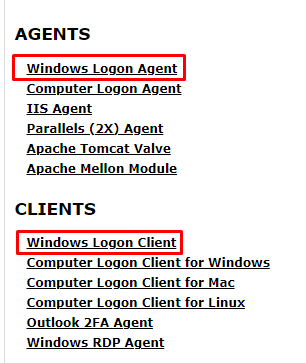
Install the agent BEFORE the client
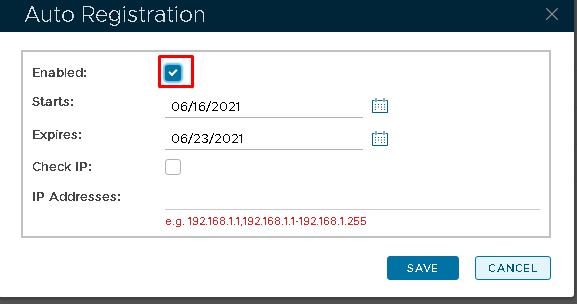
Note: Before you can install the agent onto the PC you have to enable Auto Registration on the DualShield Authentication Server
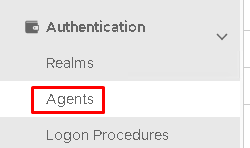
On the Administration Console, go to Authetication>Agents
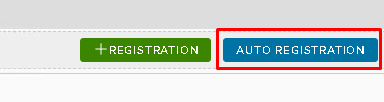
Under the Agent tab click on Auto Registration
In the Auto Registration box, tick Enabled and enter an expiry date.
Then click Save
Please now use the following guide which details how to install the Windows Logon Agent onto your PC.
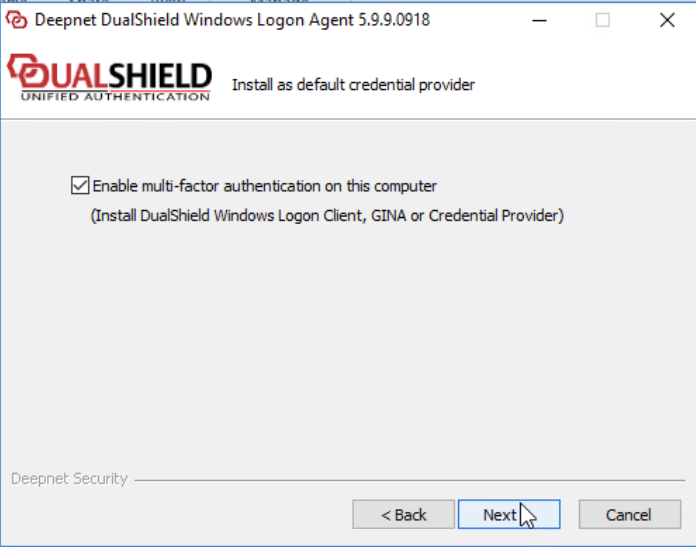
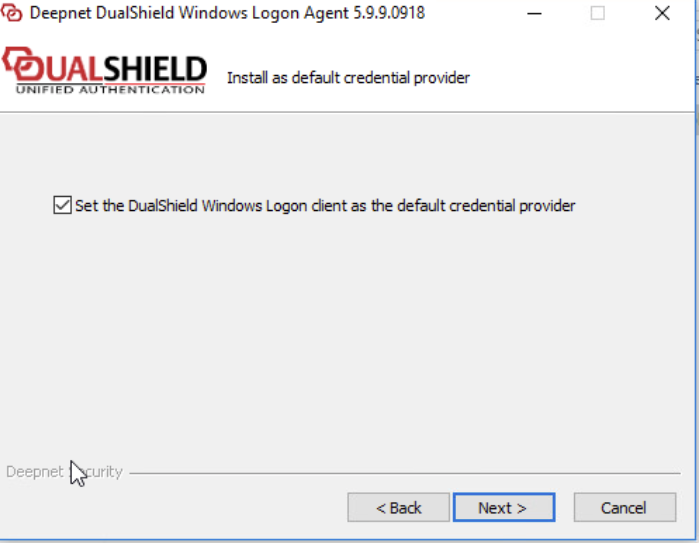
Please make sure you follow the preparation steps of creating a Logon Procedure and Application, which is mentioned at the beginning of the guide. Also during installation please make sure the following two options are enabled.
Upon successful installation of the Windows Logon Agent please go into the Start Menuon the stand alone PC and launch DualShield Windows Logon Manager from the recently added items.
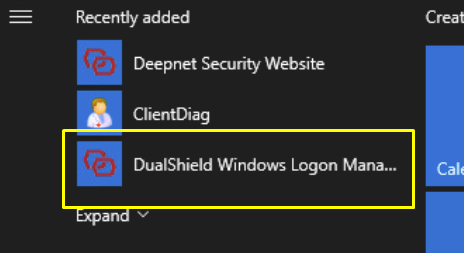
Click on the
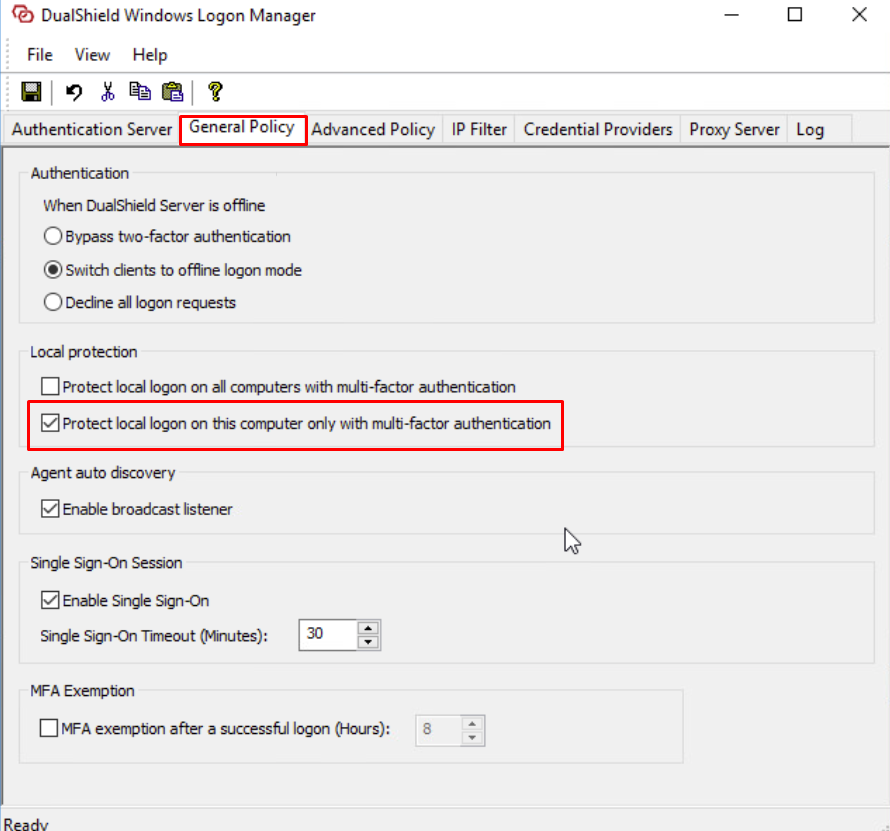
Click on the General Policy tab within Windows Logon Manager.
Under Local Protection enable Protect Local Logon on this computer only
Click the Save icon  in the top tool bar