IntroductionDeepnet SafeID/Diamond is a programmable TOTP token. It can be used to in the place where an OTP authenticator app is being used, such as Google Authenticator or Microsoft Authenticator. It can be used in parallel to OTP app as an additional token, or as a replacement or replica of an OTP app.
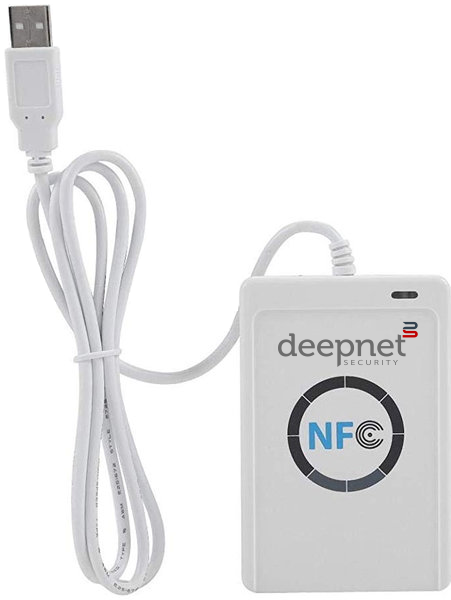
PreparationTo program a SafeID/Diamond token from your PC or laptop, you need a NFC reader and the SafeID/Diamond programming tool. 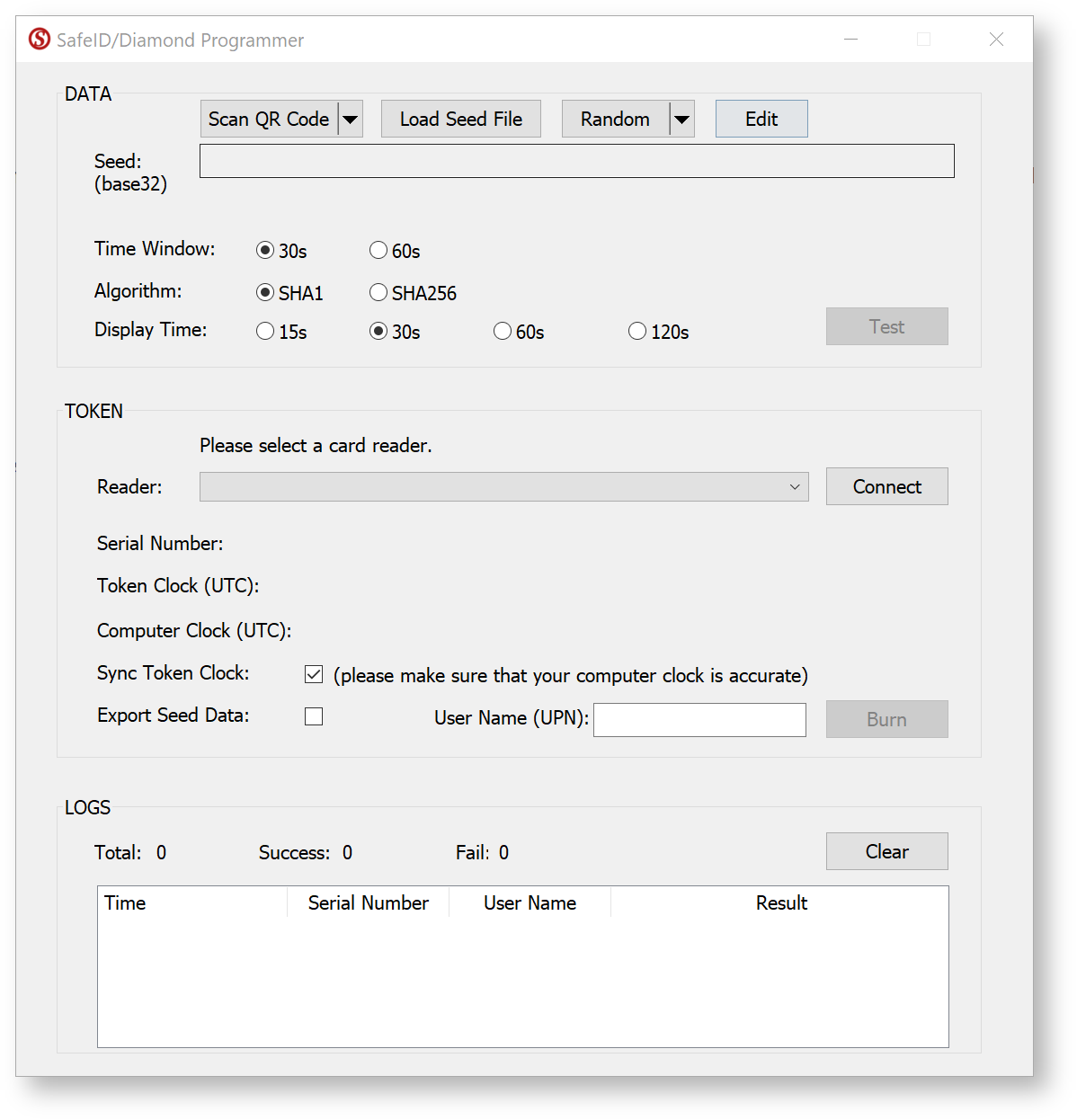
|
|
Burning Seed data onto the Programmable Tokens using the NFC Token Reader/Programmer
To program a token, follow 5 simple steps below:
- Obtain Seed
- Connect Reader
- Place Token
- Burn Seed
- Test Token
Step 1: Obtain Seed

There are 4 ways you can obtain the seed data or secret key:
Before you scan the QR code please ensure that the clock on your computer is displaying the correct date and time. You can scan the screen for a QR code, or load from a file. 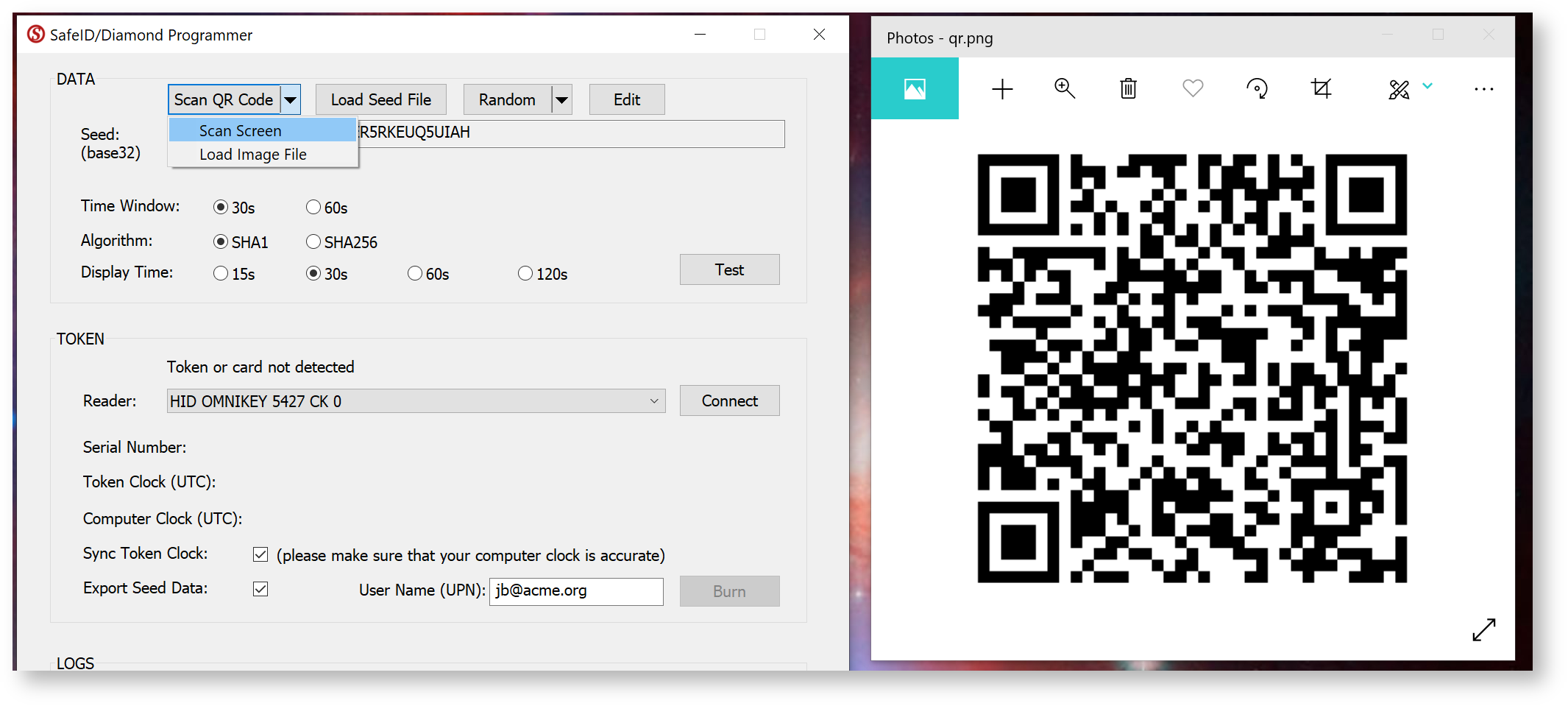
If you are scanning the barcode on the screen please ensure that the QR code is not obscured by other windows, and if you have more than one monitor please ensure that both the app and the QR code are displayed on the main display (display 1). If you still have difficulty in scanning the QR code double check you only have the one instance of the app running, and that it is the latest version of the app. In most cases when there are issues with scanning of the QR code the most likely cause is the QR code contains the wrong data and may need to be regenerated. To test the QR code you could check that the code works correctly with the authenticator app it is intended for (e.g microsoft authenticator), and if this fails then you know that the QR code will need to be regenerated. |
You can also load seed data directly from a file. The seed file must be in CSV format, containing 2 columns of data, i.e. Serial Number and Based32 encoded Secret Key. 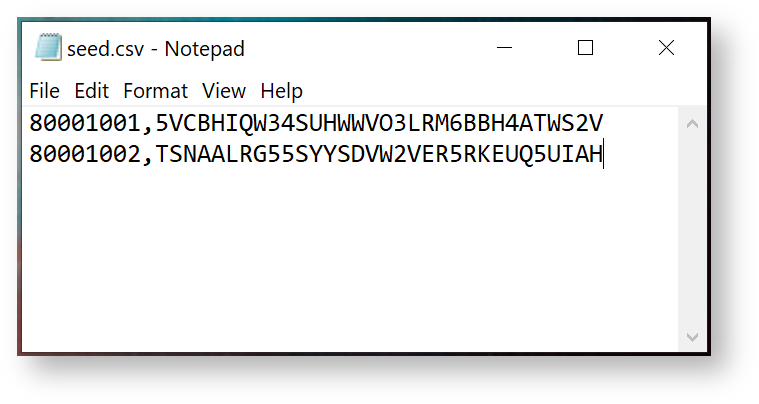
|
- Randomly Generated
- Manually Copied
Step 2: Connect Reader
Plug in the reader to the USB port of your computer, and the prompt headed "Reader:" should update to indicate the reader is available to be connected;

Select the NFC reader from the drop list, then click "Connect"
Step 3: Place Token
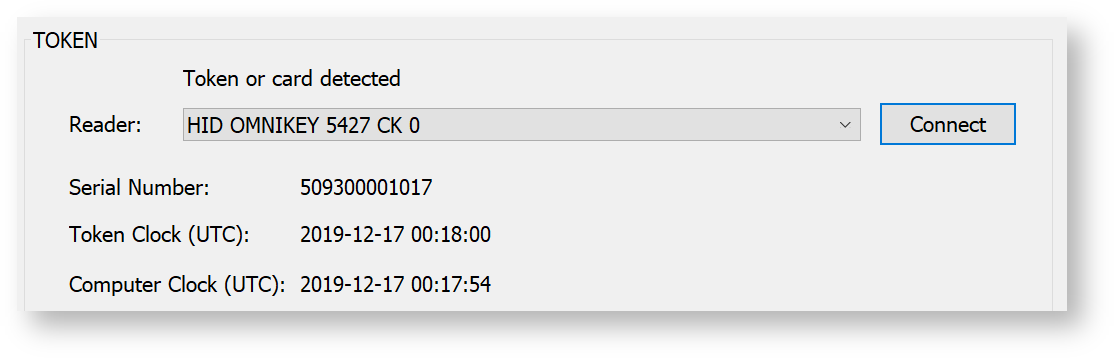
Now, ensure that the token is switched on (using the button on the top of the token), then place the token face down on the reader.
The tool will now display the token's serial number and time details:
Step 4: Burn Seed
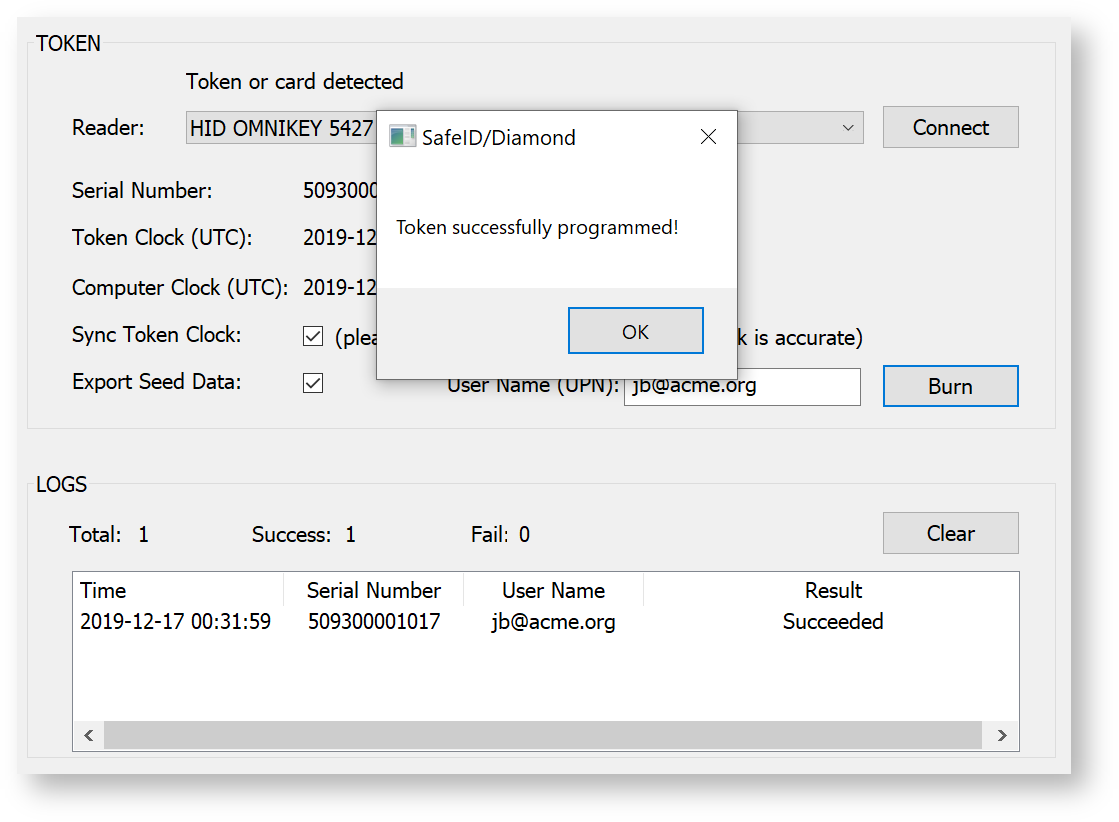
Before burning the seed into the token, you might want to select the options below:
- Sync Token Clock
- Export Seed Data
If you would like to export the seed data to be used with Azure MFA, then you can also optionally enter the User's Principle Name (UPN) to whom the token will be assigned.
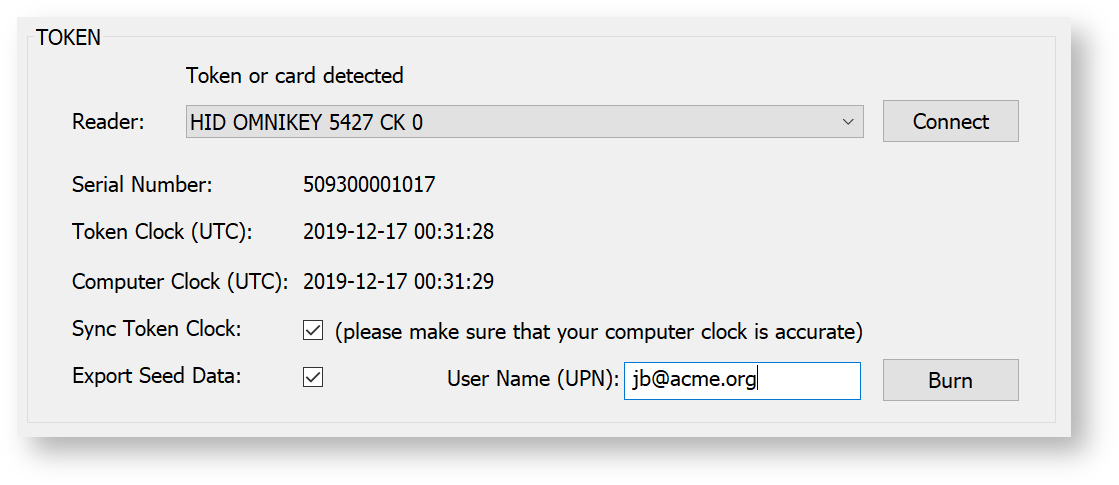
To burn the seed into the token, click "Burn"
Step 5: Test Token
To test the token, click the "Test" button
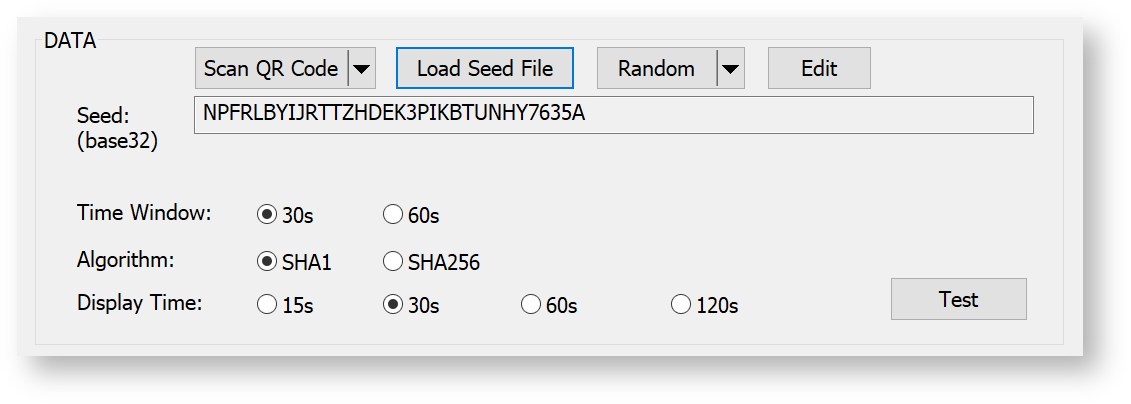

(Please note you may need to use the scroll bar at the bottom of this window to view the OTP codes)
Seed Files
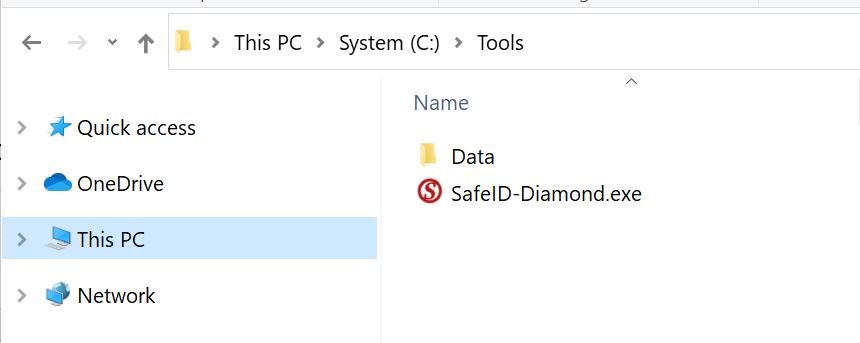
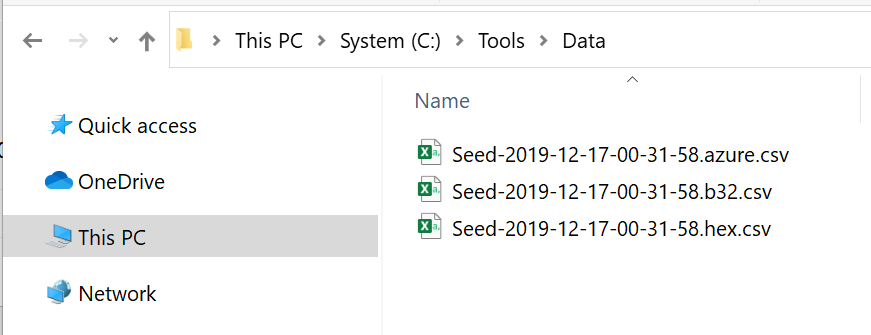
If you selected to export the seed, then you will find that seed files will have been created in a sub-folder from where app was launched (the sub-folder is called "data" and contains seed files of various formats).
|
Related Articles
It is also possible to manually enter the seed data (either using data obtained from a source, or by generating a random seed. Random SeedsYou can generate randomised 32 and 64 character seeds by using the dropdown "Random" feature; 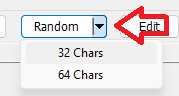
After selecting this option the
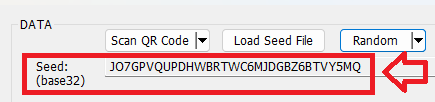
Manually Entered SeedsSeed data may also by manually entered by clicking on the  button. button. (Before using this button it is recommended that you initially populate this field using the  (described earlier) as this ensures the (described earlier) as this ensures the  button will be properly enabled when the reader is connected) button will be properly enabled when the reader is connected) Next click on the  button, and replace the random generated seed with the seed that is to be sent to the token. button, and replace the random generated seed with the seed that is to be sent to the token. 
The seed data can now be manually entered (prompted seed (base32) on the windows app, and seed (hex) on the mobile apps) 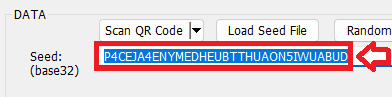 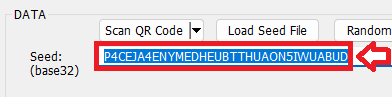 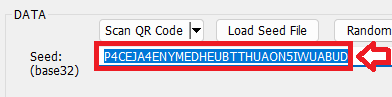
f the programmable token needs 30 second time windows apply the following settings; 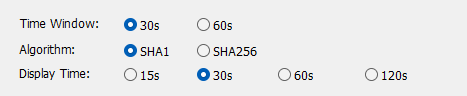
If the programmable token needs 60 second time windows apply the following settings; 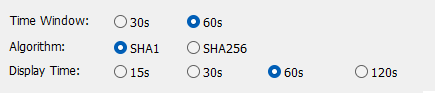
Once these settings have been made you will be ready to continue with programming the token. |