Follow the steps below to create an Intune deploy package file for the Deepnet Computer Logon for Entra ID
https://github.com/Microsoft/Microsoft-Win32-Content-Prep-Tool
Unpack the tool to a local file folder. e.g. D:\Tools\Microsoft-Win32-Content-Prep-Tool-master
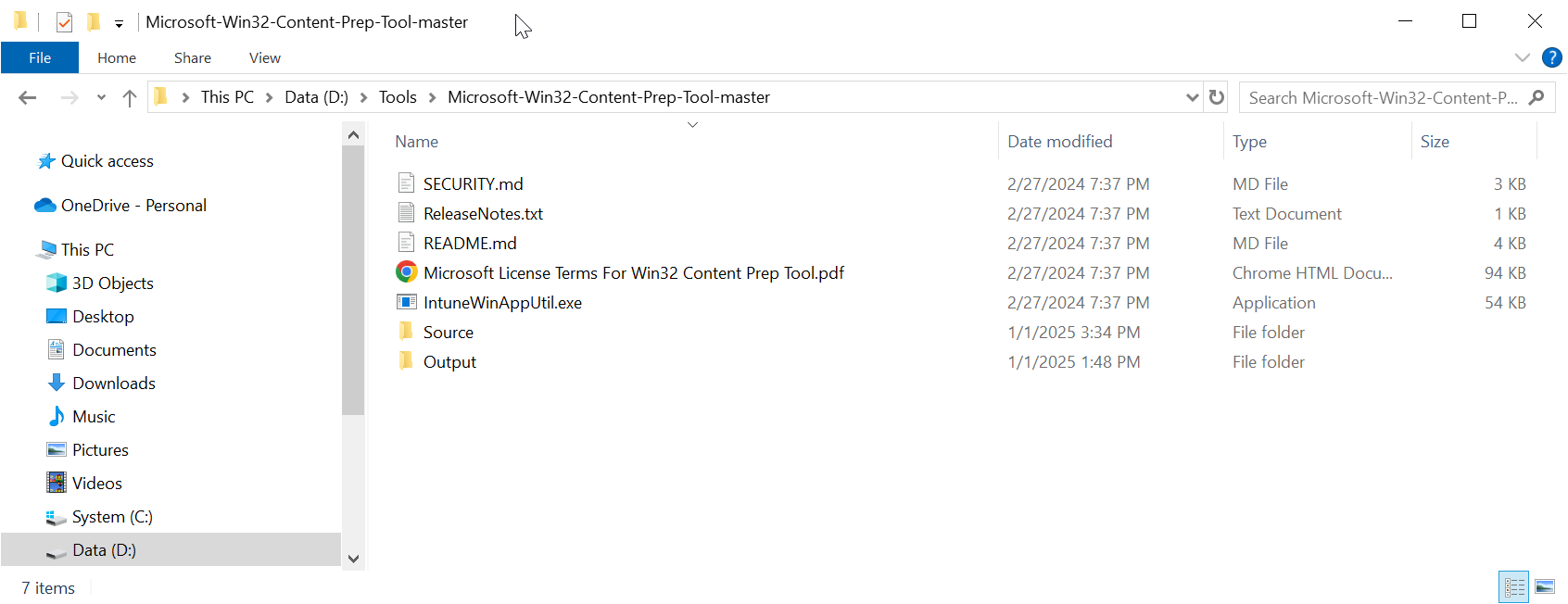
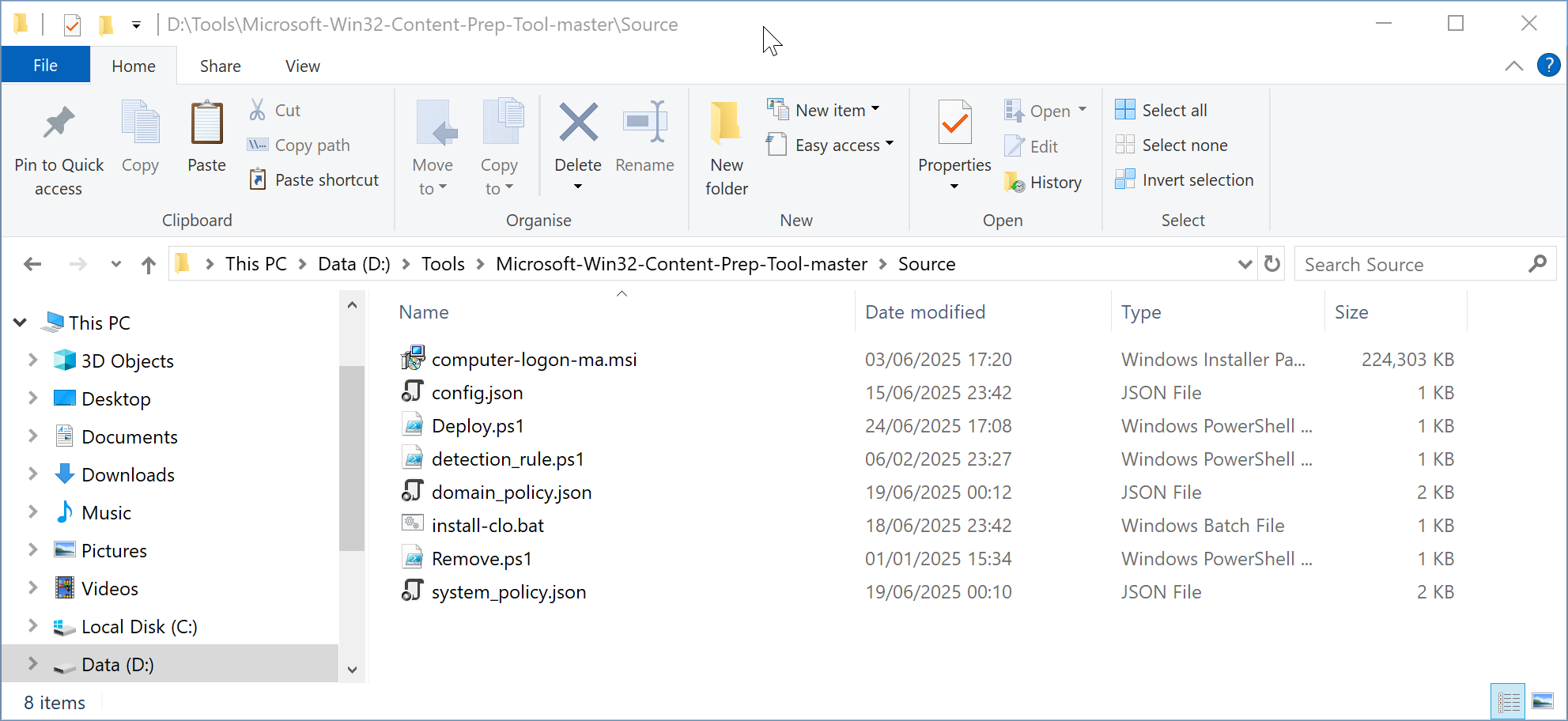
Create a subfolder called "Source" in the folder where you have unpacked the Microsoft Win32 Content Prep Tool, e.g. D:\Tools\Microsoft-Win32-Content-Prep-Tool-master\Source
Now, copy the following files to the "Source" folder
Navigate to "https://support.deepnetsecurity.com" |
Copy the installer file "computer-logon-modern-authentication-x.y.z.msi" to the "Source folder
Rename "computer-logon-modern-authentication-x.y.z.msi" to "computer-logon-ma.msi"
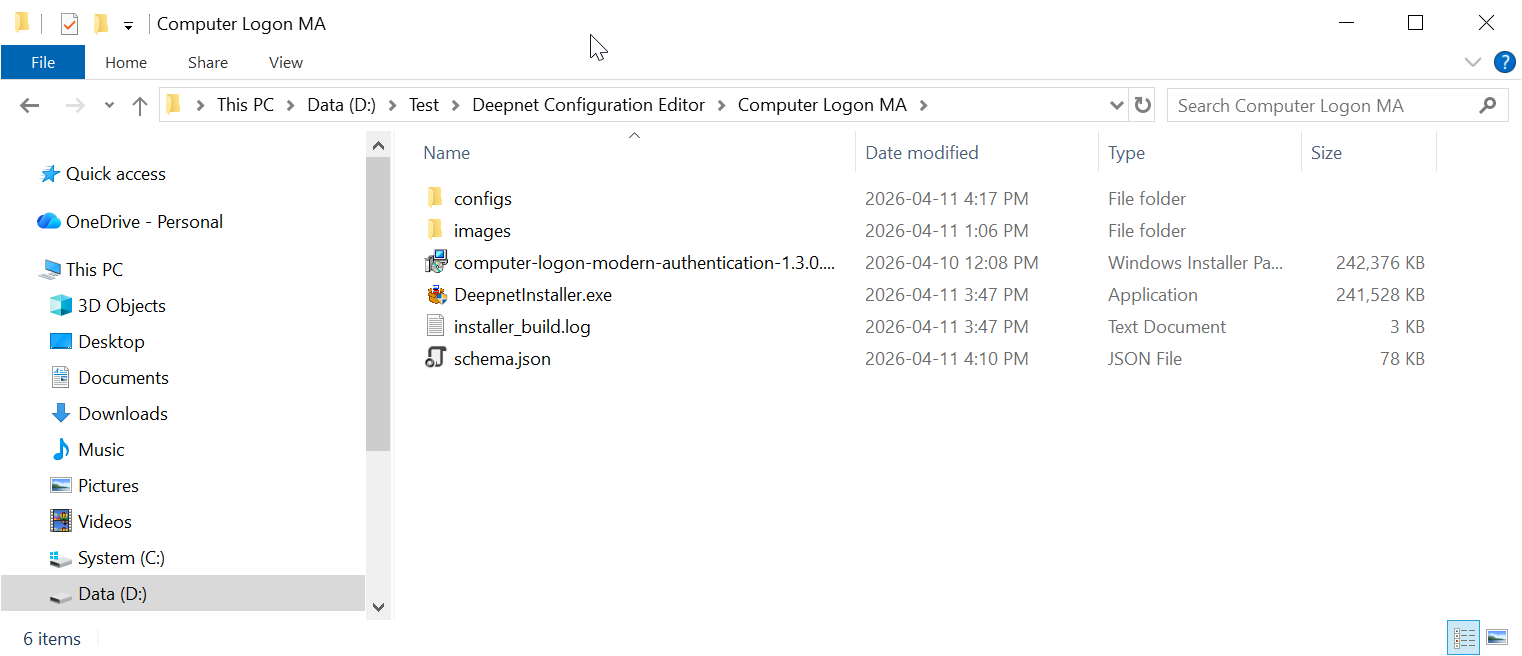
Navigate to the project directory of the Computer Logon MA created by the Deepnet Configuration Editor
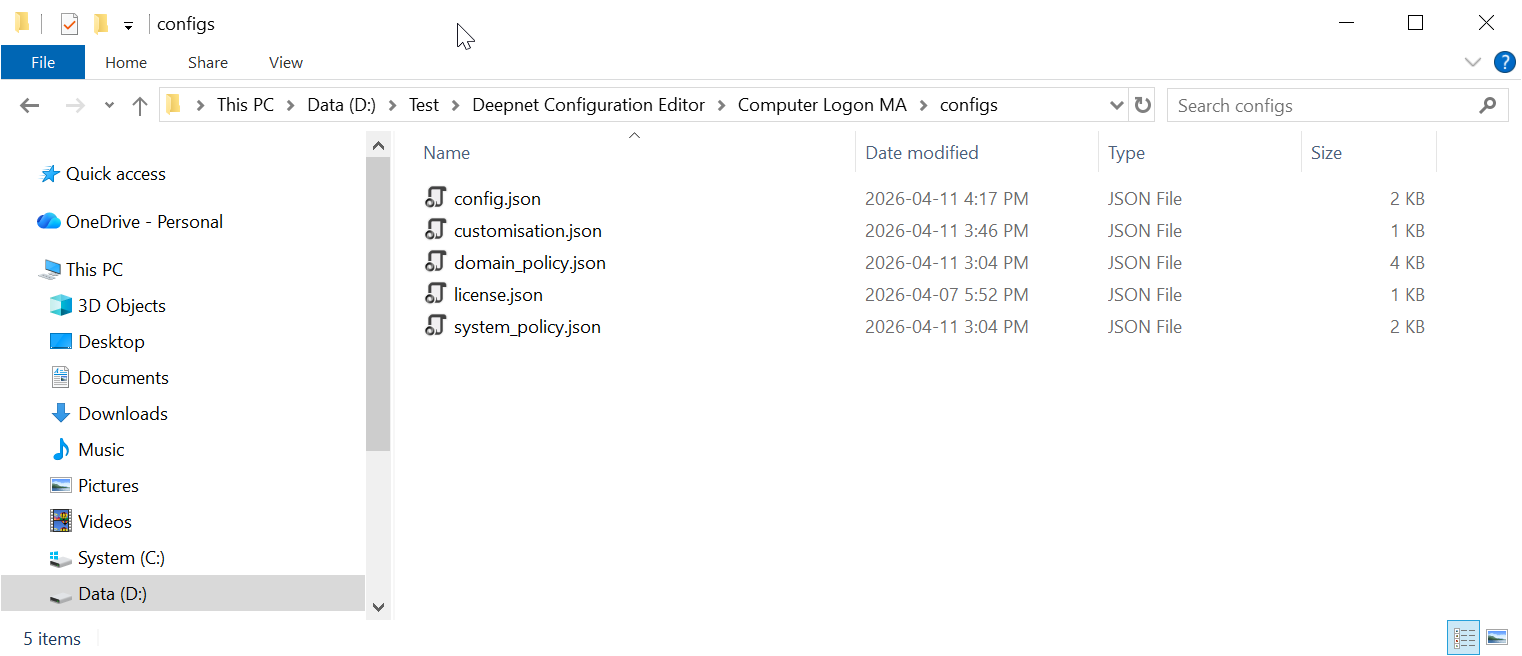
Open the "config" folder
|
Navigate to "https://support.deepnetsecurity.com" |
Open a Windows command shell, and run the command
IntuneWinAppUtil.exe -c "Source" -s "Deploy.ps1" -o "Output"
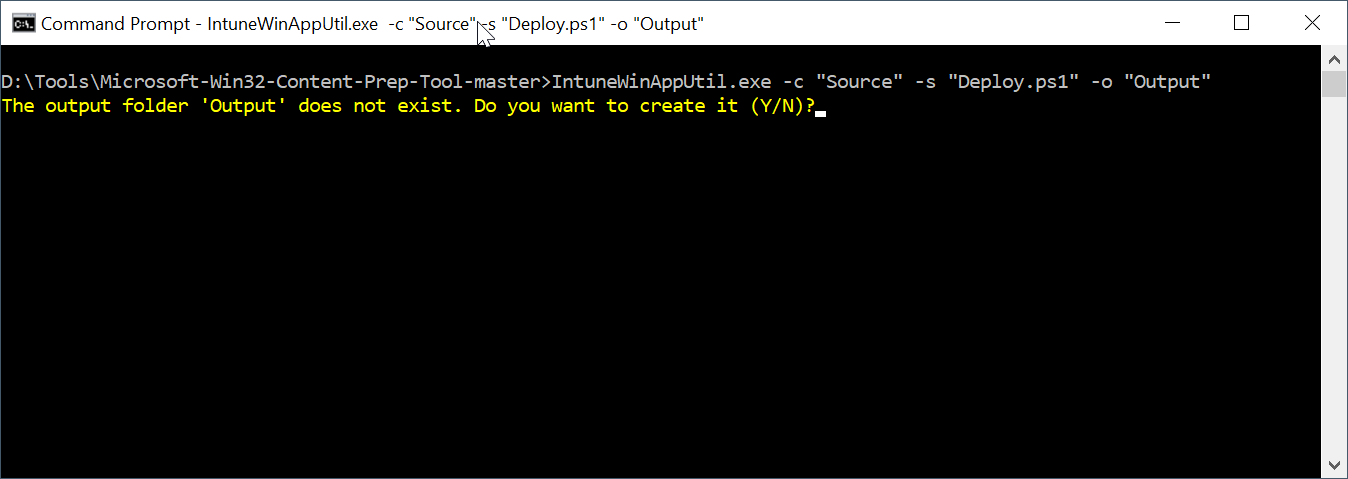
Enter "Y" to continue
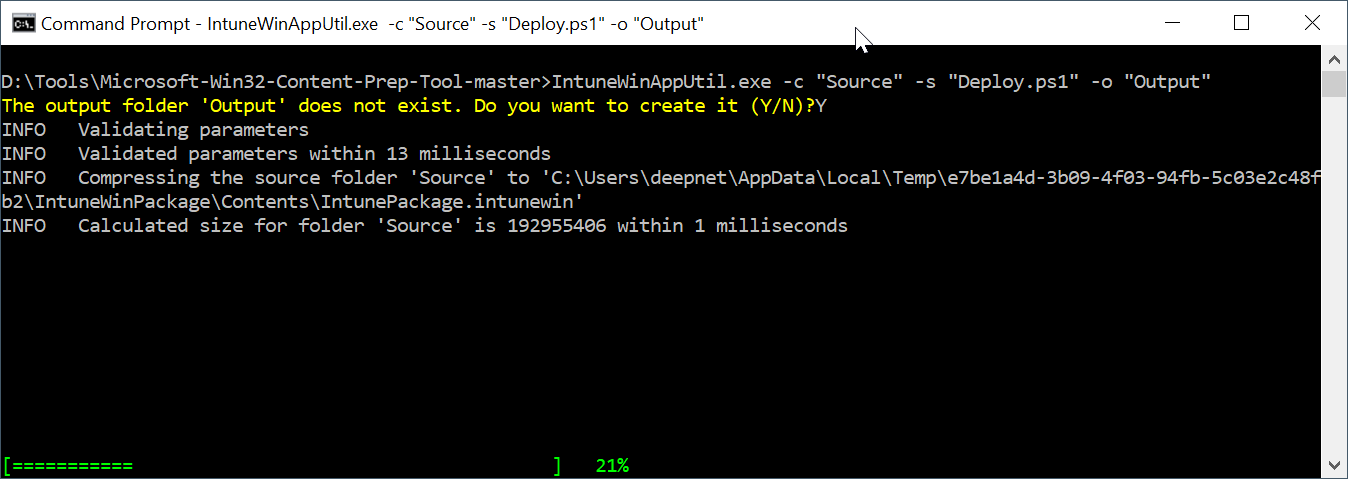
Wait for it to complete
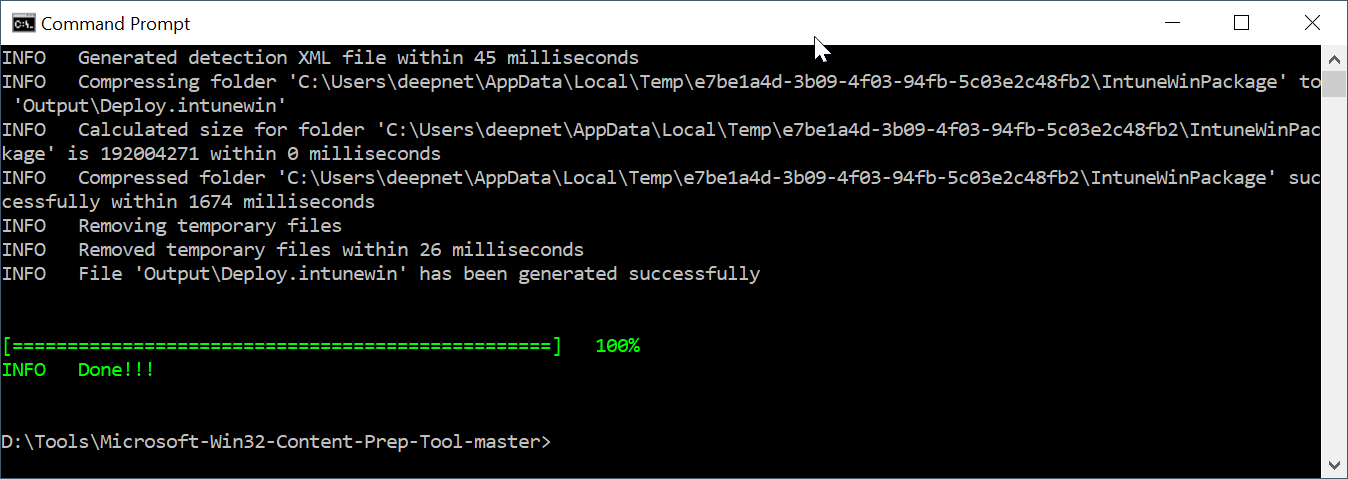
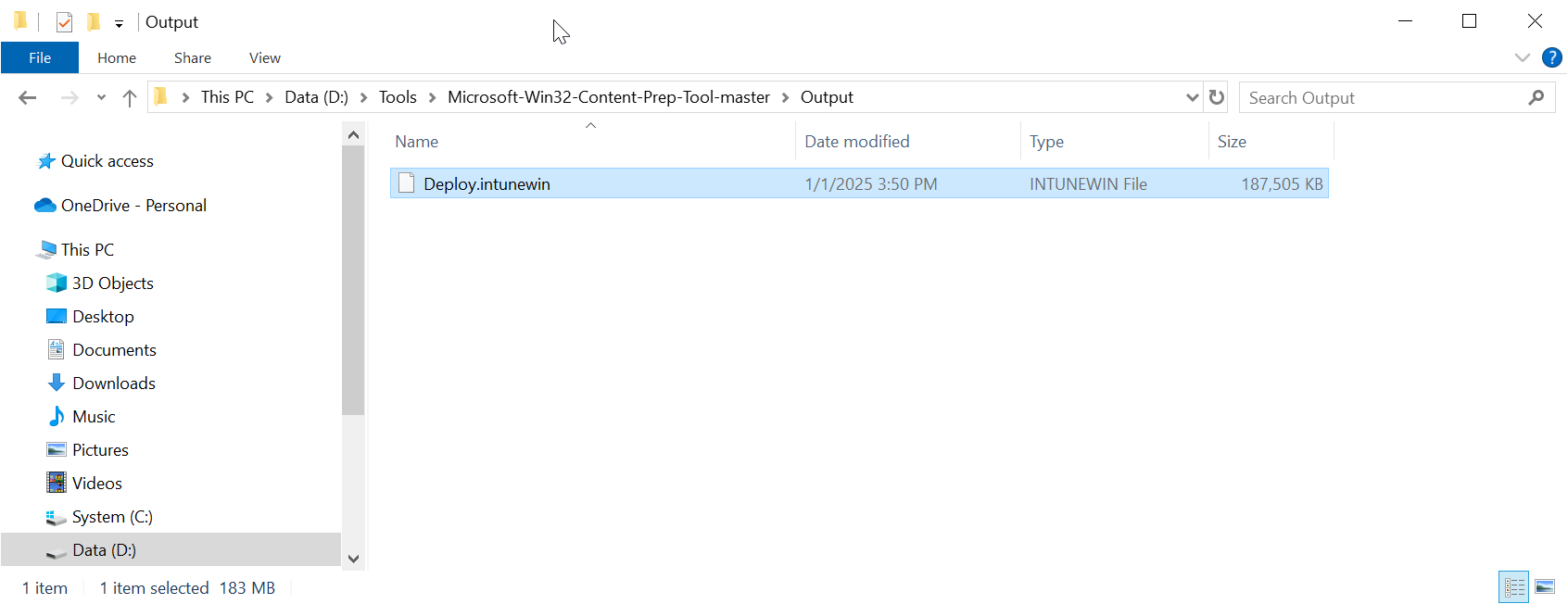
The package is named "Deploy.intunewin"