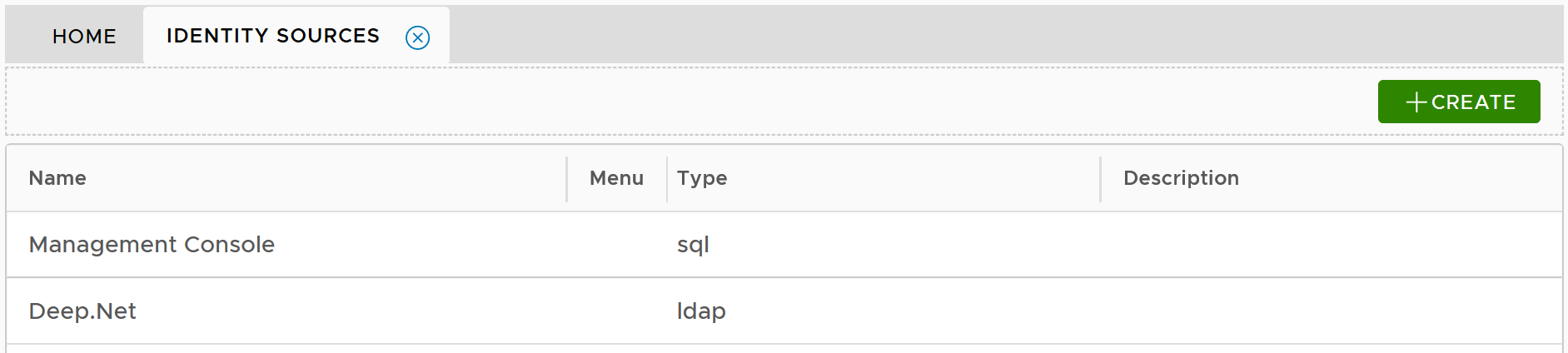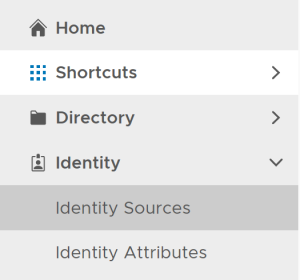
In the DualShield Admin Console, select "Identity | Identity Source" in the main menu
then, click the "Create" button. This will bring up the "Identity Source Registration" wizard with the following steps:
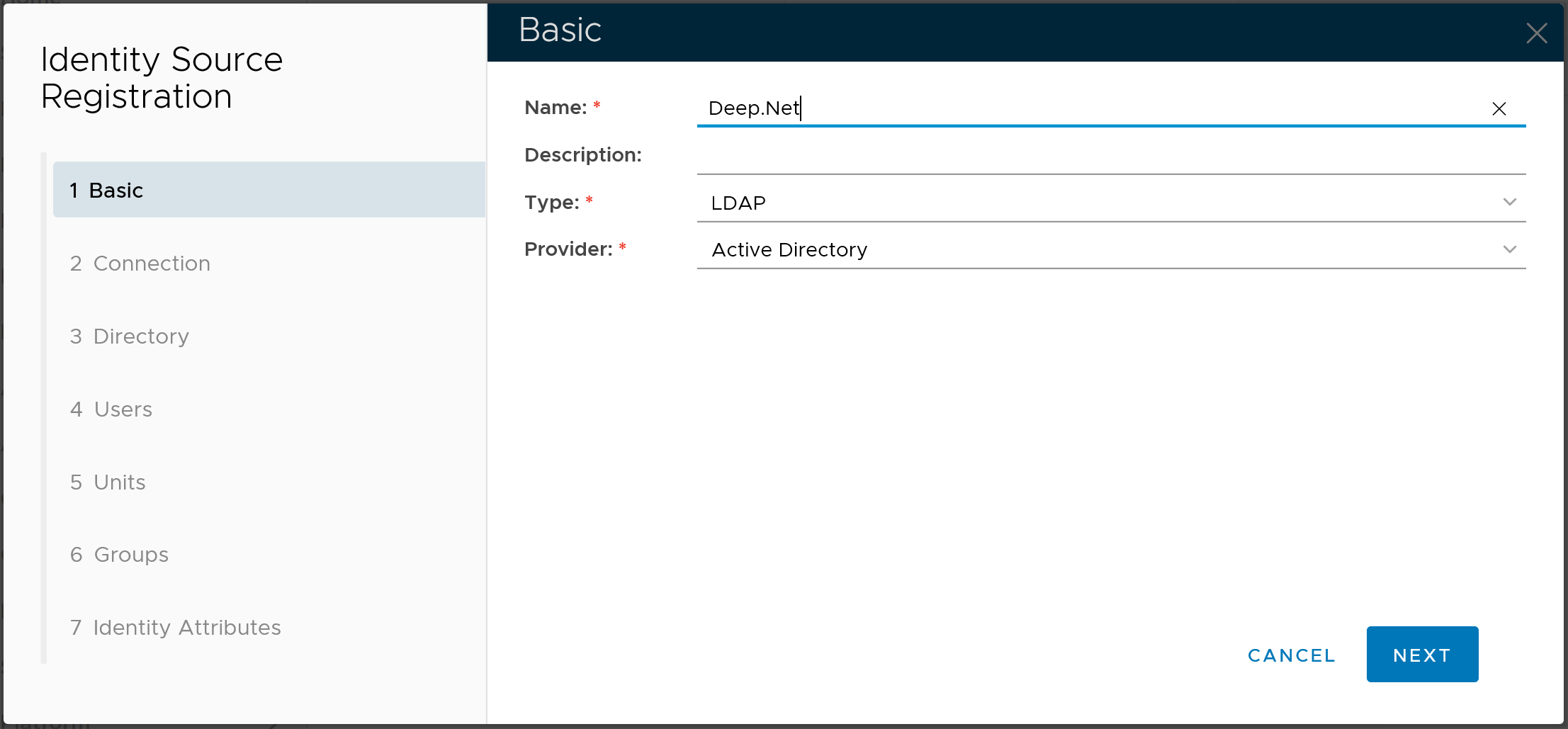
In the "Type" box, select "LDAP"
In the "Provider" box, select "Active Directory"
In the "Name" box, enter a name that describes the AD
Click the NEXT button to continue
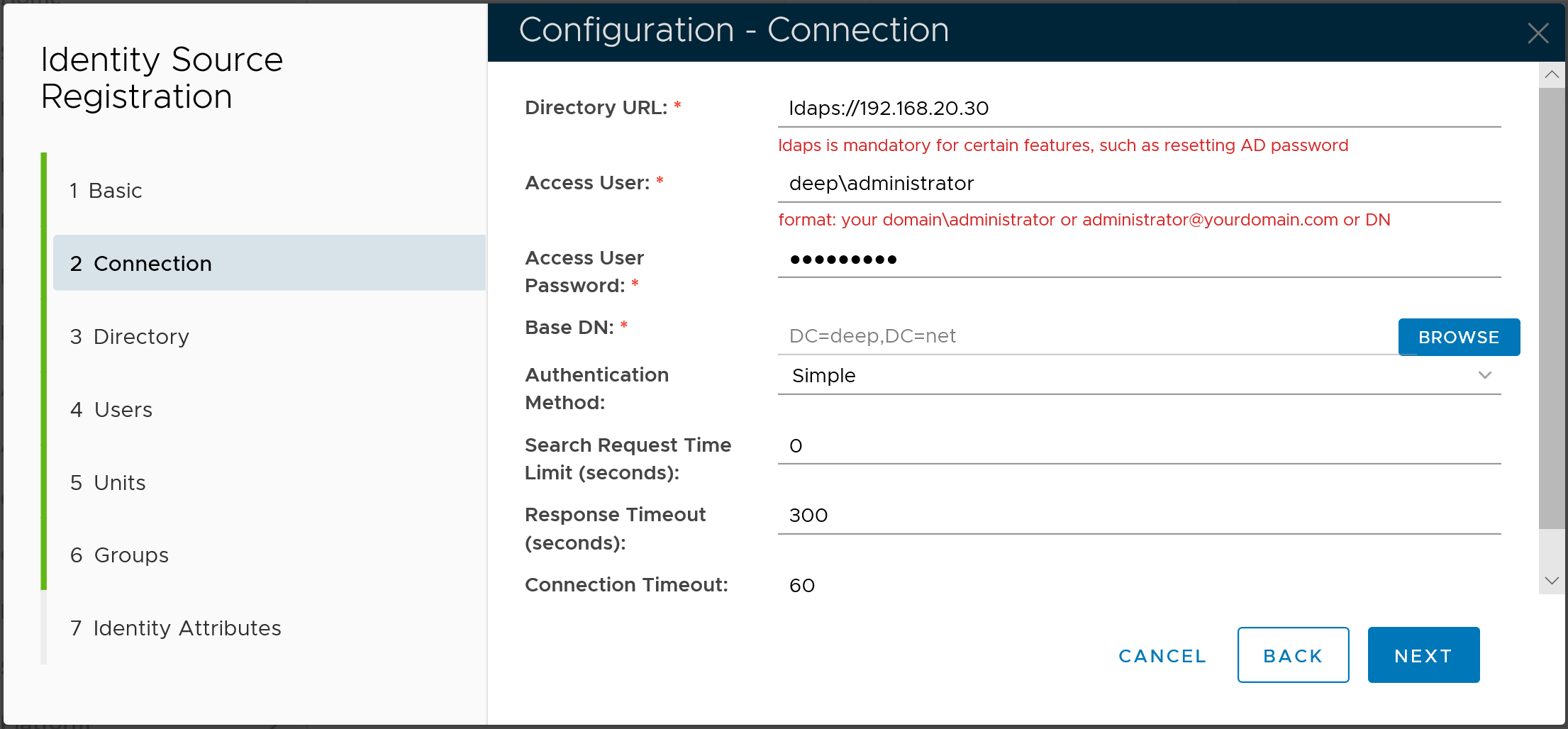
In the "Directory URL" box, enter "ldap://" or "ldaps://" followed by the IP address or host name of the AD server
In the "Access User" box, enter the username of the AD service account that is to be used by DualShield to connect to the AD
In the "Access User Password" box, enter the password of the access user
If you have provided the correct data above, then the "Base DN" will be automatically filled in.
Click the NEXT button to continue
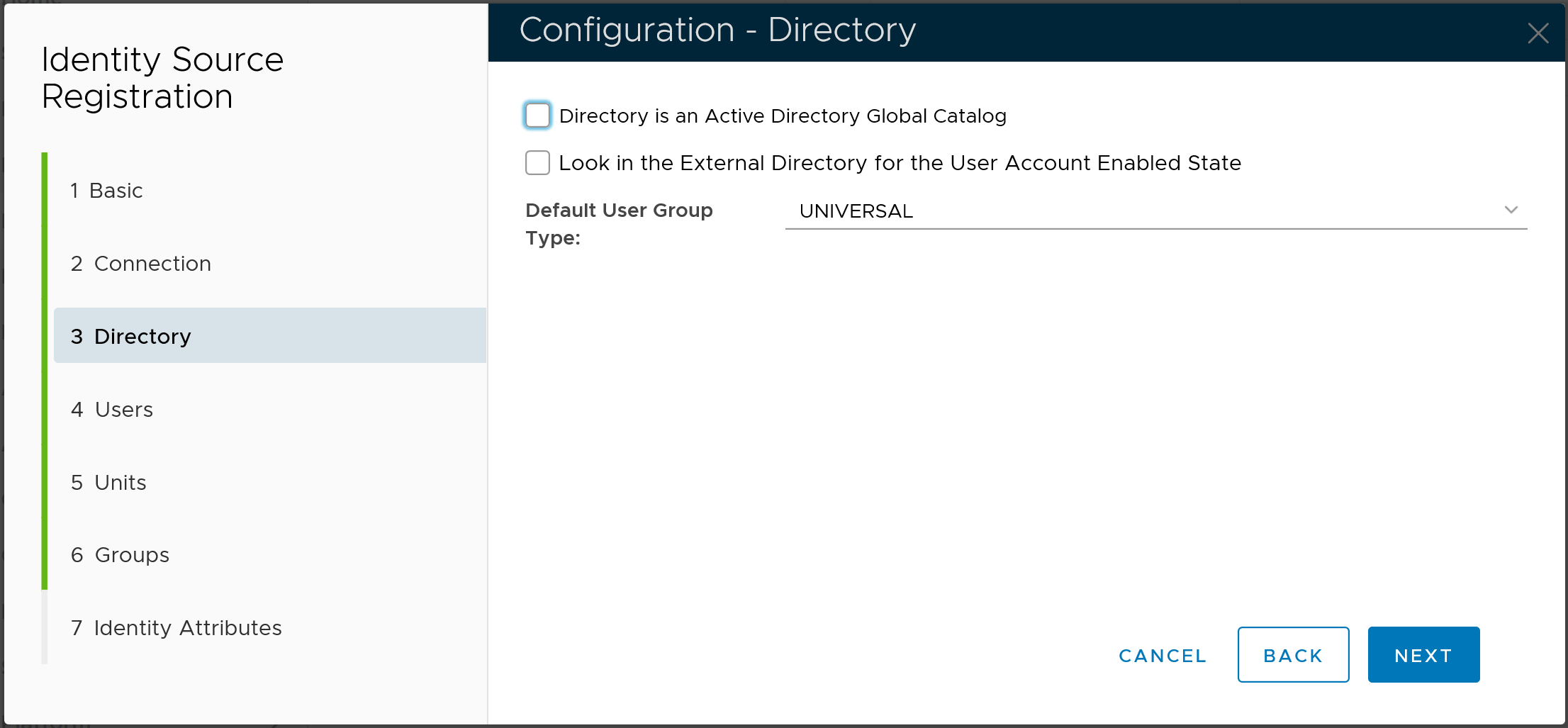
Select the appropriate options
Click the NEXT buttonto continue
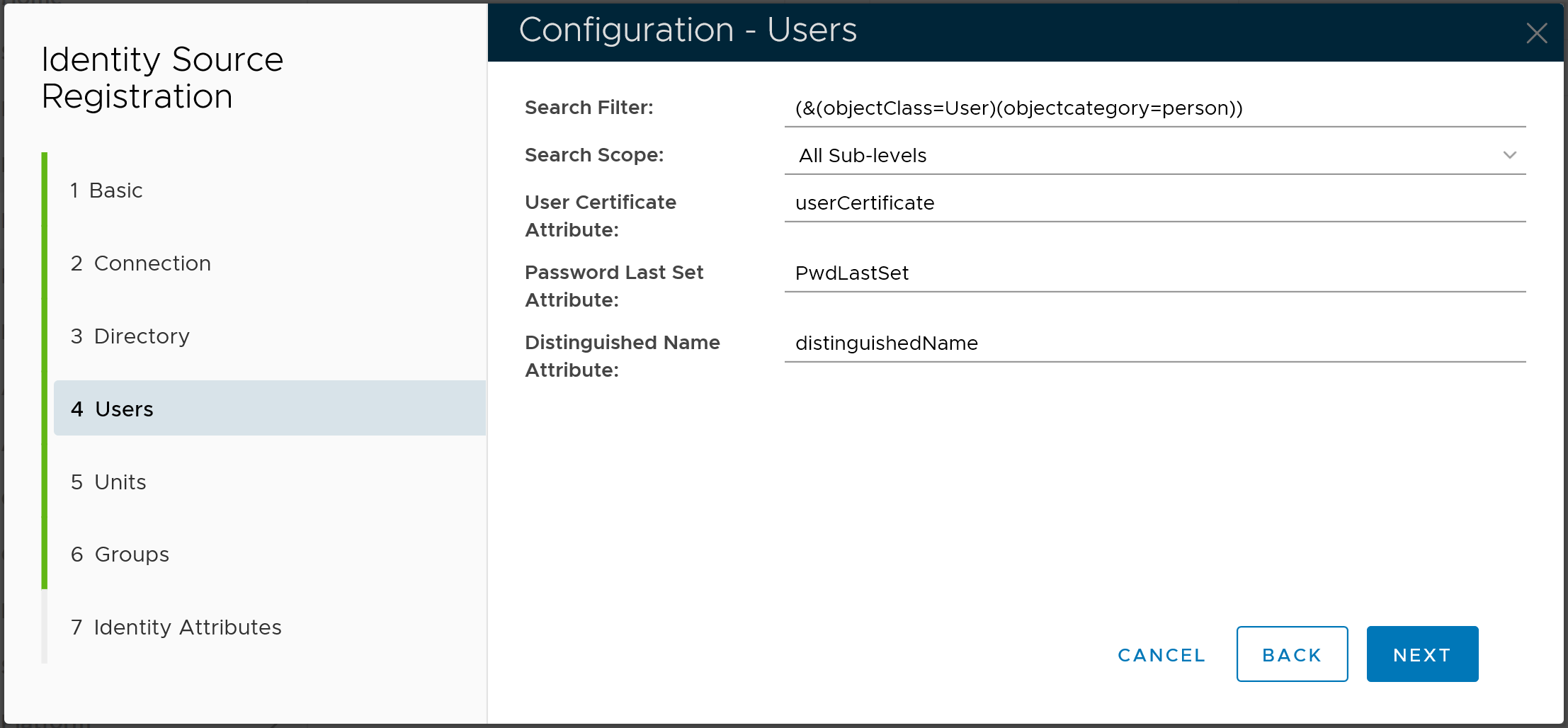
Do not make any changes
Click the NEXT button to continue
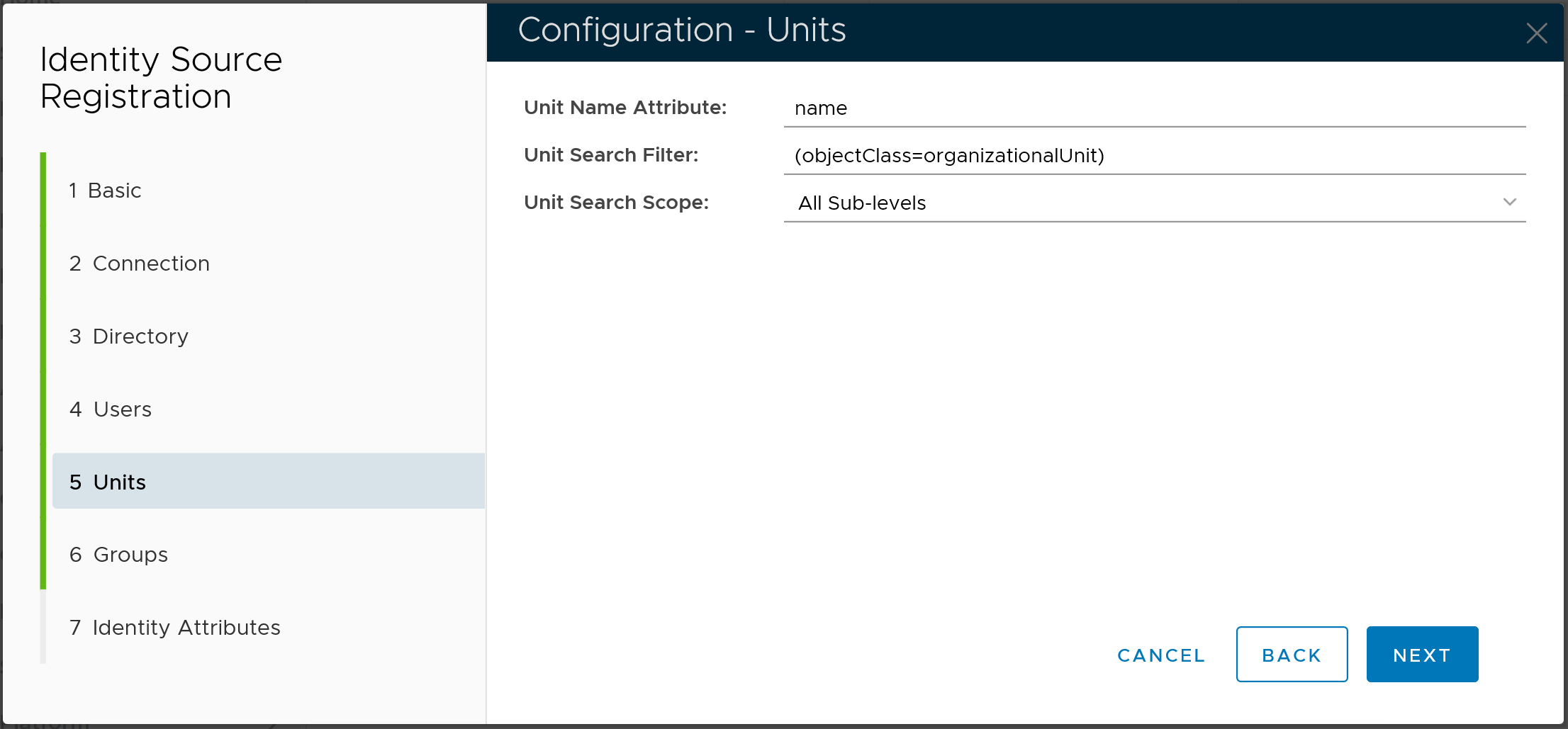
Do not make any changes
Click the NEXT button to continue
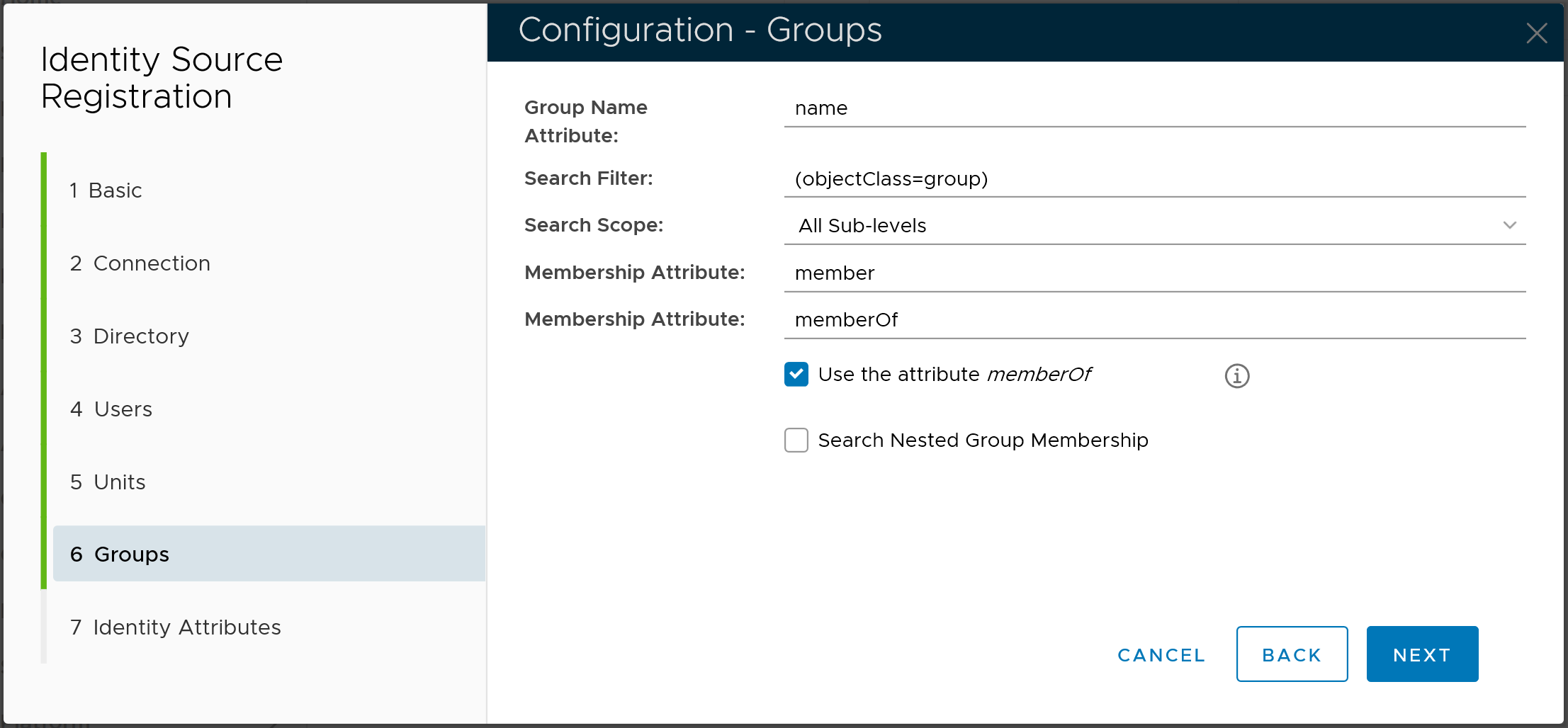
Do not make any changes
Click the NEXT button to continue
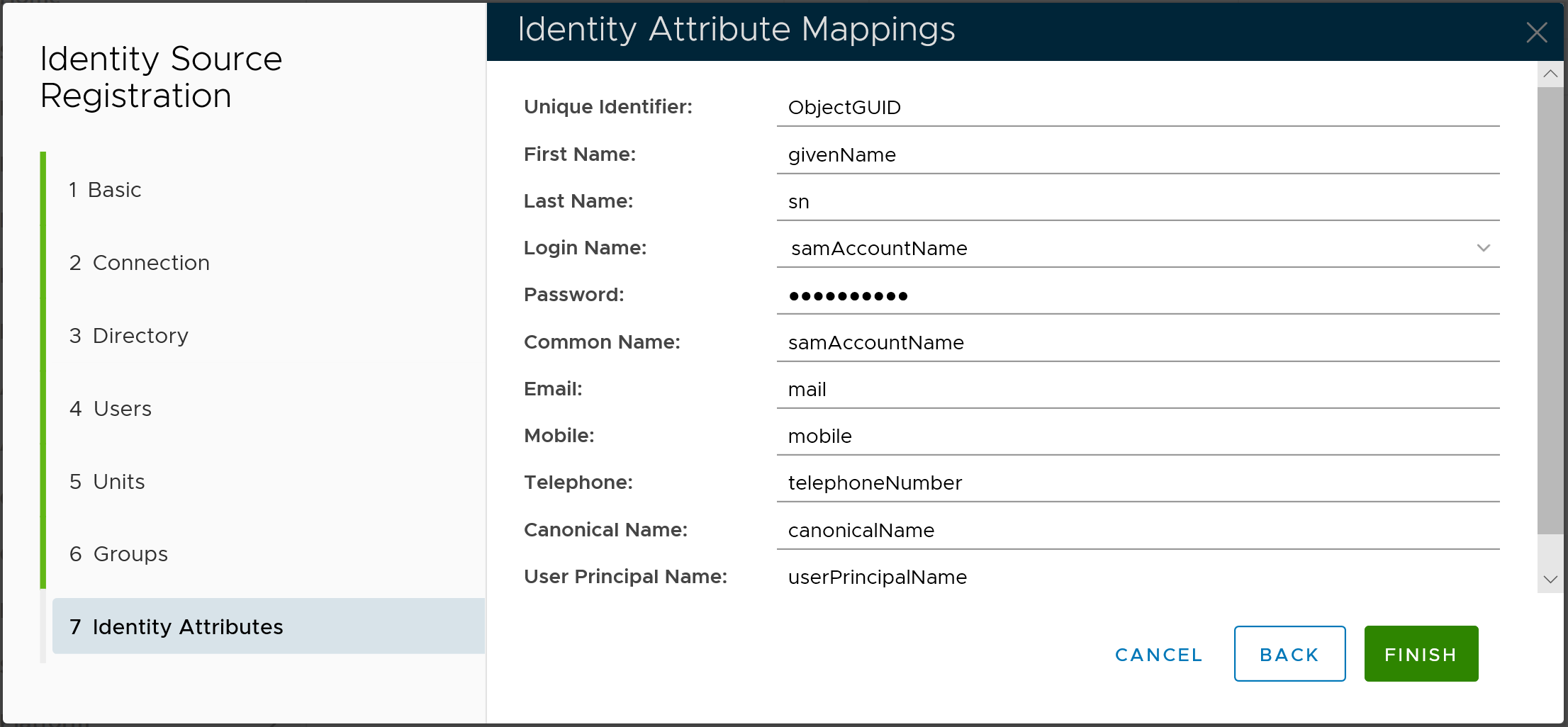
Do not make any changes
Click the FINISH button complete the wizard