Configure the RD Gateway to send RADIUS authentication to an DualShield Radius Server.
- In RD Gateway Manager, right-click the server name and select Properties.
- Select the "RD CAP Store" tab
![DualShield MFA Platform > Configure Remote Desktop Gateway [RDG] > image2018-2-15_0-48-1.png](/download/attachments/3358880/image2018-2-15_0-48-1.png?version=1&modificationDate=1518655682000&api=v2)
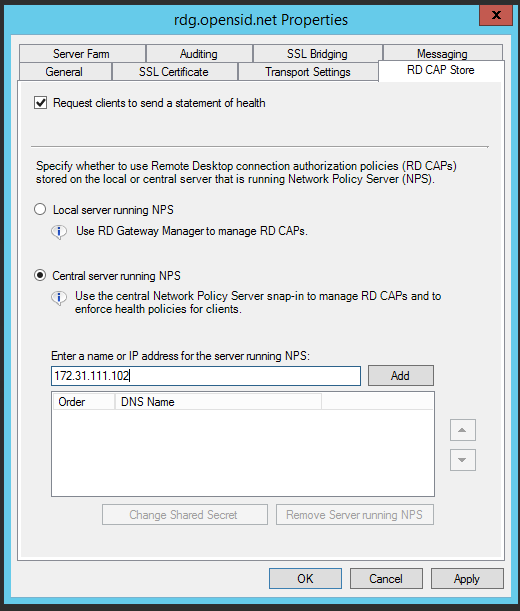
- Select "Central server running NPS"
- Enter the name of IP address of your DualShield RADIUS server (not the IP address of the NPS server)
![DualShield MFA Platform > Configure Remote Desktop Gateway [RDG] > image2018-2-15_16-20-24.png](/download/attachments/3358880/image2018-2-15_16-20-24.png?version=1&modificationDate=1518711623000&api=v2)
- Click "Add"
![DualShield MFA Platform > Configure Remote Desktop Gateway [RDG] > image2018-2-15_16-21-22.png](/download/attachments/3358880/image2018-2-15_16-21-22.png?version=1&modificationDate=1518711681000&api=v2)
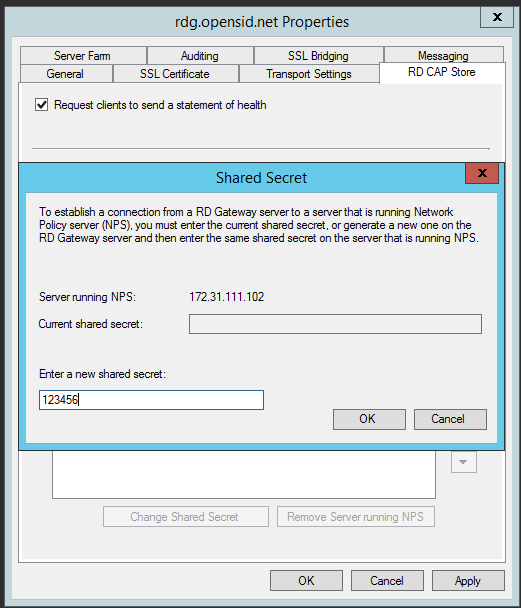
- Enter the same shared scret that was set in the RADIUS settings, then click "OK"
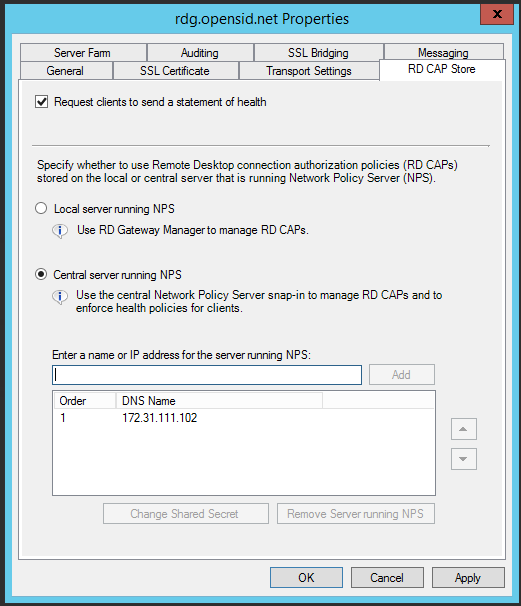
![DualShield MFA Platform > Configure Remote Desktop Gateway [RDG] > image2018-2-15_16-22-8.png](/download/attachments/3358880/image2018-2-15_16-22-8.png?version=1&modificationDate=1518711727000&api=v2)
- Click "Apply" to save changes