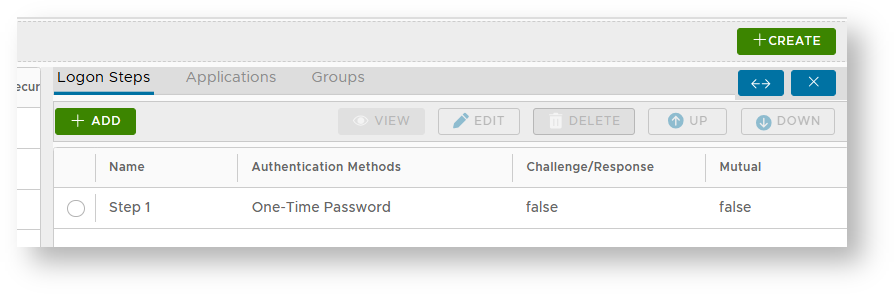
In the DualShield Management Console, edit the logon procedure for your Cisco ASA application. Set the "One-Time Password" as the authentication method:
![DualShield MFA Platform > One-Step Logon [ASA-ANY] > image-2025-1-3_16-40-19.png](/download/attachments/35946737/image-2025-1-3_16-40-19.png?version=1&modificationDate=1735922419641&api=v2&effects=drop-shadow)
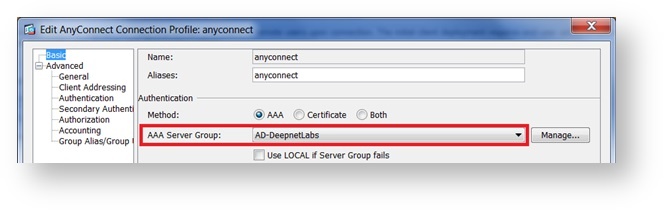
Select the Primary Authentication Server: AD
![DualShield MFA Platform > One-Step Logon [ASA-ANY] > Onestep2.jpg](/download/attachments/35946737/Onestep2.jpg?version=1&modificationDate=1735919375789&api=v2)
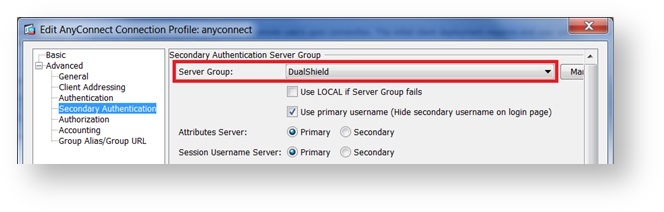
Select the Secondary Authentication Server: DualShield
![DualShield MFA Platform > One-Step Logon [ASA-ANY] > Onestep3.jpg](/download/attachments/35946737/Onestep3.jpg?version=1&modificationDate=1735919439458&api=v2)
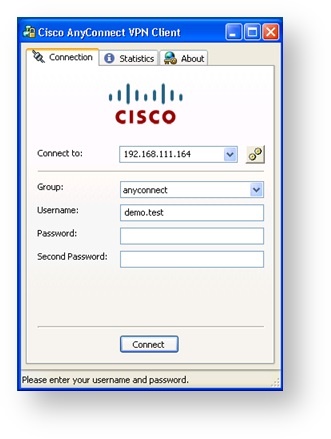
AnyConnect Desktop Client
![DualShield MFA Platform > One-Step Logon [ASA-ANY] > Onestep4.jpg](/download/attachments/35946737/Onestep4.jpg?version=1&modificationDate=1735919494850&api=v2)
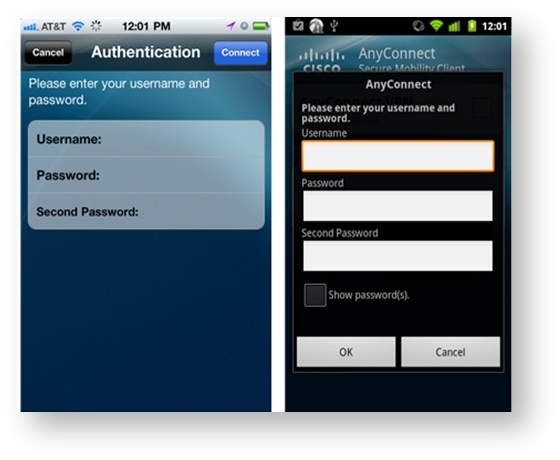
AnyConnect Mobile Client
![DualShield MFA Platform > One-Step Logon [ASA-ANY] > Onestep5.jpg](/download/attachments/35946737/Onestep5.jpg?version=1&modificationDate=1735919551275&api=v2)