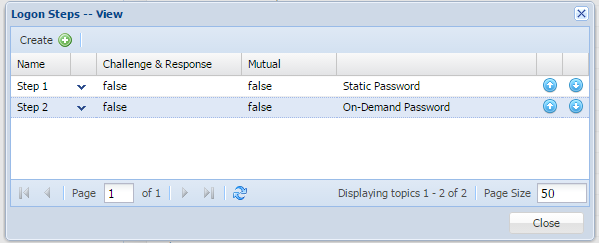
In the DualShield Management Console, edit the logon procedure for your Cisco ASA application. Set the "On-Demand Password" as the authentication method:
![DualShield MFA Platform > Two-Step Logon [ASA-ANY] > New logon steps.png](/download/attachments/35946738/New%20logon%20steps.png?version=1&modificationDate=1757329796110&api=v2)
Select the Primary Authentication Server: DualShield
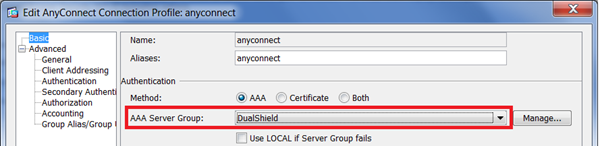
![DualShield MFA Platform > Two-Step Logon [ASA-ANY] > Edit 1.png](/download/attachments/35946738/Edit%201.png?version=1&modificationDate=1757329839993&api=v2)
Select the Secondary Authentication Server: None
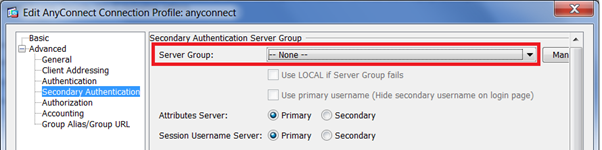
![DualShield MFA Platform > Two-Step Logon [ASA-ANY] > Edit 2.png](/download/attachments/35946738/Edit%202.png?version=1&modificationDate=1757329882719&api=v2)
![DualShield MFA Platform > Two-Step Logon [ASA-ANY] > Cisco.png](/download/attachments/35946738/Cisco.png?version=1&modificationDate=1757329913460&api=v2)
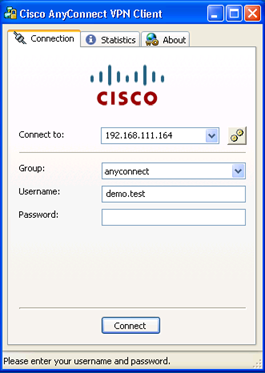
Enter the user's logoin name and static password (AD password), and click "Connect"
DualShield Authentication Server will verify user's password
If the second authenticator is an on-demand password, DualShield Authentication Server will automatically send out a one-time password to user via SMS or email message.
Cisco Anyconnect client will prompt the user to enter the one-time password::
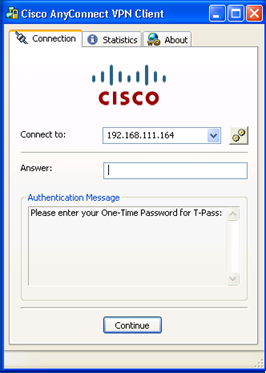
![DualShield MFA Platform > Two-Step Logon [ASA-ANY] > Cisco 2.png](/download/attachments/35946738/Cisco%202.png?version=1&modificationDate=1757329952028&api=v2)