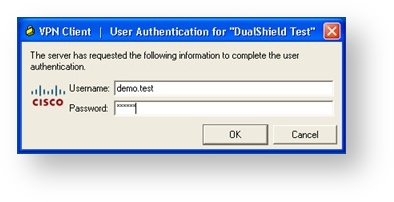
Lanuch the Cisco IPSec VPN Client, click "Connect":
Enter the user's login name and static password (AD password), and click “OK”.
DualShield will verify the user’s password.
If the second authenticator is an on-demand password, DualShield Authentication Server will automatically send out a one-time password to the user via SMS or email message.
Cisco VPN client will prompt the user to enter the one-time password:
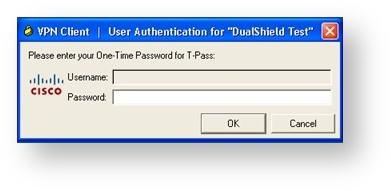
Enter a valid one-time password, click “OK”.
Cisco VPN client will now establish connection.