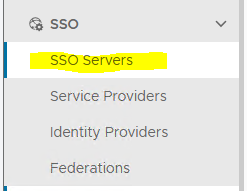
Log in to DualShield Administration Console. In the main menu, navigate to “SSO | SSO Servers”
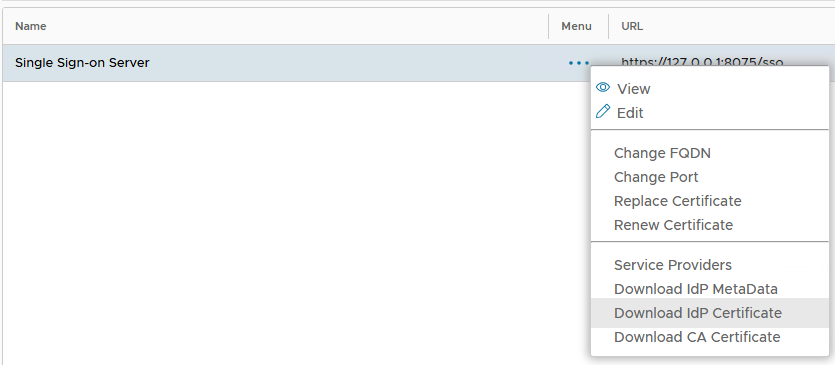
2. Select the primary "Single Sign-on Server", click the context "..." menu and Click the SSO Server context menu, select “Download IdP Certificate” and save the file.
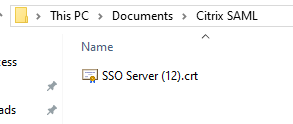
The Signing Certificate CRT file will be saved to the local computer:
3. Log in to the NetScaler VPX web console, Navigate to “Traffic Management | SSL | Certificates | CA Certificates”. Click “Install”
4. Enter the “Certificate-Key Pair Name”
5. Upload the DualShield SSO Server certificate from the local store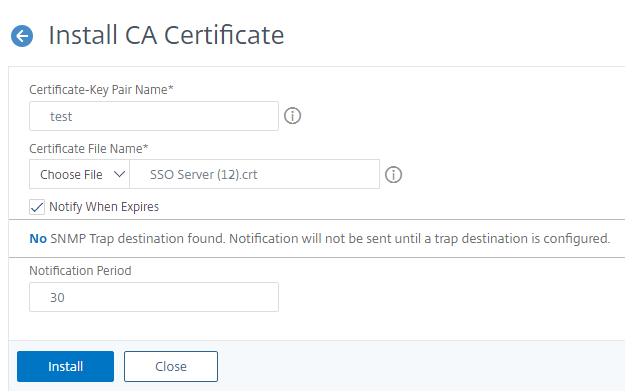
Enter the “Name”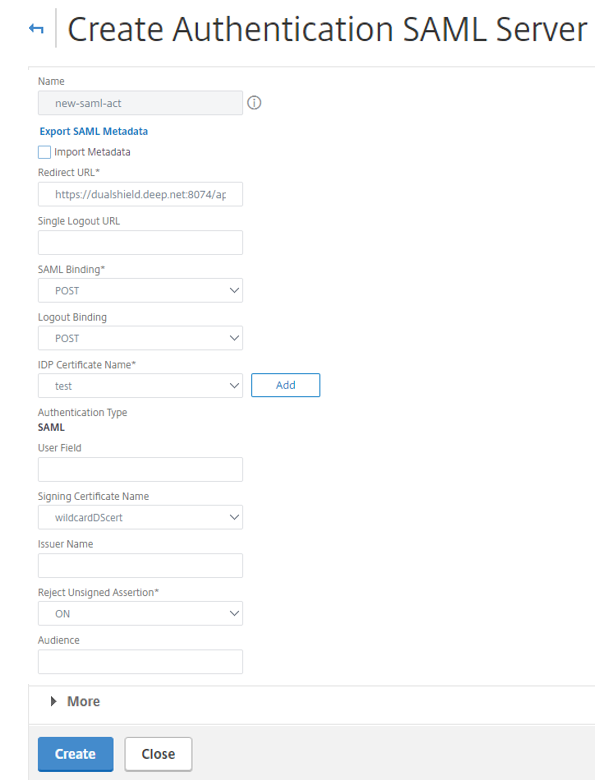
In the "Redirect URL" field, enter the URL below: http://dualShield.deepnetqa.com:8074/appsso/login?DASApplicationName=Access Gateway SAML Replace "dualShield.deepnetqa.com" with the FQDN of your DualShield server, "Access Gateway SAML" with the application name of the Netscaler Access Gateway in your DualShield server. <Optional> In the "SAML Issuer Name" field, enter the FQDN of your NetScaler Gateway Virtual Server. (The SAML Issuer Name must be identical to the EntityID in the metadata of the service provider that was set up in the previous section) |
When testing setup of SAML Authentication server on version 13.0 there is a known bug which gives the following error when you try to create it on the console:

The work around is to set this up via the CLI. I therefore logged in via Putty and added the following command, such as:
add authentication samlaction new-saml-act -samlIdPCertName test -samlredirectUrl https://dualshield.deep.net:8074/appsso/loginDASApplicationName=Citrix |

If you are not familiar with Citrix Netscaler CLI then please refer to the section titled 'To configure the NetScaler appliance as a SAML SP by using the command line interface' in following guide:
https://docs.citrix.com/en-us/netscaler/12/aaa-tm/saml-authentication/netscaler-saml-sp.html
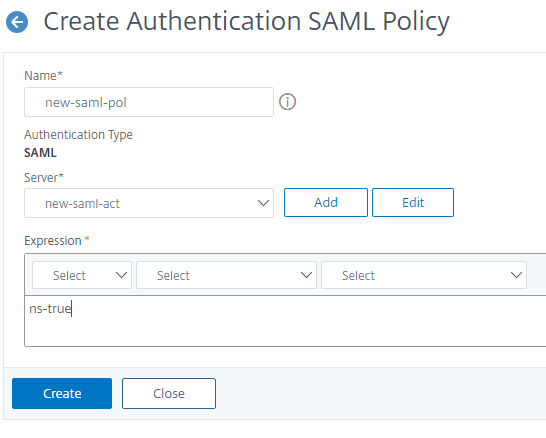
6. Click "Create"