Create a Web Logon Procedure
- Login to the DualShield Administration Console
- In the main menu, navigate to “Authentication | Logon Procedures”
- Click the “+ CREATE” button on the toolbar
- Enter a suitable “Name”, then select 'Type' as “Web SSO”:
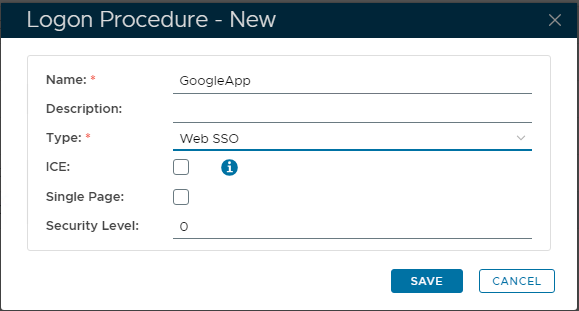
- Click the "SAVE" button
- Click the context "..." icon of the newly create Logon Procedure, then select “Logon Steps”
- Select "+ ADD" in the toolbar on the right
- Select the authentication method, e.g. "One-Time Password"
- Then click "SAVE" to apply
Create a Web Application
- In the main menu, select “Authentication | Application”
- Click the “+ CREATE” button on the toolbar
- Enter an appropriate “Name”
- Select the internal “Realm” at the drop-down
- Select the newly created Logon Procedure, from the previous step.
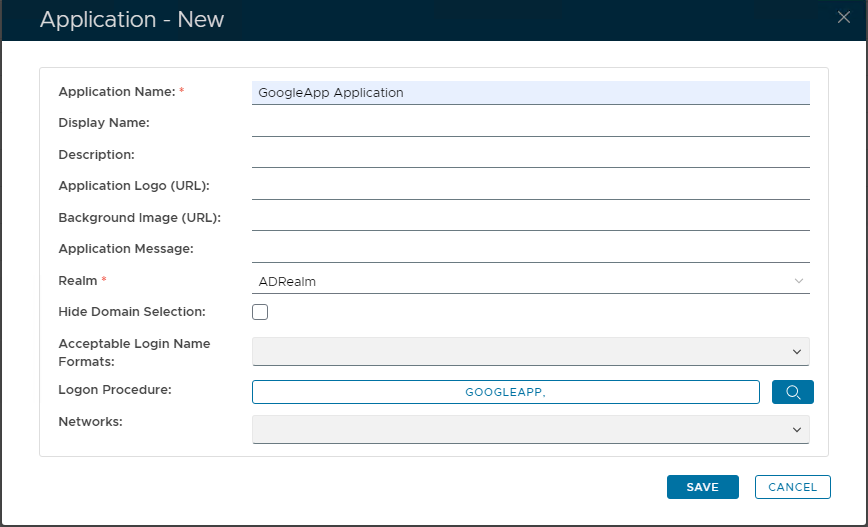
- Click "SAVE" to create the new Application
- Click the context "..." menu of the newly created Application, then select "Agents"
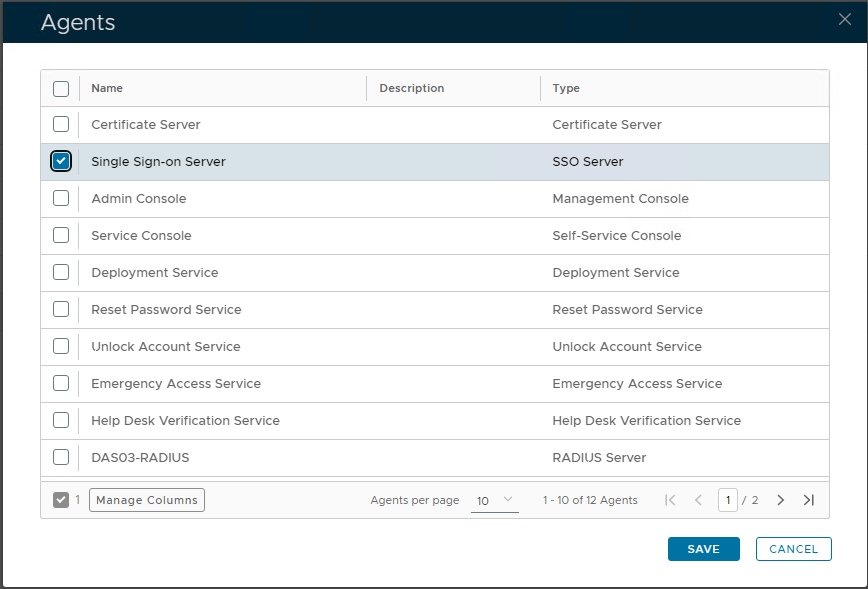
- Select the Agent named "Single Sign-on Server | SSO Server"
- Click "SAVE" to confirm.
Register a GoogleApps Service Provider
- In the main menu, navigate to "SSO | Service Providers"
- Click the "+ CREATE" button, and select "Google Apps"
- Select "SSO Server", enter "Name" , and "Google Apps Domain"
- Click "Save"
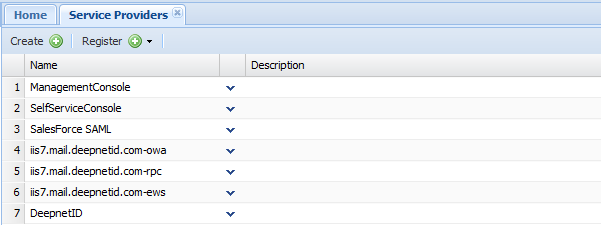
- Click the context "..." menu of "DeepnetID" in the Service Provider list, select Edit
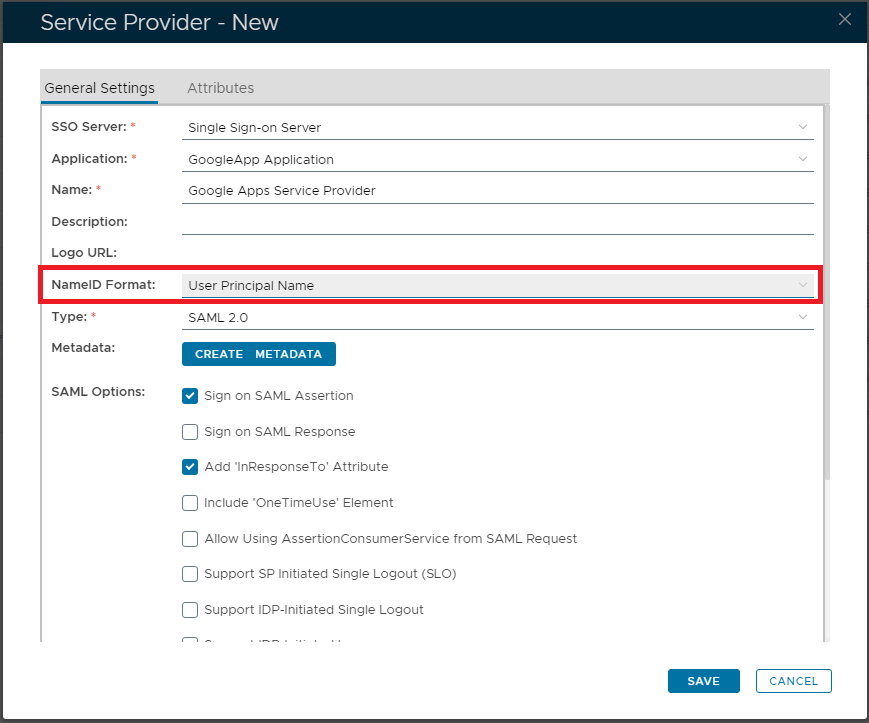
Set "NameID Format" to "User Principle Name"
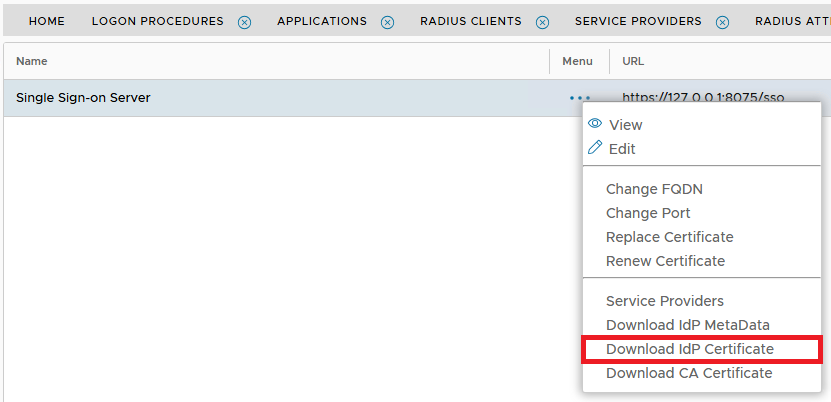
Download the DualShield IdP Certificate
- In the main menu, navigate to "SSO | SSO Servers”
- Click “Download IdP Certificate”, to save the CER file to the local machine: