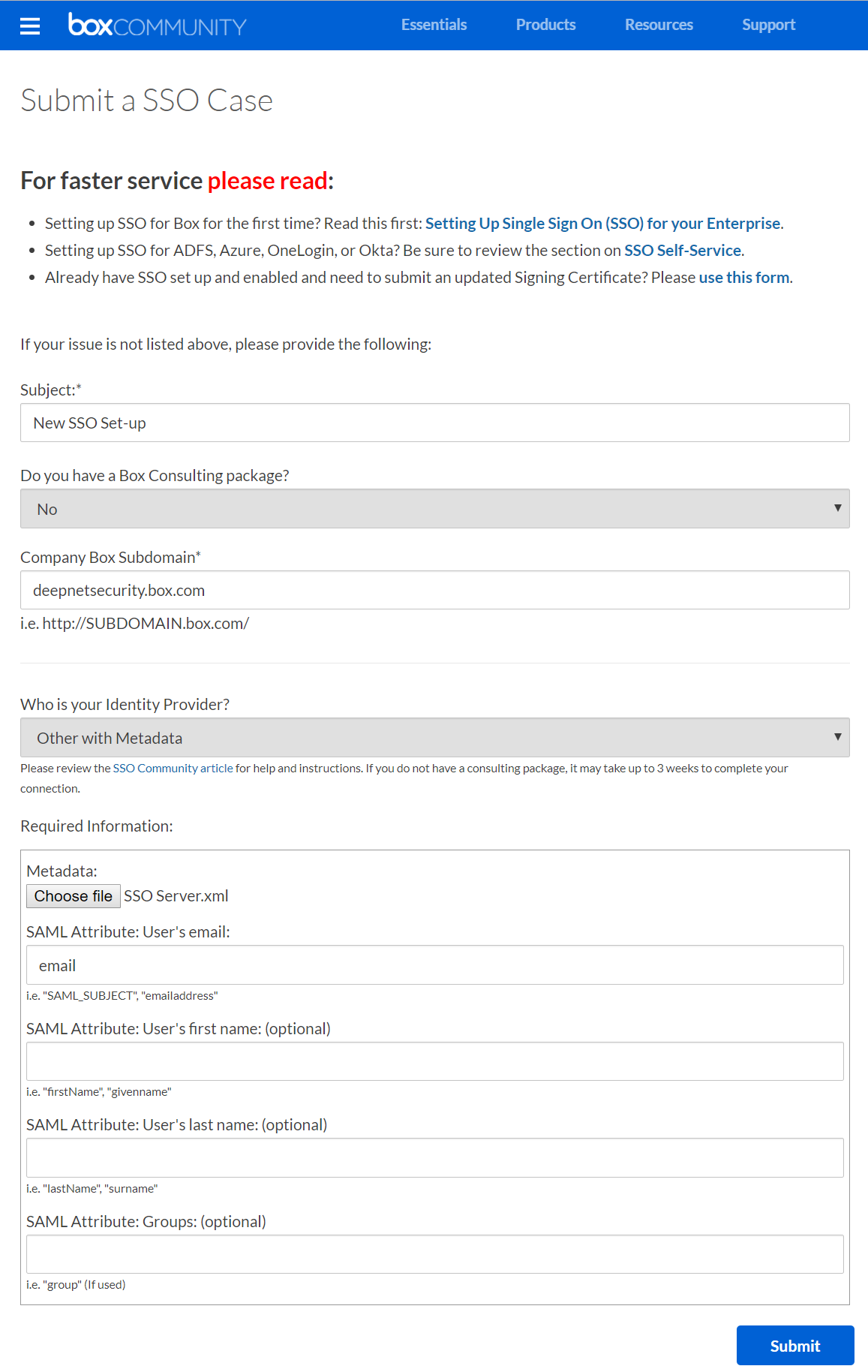
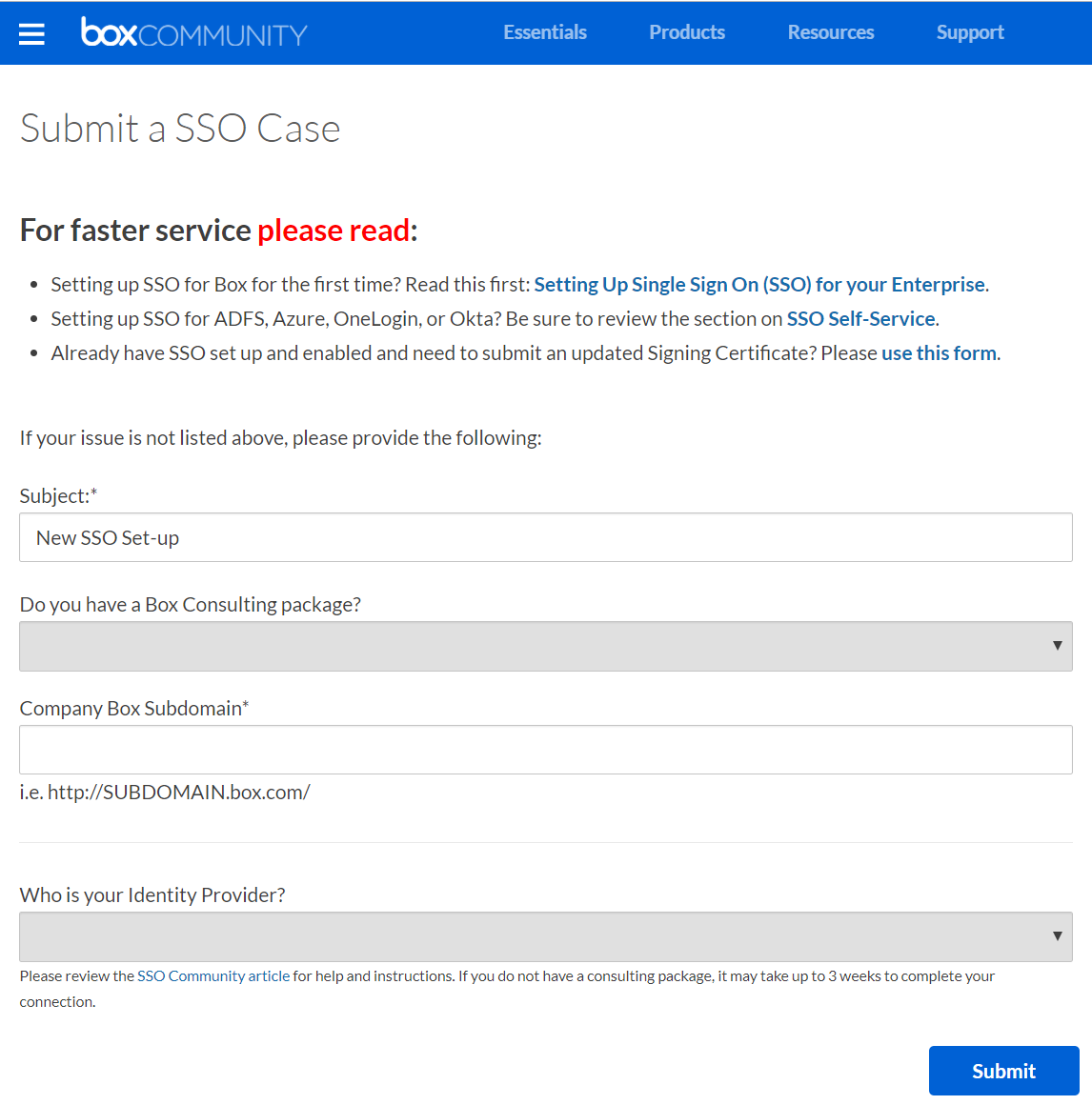
To set up a 3rd-party SSO Identity Provider in Box.com, you need to ask Box.com's help desk to set it up for you. Click the link below to submit a case to Box.com
![DualShield MFA Platform > Box Configuration [BOX] > image2019-3-31_22-38-58.png](/download/attachments/35947231/image2019-3-31_22-38-58.png?version=1&modificationDate=1587385946000&api=v2)
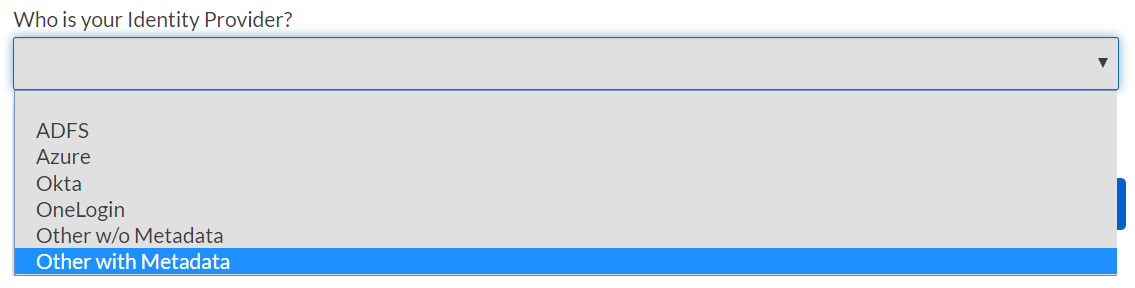
In Who is your Identity Provider? select "Other with Metadata"
![DualShield MFA Platform > Box Configuration [BOX] > image2019-3-31_22-41-28.png](/download/attachments/35947231/image2019-3-31_22-41-28.png?version=1&modificationDate=1587385946000&api=v2)
The form will then expand
![DualShield MFA Platform > Box Configuration [BOX] > image2019-3-31_22-36-58.png](/download/attachments/35947231/image2019-3-31_22-36-58.png?version=1&modificationDate=1587385946000&api=v2)
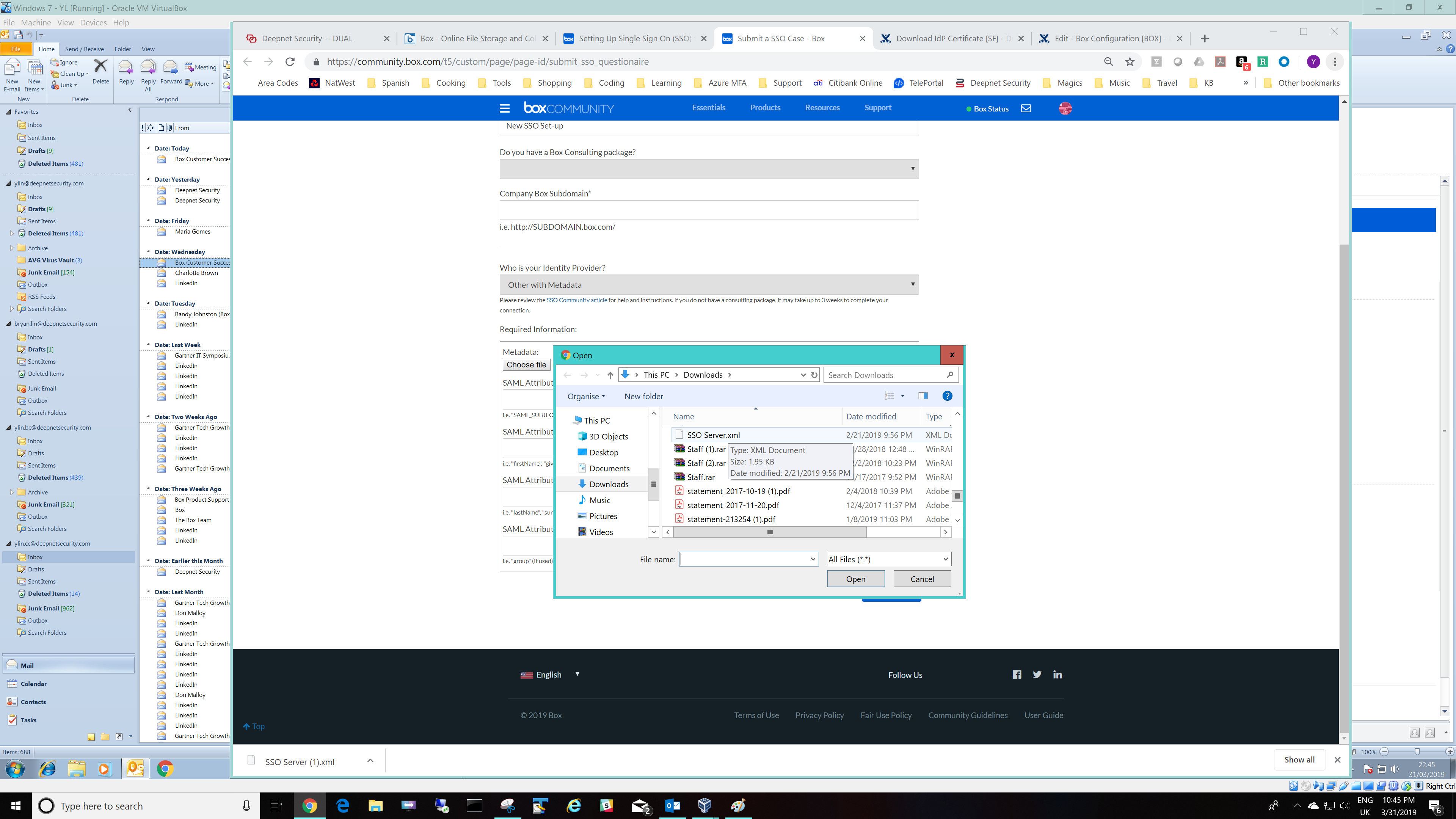
In "Metadata", click "Choose file" button and upload the DualShield's IdP metadata that you downloaded in the previous section.
![DualShield MFA Platform > Box Configuration [BOX] > image2019-3-31_22-46-17.png](/download/attachments/35947231/image2019-3-31_22-46-17.png?version=1&modificationDate=1587385946000&api=v2)
In SAML Attribute: User's email: enter "email"
Finally, click "Submit" to submit the case to Box.com.
Now, you can only wait for the Box.com to set up the SSO for you. Typically, it can take 1 - 2 weeks.
Once you have received a confirmation email from Box.com that they have set up the SSO for you, then login into the Box.com admin console, navigate to "Admin Console > Enterprise Settings > User Settings"
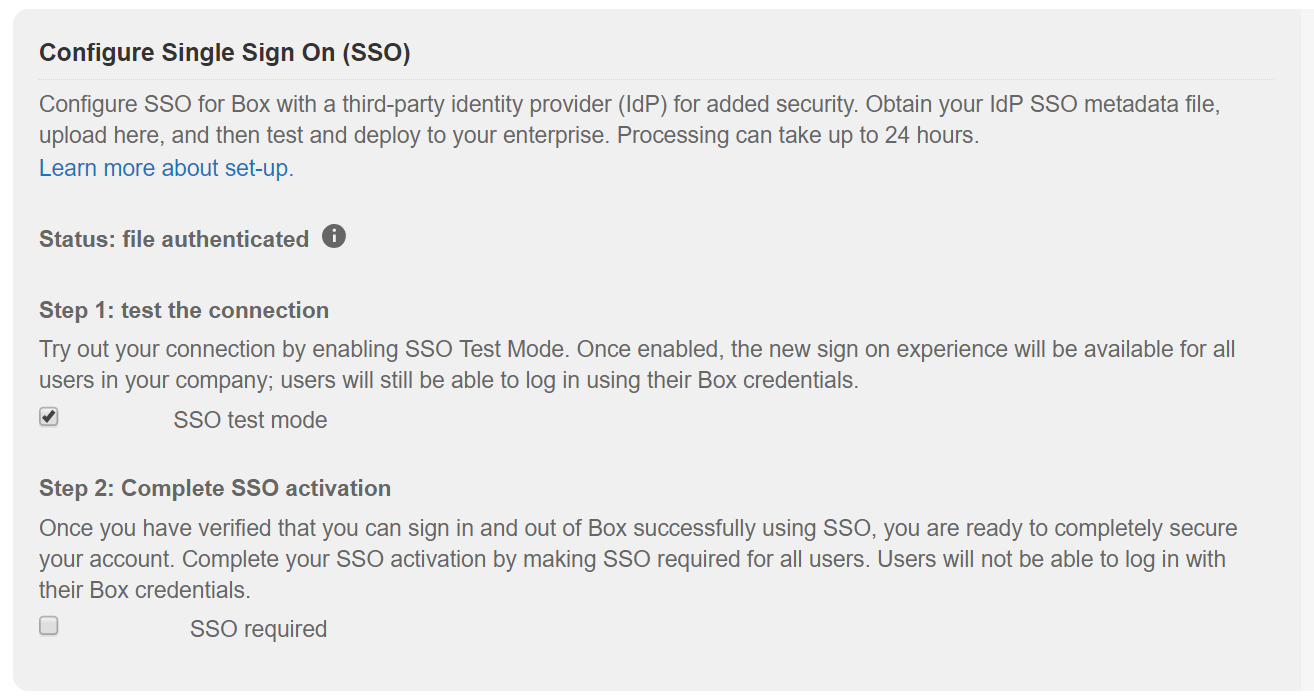
In the "Configure Single Sign On (SSO)" section, enable the option "SSO test mode"
![DualShield MFA Platform > Box Configuration [BOX] > image2019-3-31_23-26-0.png](/download/attachments/35947231/image2019-3-31_23-26-0.png?version=1&modificationDate=1587385946000&api=v2)
Now, you are ready to test out SSO