IPSEC tunnels require that a secure session be established before any data exchange between client and switch. To establish such a session, a pre-shared key is required. The client will be authenticated against the external server (Deepnet RADIUS Server). The client’s user name and password cannot be used to set up the tunnel since Check Point NG/NGX does not know the user ID or password as they are stored on the Active Directory to which the external Deepnet RADIUS server points.
To overcome this problem, the Group ID and Password (configured on both Check Point NG and the client) are used to create a secure session so that the user name and password can then be securely passed to the authentication server. In this way Check Point NG/NGX establishes the "outer" tunnel with the client using the Group ID to bind the tunnel to a particular group and the password as a pre-shared key. Once the "outer" tunnel is established, the clients’ ID and password are verified against the external RADIUS server (The actual user store is the Active Directory, to which the external RADIUS server points.). If RADIUS accepts the authentication, the user tunnel is established and the user can send/receive traffic, if RADIUS rejects the authentication, Check Point NG/NGX brings the tunnel down.
There are several Check Point NG/NGX Network Objects that must be configured to integrate DualShield into the authentication process for end users. These are summarized below:
In addition, certain Global Properties of Check Point NG/NGX must be modified as well.
Once these changes have been made, DualShield will provide two-factor authentication to those users tunnelling into Check Point NG/NGX.
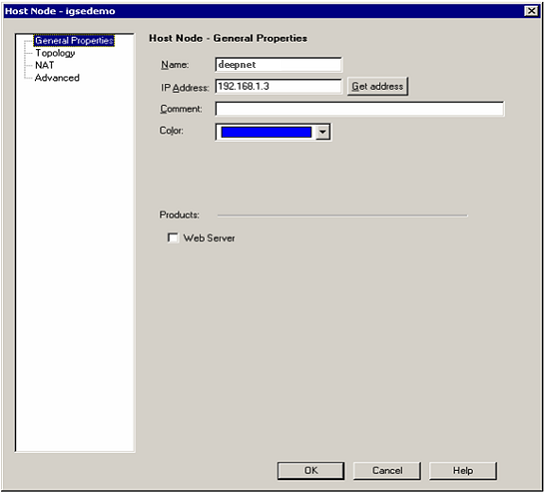
There are several steps that are necessary in defining a RADIUS server to Check Point NG/NGX. The first of which is to define the Host Node. In the Check Point SmartDashboard Console, select the Servers and OPSEC applications object tree, select Servers, right click and select New Host Node.... Enter the details of the new Host Node using the following as your guide:
Click "OK" to save your entry and exit the screen.
Within the SmartDashboard console, define a new RADIUS Server object. In the Servers and OPSEC applications object tree, select Servers, right click and select New RADIUS.... Enter the details of the RADIUS server using the following as your guide:
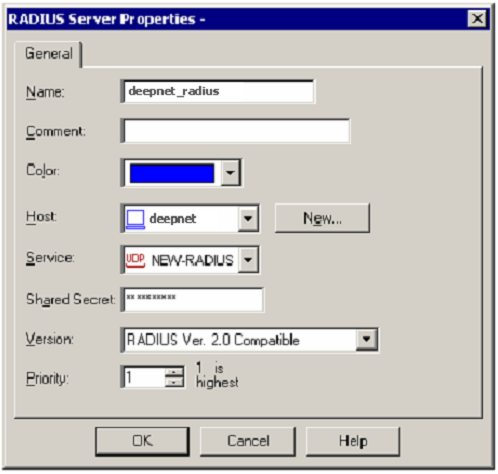
Click "OK" when you are done to both save your configuration and return to SmartDashboard.
External User Profiles are profiles of externally defined users, that is, users who are not defined in the internal user’s database or on an LDAP server. External user profiles are used to avoid the burden of maintaining multiple user databases, by defining a single, generic profile for all external users. External users are authenticated based on either their name or their domain.
A User Group must be defined that will represent those users authenticating with DualShield RADIUS server. Within the SmartDashboard console, define a new RADIUS Server object. In the Users and Administrators object tree, select External User Profiles, right click and select New External User Profile and then Match all users....
Several screens will be navigated to properly define the new External User Profile.
Once the External User Profile Properties window is displayed do the following:
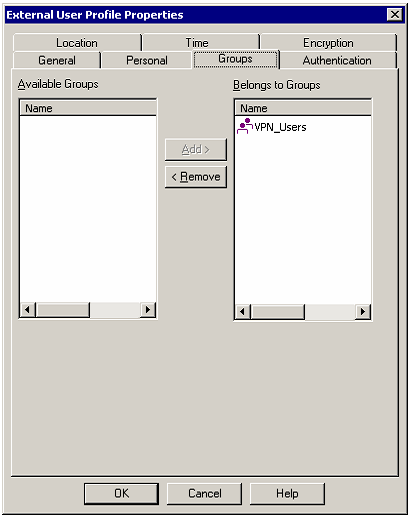
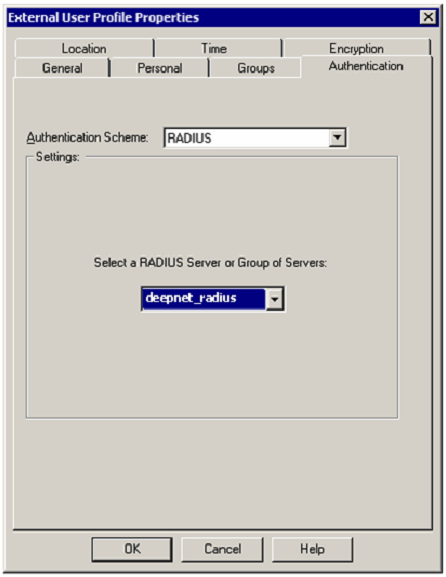
A User Group must be defined that will represent those users authenticating with Deepnet RADIUS server. Within the SmartDashboard console, define a new RADIUS Server object. In the Users and Administrators object tree, select User Groups, right click and select New User Groups.... Enter in the details that will describe the Deepnet RADIUS Server using the following as a guide:
Next, move the users, external user profiles or groups to be included in this group from the Not in Group list to the In Group list. In our case, we defined an External User Profile. In our example, we moved the External User Profile generic* to the In Group list.
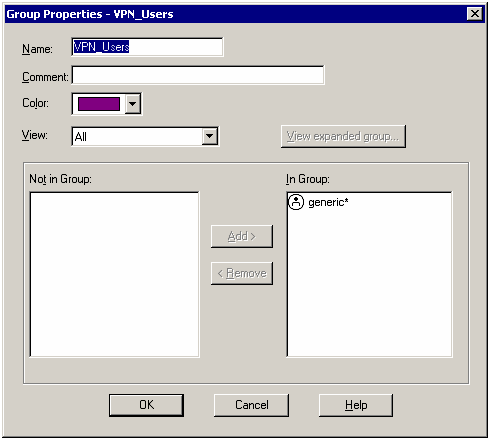
Click OK to complete the definition.
There are certain attributes within the Check Point NG/NGX Global Properties that must be checked to ensure a successful integration. In order to support RADIUS authentication, Check Point NG/NGX must operate in Hybrid Mode and must be configured to ignore certain RADIUS attributes that Deepnet RADIUS server sends back. These configuration changes will be performed within this section.
Access the Global Properties section by selecting Policy from the toolbar and then choosing Global Properties option at the bottom.
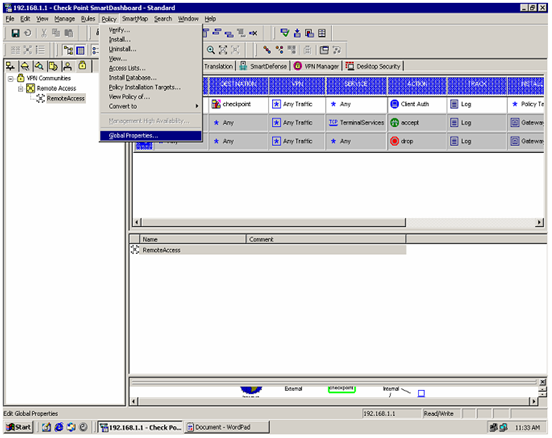
Next, validate or configure the following:
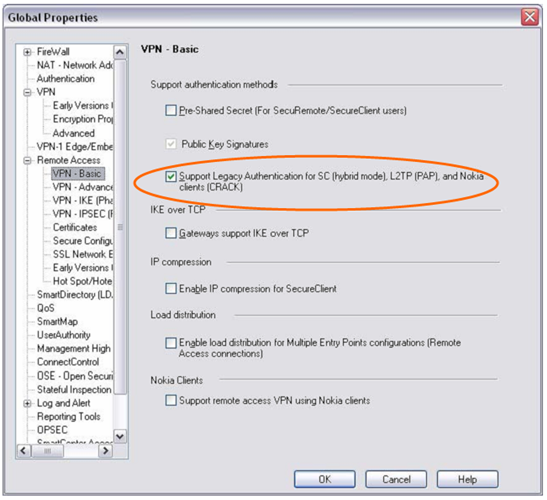
Expand the Remote Access option and then select VPN – Basic.
For R55, make sure the Hybrid Mode (VPN-1 & FireWall-1 authentication) option is selected. If not, select this option.
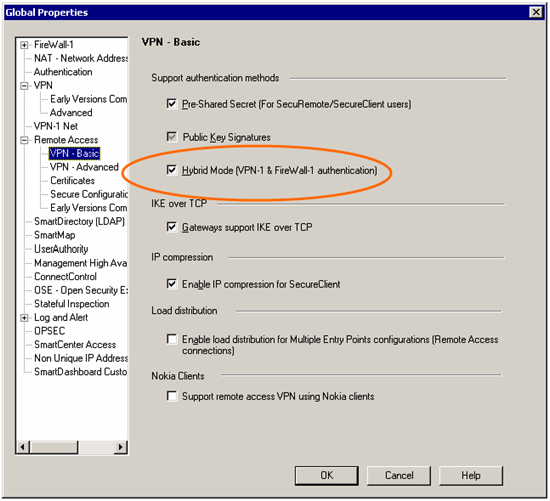
For R60, make sure the Support Legacy Authentication for SC (hybrid mode), L2TP (PAP), and Nokia clients (CRACK) option is selected. If not, select this option.
Check Point NG/NGX only recognizes RADIUS attributes from 1 to 63 as defined within RFC 2138. By default, DualShield RADIUS server returns RADIUS attribute 80, Check Point NG/NGX must be told to ignore it otherwise this response will be blocked and the RADIUS authentication will fail. To have Check Point NG/NGX ignore RADIUS attribute 80, select SmartDashboard Customization at the bottom of the Global Properties window.
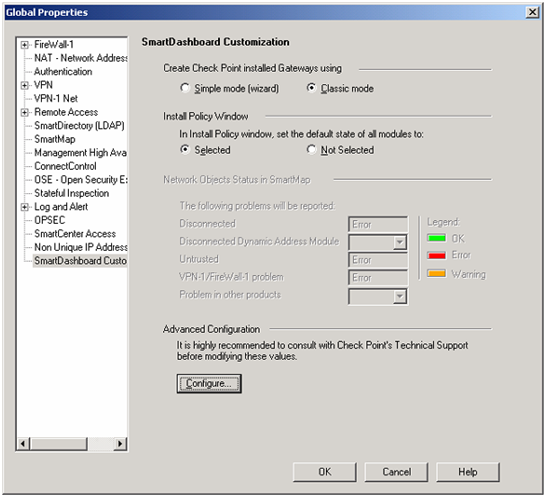
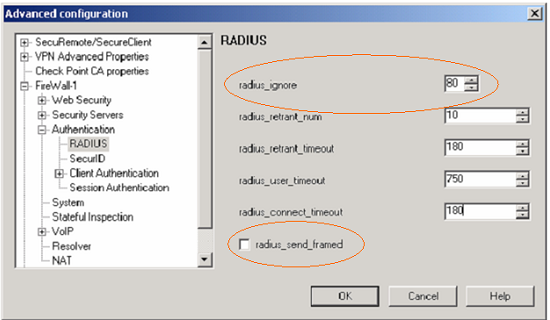
Next, click the Configure button at the bottom of the window. Under FireWall-1, expand the Authentication section and then select RADIUS to expose all attributes. Update the radius_ignore attribute as follows:
radius_ignore Change this from 0 to 80. This will instruct Check Point NG/NGX to ignore RADIUS Attribute 80 if it receives it. This allows the DualShield RADIUS server challenge to be displayed to the end user by the Check Point SecurRemote Client.
Also, consider increasing the timeout values related to RADIUS authentication. These attributes were increased to take into account that DualShield RADIUS server is now part of the RADIUS authentication process.
radius_connect_timeout Change from 120 to 180.
radius_retrant_num Change from 2 to 10.
radius_retrant_timeout Change timeout value from 120 to 180.
radius_user_timeout Change from 600 to 750.
Also, make sure that the radius_send_framed is unchecked.
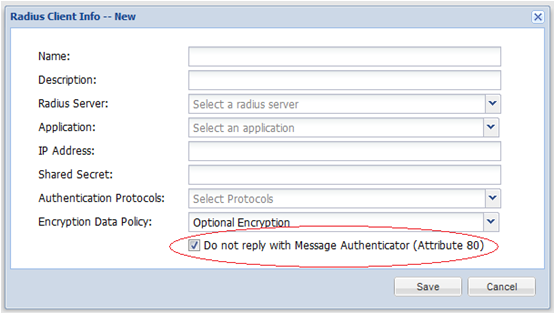
Alternatively, you can configure the Radius client in DualShield so that DualShield Radius server will not return attribute 80.