To test the RADIUS authentication, we will use F5 BIG-IP Portal Access as a example.
Configure a remote access connection to one or more internal web applications. Create an access policy and local traffic virtual server so that end users can access internal web applications through a single external virtual server. Use this if you need to provide secure extranet access to internal web applications without creating a full VPN connection.
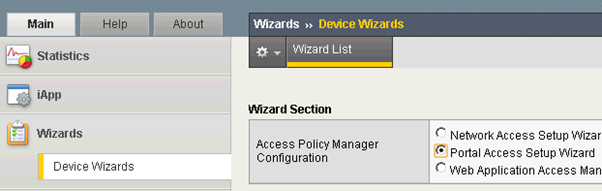
Select “Device Wizards” in the Main tab:
![DualShield MFA Platform > One-Step Logon [F5-BI-RADIUS] > image2014-4-15 12:23:21.png](/download/attachments/35947413/image2014-4-15%2012%3A23%3A21.png?version=1&modificationDate=1587386057000&api=v2)
then select “Portal Access Setup Wizard”:
![DualShield MFA Platform > One-Step Logon [F5-BI-RADIUS] > image2014-4-15 12:23:58.png](/download/attachments/35947413/image2014-4-15%2012%3A23%3A58.png?version=1&modificationDate=1587386057000&api=v2)
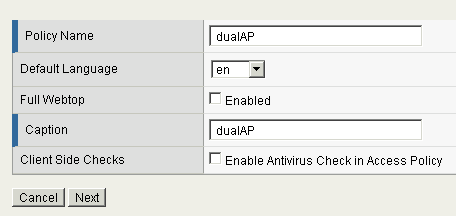
Enter the Policy Name. Click “Next”
![DualShield MFA Platform > One-Step Logon [F5-BI-RADIUS] > image2014-4-15 12:24:19.png](/download/attachments/35947413/image2014-4-15%2012%3A24%3A19.png?version=1&modificationDate=1587386057000&api=v2)
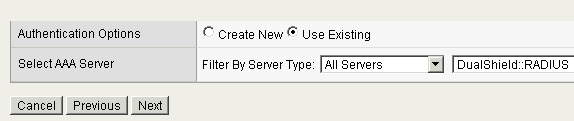
Select the “Use Existing” in the Authentication Option.
Select the DualShield RADIUS server registered in the previous step.
Click “Next”
![DualShield MFA Platform > One-Step Logon [F5-BI-RADIUS] > image2014-4-15 12:24:49.png](/download/attachments/35947413/image2014-4-15%2012%3A24%3A49.png?version=1&modificationDate=1587386057000&api=v2)
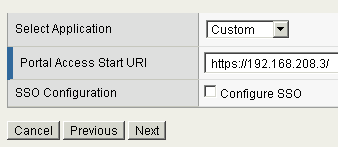
On this page you need to enter the details of your web application and its URI.
Click “Next”
![DualShield MFA Platform > One-Step Logon [F5-BI-RADIUS] > image2014-4-15 12:25:10.png](/download/attachments/35947413/image2014-4-15%2012%3A25%3A10.png?version=1&modificationDate=1587386057000&api=v2)
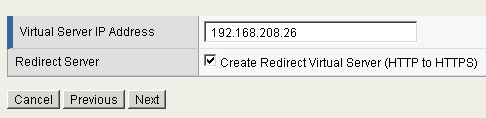
Enter the IP of a virtual server
Click “Next”
![DualShield MFA Platform > One-Step Logon [F5-BI-RADIUS] > image2014-4-15 12:25:30.png](/download/attachments/35947413/image2014-4-15%2012%3A25%3A30.png?version=1&modificationDate=1587386057000&api=v2)
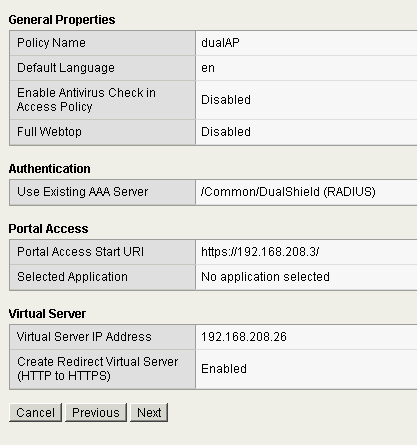
This is the final review page. Make sure all details are correct and click “Next” to finish the wizard.
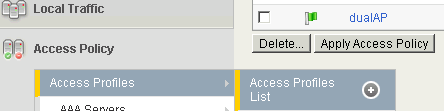
You can now view the Access Profile we just created in Access Profiles List:
![DualShield MFA Platform > One-Step Logon [F5-BI-RADIUS] > image2014-4-15 12:26:5.png](/download/attachments/35947413/image2014-4-15%2012%3A26%3A5.png?version=1&modificationDate=1587386057000&api=v2)
![DualShield MFA Platform > One-Step Logon [F5-BI-RADIUS] > image2014-4-15 12:26:13.png](/download/attachments/35947413/image2014-4-15%2012%3A26%3A13.png?version=1&modificationDate=1587386057000&api=v2)
To edit the Access Policy, click ”Edit”
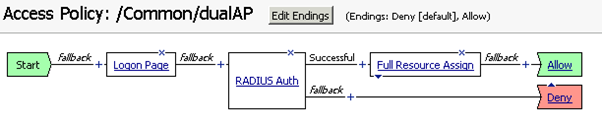
![DualShield MFA Platform > One-Step Logon [F5-BI-RADIUS] > image2014-4-15 12:26:34.png](/download/attachments/35947413/image2014-4-15%2012%3A26%3A34.png?version=1&modificationDate=1587386057000&api=v2)
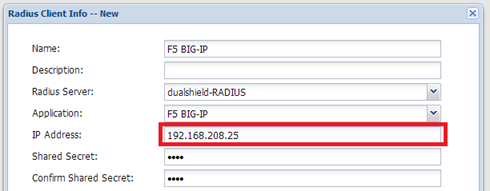
Finally, it is worthwhile pointing out that the IP of the Radius Client registered in DualShield must be the BIG-IP’s Self IP, not the virtual server IP.
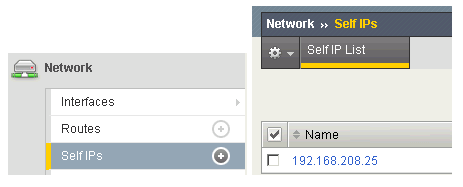
![DualShield MFA Platform > One-Step Logon [F5-BI-RADIUS] > image2014-4-15 12:28:1.png](/download/attachments/35947413/image2014-4-15%2012%3A28%3A1.png?version=1&modificationDate=1587386057000&api=v2)
![DualShield MFA Platform > One-Step Logon [F5-BI-RADIUS] > image2014-4-15 12:28:8.png](/download/attachments/35947413/image2014-4-15%2012%3A28%3A8.png?version=1&modificationDate=1587386057000&api=v2)
Now, we are ready to carry out the test.
Navigate to your BIG-IP’s virtual server address, e.g.
https://bigip-sp.deepnetsecurity.local/
The Logon Page is presented:
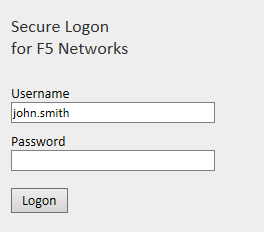
![DualShield MFA Platform > One-Step Logon [F5-BI-RADIUS] > image2014-4-15 12:28:22.png](/download/attachments/35947413/image2014-4-15%2012%3A28%3A22.png?version=1&modificationDate=1587386057000&api=v2)
In the Password field, enter the user’s AD password followed by a OTP passcode, if the logon procedure defined in the DualShield is “Static Passwprd + One-Time-Password":
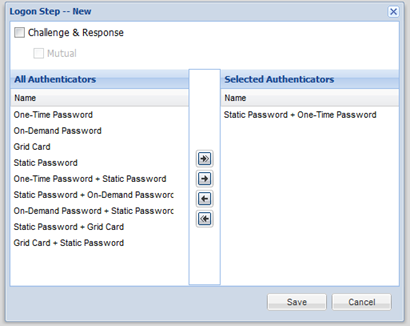
![DualShield MFA Platform > One-Step Logon [F5-BI-RADIUS] > image2023-10-30_11-51-28.png](/download/attachments/35947413/image2023-10-30_11-51-28.png?version=1&modificationDate=1698666693824&api=v2)