![DualShield MFA Platform > Configuration [F5-BI-SAML] > image2014-4-15 12:49:59.png](/download/attachments/35947431/image2014-4-15%2012%3A49%3A59.png?version=1&modificationDate=1587386057000&api=v2)
![DualShield MFA Platform > Configuration [F5-BI-SAML] > image2023-10-30_11-58-29.png](/download/attachments/35947431/image2023-10-30_11-58-29.png?version=1&modificationDate=1698667114959&api=v2)
![DualShield MFA Platform > Configuration [F5-BI-SAML] > image2014-4-15 12:53:41.png](/download/attachments/35947431/image2014-4-15%2012%3A53%3A41.png?version=1&modificationDate=1587386057000&api=v2)
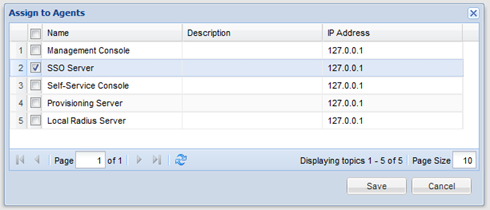
Select "SSO Server"![DualShield MFA Platform > Configuration [F5-BI-SAML] > image2023-10-30_12-0-56.png](/download/attachments/35947431/image2023-10-30_12-0-56.png?version=1&modificationDate=1698667261320&api=v2)
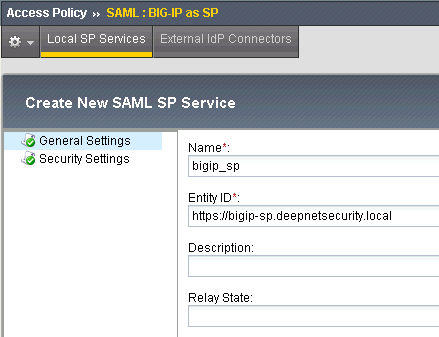
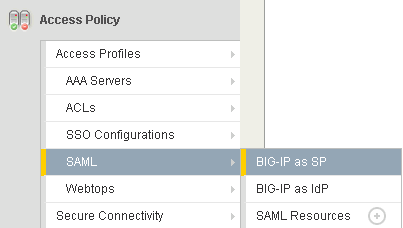
In the main tab, select “Access Policy | SAML | BIG-IP as SP”
![DualShield MFA Platform > Configuration [F5-BI-SAML] > image2014-4-15 12:57:57.png](/download/attachments/35947431/image2014-4-15%2012%3A57%3A57.png?version=1&modificationDate=1587386057000&api=v2)
![DualShield MFA Platform > Configuration [F5-BI-SAML] > image2014-4-15 12:58:13.png](/download/attachments/35947431/image2014-4-15%2012%3A58%3A13.png?version=1&modificationDate=1587386057000&api=v2)
Enter the Name, e.g. "bigip_sp"
In the Entity ID field, we just use the virtual server URL as its Entity ID
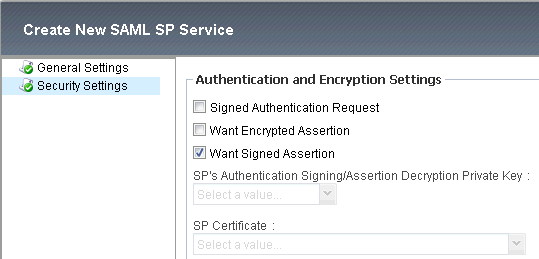
Select "Security Settings":
![DualShield MFA Platform > Configuration [F5-BI-SAML] > image2014-4-15 12:59:27.png](/download/attachments/35947431/image2014-4-15%2012%3A59%3A27.png?version=1&modificationDate=1587386057000&api=v2)
Select "Want Signed Assertion"
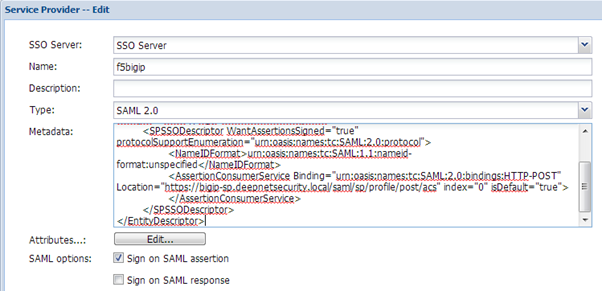
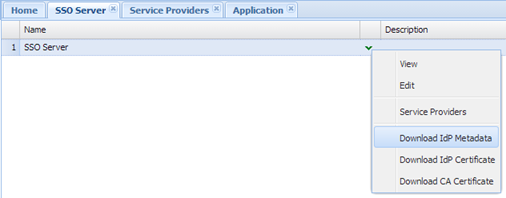
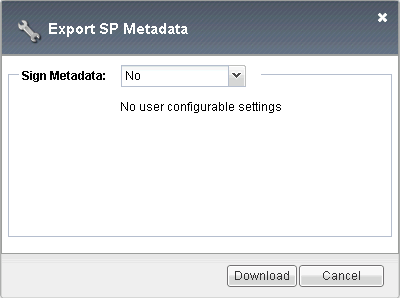
Once completed, we need to export its metadata which will be used later in DualShield to create a SP.
![DualShield MFA Platform > Configuration [F5-BI-SAML] > image2014-4-15 13:0:20.png](/download/attachments/35947431/image2014-4-15%2013%3A0%3A20.png?version=1&modificationDate=1587386057000&api=v2)
![DualShield MFA Platform > Configuration [F5-BI-SAML] > image2014-4-15 13:0:49.png](/download/attachments/35947431/image2014-4-15%2013%3A0%3A49.png?version=1&modificationDate=1587386057000&api=v2)
![DualShield MFA Platform > Configuration [F5-BI-SAML] > image2014-4-15 13:2:52.png](/download/attachments/35947431/image2014-4-15%2013%3A2%3A52.png?version=1&modificationDate=1587386057000&api=v2)
![DualShield MFA Platform > Configuration [F5-BI-SAML] > image2014-4-15 13:2:59.png](/download/attachments/35947431/image2014-4-15%2013%3A2%3A59.png?version=1&modificationDate=1587386057000&api=v2)
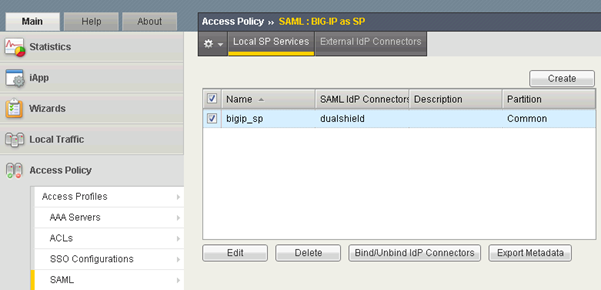
In the Main tab, select “Access Policy | SAML | BIG-IP as SP”, you shall get a list of SPs that have been created:
![DualShield MFA Platform > Configuration [F5-BI-SAML] > image2014-4-15 13:4:16.png](/download/attachments/35947431/image2014-4-15%2013%3A4%3A16.png?version=1&modificationDate=1587386057000&api=v2)
Select “External IdP Connectors”
![DualShield MFA Platform > Configuration [F5-BI-SAML] > image2014-4-15 13:5:1.png](/download/attachments/35947431/image2014-4-15%2013%3A5%3A1.png?version=1&modificationDate=1587386057000&api=v2)
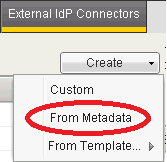
Click the down arrow on the “Create” button to show the drop-down menu, then select “From Metadata”
![DualShield MFA Platform > Configuration [F5-BI-SAML] > image2014-4-15 13:5:10.png](/download/attachments/35947431/image2014-4-15%2013%3A5%3A10.png?version=1&modificationDate=1587386057000&api=v2)
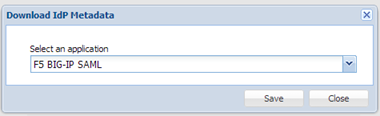
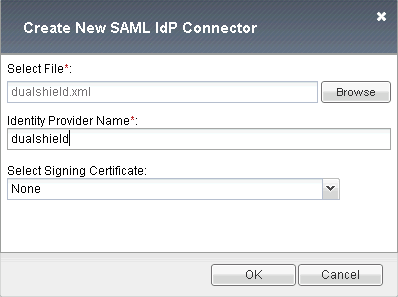
Select the DualShield IdP metadata downloaded in the previous step
Enter the Name: dualshield
Click “OK” to save it
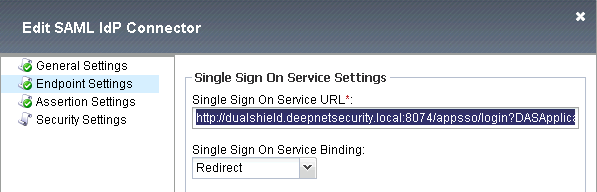
Now, we need to edit the SAML IdP Connector settings:
![DualShield MFA Platform > Configuration [F5-BI-SAML] > image2014-4-15 13:5:28.png](/download/attachments/35947431/image2014-4-15%2013%3A5%3A28.png?version=1&modificationDate=1587386057000&api=v2)
Select “Endpoint Settings”, in the Single Sign On Service URL you should see the URL similar to:
http://dualshield.deepnetsecurity.local:8074/appsso/login?DASApplicationName=F5%20BIG-%20IP%20SAML
F5 Big-IP has a bug that it does not accept URLs containing question mark (?). We have to replace it to:
http://dualshield.deepnetsecurity.local:8074/appsso/login/kvps/DASApplicationName/F5%20BIG-%20IP%20SAML
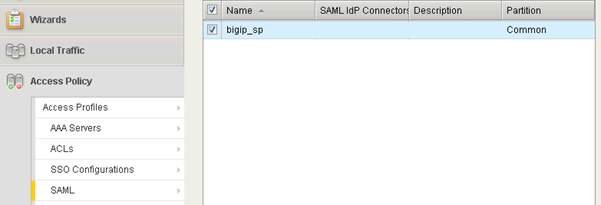
In the Main tab, select “Access Policy | SAML | BIG-IP as SP”, you shall get a list of SPs that have been created:
![DualShield MFA Platform > Configuration [F5-BI-SAML] > image2014-4-15 14:5:1.png](/download/attachments/35947431/image2014-4-15%2014%3A5%3A1.png?version=1&modificationDate=1587386057000&api=v2)
Select the SP and click the "Bind/Unbind IdP Connectors" button
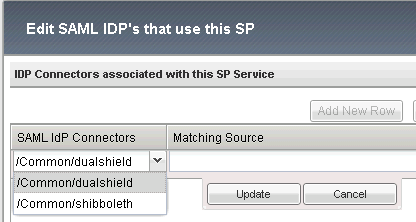
Click "Add New Row" button:
![DualShield MFA Platform > Configuration [F5-BI-SAML] > image2014-4-15 14:5:55.png](/download/attachments/35947431/image2014-4-15%2014%3A5%3A55.png?version=1&modificationDate=1587386057000&api=v2)
In the "SAML IdP Connectors" drop down list, select "dualShield"
Click "Update" to finish it
Now you should see that the SP "bigip_sp" is bound to the IdP "dualshield":

![DualShield MFA Platform > Configuration [F5-BI-SAML] > image2014-4-15 14:13:57.png](/download/attachments/35947431/image2014-4-15%2014%3A13%3A57.png?version=1&modificationDate=1587386057000&api=v2)
![DualShield MFA Platform > Configuration [F5-BI-SAML] > image2014-4-15 14:14:8.png](/download/attachments/35947431/image2014-4-15%2014%3A14%3A8.png?version=1&modificationDate=1587386057000&api=v2)
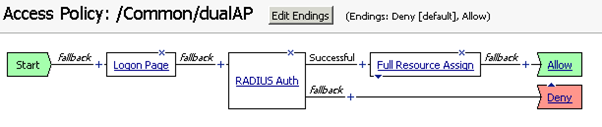
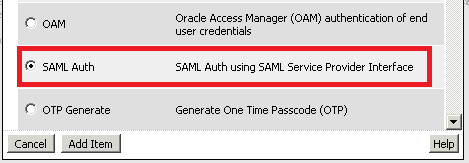
We need to add a “SAML Auth” to replace the “RADIUS Auth” policy.
Click the plus mark before “RADIUS Auth”.
![DualShield MFA Platform > Configuration [F5-BI-SAML] > image2014-4-15 14:14:26.png](/download/attachments/35947431/image2014-4-15%2014%3A14%3A26.png?version=1&modificationDate=1587386057000&api=v2)
Enable the option: “SAML Auth”, then click “Add Item”:
![DualShield MFA Platform > Configuration [F5-BI-SAML] > image2014-4-15 14:14:43.png](/download/attachments/35947431/image2014-4-15%2014%3A14%3A43.png?version=1&modificationDate=1587386057000&api=v2)
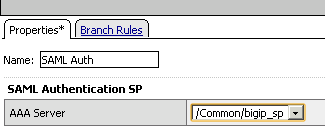
In "AAA Server" field, select "bigip_sp" that we just created and configured, then click "Save" to save it.
![DualShield MFA Platform > Configuration [F5-BI-SAML] > image2014-4-15 14:16:18.png](/download/attachments/35947431/image2014-4-15%2014%3A16%3A18.png?version=1&modificationDate=1587386057000&api=v2)
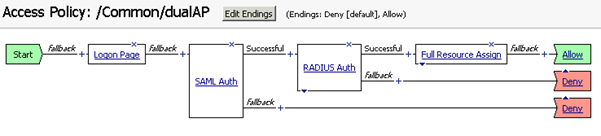
Click the cross icon "X" on "RADIUS Auth" to delete it. Now the access policy becomes:
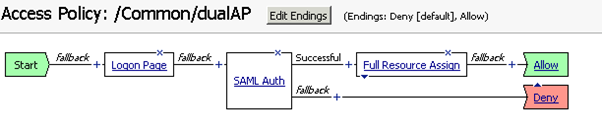
![DualShield MFA Platform > Configuration [F5-BI-SAML] > image2014-4-15 14:43:9.png](/download/attachments/35947431/image2014-4-15%2014%3A43%3A9.png?version=1&modificationDate=1587386057000&api=v2)
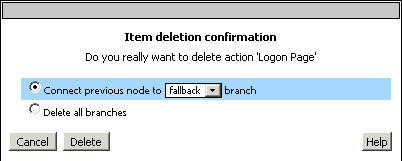
With SAML authentication, the Logon Page provided by Big-IP is redundant. So, delete it as well.
![DualShield MFA Platform > Configuration [F5-BI-SAML] > image2014-4-15 14:44:7.png](/download/attachments/35947431/image2014-4-15%2014%3A44%3A7.png?version=1&modificationDate=1587386057000&api=v2)
Finally, the access policy looks like:
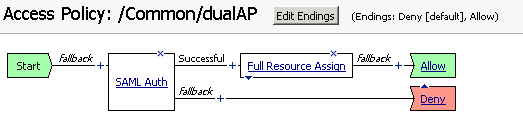
![DualShield MFA Platform > Configuration [F5-BI-SAML] > image2014-4-15 14:44:39.png](/download/attachments/35947431/image2014-4-15%2014%3A44%3A39.png?version=1&modificationDate=1587386057000&api=v2)
Now, go back to Access Profiles List, notice the status flag is "Modified"
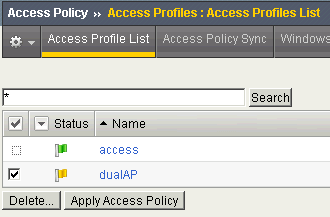
![DualShield MFA Platform > Configuration [F5-BI-SAML] > image2014-4-15 14:45:54.png](/download/attachments/35947431/image2014-4-15%2014%3A45%3A54.png?version=1&modificationDate=1587386057000&api=v2)
Click "Apply Access Policy" to save it.