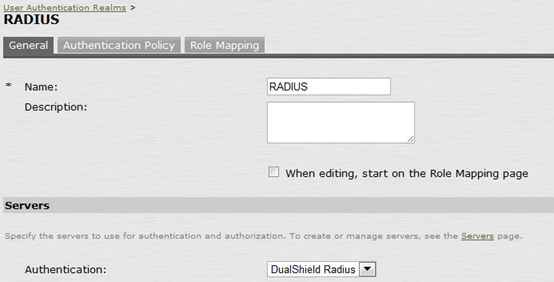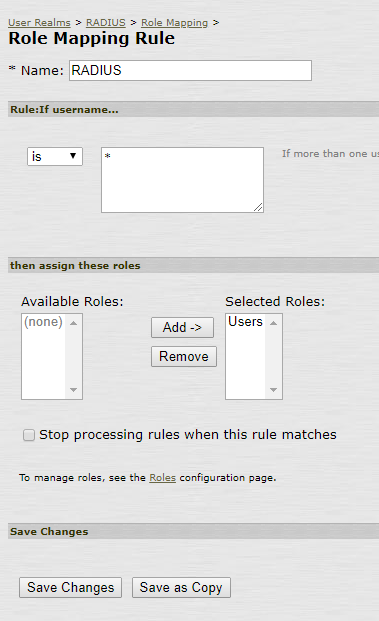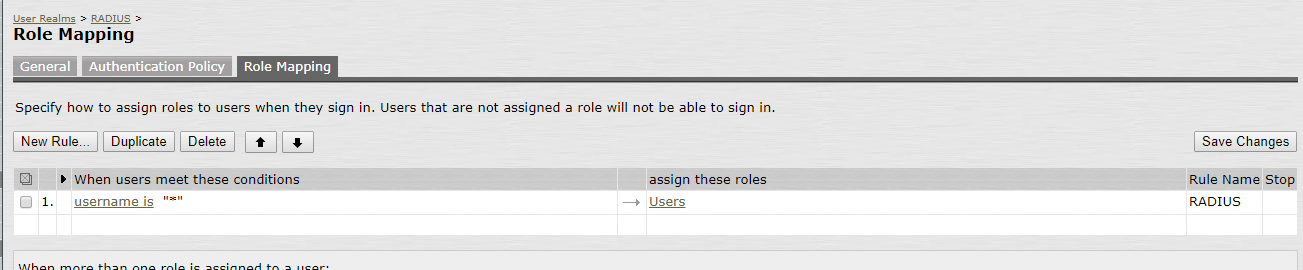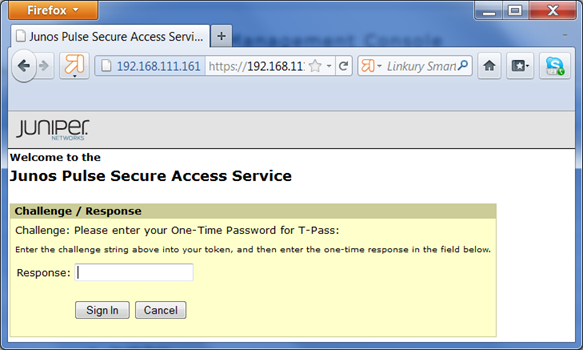
If you plan to deploy only the On-Demand password based authentication in your user base using Deepnet T-Pass, then you will configure your Juniper in such way that it will use your DualShield Radius server as the primary authentication server.
Your DualShield server will be responsible for verifying both users’ AD password and One-Time passwords. There should be no Secondary authentication servers.
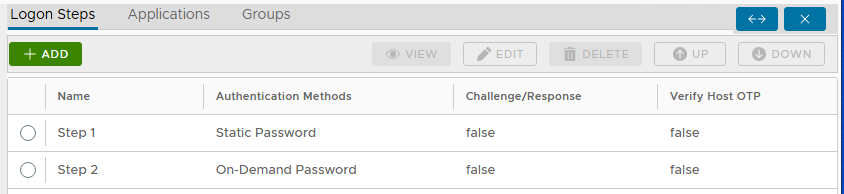
In the DualShield Administration Console, edit the Logon Procedure for your Juniper VPN application.
You will need to define Two Logon Steps: The first step requires users to enter their "Static Password" (AD password), which will also trigger the DualShield Server to send the user’s "On-Demand password". Hence the Second step will then prompt users to enter their "On-Demand Password".
![DualShield MFA Platform > Two-Step Logon [JNP-RADIUS] > image-2024-11-29_10-0-10.png](/download/attachments/35947512/image-2024-11-29_10-0-10.png?version=1&modificationDate=1732874410876&api=v2)
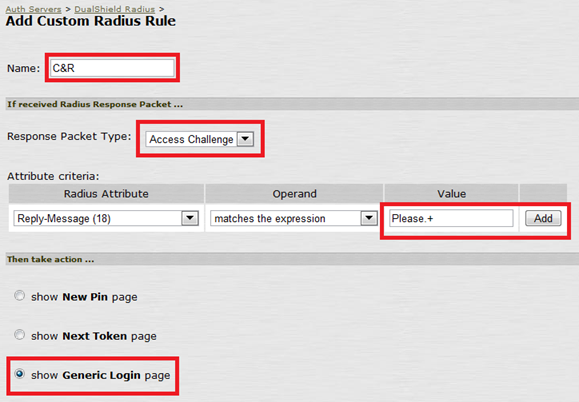
To implement Radius Challenge & Response, you need to edit the Radius Server and add a new Radius Rule.

![DualShield MFA Platform > One-Step Logon [JNP-RADIUS] > image2014-4-14 18:46:16.png](/download/attachments/35947494/image2014-4-14%2018%3A46%3A16.png?version=1&modificationDate=1587386106000&api=v2)
![DualShield MFA Platform > One-Step Logon [JNP-RADIUS] > image2014-4-14 18:46:48.png](/download/attachments/35947494/image2014-4-14%2018%3A46%3A48.png?version=1&modificationDate=1587386106000&api=v2)
![DualShield MFA Platform > One-Step Logon [JNP-RADIUS] > image2014-4-14 18:47:1.png](/download/attachments/35947494/image2014-4-14%2018%3A47%3A1.png?version=1&modificationDate=1587386106000&api=v2)
![DualShield MFA Platform > One-Step Logon [JNP-RADIUS] > image2014-4-14 18:47:18.png](/download/attachments/35947494/image2014-4-14%2018%3A47%3A18.png?version=1&modificationDate=1587386106000&api=v2)
![DualShield MFA Platform > Two-Step Logon [JNP-RADIUS] > image2019-12-5_12-55-8.png](/download/attachments/35947512/image2019-12-5_12-55-8.png?version=1&modificationDate=1587386106000&api=v2)
f. Under Signing In → Sign-in Policies create a new Signing URL:
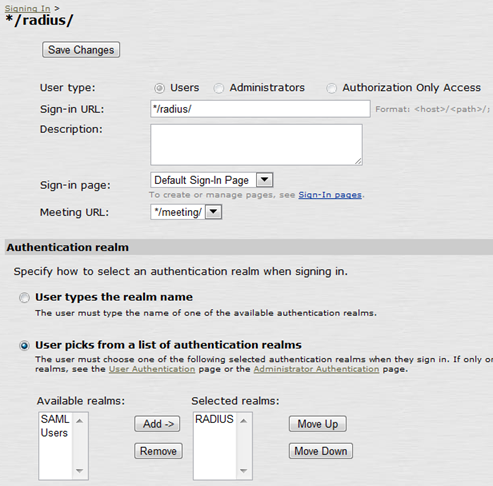
![DualShield MFA Platform > Two-Step Logon [JNP-RADIUS] > Radius Configuration 3.png](/download/attachments/35947512/Radius%20Configuration%203.png?version=1&modificationDate=1587386106000&api=v2)
The user experience in the login process is shown below:
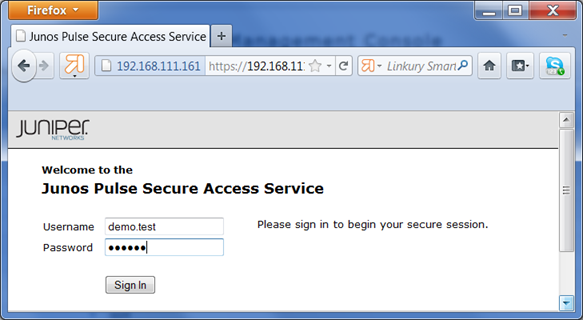
![DualShield MFA Platform > Two-Step Logon [JNP-RADIUS] > Test Logon.png](/download/attachments/35947512/Test%20Logon.png?version=1&modificationDate=1587386106000&api=v2)
![DualShield MFA Platform > Two-Step Logon [JNP-RADIUS] > Test Logon 2.png](/download/attachments/35947512/Test%20Logon%202.png?version=1&modificationDate=1587386106000&api=v2)