
Create a Web logon procedure
- Login to the DualShield Management Console
- In the main menu, select “Authentication | Logon Procedure”
- Click the “Create” button on the toolbar
- Enter “Name” and select “Web SSO” as the type
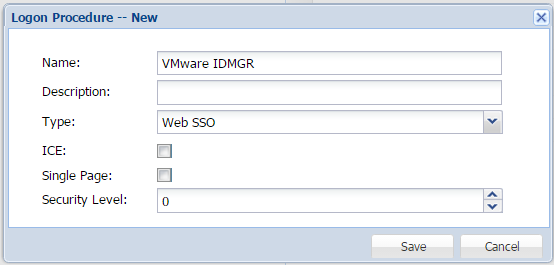
![DualShield MFA Platform > DualShield Configuration [vIDM] > image2017-2-9 12:22:13.png](/download/attachments/35947817/image2017-2-9%2012%3A22%3A13.png?version=1&modificationDate=1587386377000&api=v2)
- Click “Save”
- Click the Context Menu icon of the newly created logon procedure, select “Logon Steps”
- In the popup windows, click the “Create” button on the toolbar
- Select the authentication method, i.e. “One-Time Password”
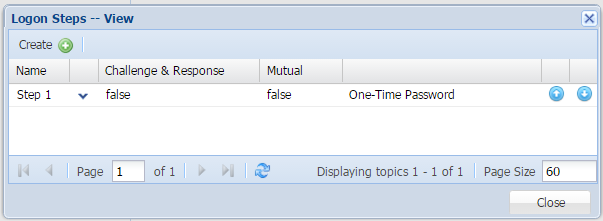
![DualShield MFA Platform > DualShield Configuration [vIDM] > image2017-2-9 12:24:11.png](/download/attachments/35947817/image2017-2-9%2012%3A24%3A11.png?version=1&modificationDate=1587386377000&api=v2)
Create a Web application
- In the main menu, select “Authentication | Application”
- Click the “Create” button on the toolbar
- Enter “Name”
- Select “Realm”
- Select the newly created logon procedure
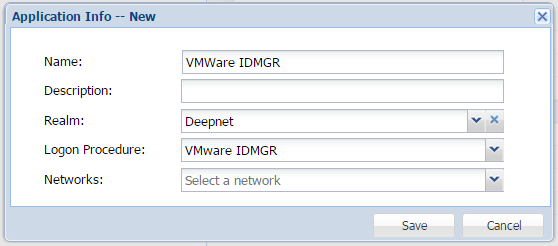
![DualShield MFA Platform > DualShield Configuration [vIDM] > image2017-2-9 12:28:23.png](/download/attachments/35947817/image2017-2-9%2012%3A28%3A23.png?version=1&modificationDate=1587386377000&api=v2)
- Click "Save"
- Click the context menu of the newly created application, select "Agent"
- Select the SSO Server
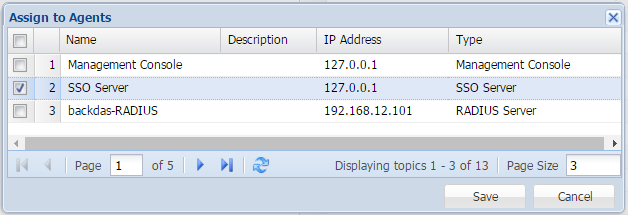
![DualShield MFA Platform > DualShield Configuration [vIDM] > image2017-2-9 12:37:28.png](/download/attachments/35947817/image2017-2-9%2012%3A37%3A28.png?version=1&modificationDate=1587386377000&api=v2)
- Click "Save"
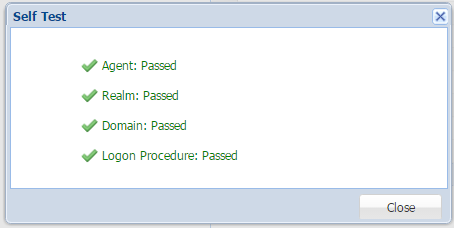
- Click the context menu of the newly created application, select "Self Test"
![DualShield MFA Platform > DualShield Configuration [vIDM] > image2017-2-9 12:38:34.png](/download/attachments/35947817/image2017-2-9%2012%3A38%3A34.png?version=1&modificationDate=1587386377000&api=v2)
Download the DualShield IdP Metadata
- In the main menu, select " SSO | SSO Servers"
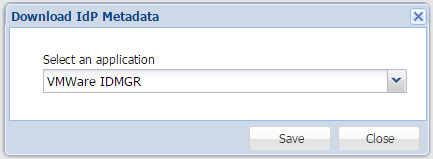
- Click "Download IdP Metadata", and select the application was created earlier, i.e. "VMWare IDMGR". Save to a local file.
![DualShield MFA Platform > DualShield Configuration [vIDM] > image2017-2-9 12:40:54.png](/download/attachments/35947817/image2017-2-9%2012%3A40%3A54.png?version=1&modificationDate=1587386377000&api=v2)
Create a Service Provider
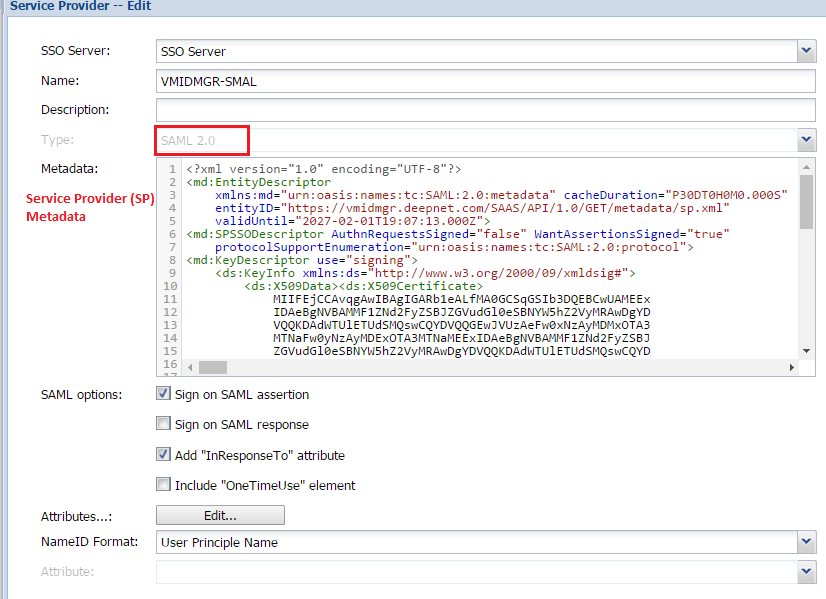
In order to create a service provider for VMware Identity Manager, please make sure you have downloaded and save the Service Provider (SP) Metadata locally.
- In the main menu, select " SSO | Service Providers"
- Click "Create"
- Enter "Name", Select Type as "SAML 2.0"
- Copy the Service Provider Metadata (sp.xml) file into the "Metadata" field.
![DualShield MFA Platform > DualShield Configuration [vIDM] > image2017-2-10 15:45:8.png](/download/attachments/35947817/image2017-2-10%2015%3A45%3A8.png?version=1&modificationDate=1587386377000&api=v2)
- Select "User Principle Name" on NameID Fromat drop down list.

![DualShield MFA Platform > DualShield Configuration [vIDM] > image2017-2-10 16:1:38.png](/download/attachments/35947817/image2017-2-10%2016%3A1%3A38.png?version=1&modificationDate=1587386377000&api=v2)