- Log into Identity Manager Administrator console.
- Navigate to "Identity & Access Management | Policies"
- Click "Edit Default Policy"

![DualShield MFA Platform > Policies Configuration [vIDM] > image2017-2-10 12:49:1.png](/download/attachments/35947847/image2017-2-10%2012%3A49%3A1.png?version=1&modificationDate=1587386377000&api=v2)
- Click "+" to create a new access policy

![DualShield MFA Platform > Policies Configuration [vIDM] > image2017-2-10 13:4:4.png](/download/attachments/35947847/image2017-2-10%2013%3A4%3A4.png?version=1&modificationDate=1587386377000&api=v2)
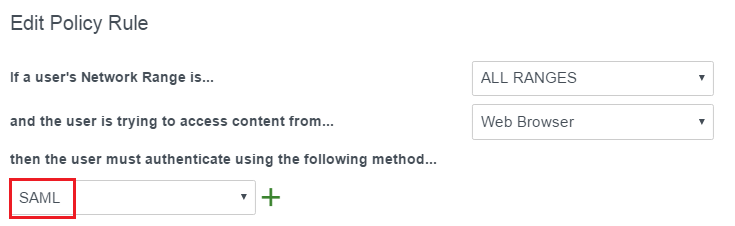
- Select the Network Range, i.e. "ALL RANGES"
- Select the type of device that the rule manages, i.e. "Web Browser"
- In "then the user must authenticate using the following method" drop box, select the "Authentication Methods" that you defined earlier in Identity Provider Session. i.e. "SAML"
![DualShield MFA Platform > Policies Configuration [vIDM] > image2017-2-10 13:8:32.png](/download/attachments/35947847/image2017-2-10%2013%3A8%3A32.png?version=1&modificationDate=1587386377000&api=v2)
- Click "OK" to save the Policy.
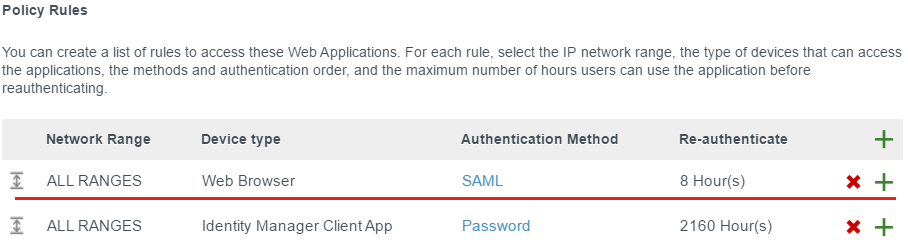
- Now, the newly created policy is listed under the "Policy Rules"
![DualShield MFA Platform > Policies Configuration [vIDM] > image2017-2-10 13:19:23.png](/download/attachments/35947847/image2017-2-10%2013%3A19%3A23.png?version=1&modificationDate=1587386377000&api=v2)