This document will assume you have already set up Global protect portals and gateways. If not, please refer to you Palo Alto documentation.
Under Network tab go to Global Protect > Portal
Select the portal you wish to configure.
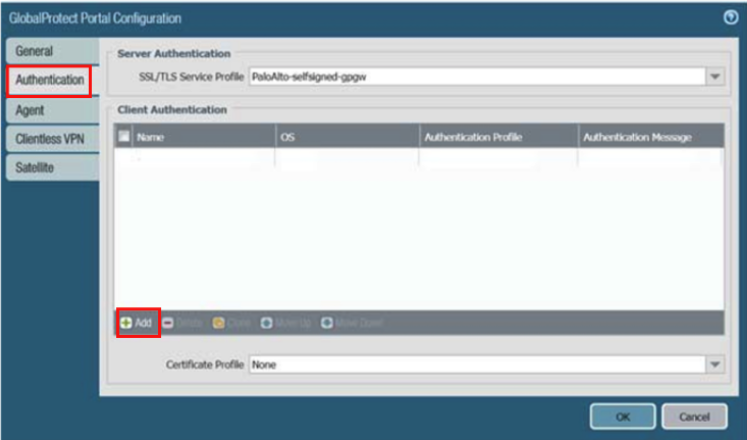
Click on Authentication and then click on Add |
|
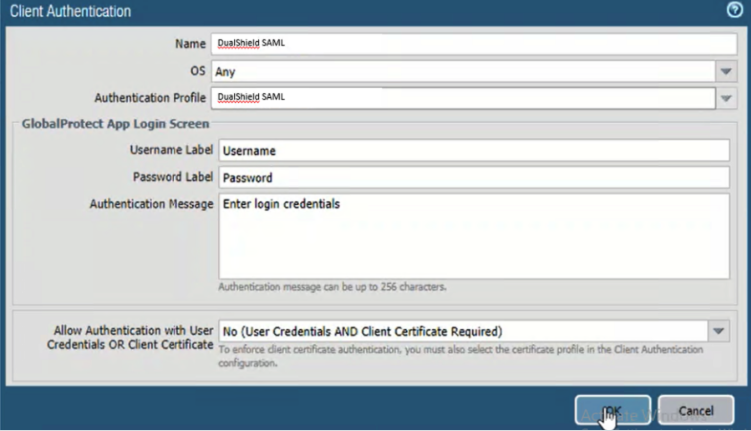
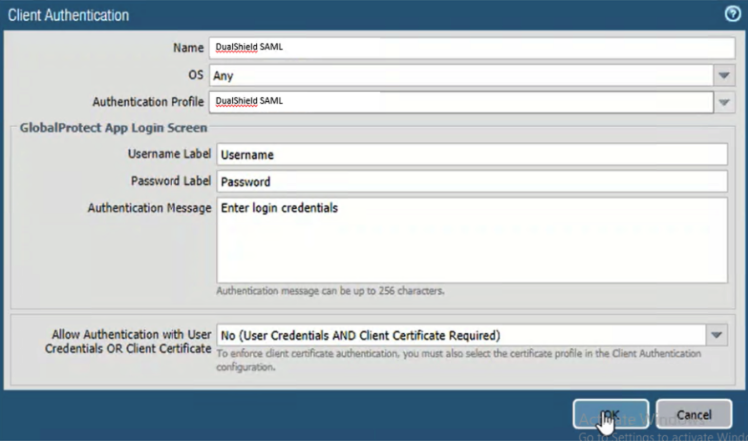
Configure the client Authentication. | Option | Value |
|---|
| Name | Enter a descriptive name | | OS | Specify the OS or select Any | | Authentication Profile | Select the Authentication Profile created in previous section. | | Authentication Message | Specify a message |
Click OK
|
|
Add Authentication Profile.
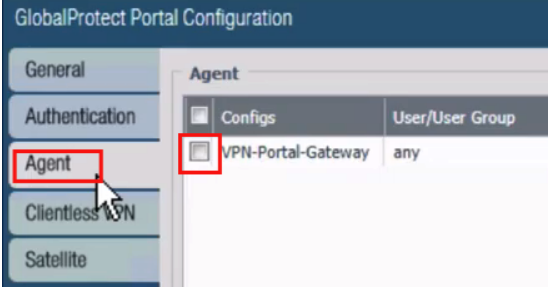
Click the Agent tab and select the agent configuration you want to apply SSO to |
|
Click ADD at the bottom of the page
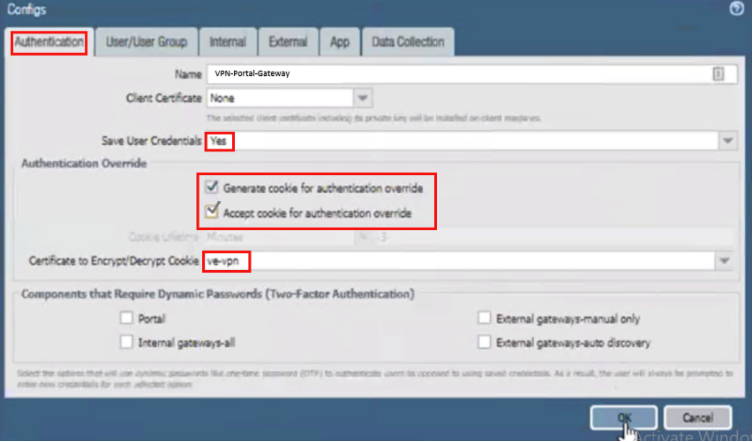
Select Authentication tab and configure as follows: | Option | Value |
|---|
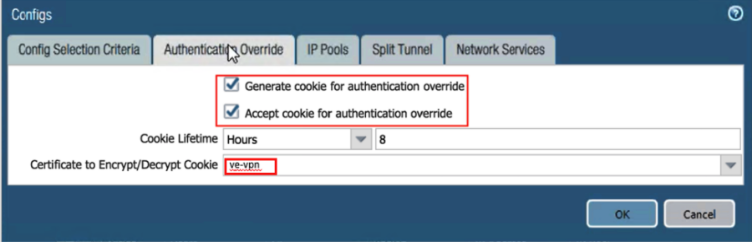
| Save User Credentials | Yes | | Authentication Override | Enable Generate cookie and Accept Cookie for authentication override | | Certificate to Encrypt/Deycrypt Cookie | Select a cookie certificate from the dropdown menu. |
Click on OK |
|
Click on OK again
Under Network tab go to Global Protect > Gateway
Click on Authentication and then click on Add
Configure the Client Authentication. This will be similar to how you set the client authentication for the Global Protect Portal. | Option | Value |
|---|
| Name | Enter a descriptive name | | OS | Specify the OS or select Any | | Authentication Profile | Select the Authentication Profile created in previous section. | | Authentication Message | Specify a message |
Click OK |
|
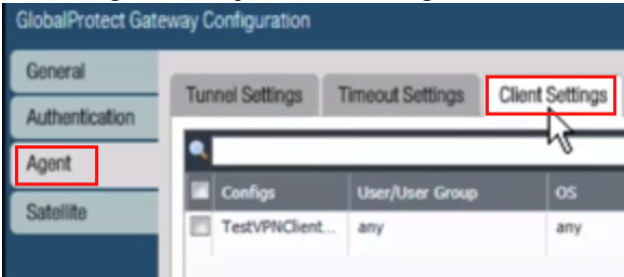
Select the Agent tab and go into Client Settings Select the Gateway configuration you want to apply SSO to. |
|
Click on Authentication Overide tab and Enable Generate cookie and Accept Cookie. Select a Cookie certificate from the dropdown. Click on OK |
|
Click on OK again
Click on Commit to commit the changes.
Related Articles