
Create a RADIUS logon procedure
- Login to the DualShield Management Console
- In the main menu, select "Authentication | Logon Procedure"
- Click the "Create" button on the toolbar
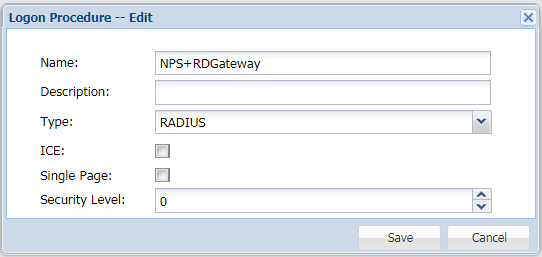
- Enter a name and select "RADIUS" as the type, e.g. "NPS+RDGateway"
- Click "Save"
- Click the context menu icon of the newly create logon procedure, select "Logon steps"
- In the popup window, click the "Create" button on the toolbar
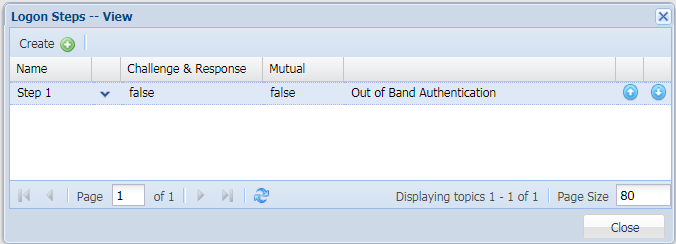
- Select the authentication method "Out of Band Authentication", and click "Save".
(Please note: RDGateway ONLY support "Out of Band Authentication".)
Create a RADIUS application
- In the main menu, select "Authentication | Applications"
- Click the "Create" button on the toolbar
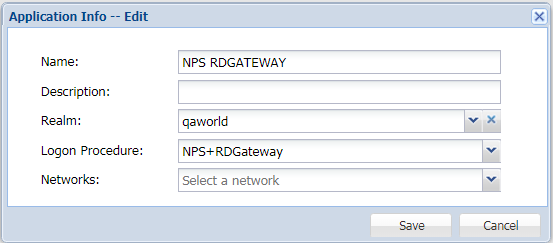
- Enter a name and select a realm
- Select the newly created logon procedure
- Click "Save"
- Click the Context menu of the newly created application, select "Agent"

- Click "Save" and use the "Self-Test" function to verify that the application is correctly set up and ready
Register Network Policy Server as a Radius Client
- In the main menu, select "RADIUS | Client"
- Click the "Register" button on the toolbar
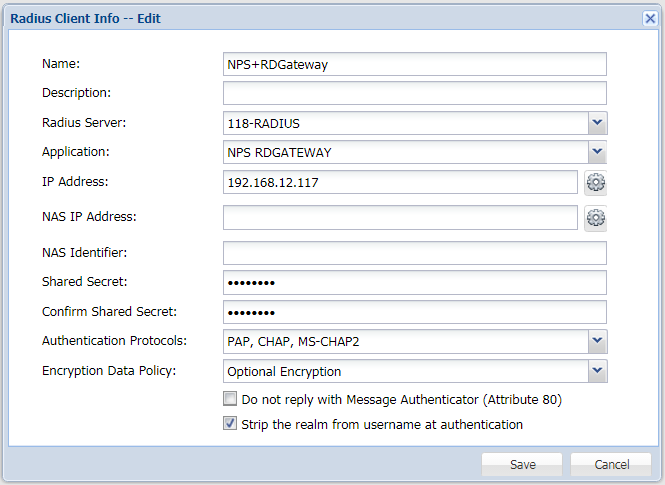
- Select the application that was created in the previous steps
- Enter Network Policy Server’s IP in the IP address field
- Enter the Share Secret which will be used in Network Policy Server
- Click "Save"