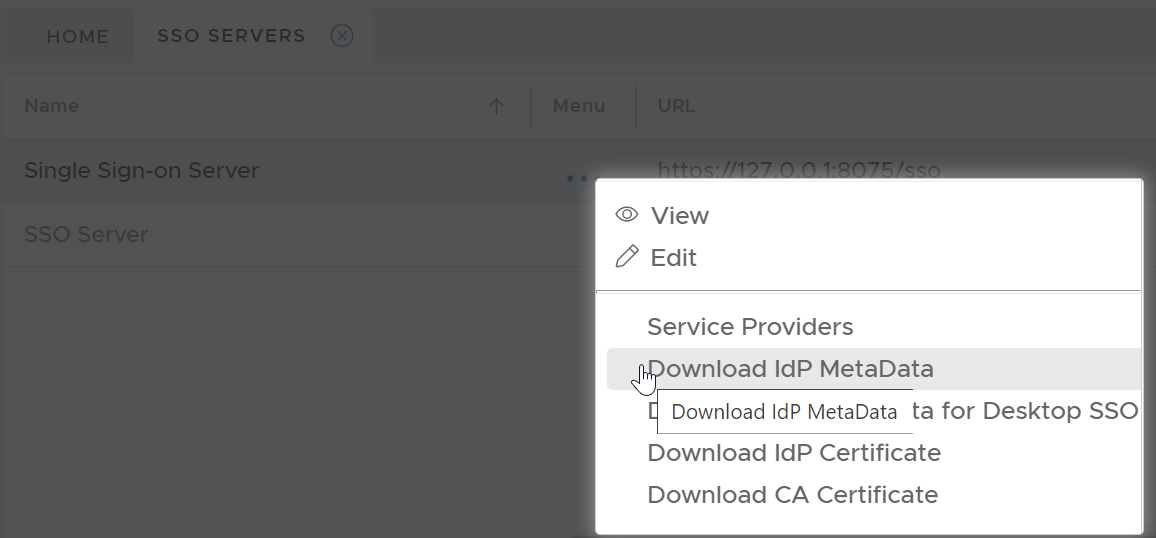
In your DualShield console, select "SSO | SSO Servers".
Click the context menu of the SSO server, then select "Download IdP Metadata"
Save the IdP Metadata to a file, eg. "dualdshield-idp-metadata.xml"
Connect to Office 365 Powershell as shown below:
Run the following command in Office 365 PowerShell
.\setup-o365-sso.ps1 -protocol SAMLP -domain 'domain name' -appname 'application name' -spname 'service provider name' -metadata '.\metadata file' |
| -protocol | WSFED or SAMLP |
| -domain | the domain name of your Office 365 |
| -appname | the application name in DualShield for Office 365 |
| -spname | the service provider name in DualShield for Office 365 |
| -metadata | the metadata file name of your DualShield SSO |
Example:
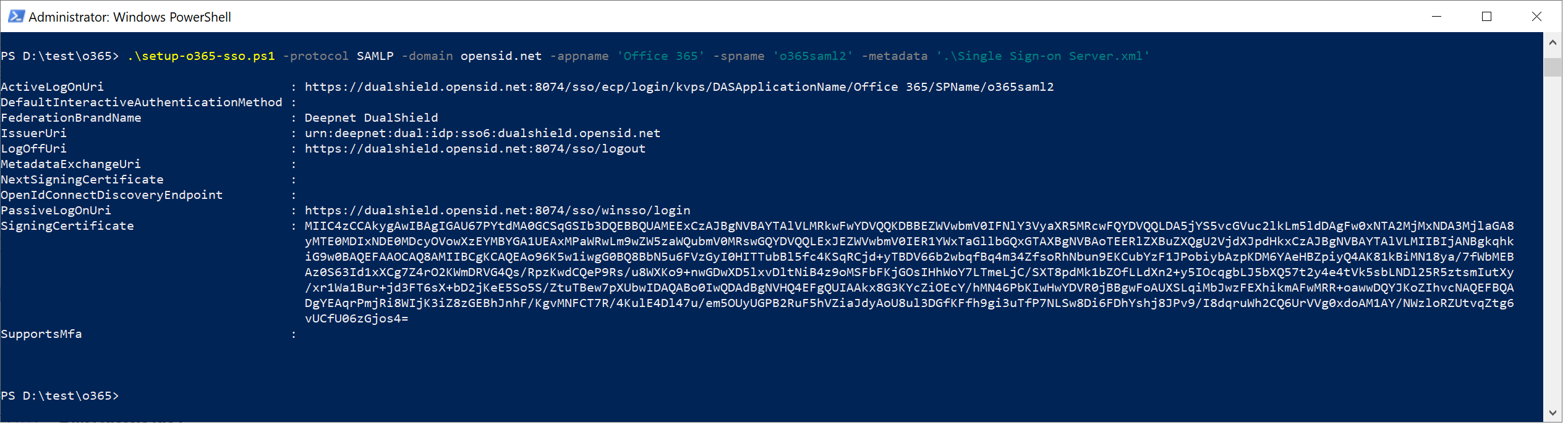
To verify that the change was successful, run the following command:
get-MsolDomainFederationSettings -domain 'domain name' |