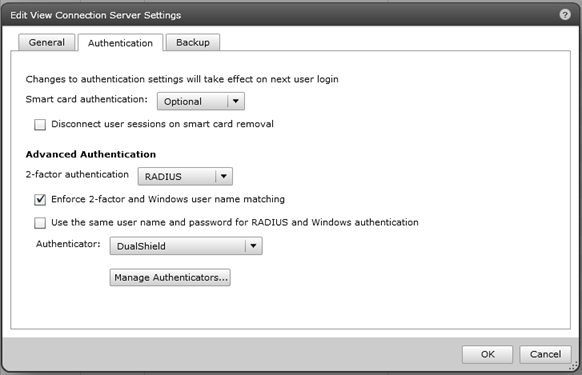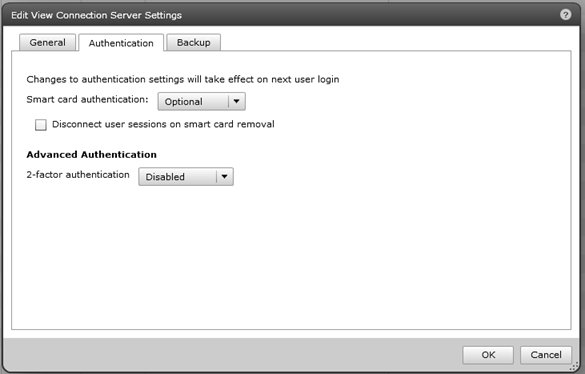
Login to the VMware View Administrator console, navigate to "View Configuration | Servers", select the "Connection Server" tab and select the connection server you want to configure. Now, click the "Edit" button then select the "Authentication" tab in the popup window.
![DualShield MFA Platform > VMware View Server Configuration [VMware] > image2014-11-28 16:34:35.png](/download/attachments/62391007/image2014-11-28%2016%3A34%3A35.png?version=1&modificationDate=1638404285000&api=v2)
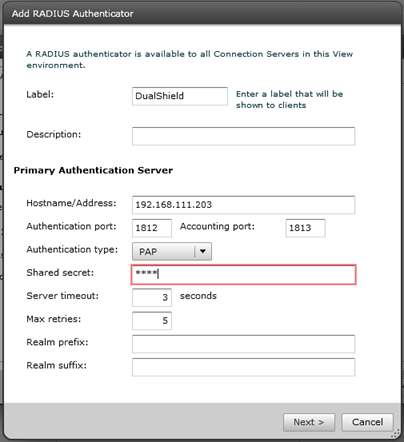
To switch on two-factor authentication, select "RADIUS" in the "2-factor authentication" drop down list. Then select "Create new authenticator" in the "Authenticator" option:
![DualShield MFA Platform > VMware View Server Configuration [VMware] > image2014-11-28 16:35:56.png](/download/attachments/62391007/image2014-11-28%2016%3A35%3A56.png?version=1&modificationDate=1638404285000&api=v2)
Click "Next", and click "Finish"
![DualShield MFA Platform > VMware View Server Configuration [VMware] > image2014-11-28 16:36:24.png](/download/attachments/62391007/image2014-11-28%2016%3A36%3A24.png?version=1&modificationDate=1638404285000&api=v2)
You might also want to enable the "Enforce 2-factor and Windows user name matching" option for extra security.