
Create a RADIUS Client
- Click "New" on the Radius Clients Context Menu
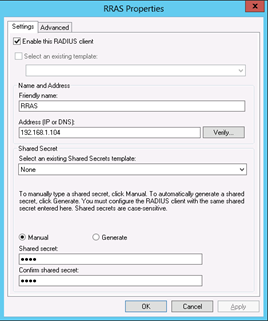
- Enter the RRAS’s IP in the IP address filed, e.g. "192.168.1.104"
- Enter the Shared secret password
- Click "OK"
Create a Remote RADIUS Server Group
- Click "New" on the Remote RADIUS Server Group Context Menu
- Create the Remote RADIUS Server Group, e.g. "DualShield Radius Server Group"
- Enter the name or IP address of the DualShield Radius Server
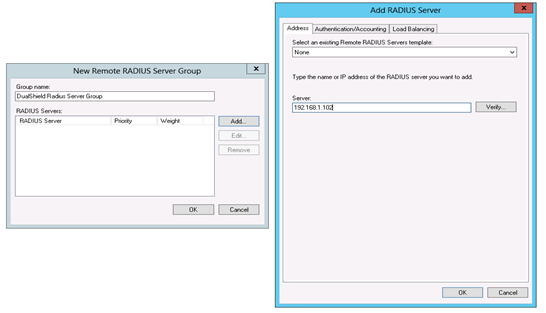
- Select "Authentication/Accounting" tab on the Radius Clients Context Menu, enter the Shared secret password
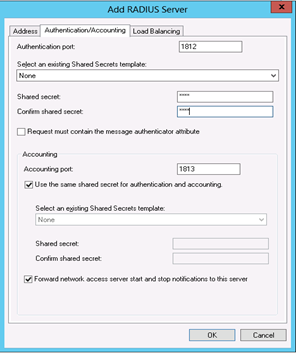
- Select "Load Balancing" tab, allocate the weight and click "OK"
Create a Connection Request Policy
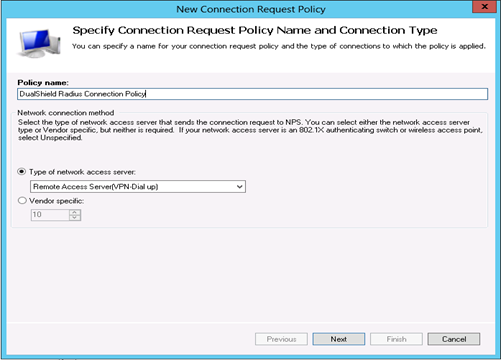
- Create the connection request policies, e.g. "DualShield Radius Connection Policy"
- Change type of network access server to "Remote Access Server (VPN-Dial up)" and click "Next"
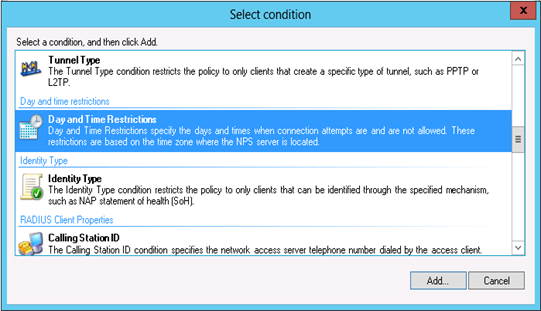
- Add a new condition "Day and Time Restrictions" and select "Permitted" to allow certain time of connection and press "OK" and "Next"
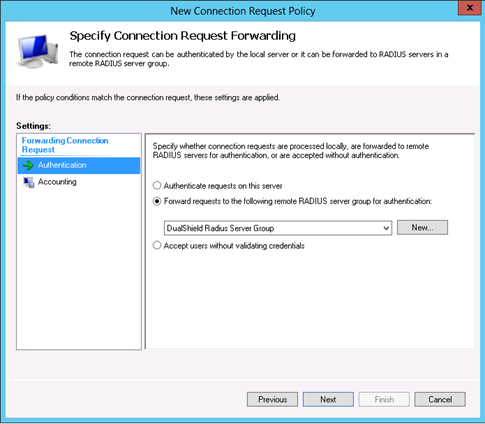
- Select "Forward requests to the following remote RADIUS server group for authentication" and select the newly server group "DualShield Radius Server Group"
- Click "Next" and "Finish"
Create a Network Policy
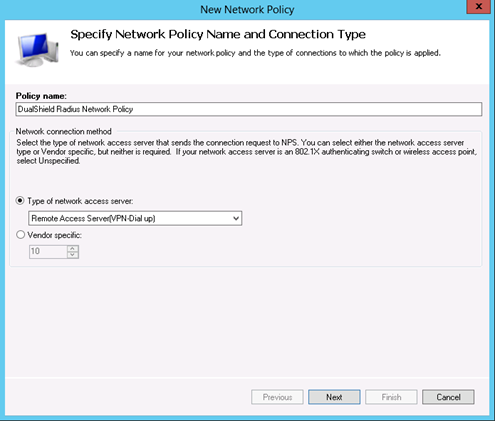
- Create Network Policies, e.g. "DualShield Radius Network Policy"
- Change type of network access server to "Remote Access Server (VPN-Dial up)" and click "Next"
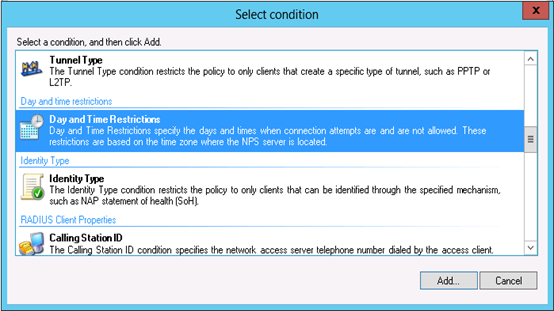
- Add a new condition "Day and Time Restrictions" and select "Permitted" to allow certain time of connection and press "OK" and "Next"
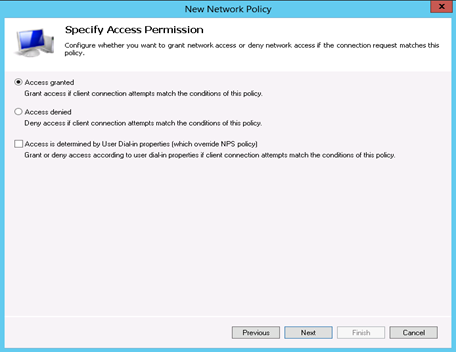
- Specify Access Permission and click "Next"
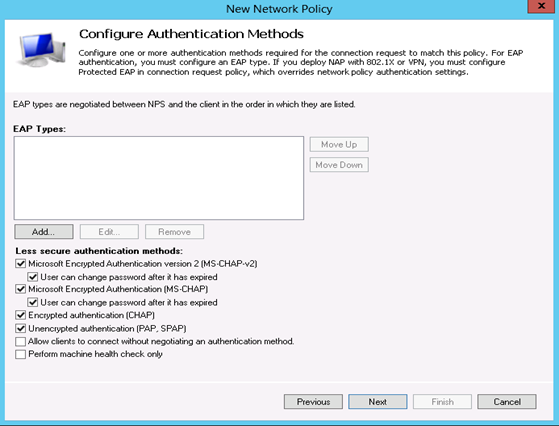
- Select the authentication methods
- Click "Next" and "Finish"