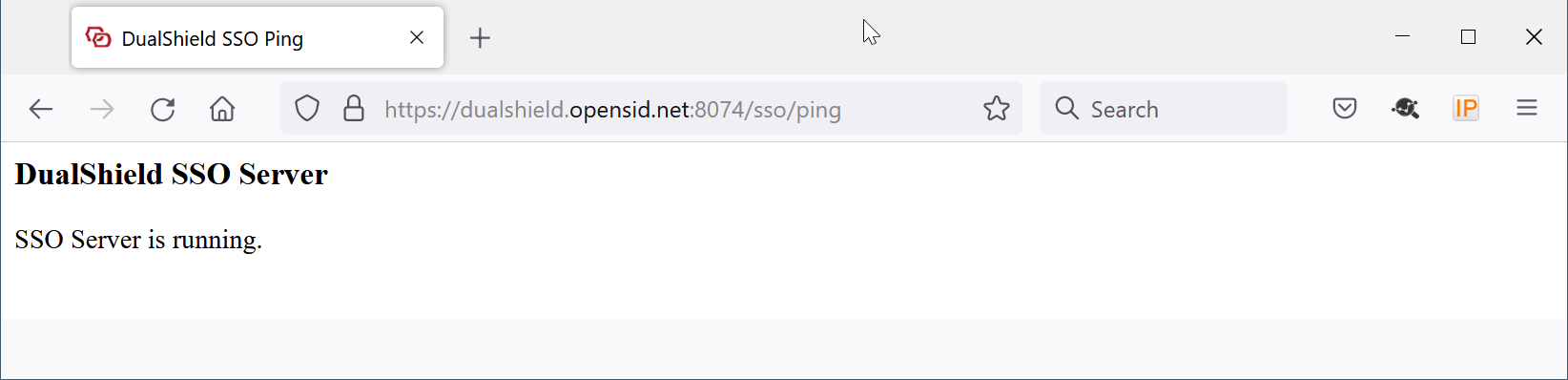
In your web browser, visit https://your-dualshield-fqdn:8074/sso/ping
Replace "your-dualshield-fqdn" with the actual FQDN of your DualShield server
You can set up Office 365 MFA from either your own PC or from the computer where your DualShield MFA server is running.
Download this PowerShell script: setup-o365-sso.ps1, and save it to a local folder.
If you are operating from your own PC, then first check whether or not you have access to your DualShield SSO service.
In your web browser, visit https://your-dualshield-fqdn:8074/sso/ping Replace "your-dualshield-fqdn" with the actual FQDN of your DualShield server
|
In your DualShield admin console, select "SSO | SSO Servers".
Click the context menu of the SSO server, then select "Download IdP Metadata"
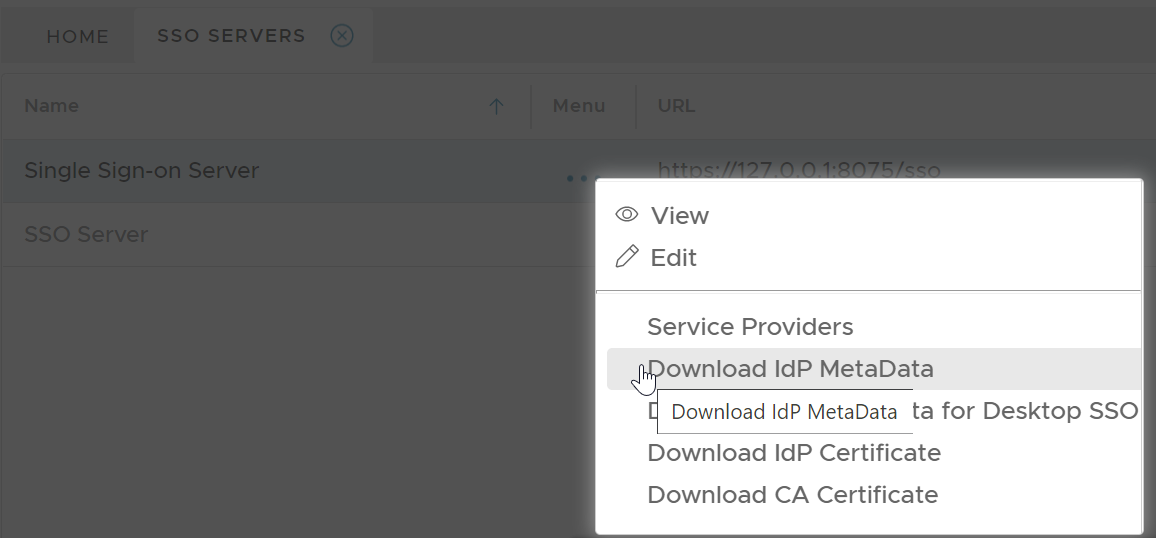
Save the IdP Metadata to a file, eg. "dualshield-idp-metadata.xml"
Connect to Office 365 Powershell as shown below:
Run the following command in Office 365 PowerShell
.\setup-o365-sso.ps1 -protocol WSFED -domain 'domain name' -appname 'application name' -spname 'service provider name' -metadata '.\metadata file' |
| Parameter | Remarks |
|---|---|
| -protocol | WSFED |
| -domain | the domain name of your Office 365 |
| -appname | the application name in DualShield for Office 365 |
| -spname | the service provider name in DualShield for Office 365 |
| -metadata | the metadata file name of your DualShield SSO |
Example:
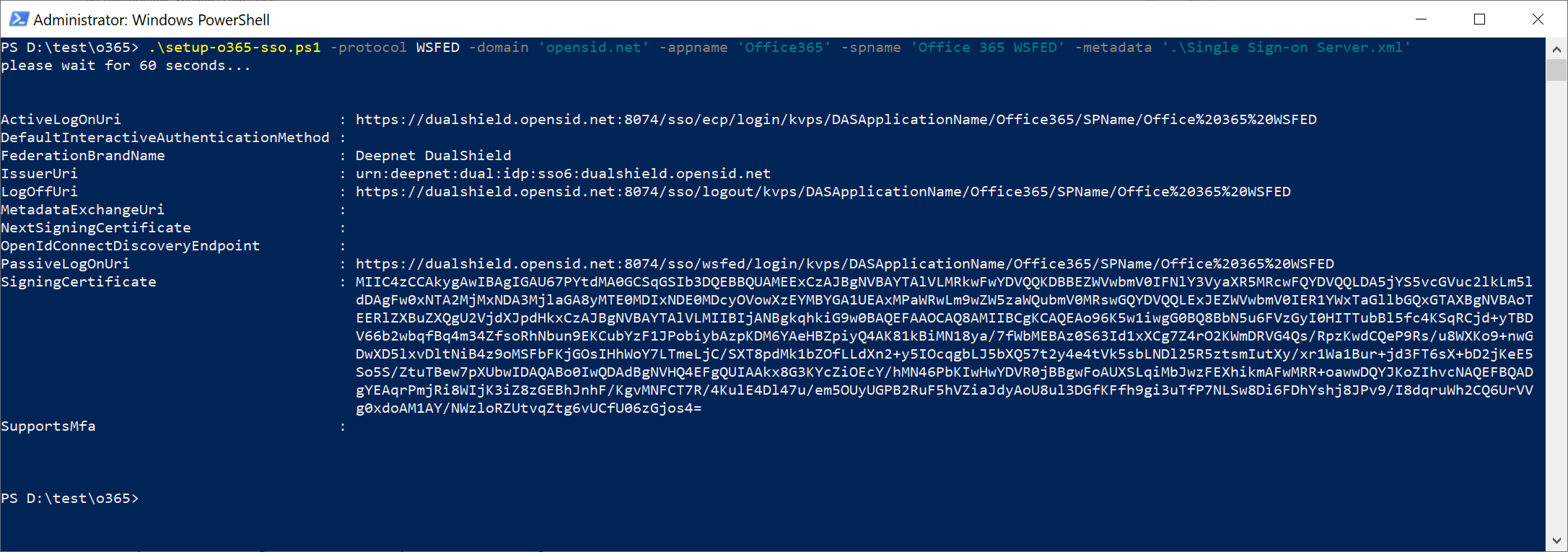
Notes:
To verify that the change was successful, run the following command:
get-MsolDomainFederationSettings -domain 'domain name' |