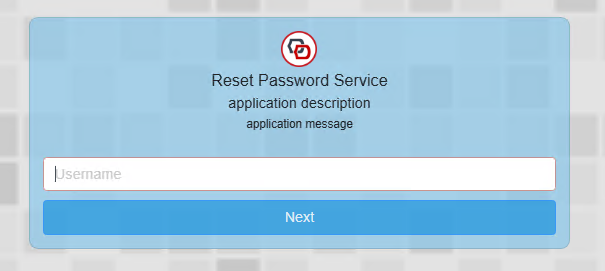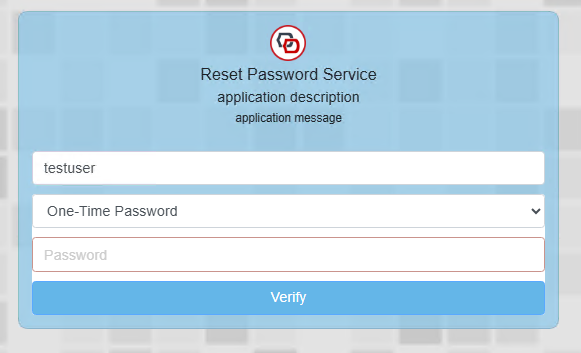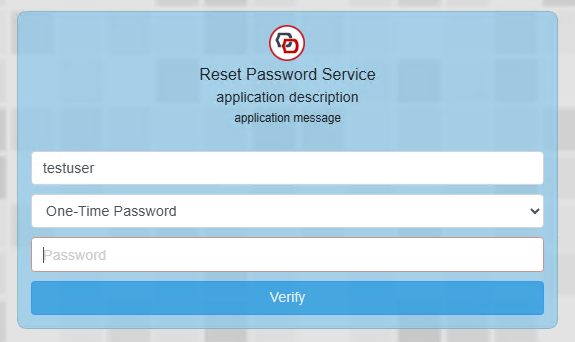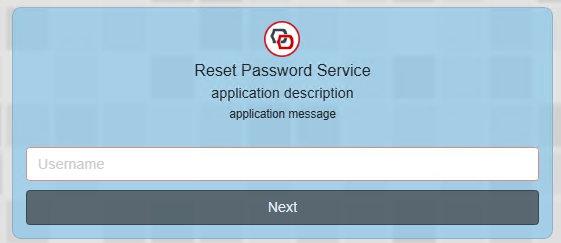
The standard UI allows you to specify many aspects of customisation, however when more extensive customisations are required, then using CSS script can provide many more options.
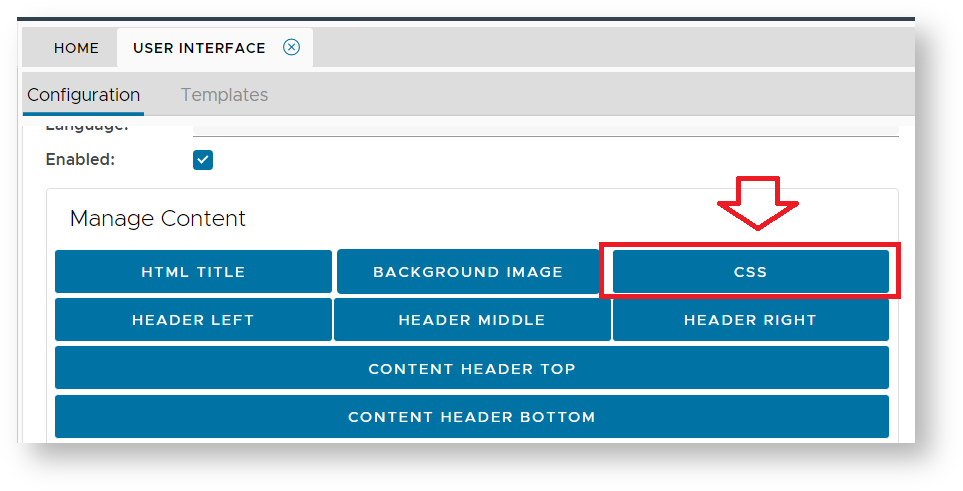
In the "Manage Content" section there is a button for providing CSS customisations;
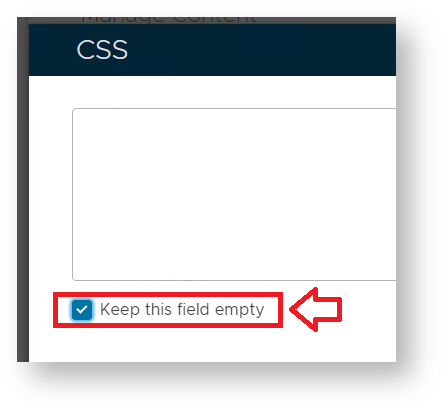
Once the CSS script button has been clicked you will need to ensure that the "Keep this field empty" has been de-selected;
You can now supply script that will allow more extensive customisations of the form designs. These customisations include;
In order to perform these types of CSS customisations you need to be aware of the following main CSS sections;
| Manage Content | Script | Notes |
|---|---|---|
| Page Header | .page-header {} | This section can adjust the height, margins and style of the top section of the page. |
| Page Header Middle | .page-header-middle {} | Centre section of the page header. |
| Page header Right | .page-header-right {} | Right corner of the page header. |
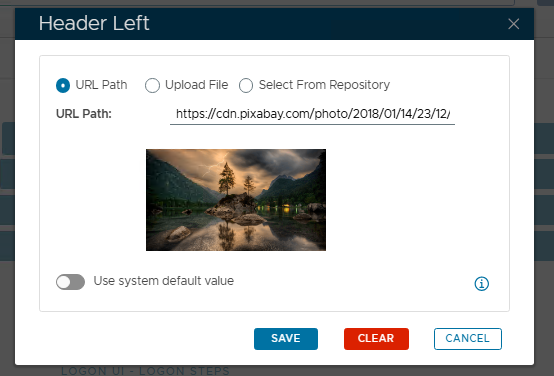
| Header Left | .page-header-image {} | Size, placement and background of the image displayed in the "Header Left" section. |
| Header Middle | .page-header-middle {} | Control the font colour and style of the text in the "Header Middle" section. |
| Header Right | .page-header-right {} | Control the font colour and style of the text in the "Header Right" section. |
| Content Header Top | .content-header-image {} | Size, placement and background of the image displayed in the "Content Header Top" section. |
| Content Header Bottom | .content-header {} | Control the font colour and style of the text in the "Content Header Bottom" section. |
| Content Middle | .content-middle () | Control the section where credentials are entered. |
| Content Footer | .content-footer {} | Control the font colour and style of the text in the "Content Footer" section. |
| Page Footer | .page-footer {} | Control the font colour and style of the text in the "Page Footer" section. |
| Page Footer Left | .page-footer-left {} | Left corner of the page footer. |
| Page Footer Right | .page-footer-right {} | Right corner of the page footer. |
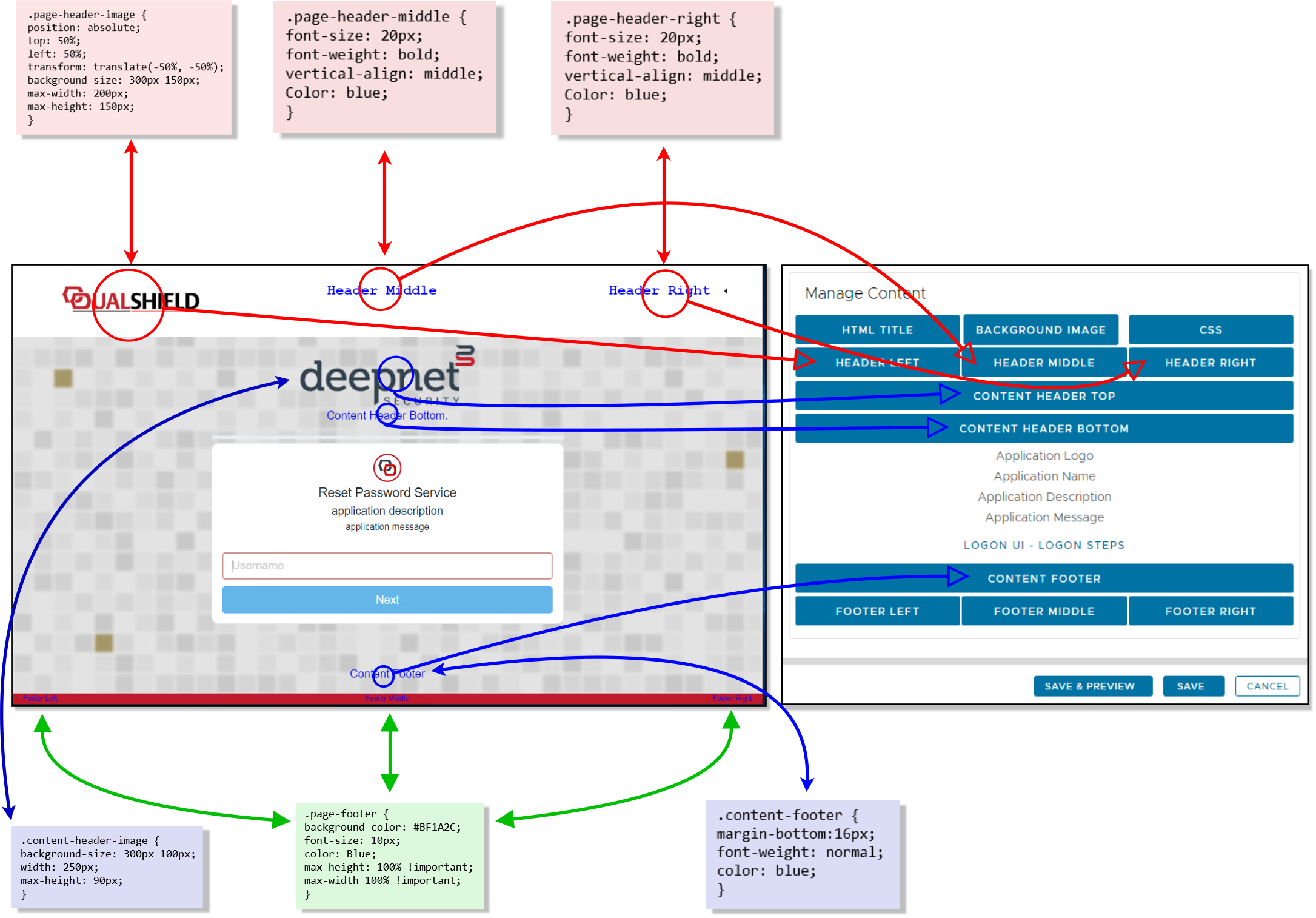
The following diagram illustrates examples of how each of these areas can be customised;
|
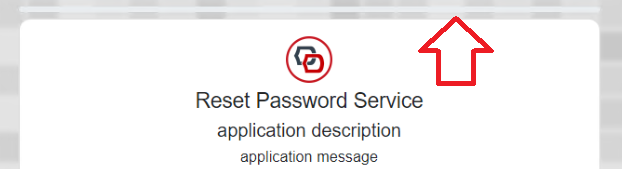
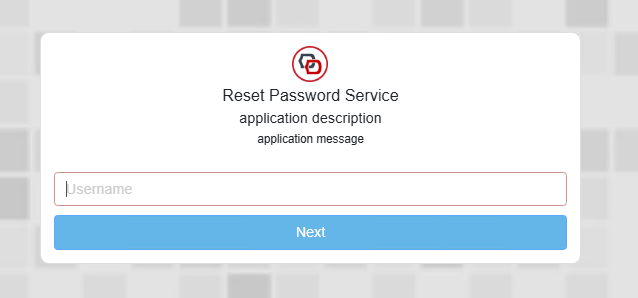
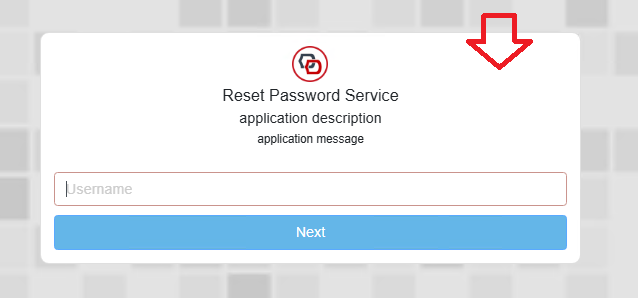
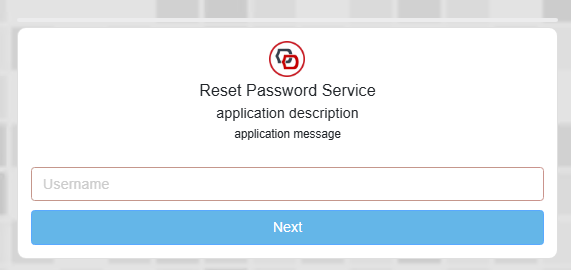
By default, the section of the SSO credential input card (where the user supplies there credentials) will appear as a white box with rounded corners;
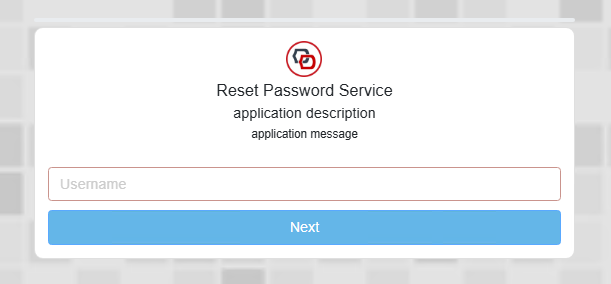
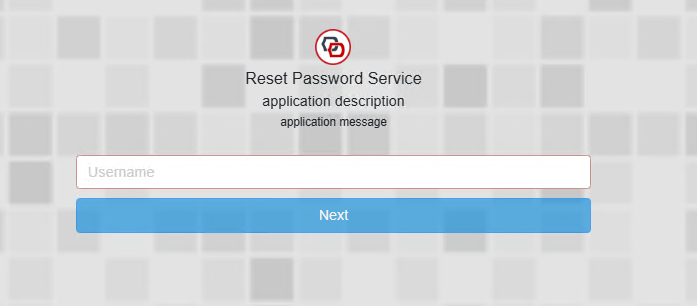
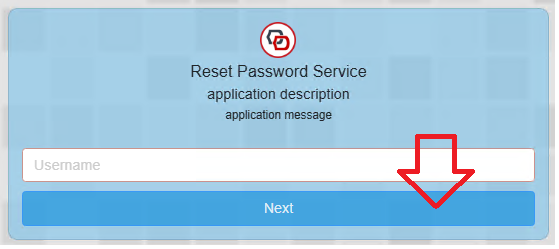
Many aspects of this card can be customised using CSS;
|
|
|
|
|
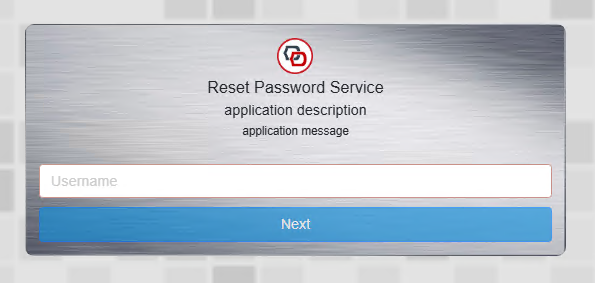
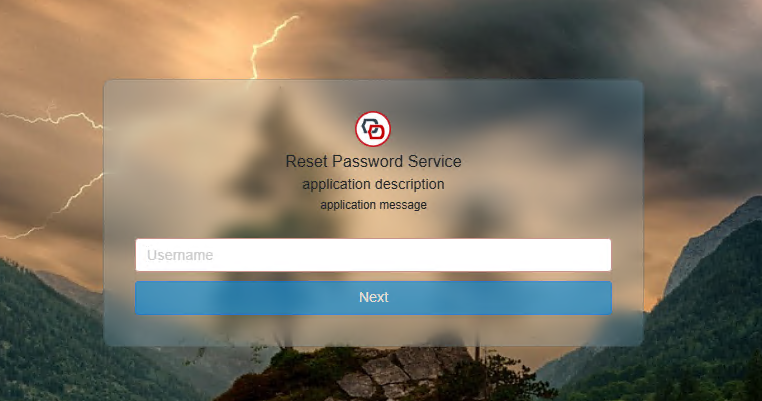
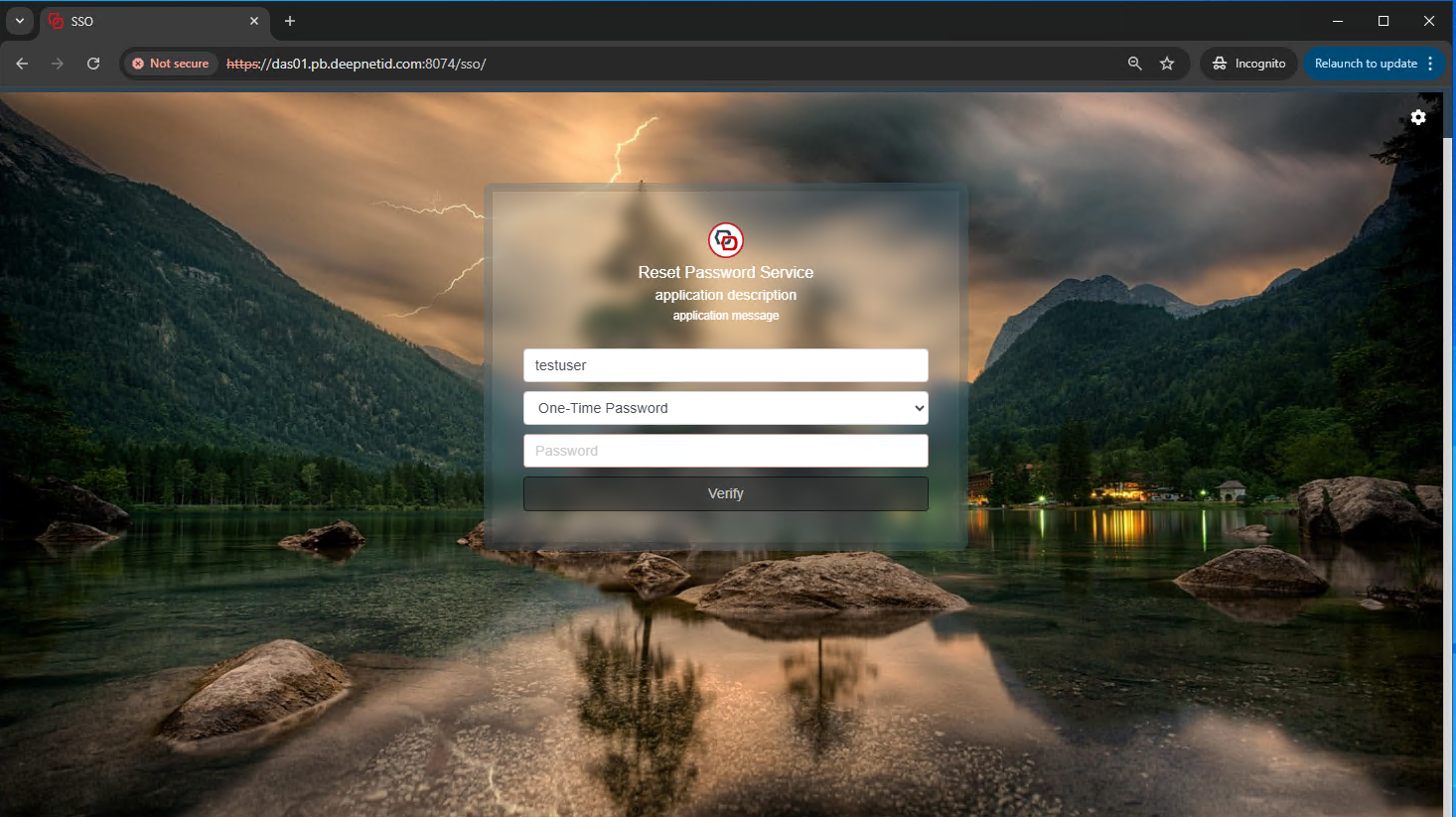
By combining CSS effects (as mentioned above) you can transform the logon screen to something like this;
|