In the DualShield Administration Console, select “SSO > Service Providers”, then click the “+ CREATE” button on the toolbar.
Select “Single Sign-On Server” in the SSO Server drop down list
Select the appropriate 'Application' created previously.
Enter a descriptive Name for this new Service Provider
Set the 'Type' as “SAML 2.0".
Copy the complete content of the previously exported Metadata “http_acme.org_apache.xml” file, then paste this data in to the Service Provider Metadata. Clicking "CREATE METADATA", as follows:
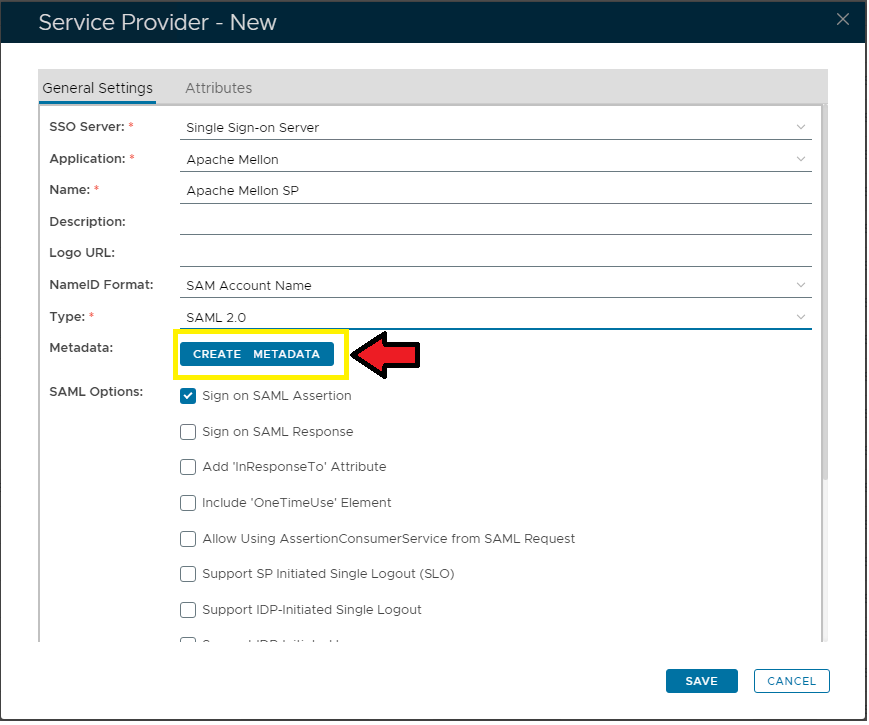
Finally click the "SAVE" button to confirm creation of this new Service Provider.
Prior to downloading the IdP Metadata, you need to create an application in DualShield for your Apache website. You can use the Application Wizard in DualShield to create a new application. See “DualShield Platform - Quick Start Guide” for the instructions.
During the process of creating the application, make sure the following fields are correctly set:
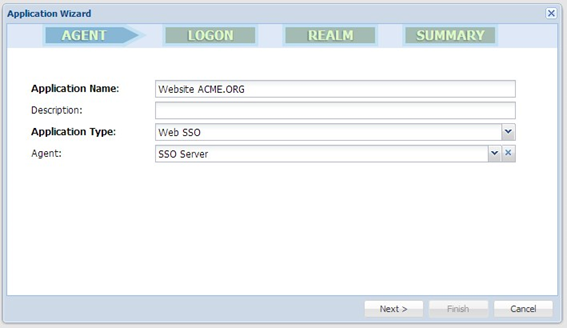
Once the Application is successfully created, select "SSO | SSO Servers". In the server list, click the context "..." menu of the "Single Sign-On Server", then "Download IdP Metadata":
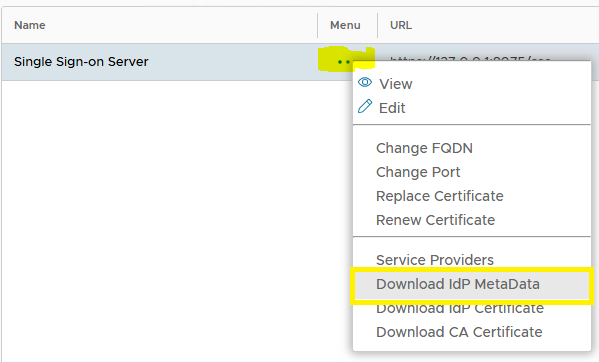
Select the application you've just created, e.g. Website ACME.ORG. Click "Save" to download and save the IdP Metadata.
Copy the IdP Metadata file to the folder below:
/etc/apache2/mellon
And rename it to: DualShield-Metadata.xml
The final step is to insert Mellon directives into the configuration file of your website.