Step 1: Download Windows Logon Agent Certificate
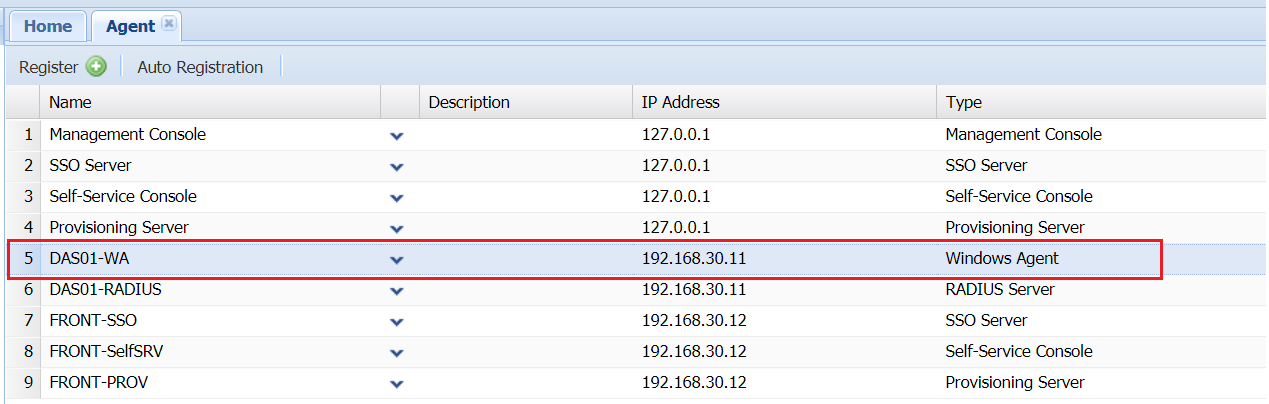
Login to the management console of the DualShield backend server, navigate to "Authentication | Agents"
In the above screenshot, there is one Winodws logon agent at the IP address of "192.168.30.11". You need to download the agent certificate of this logon agent

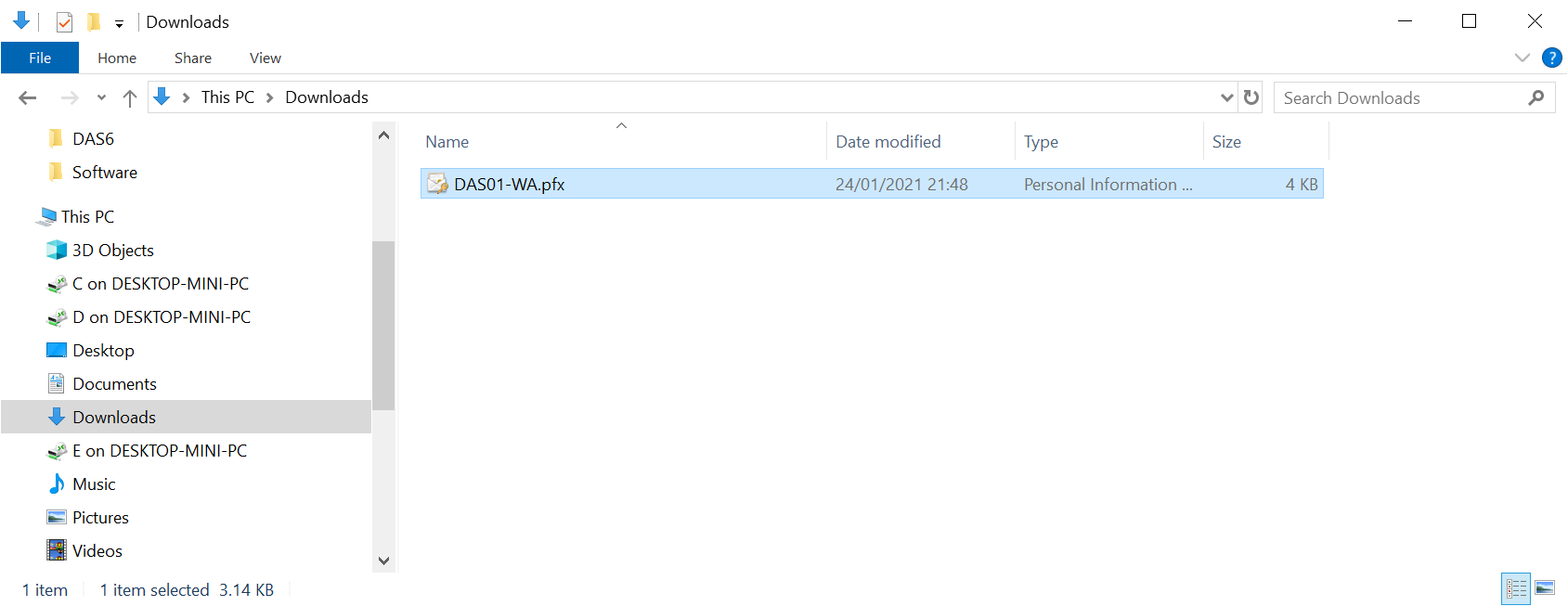
In the "Downloads" folder, you should have see a file like below:
Step 2: Install Window Logon Agent Certificate
Now, login to the Windows logon agent machine, e.g. 192.168.30.11 in this example.
Copy the downloaded file in Step to this machine, e.g. "DAS01-WA.PFX"
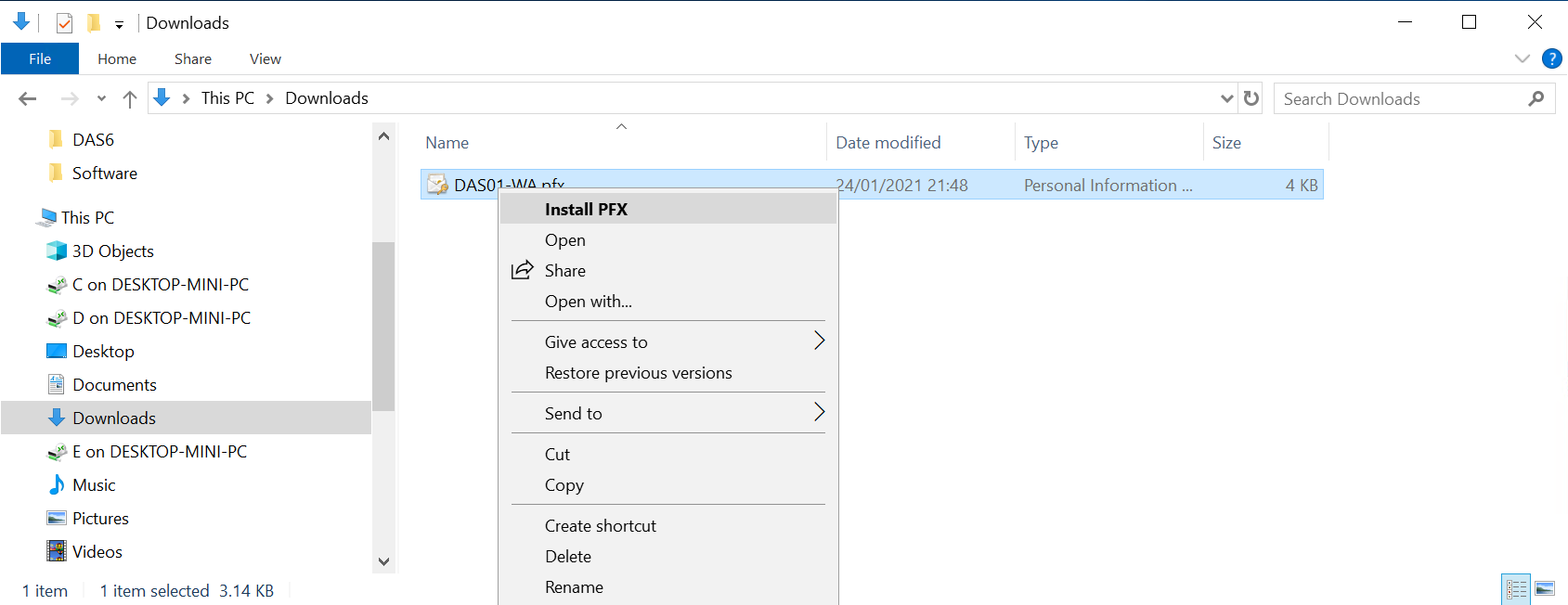
Install this certificate to the Windows keystore
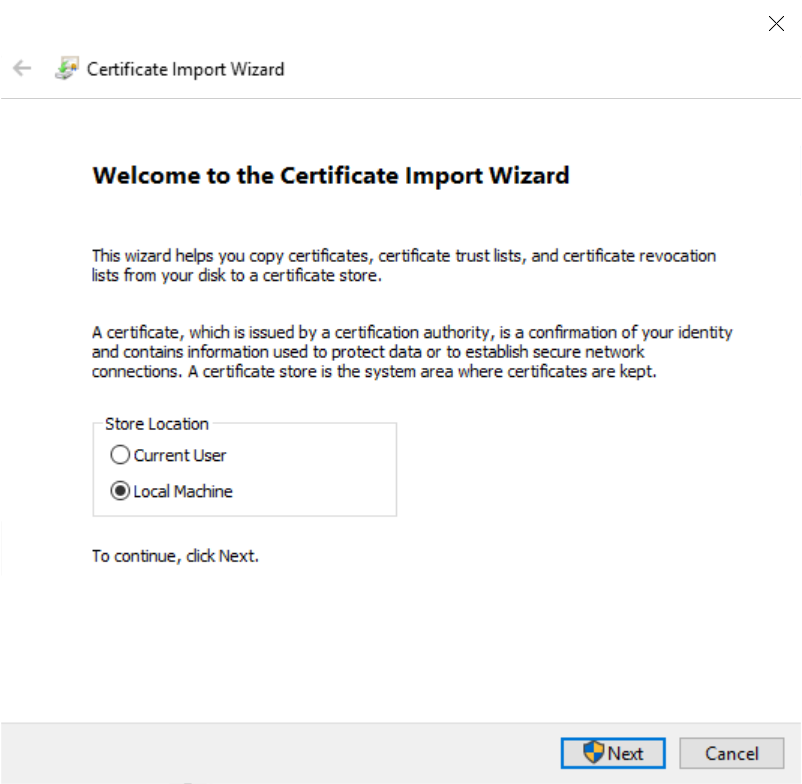
Select "Local Machine" in the screen below:
Enter "changeit" at the password prompt
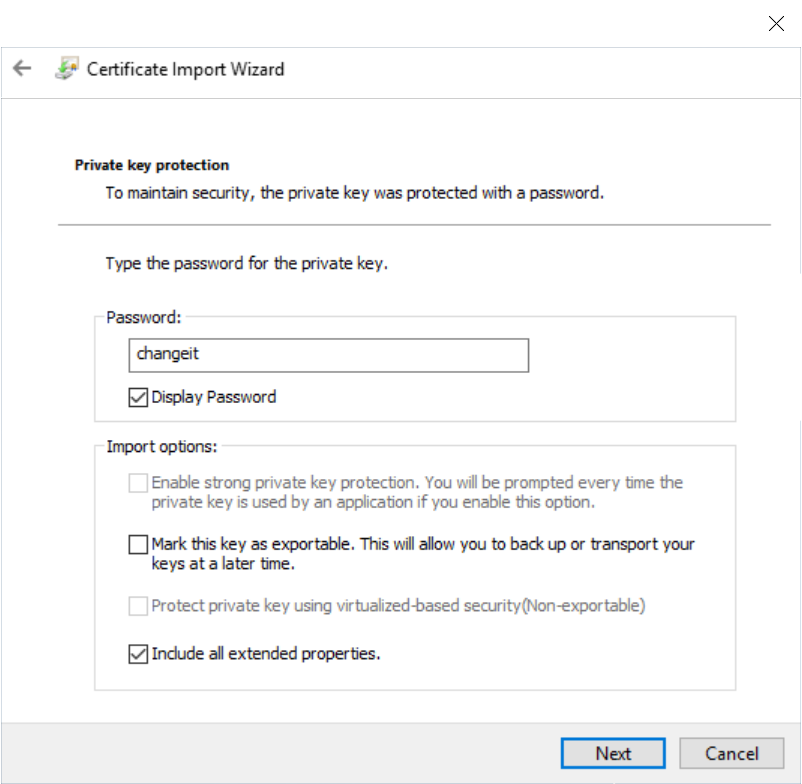
In the rest of steps, select the default options until finish
Step 3: Replace Windows Logon Agent certificate
Open the DualShield Windows Logon Manager
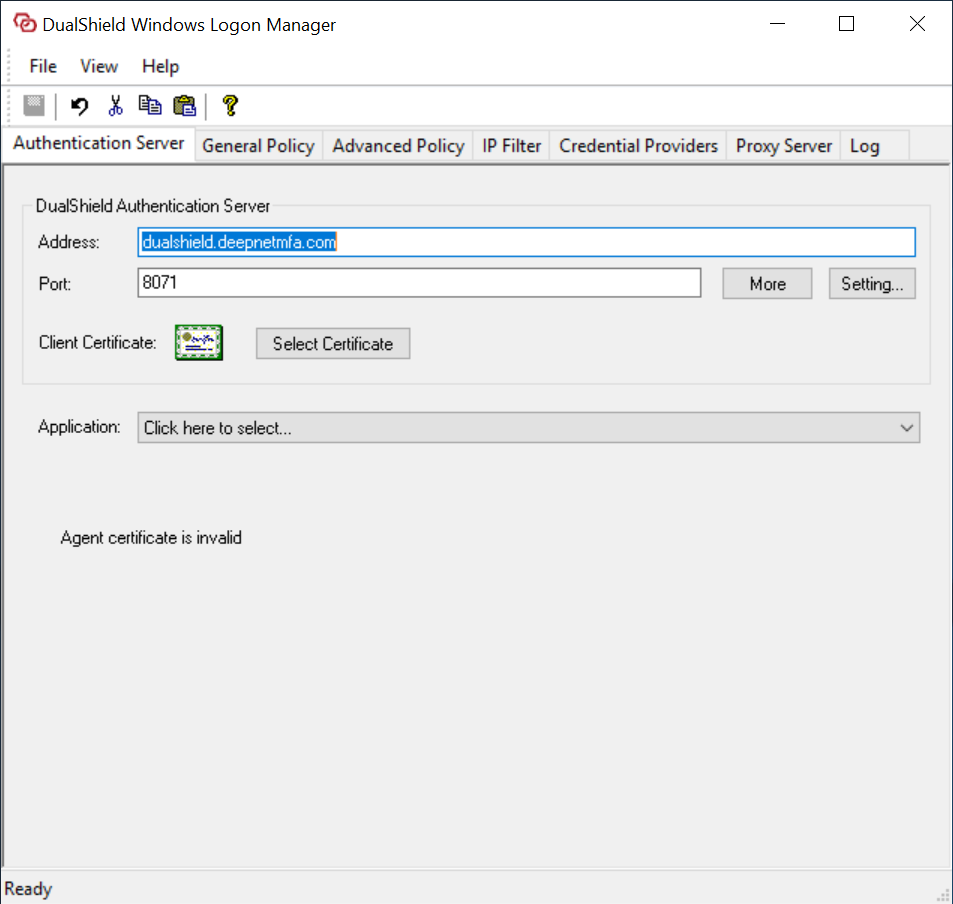
Click the "Select Certificate" button

Select the "Computer account" tab
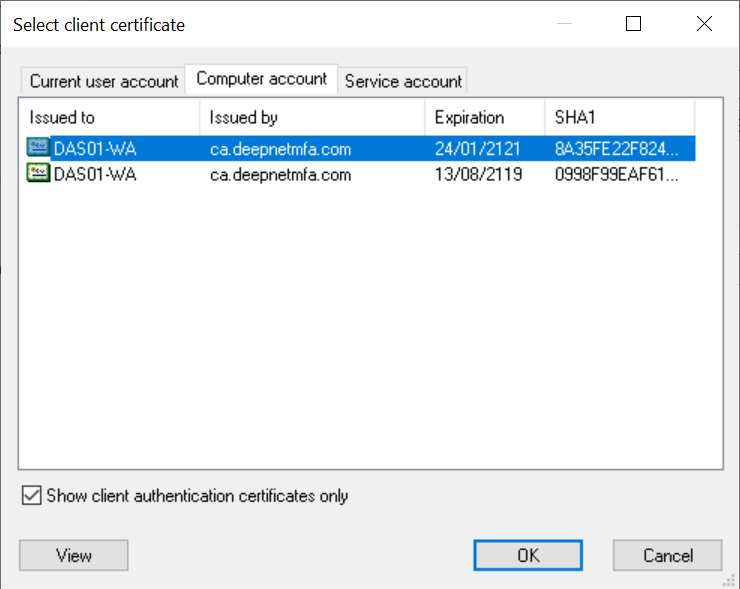
Select the certificate with the correct expiration date
then, click "OK" to save it.