...
To use the tool, visit https://www.deepnetsecurity.com/tools/tokens-enrolment-for-entra/
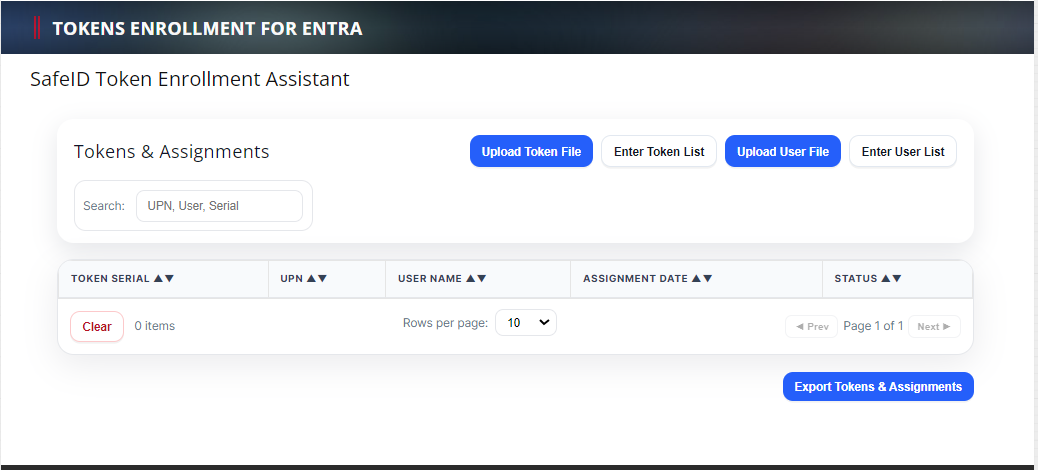
Follow the steps below:
1 - Upload Token File
Click the "Upload Token File" to upload the token secret file that you have received. (If you have not received the seed file of your tokens then click here to make a request, or contacting your reseller or Deepnet Security).
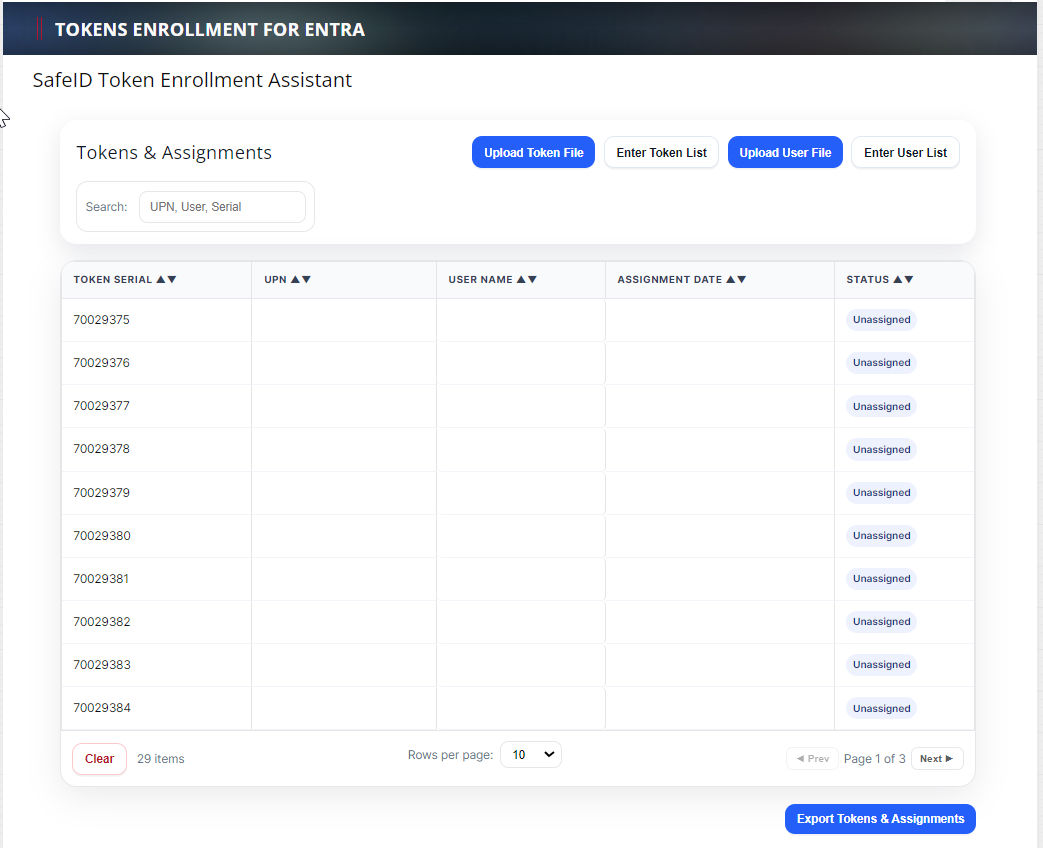
2 - Upload User File
A user file is a simple text file that includes a list of UPNs (one UPN per line). Below is an example:
...
Click the "Upload User File" to upload upload your user file. Or, you can click "Enter User List" to enter the list of users
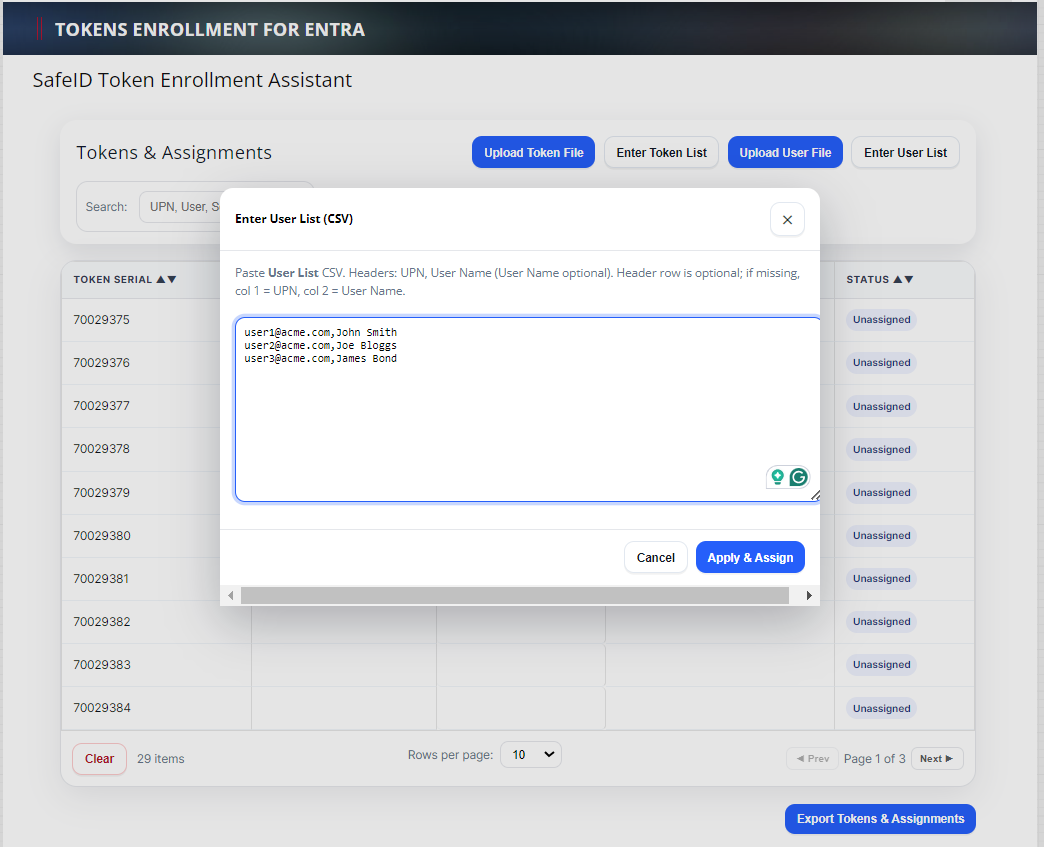
Click "Apply & Assign"
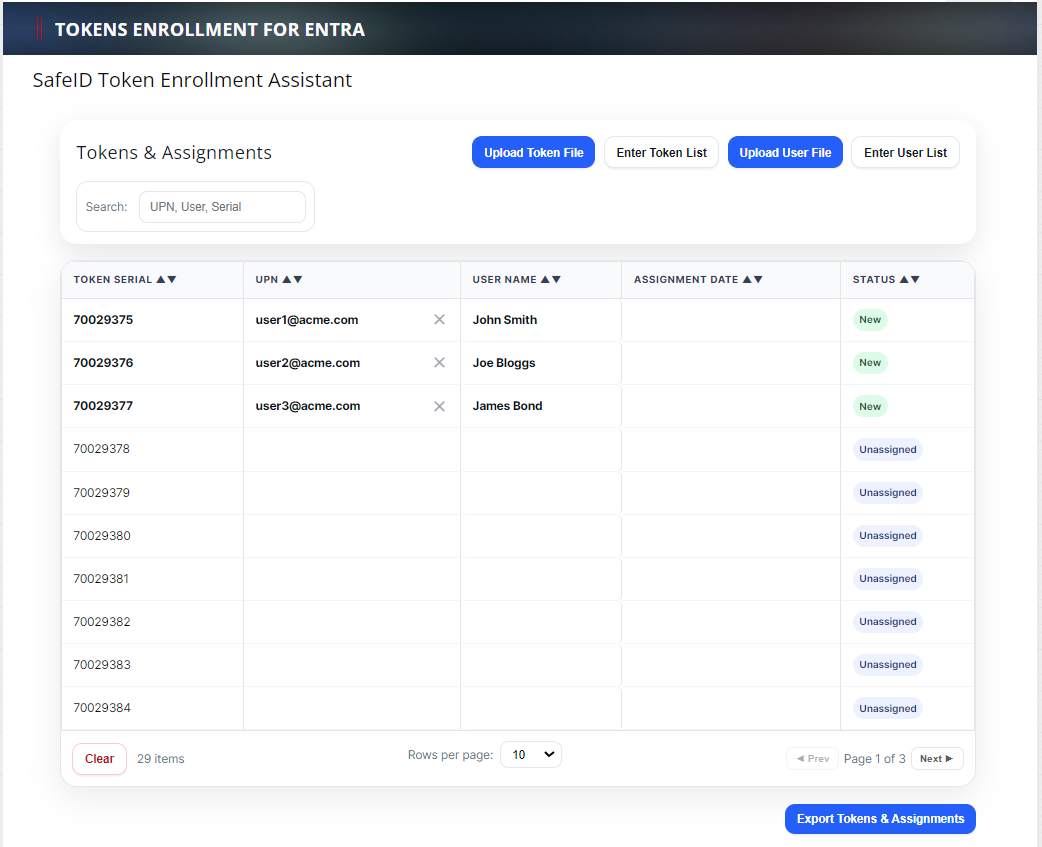
Tokens will then be automatically assigned to users
You can make changes by drag & drop, edit, delete etc
3 - Export Token Assignment Files
Once you have completed token assignments, click "Export Tokens & Assignments"
Two files will be exported and saved into your local PC
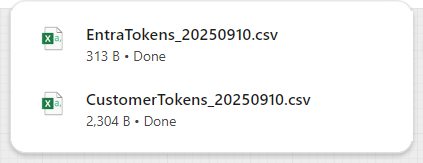
The "EntraTokens_YYYYMMDDA.csv" is the token assignment file to be uploaded into Entra ID
The "CustomerTokens_YYYYMMDD.csv" is the token inventory file for you to keep and to be used in the future if you need to make changes to the assignments.