Create a Service Provider
- Login to DualShield Management Administration Console
- Select “SSO | Service Providers”
- Click the “Create”
 “+ CREATE” button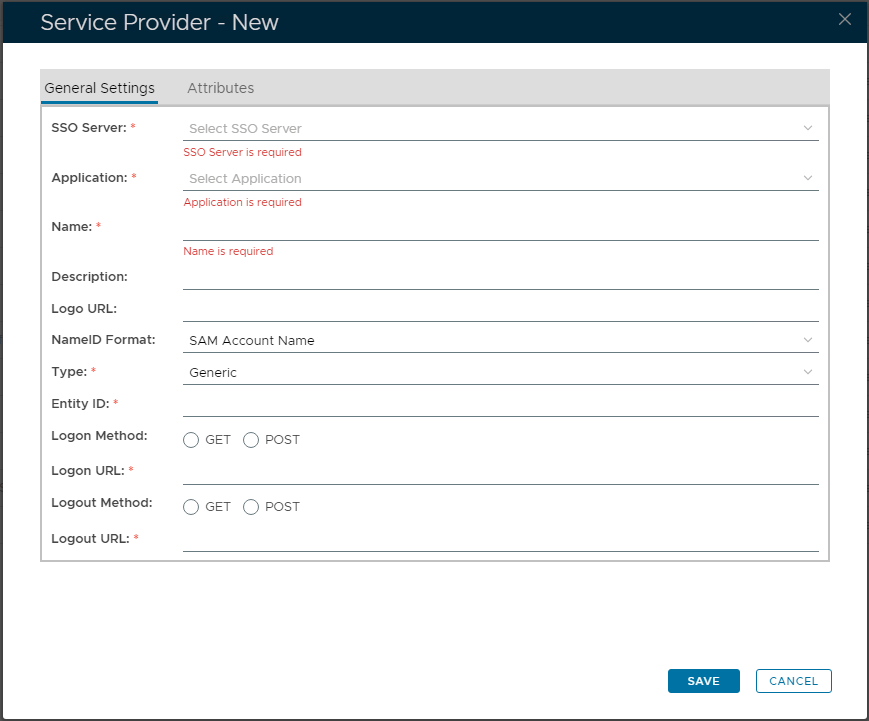
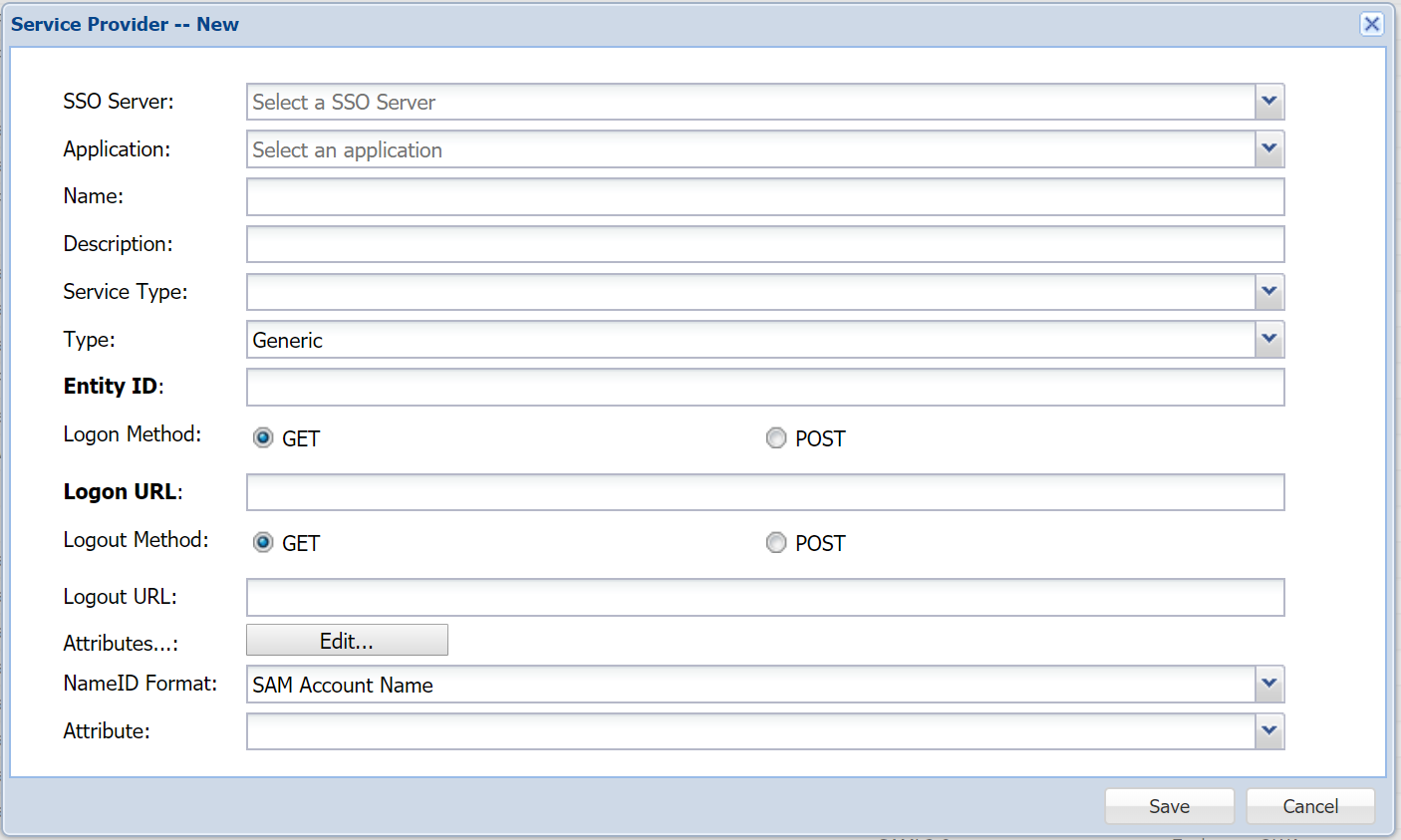
- In "Type", select "SAML 2.0"
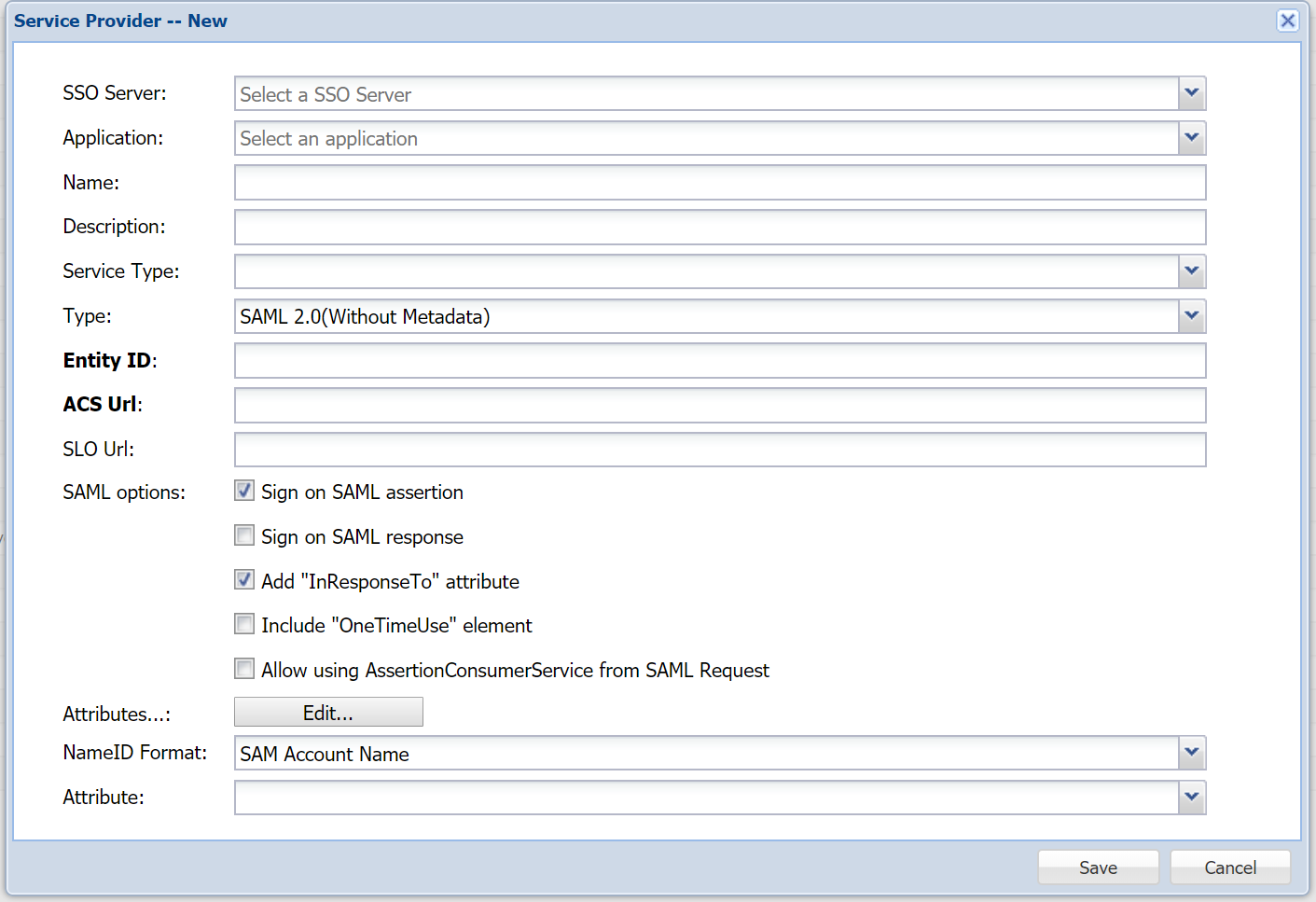
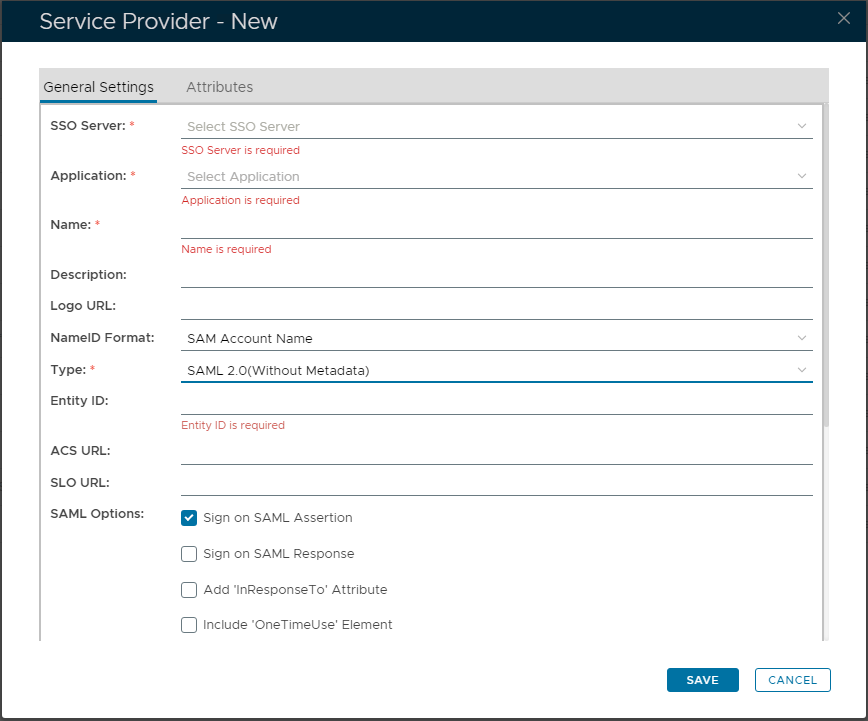
- Select "SSO Server" and "Application"
- Enter "Name" and "Description" (optional)
- In "Entity ID" enter "box.net"
- In "ACS Url" enter "https://sso.services.box.net/sp/ACS.saml2"
- In "SAML optionsOptions", select tickbox "Sign on SAML assertionAssertion" on
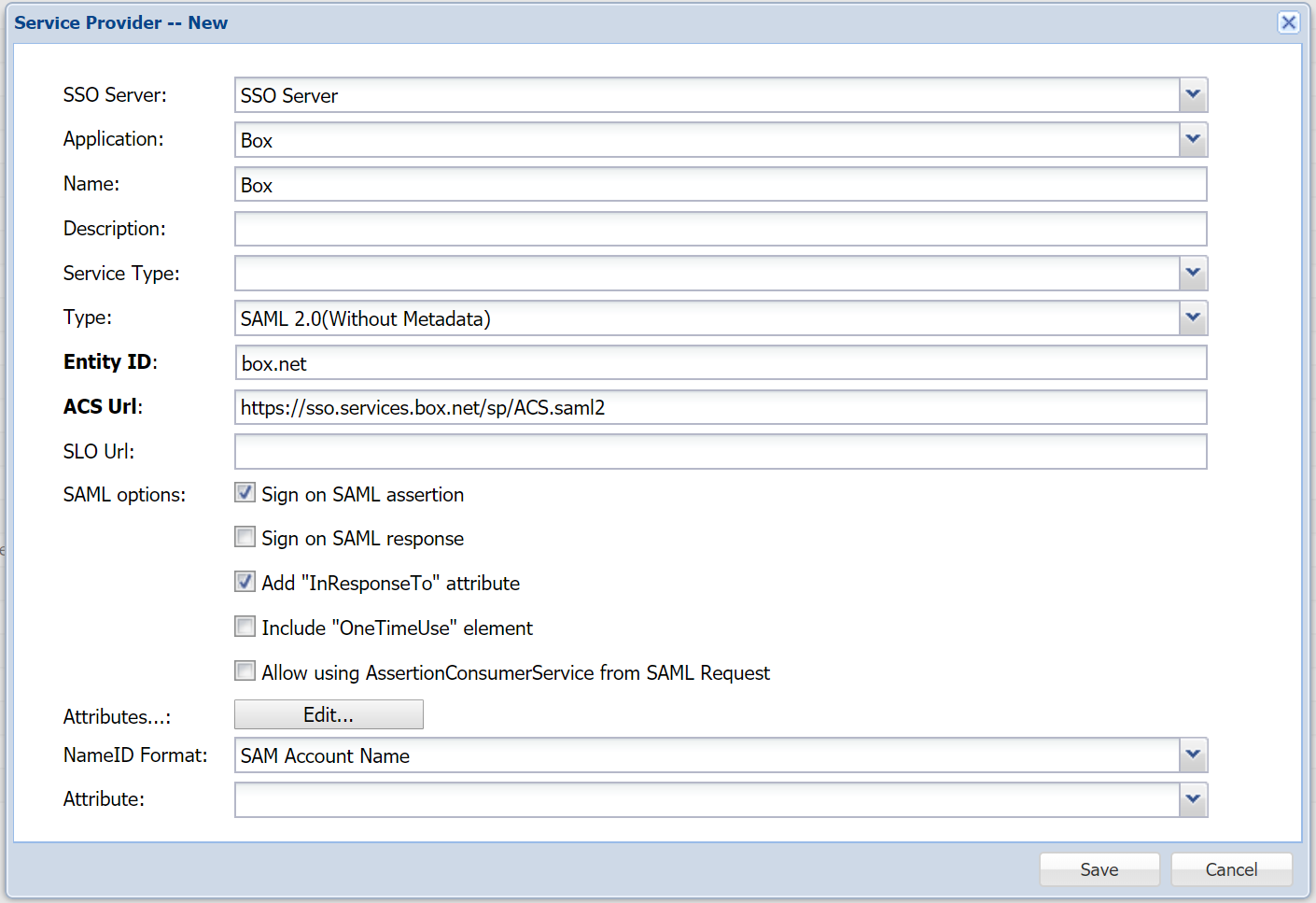
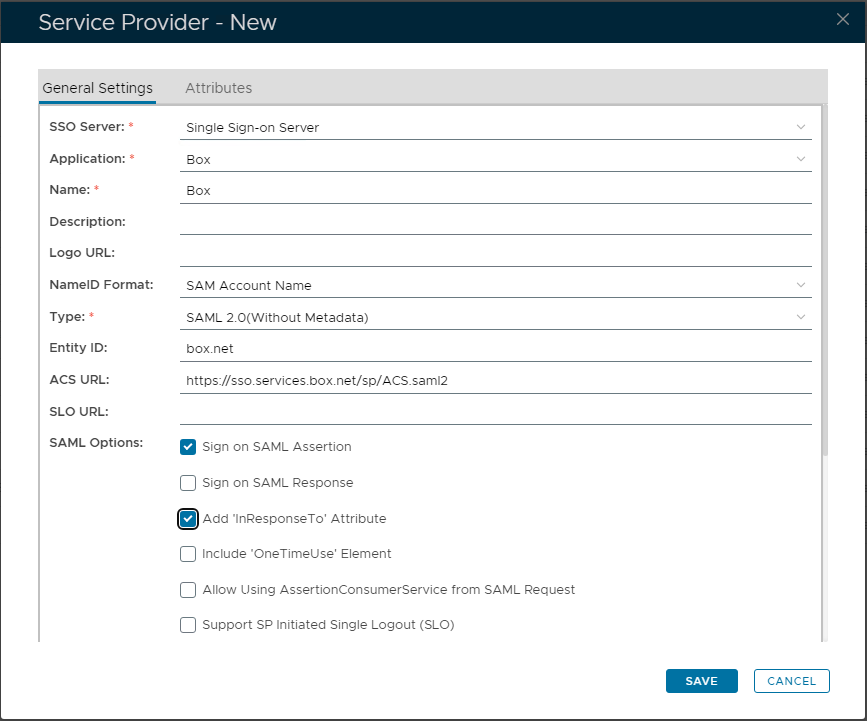
- In "Attributes", click the "Edit+ CREATE" button
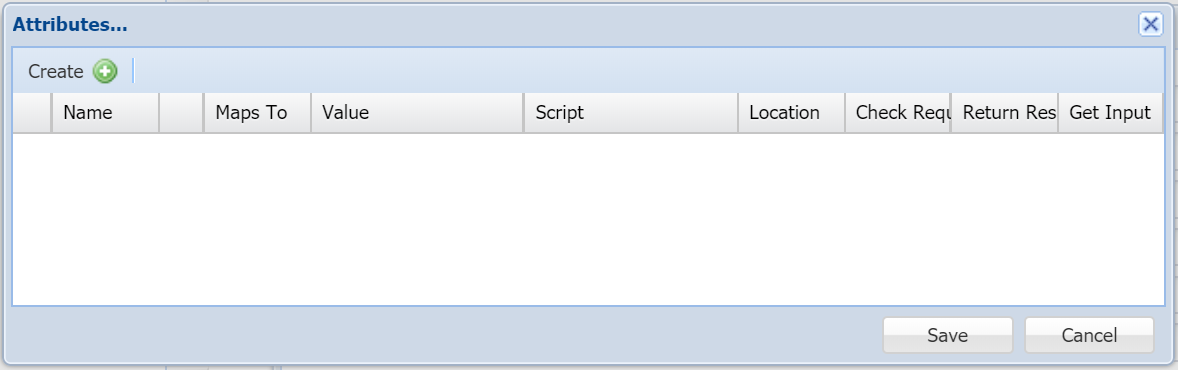
- Click the "Create+CREATE" button on the toolbar
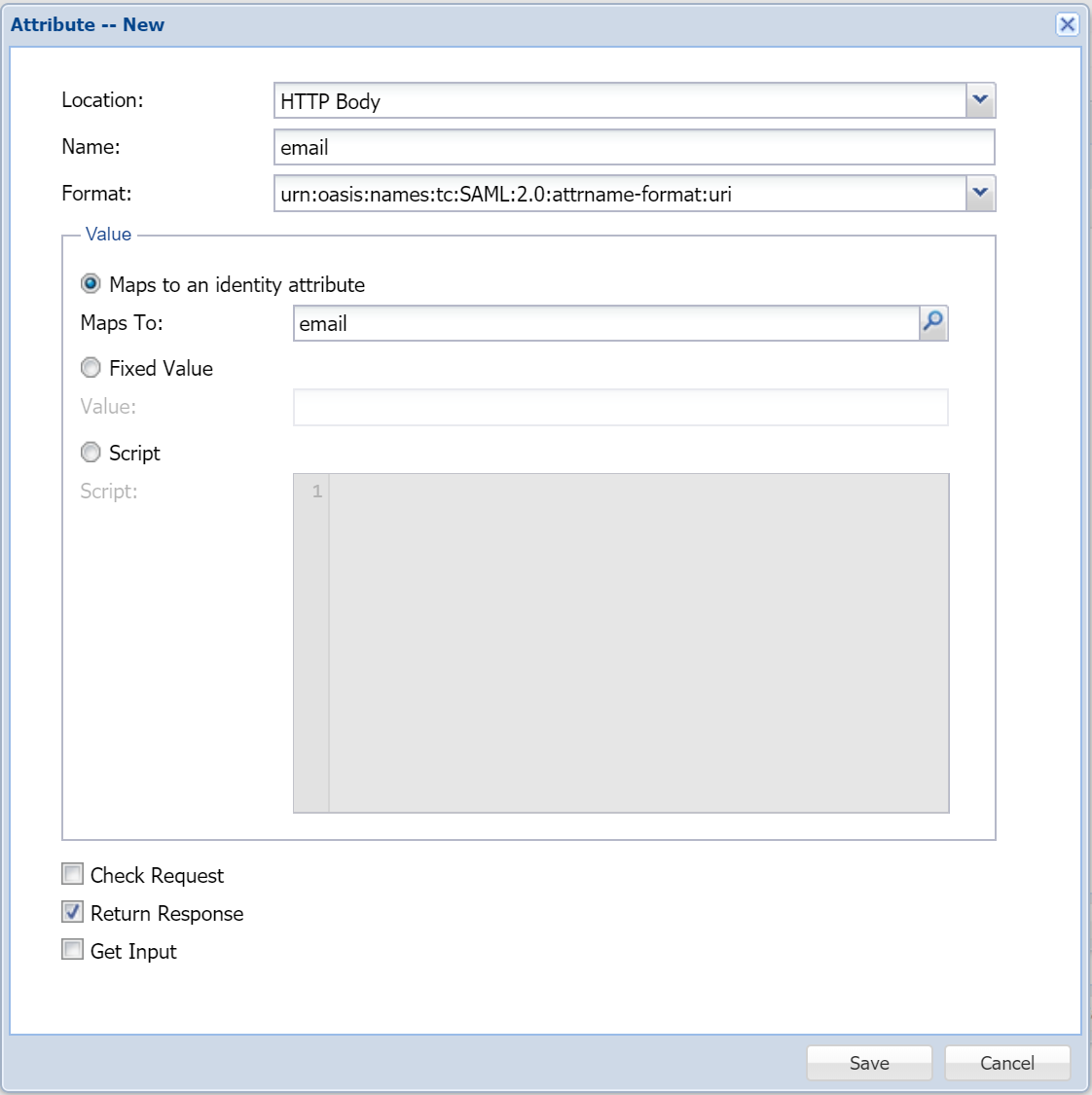
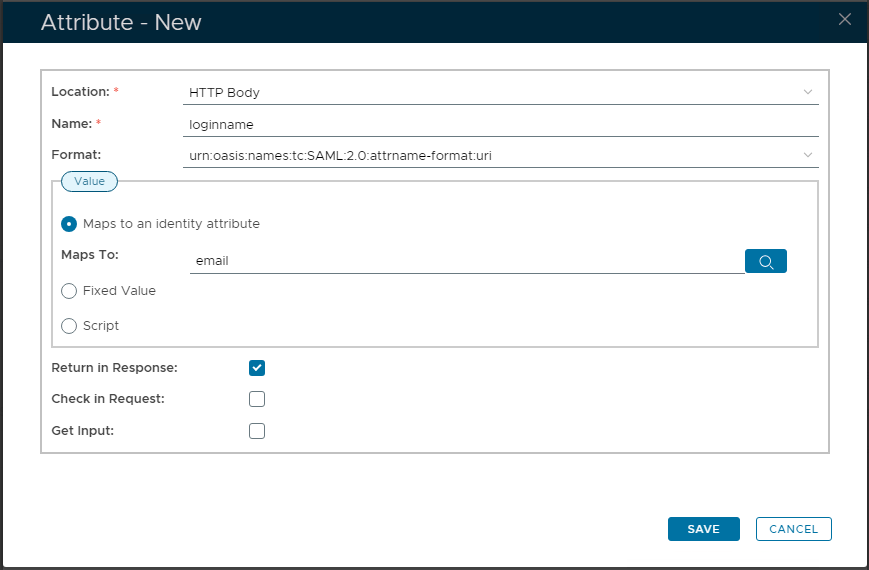
- In "Location", select "HTTP Body"
- In "Name", enter "loginname"
- In "Maps to an identity attribute", click the search icon
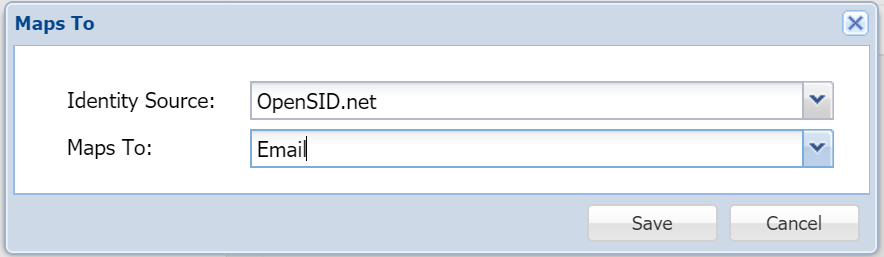
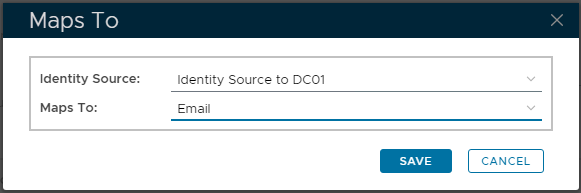
- Save the attribute
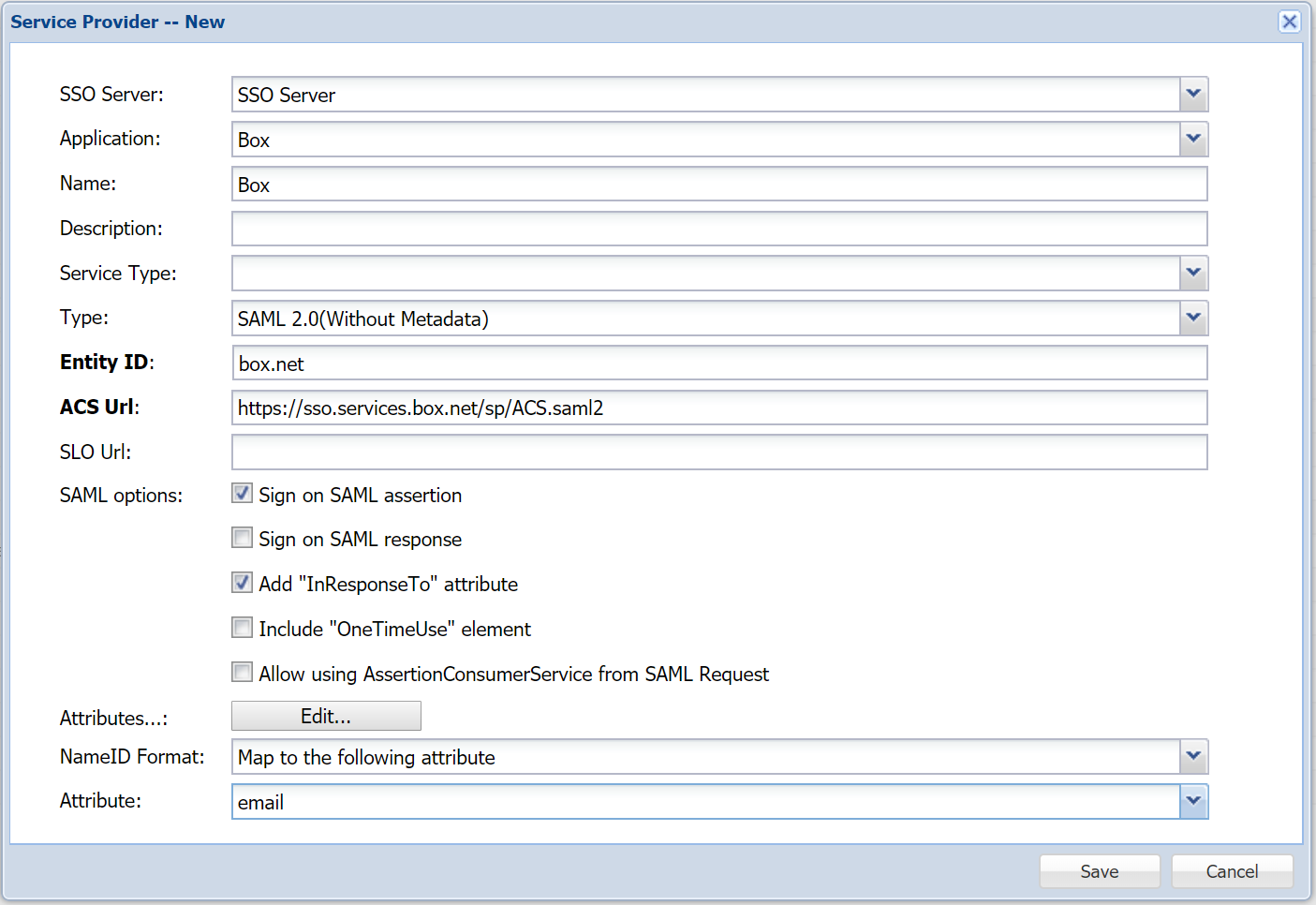
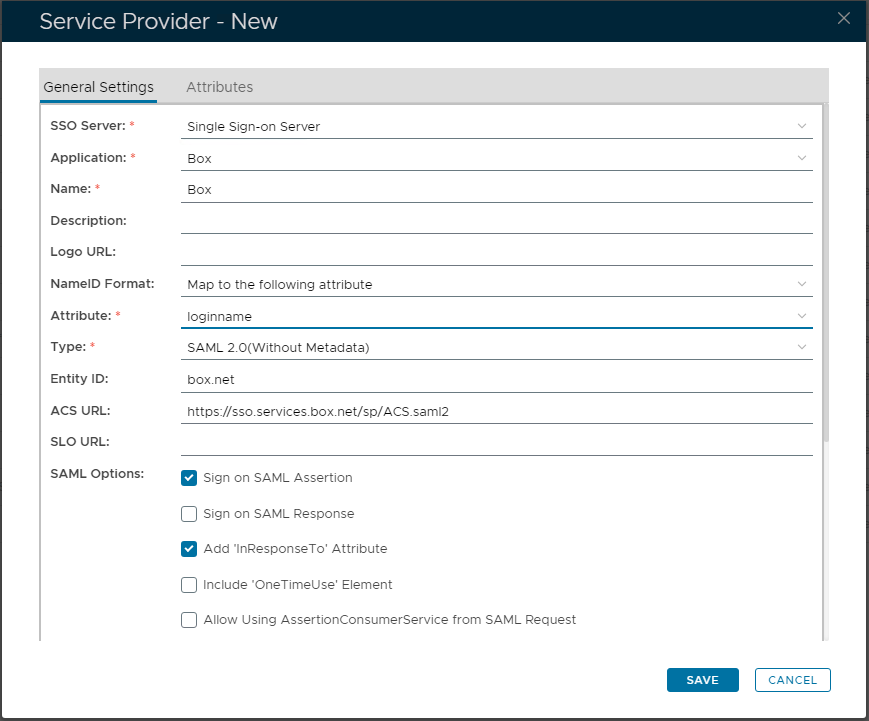
- In "NameID Format", select "Map to the following attribute"
- In "Attribute" select the newly created attribute, i.e. "email"
- Click "Save"SAVE"