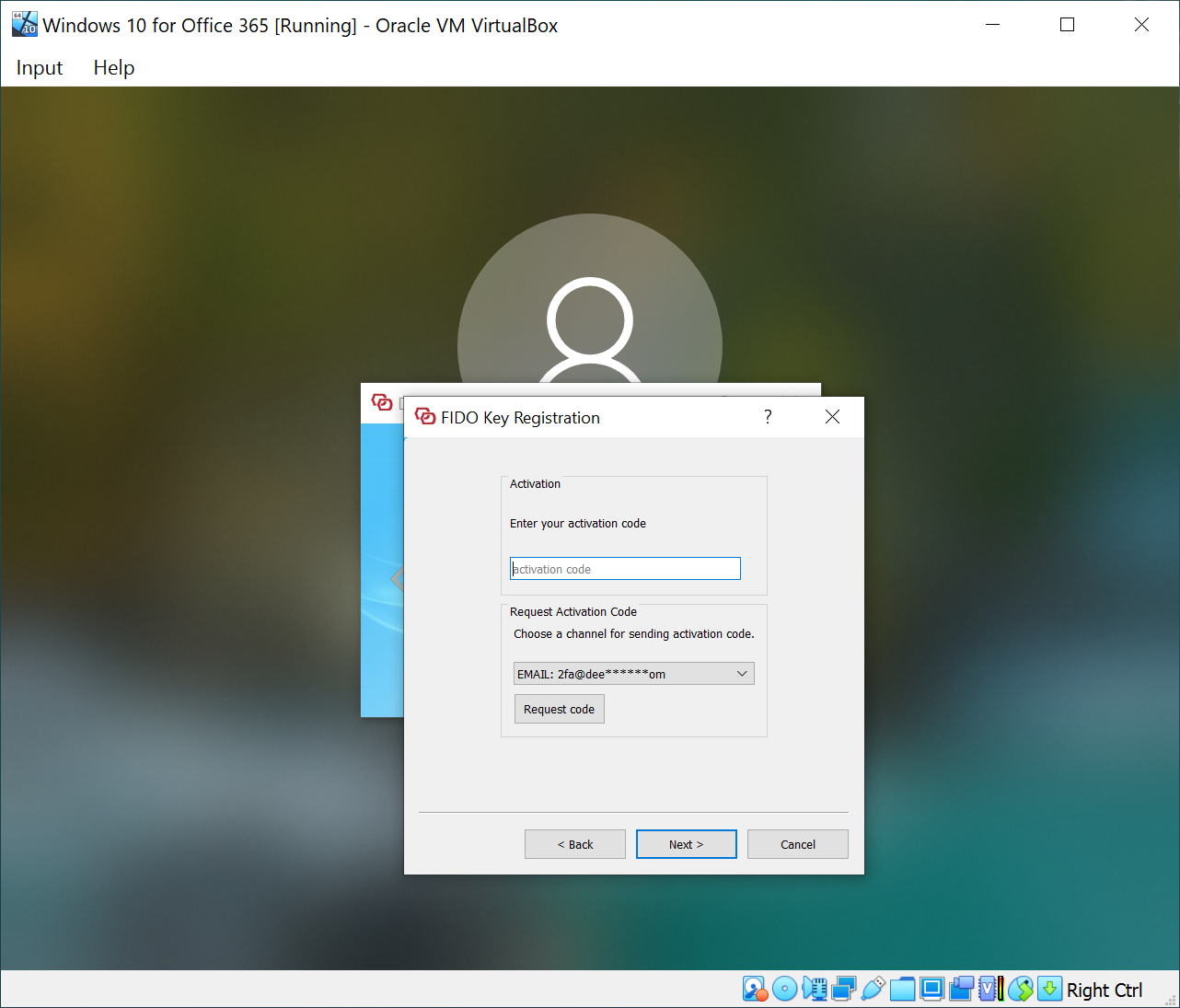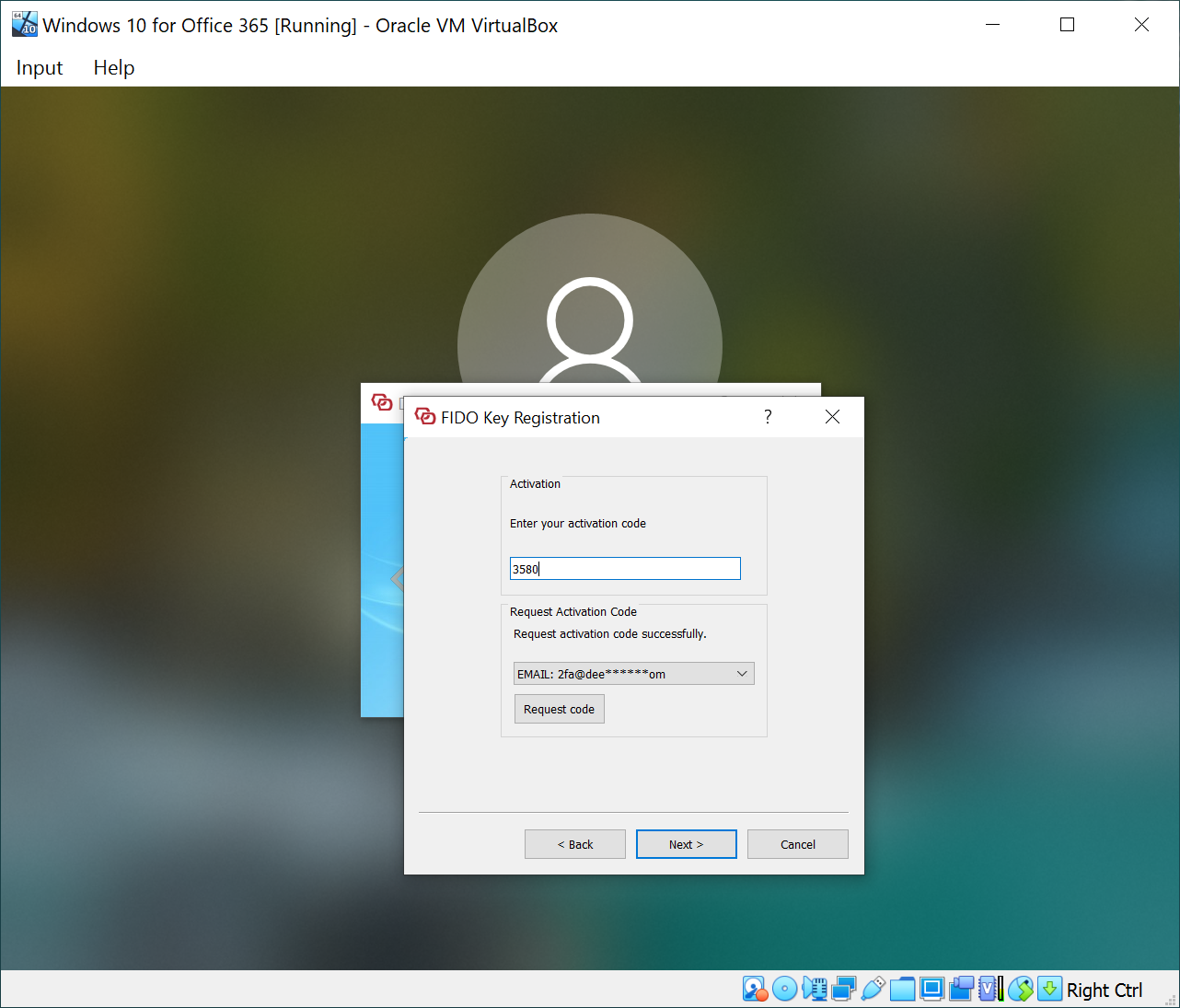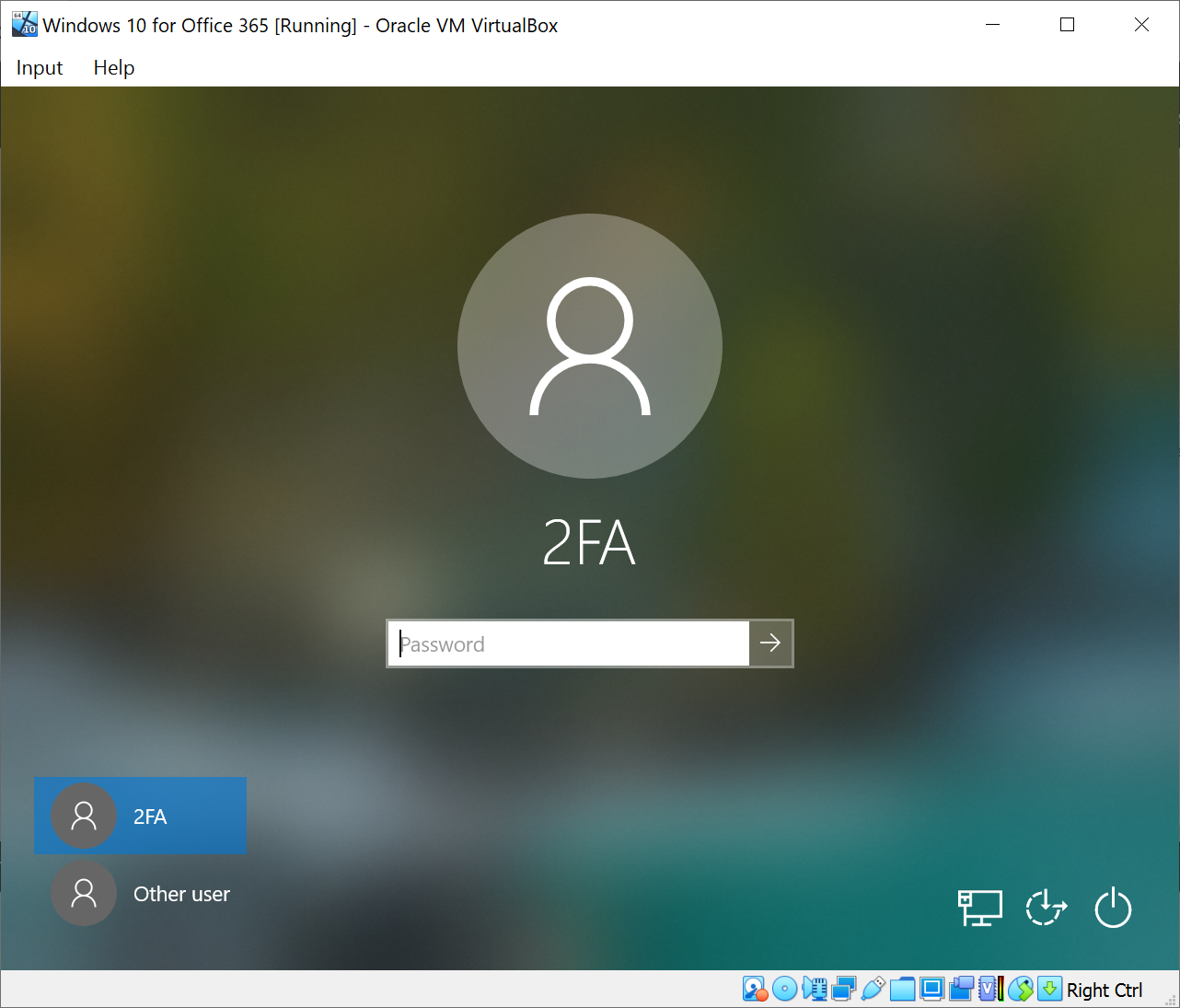
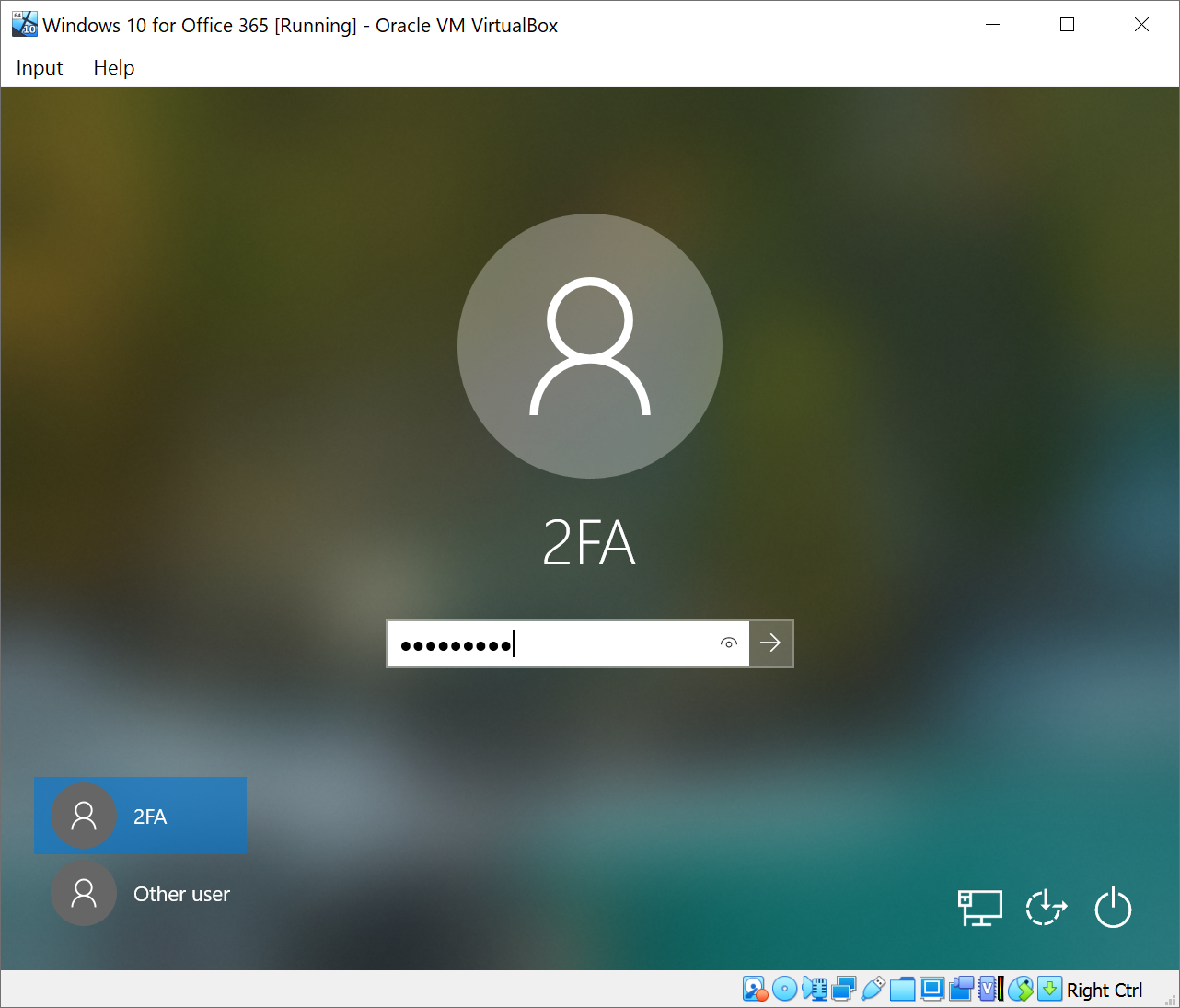
On the login window, enter your account password and press Enter to continue
If your account is MFA enabled, then the MFA window will be prompted
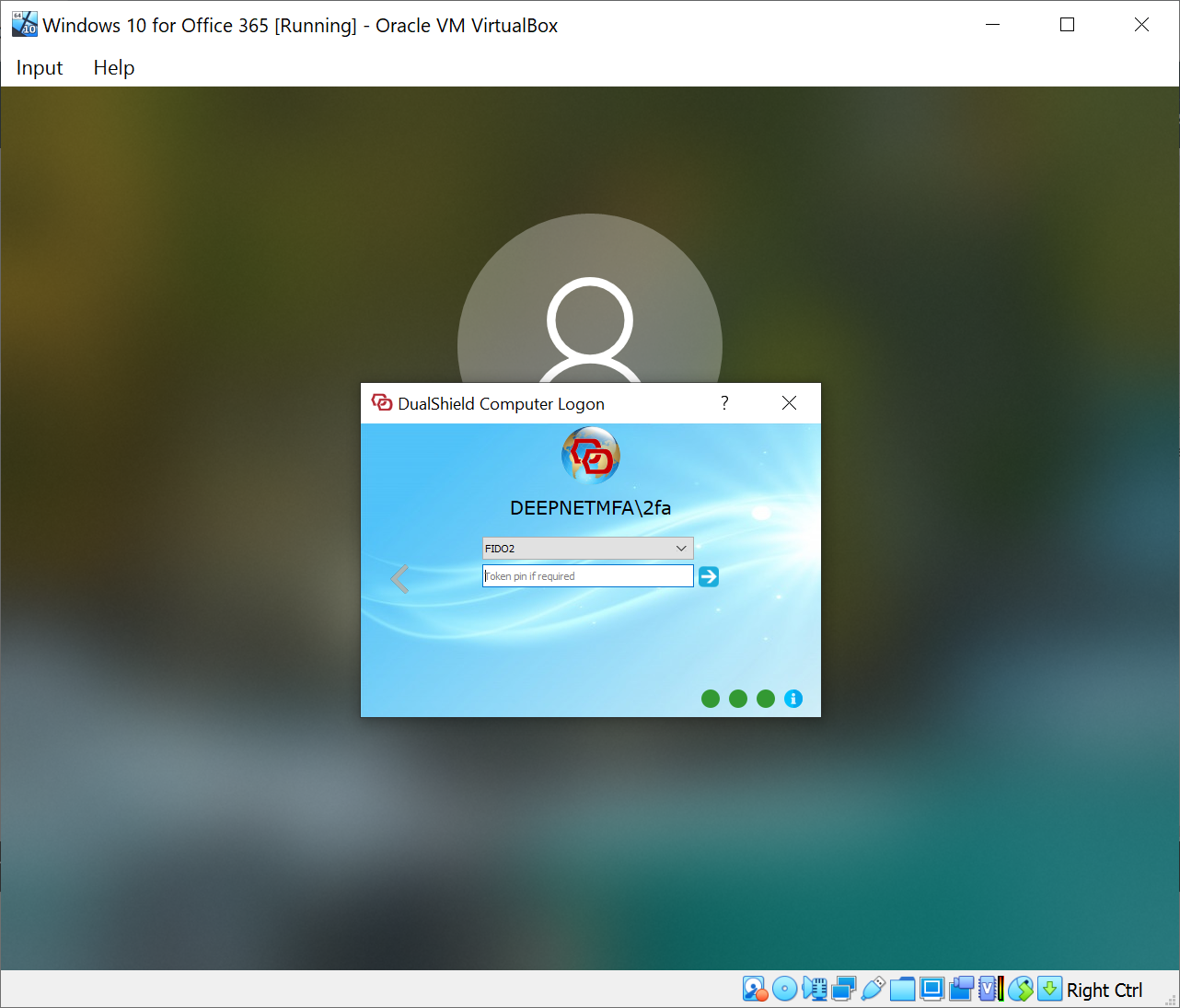
Select FIDO2 as the authentication method
Insert your FIDO2 key into the USB port of your PC or laptop
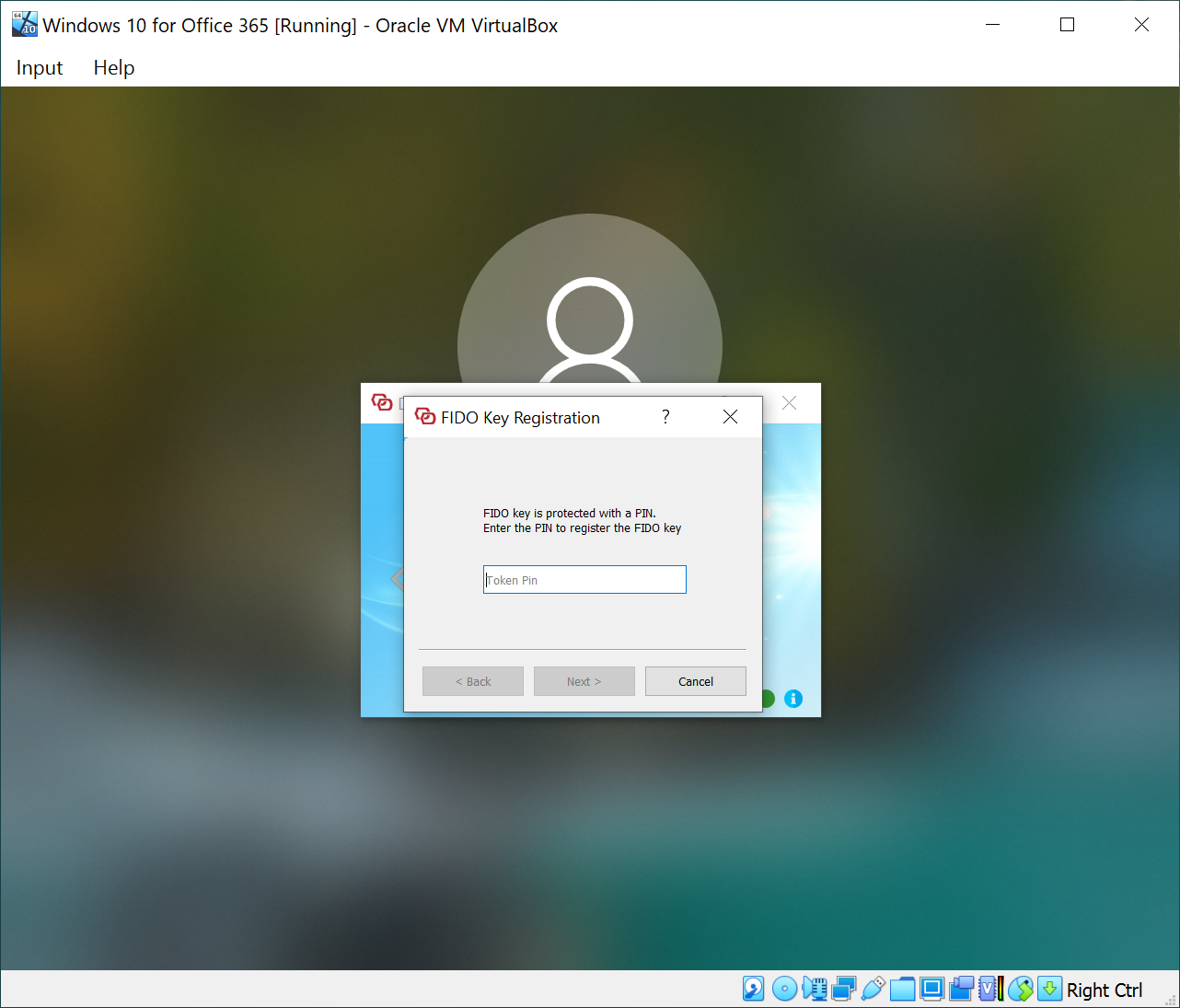
Commonly, FIDO2 key is protected with a PIN.
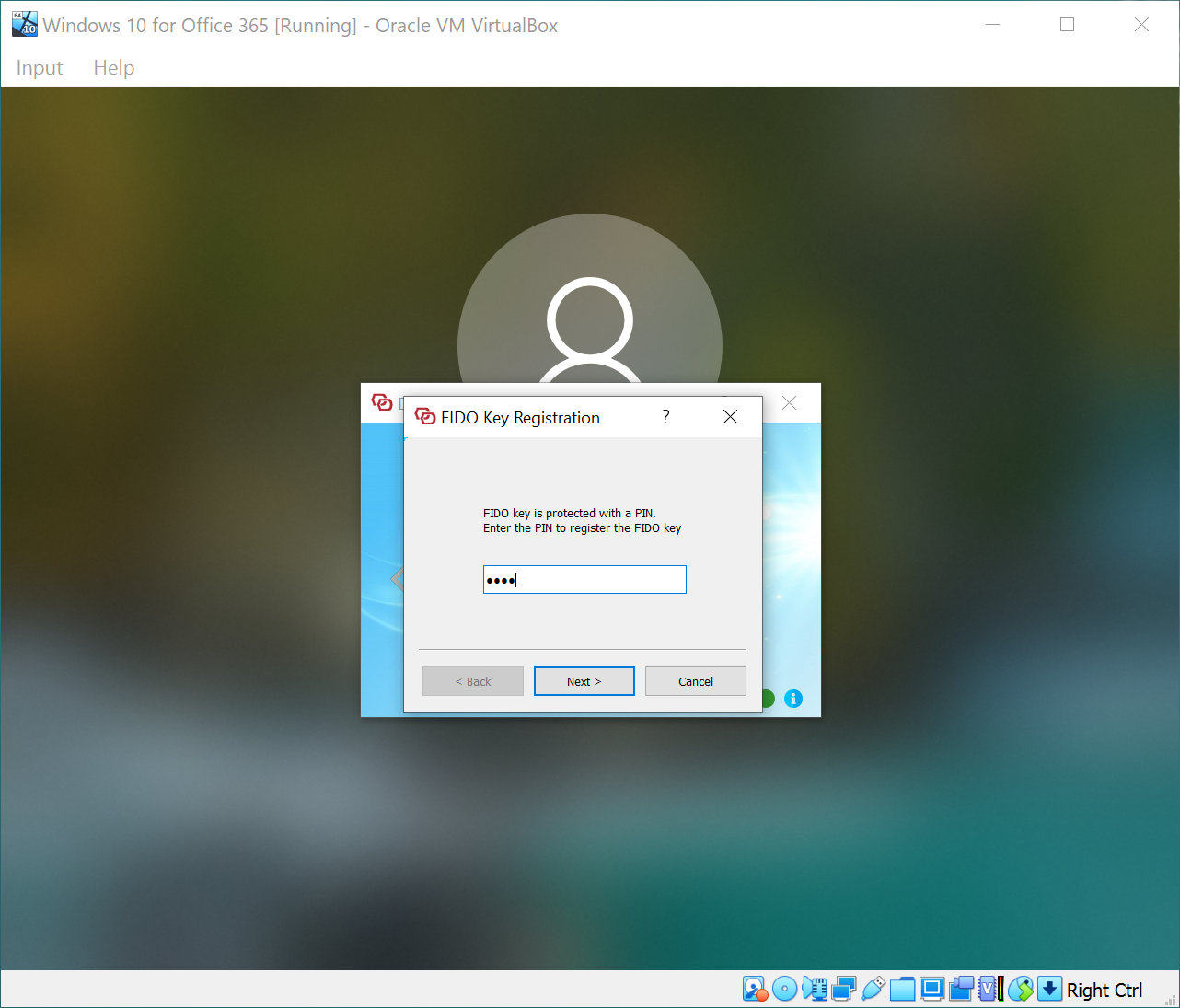
Enter the PIN of your FIDO2 key
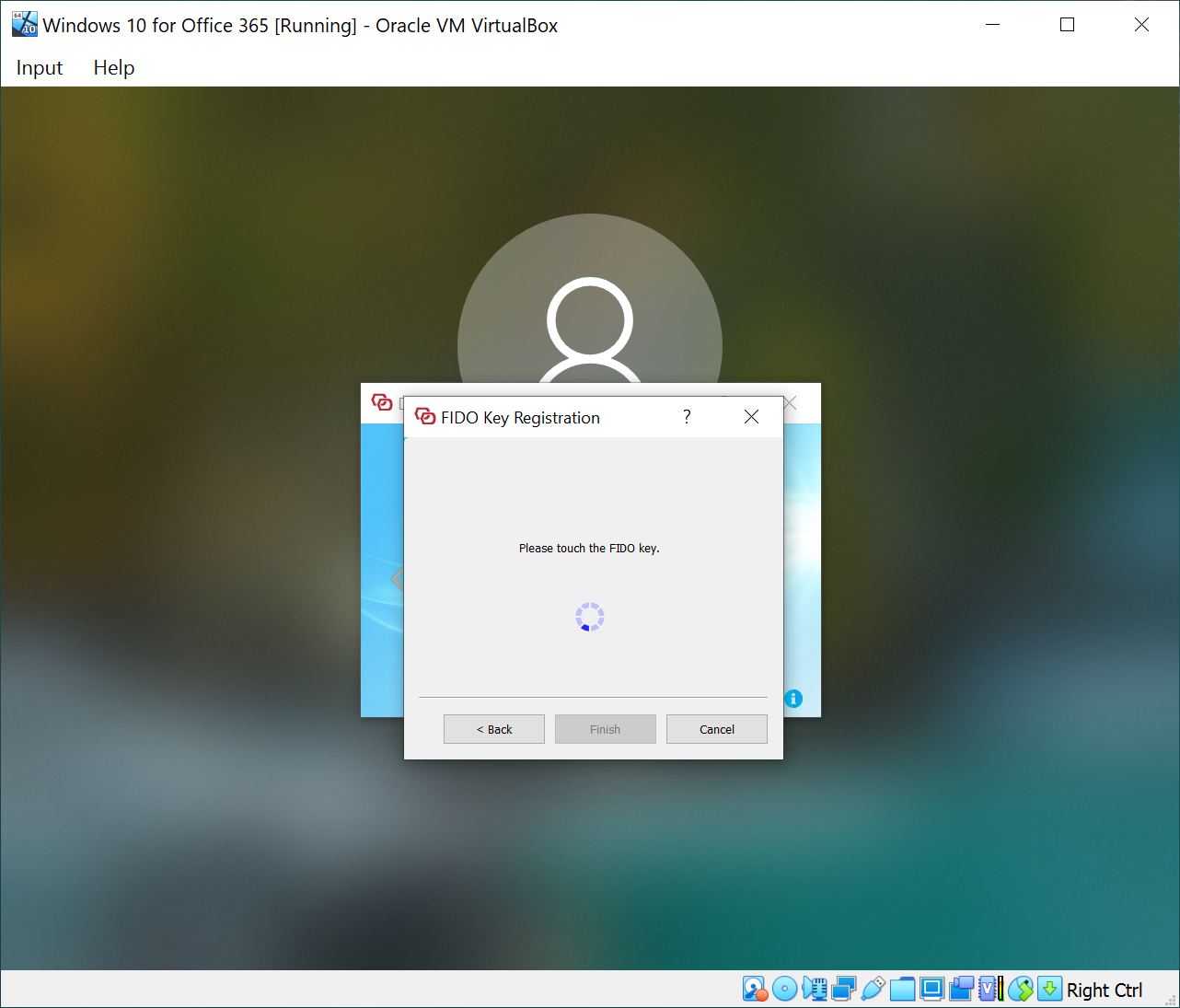
Now, you need to touch your FIDO2 key to continue
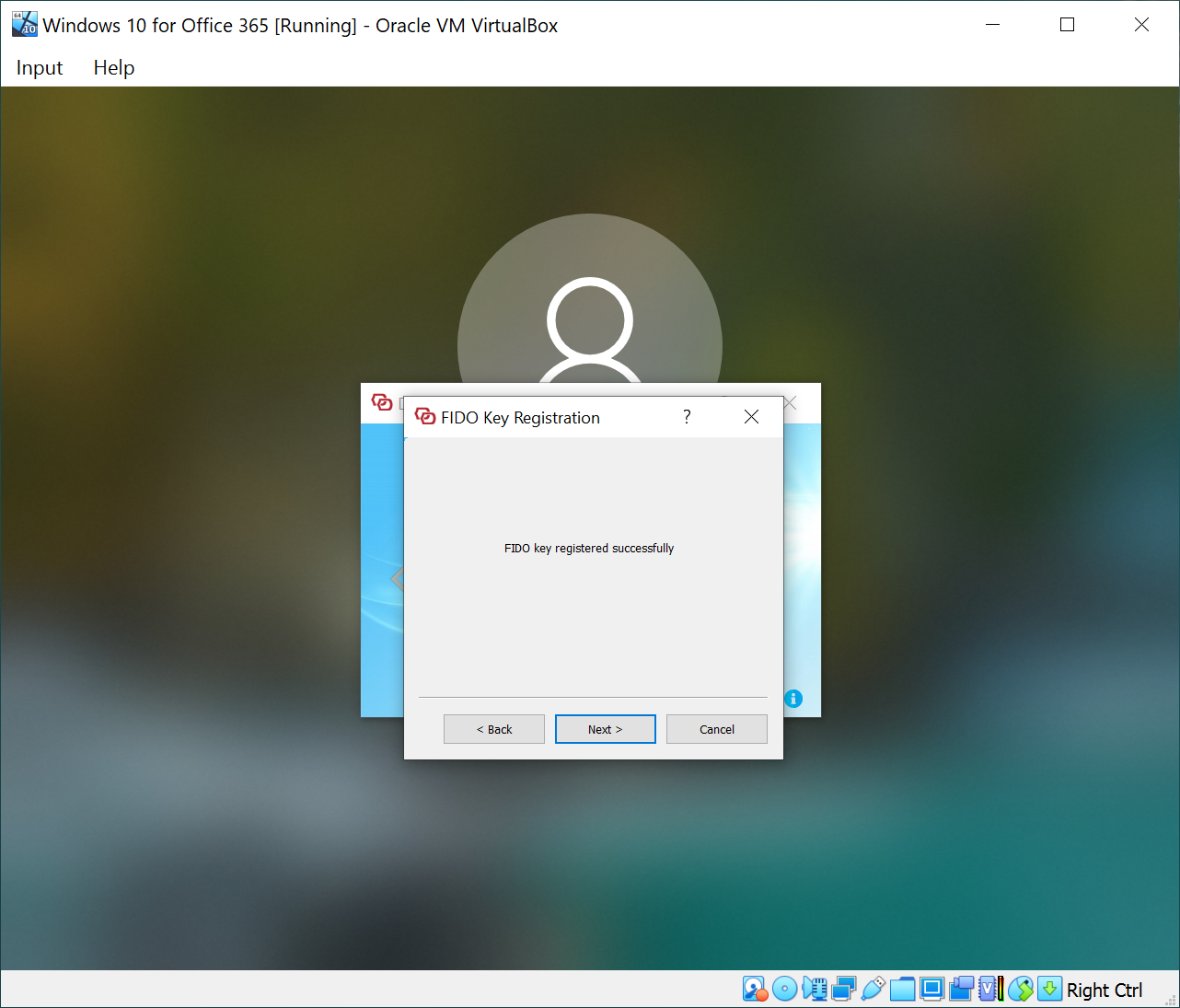
Your FIDO2 key has now been successfully registered
Optionally, if your FIDO2 policy is set to require activation, then you will be prompted to enter an activation code
To allow users to use an access card to verify themselves when they try to sign in to an application, you need to add the authentication method FIDO2 into the logon steps of the application.
For instructions on how to build or change a logon procedure, expand the link below
...
In the example below, we add FIDO2 into the logon procedure of Computer Logon as the second factor
...
| Expand |
|---|
You can request an activation code to be sent to you by email or SMS
Enter the activation code that you have received to activate your FIDO2 key 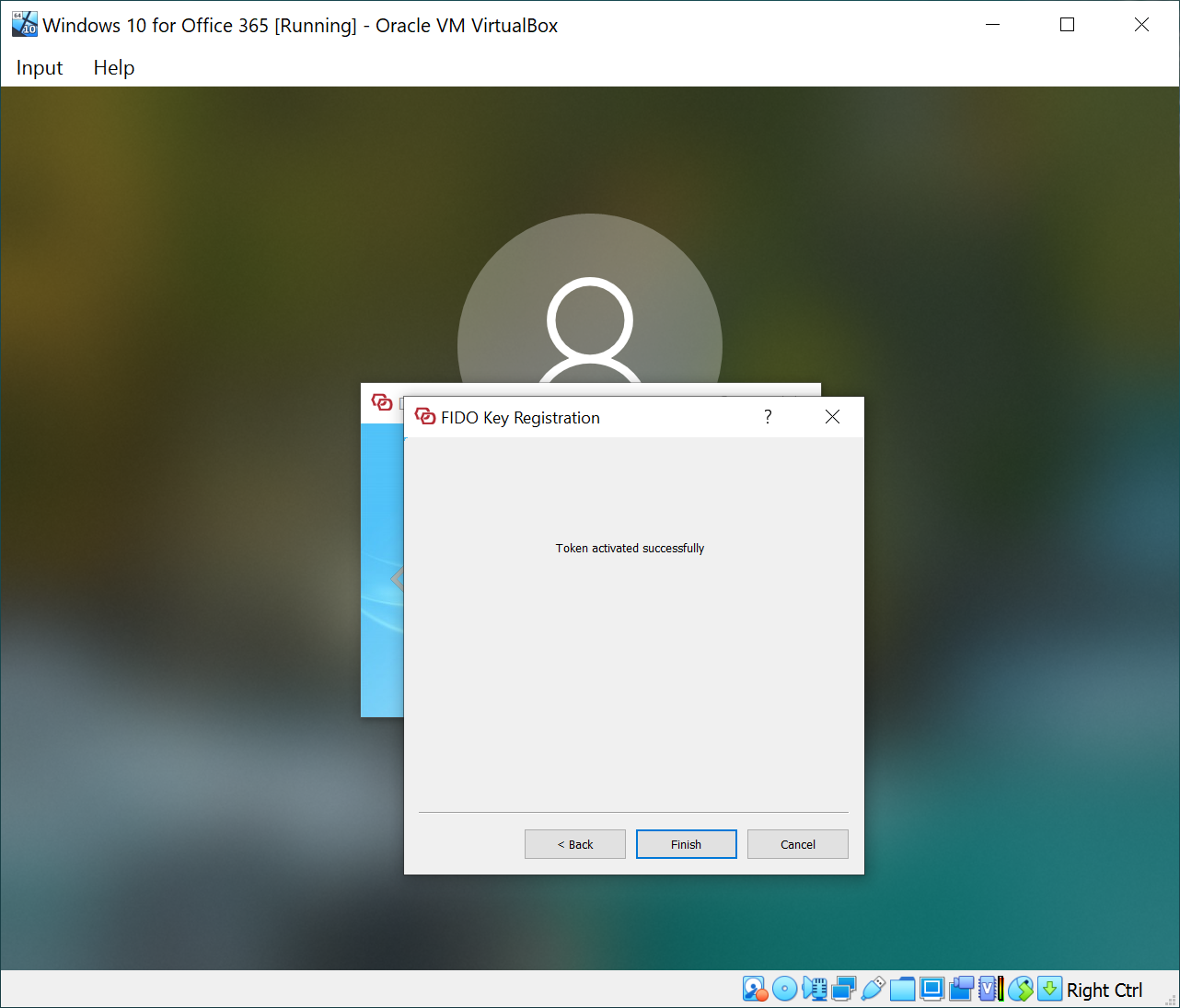 |