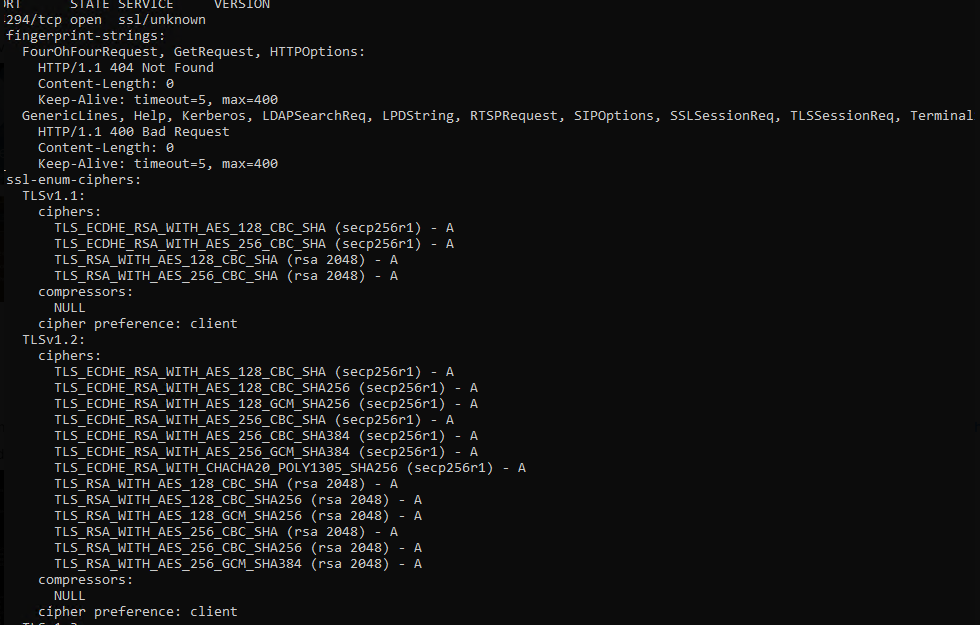
Windows Logon Agent supports TLS1.2 for earlier versions and TLS 1.2 & 1.3 for the latest. The administrator may want to configure safer cipher suites for SSL connections.
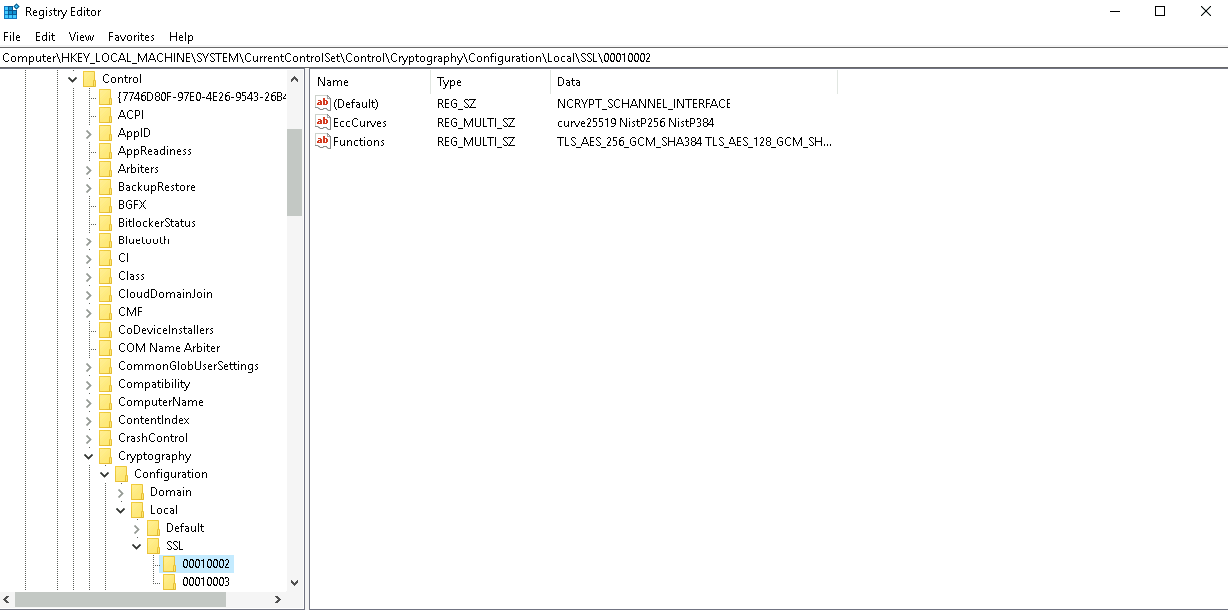
The general way for an administrator to configure is to add or remove cipher suites in the registry editor. The path to do this is "HKEY_LOCAL_MACHINE\SYSTEM\CurrentControlSet\Control\Cryptography\Configuration\Local\SSL\00010002" and configure ciphers for the multi-string value "Functions".
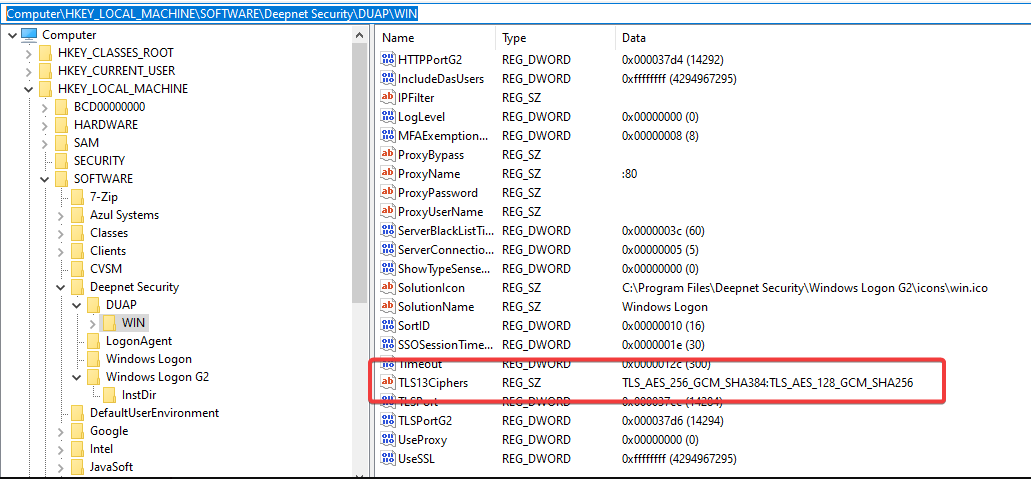
The general way for an administrator to configure is to add or remove cipher suites in the registry editor. The path to do this is "HKEY_LOCAL_MACHINE\SOFTWARE\Deepnet Security\DUAP\WIN" and configure ciphers for the REG_SZ values "TLS12Ciphers and TLS13Ciphers".
Supported Ciphers are as follows:
  Supported Server Cipher(s):
Preferred TLSv1.3  128 bits  TLS_AES_128_GCM_SHA256        Curve 25519 DHE 253
Accepted  TLSv1.3  256 bits  TLS_AES_256_GCM_SHA384        Curve 25519 DHE 253
Accepted  TLSv1.3  256 bits  TLS_CHACHA20_POLY1305_SHA256  Curve 25519 DHE 253
Preferred TLSv1.2  256 bits  ECDHE-RSA-AES256-GCM-SHA384   Curve 25519 DHE 253
Accepted  TLSv1.2  128 bits  ECDHE-RSA-AES128-GCM-SHA256   Curve 25519 DHE 253
Accepted  TLSv1.2  256 bits  ECDHE-RSA-AES256-SHA384       Curve 25519 DHE 253
Accepted  TLSv1.2  128 bits  ECDHE-RSA-AES128-SHA256       Curve 25519 DHE 253
Accepted  TLSv1.2  256 bits  AES256-GCM-SHA384
Accepted  TLSv1.2  128 bits  AES128-GCM-SHA256
After changing the settings, the agent service needs to be restarted.
As the string definition of OpenSSL ciphers (we are using OpenSSL in our code) is different with the counterpart of RFC ciphers, we provide a mapper file "sslciphermap" under the installation folder for the program to check.
You can also useNMap tool (download from https://nmap.org/download.html) to check if the configuration takes effect on port 14284 (or port 14294 if using Windows Logon G2).
Use Command line: "nmap -sV --script ssl-enum-ciphers -p 14284 <host>"
an example result will be as follows...