DualShield 6 provides a new generation of all self-service consoles, including
- Service Console
- Reset Password
- Unlock Account
- Emegency Access
However, in order to install the new genegation consoles on the frontend server, you must carry out an upgrade by new installation. In the new installation process, you still have the options to install the legacy consoles, if they are still required.
Step 1 - Remove current DualShield installation
The first step to upgrade a DualShield frontend server is to completely uninstall the current DualShield installation on the machine.
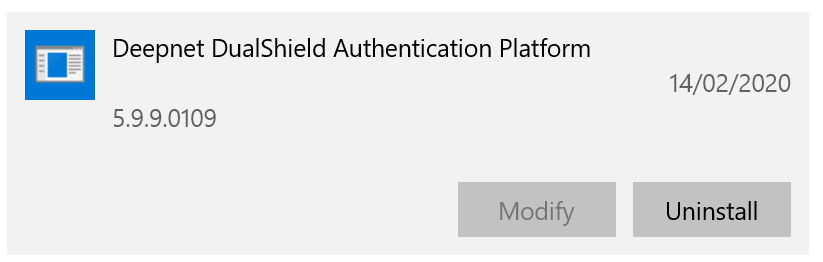
You uninstall DualShield from the Windows App & Features list:
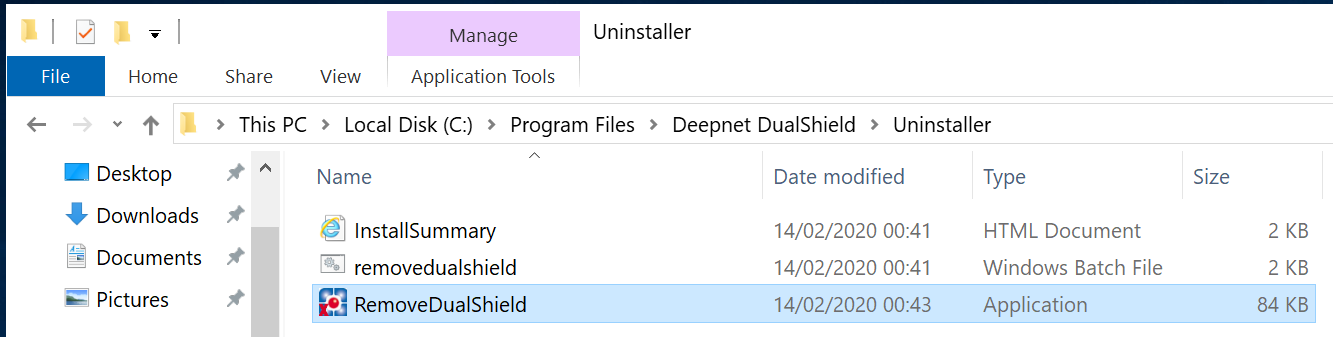
Or, execute "RemoveDualShield.exe" from the Windows Explorer:
Step 2 - Enable Agent Auto Registration
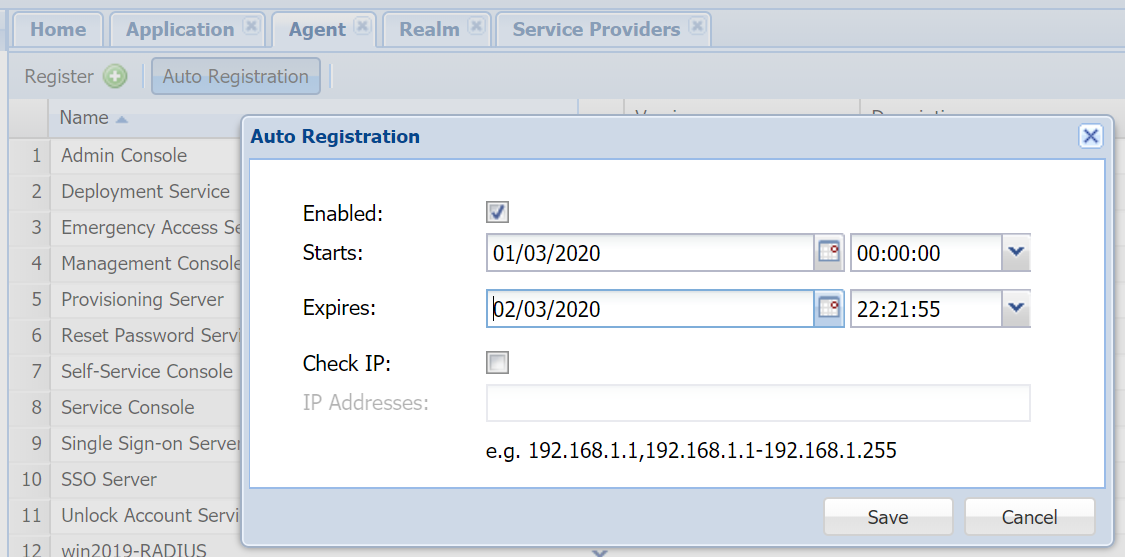
Installing a DualShield fronend server is like instaling a DualShield agent, it requires Agent Auto Registration to be enabled.
Step 3 - Perform a fresh new, frontend installation
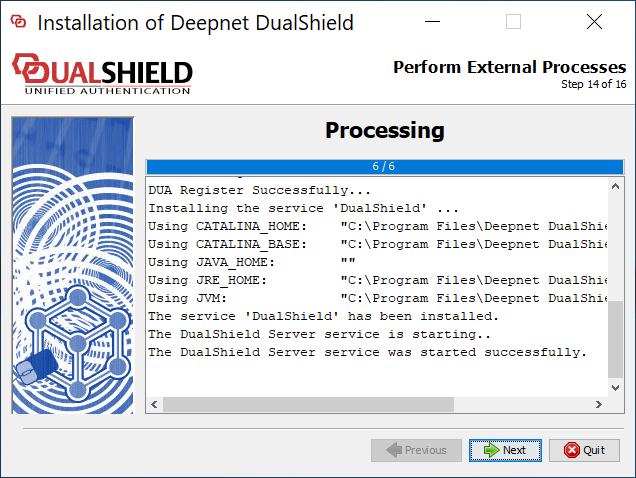
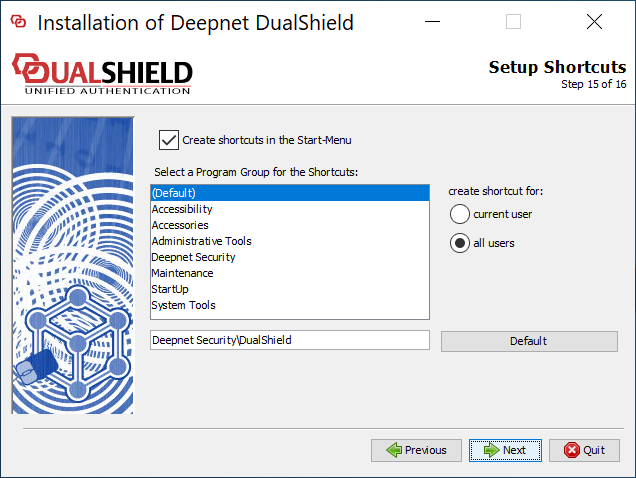
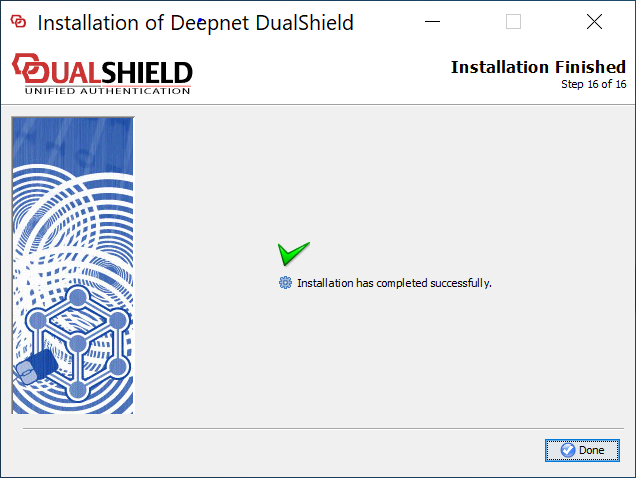
Execute "DualShieldSetup64-6.0.0.xxxx-signed.exe" (where xxxx is the build number) to start a fresh new installation:
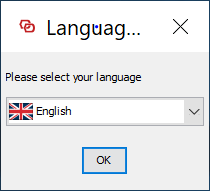
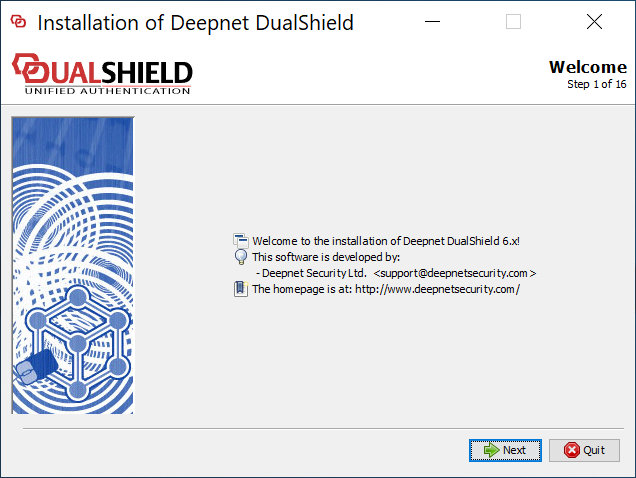
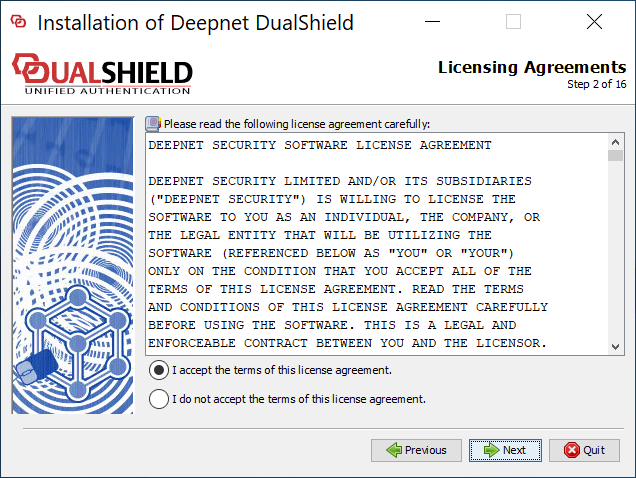
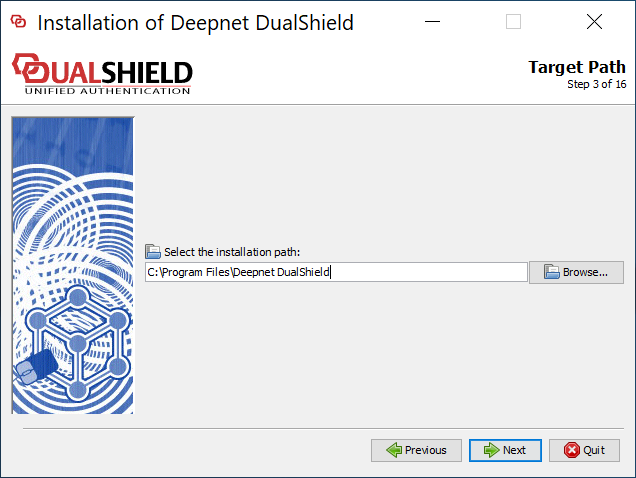
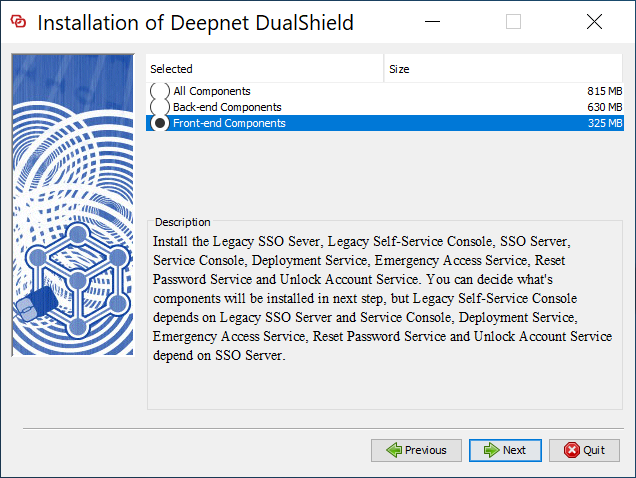
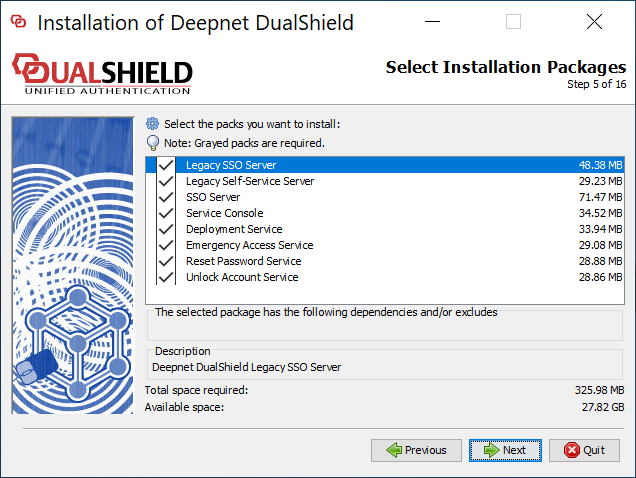
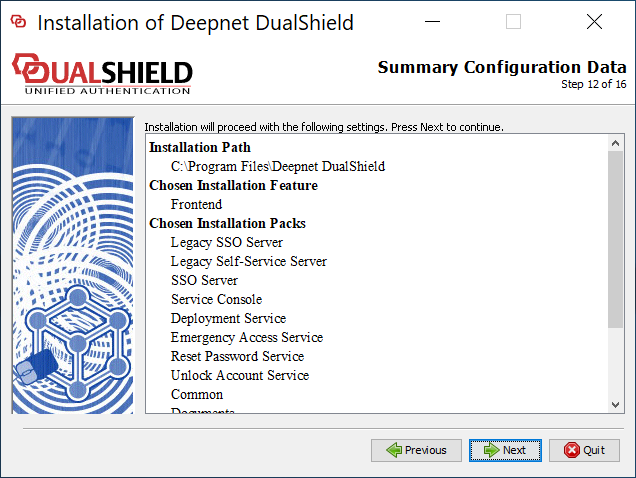
If you want to keep the legacy components, make sure that you select the following
- Legacy SSO Server
- Legacy Self-Service Server
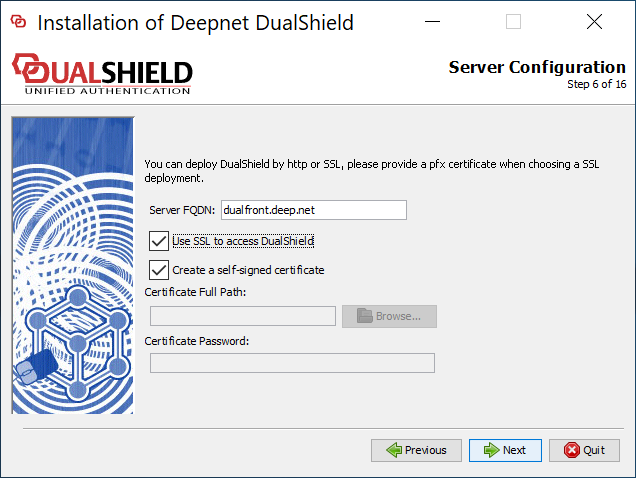
Make sure that Server FQDN is correct. If you do not want to change your DualShield frontend's FQDN then it must be the same as it currently is.
It is recommended that you provide a commercial SSL certificate for your DualShield frontend server as it is meant to be accesses from the Internet.
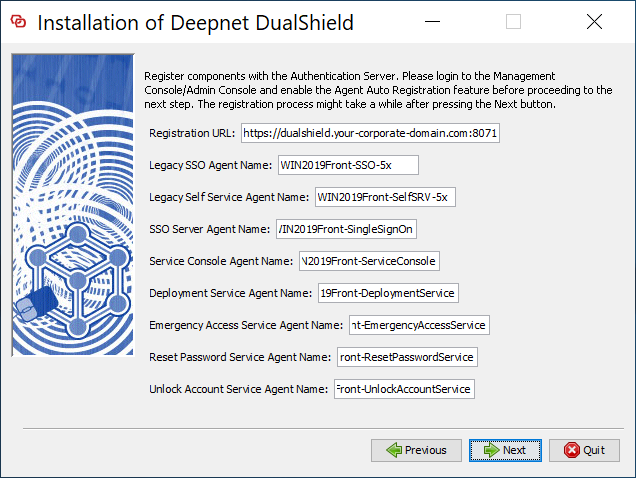
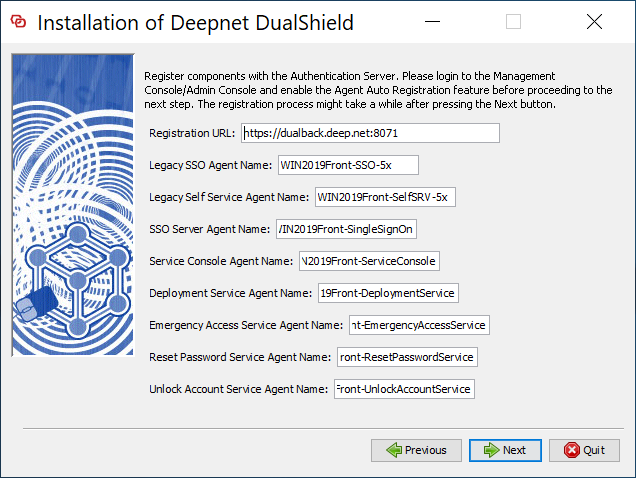
change "dualshield.your-corporate-doamin.com" to the FQDN of your DualShield backend server, e.g. "dualback.deep.net"
Post Upgrade Notes
| Pre-Upgrade | Post Upgrade | Note | Comment |
|---|---|---|---|
|
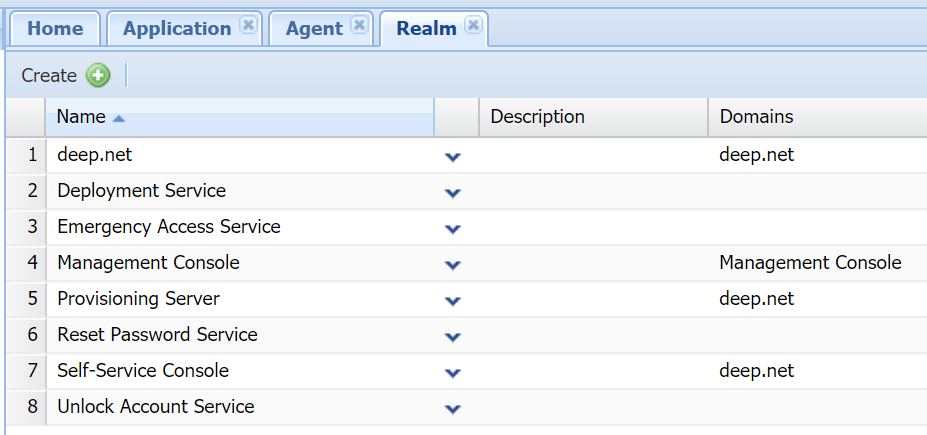
| no changes | |
|
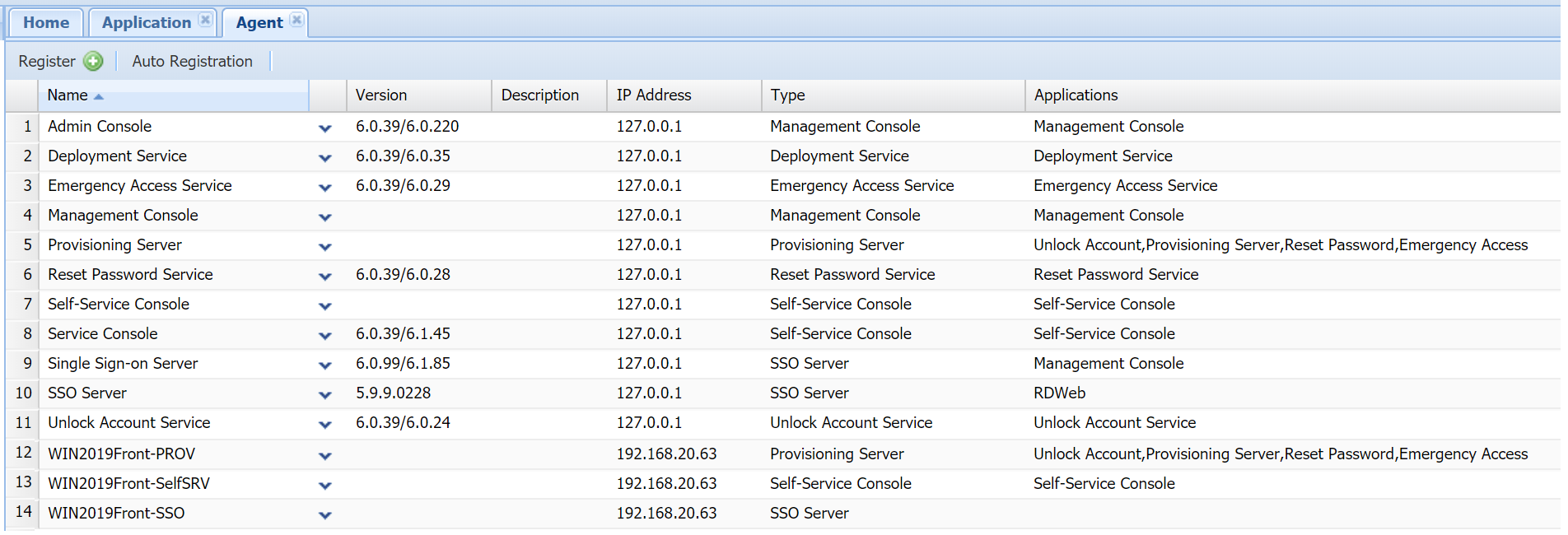
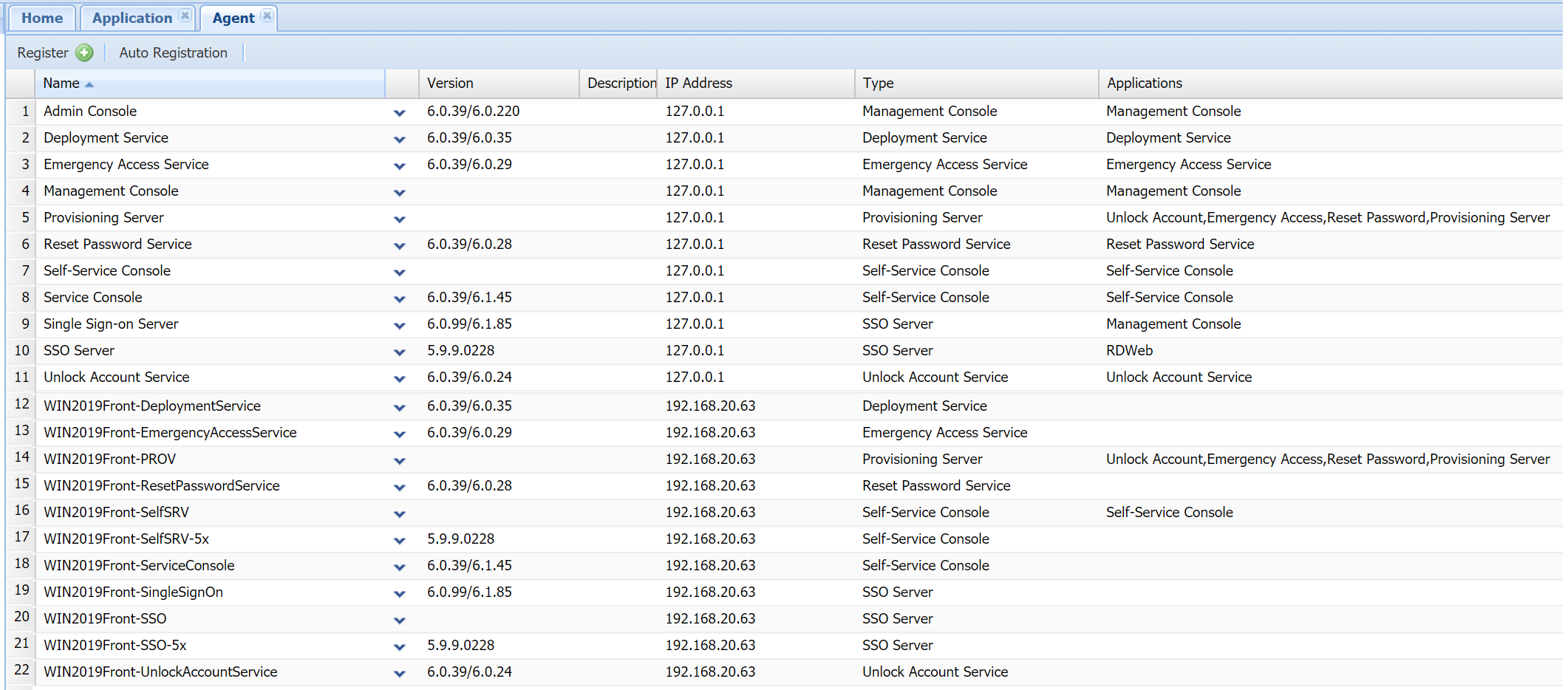
| 8 new agents added, including 2 legacy components:
and 6 new components:
| The following 3 agents are obsolete:
They can be deleted if you wish. There is no harm to keep them, though. |
|
| no changes | |
|
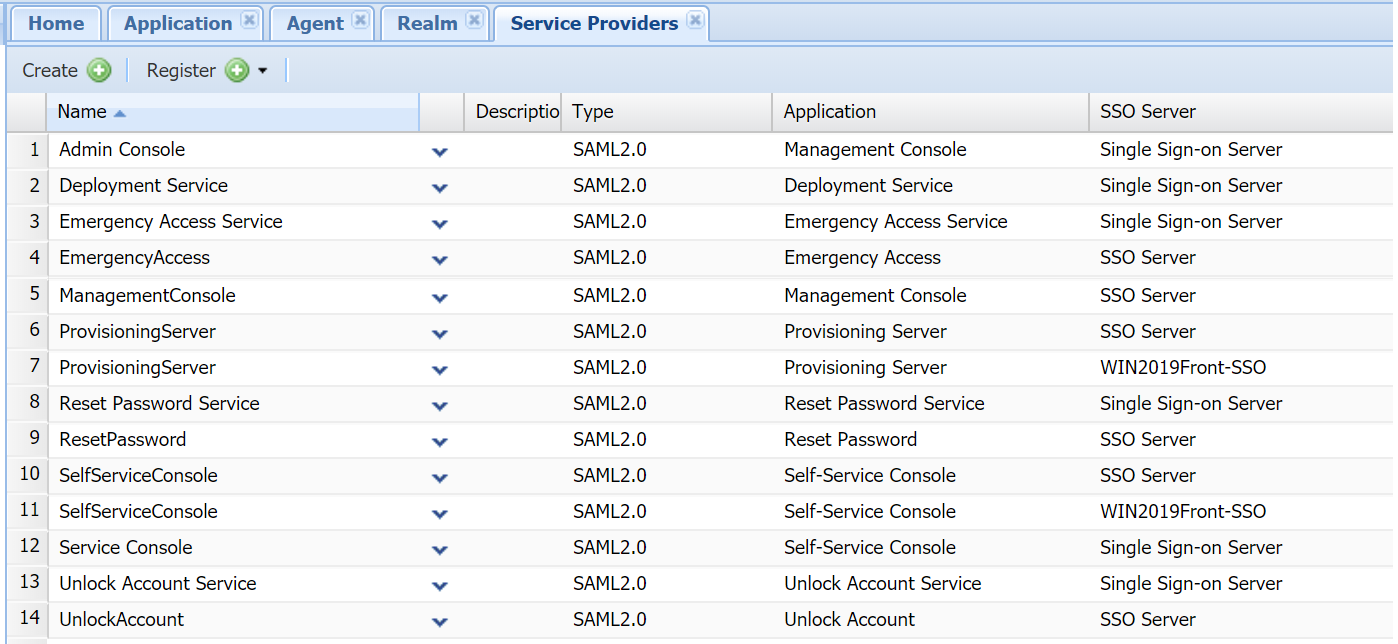
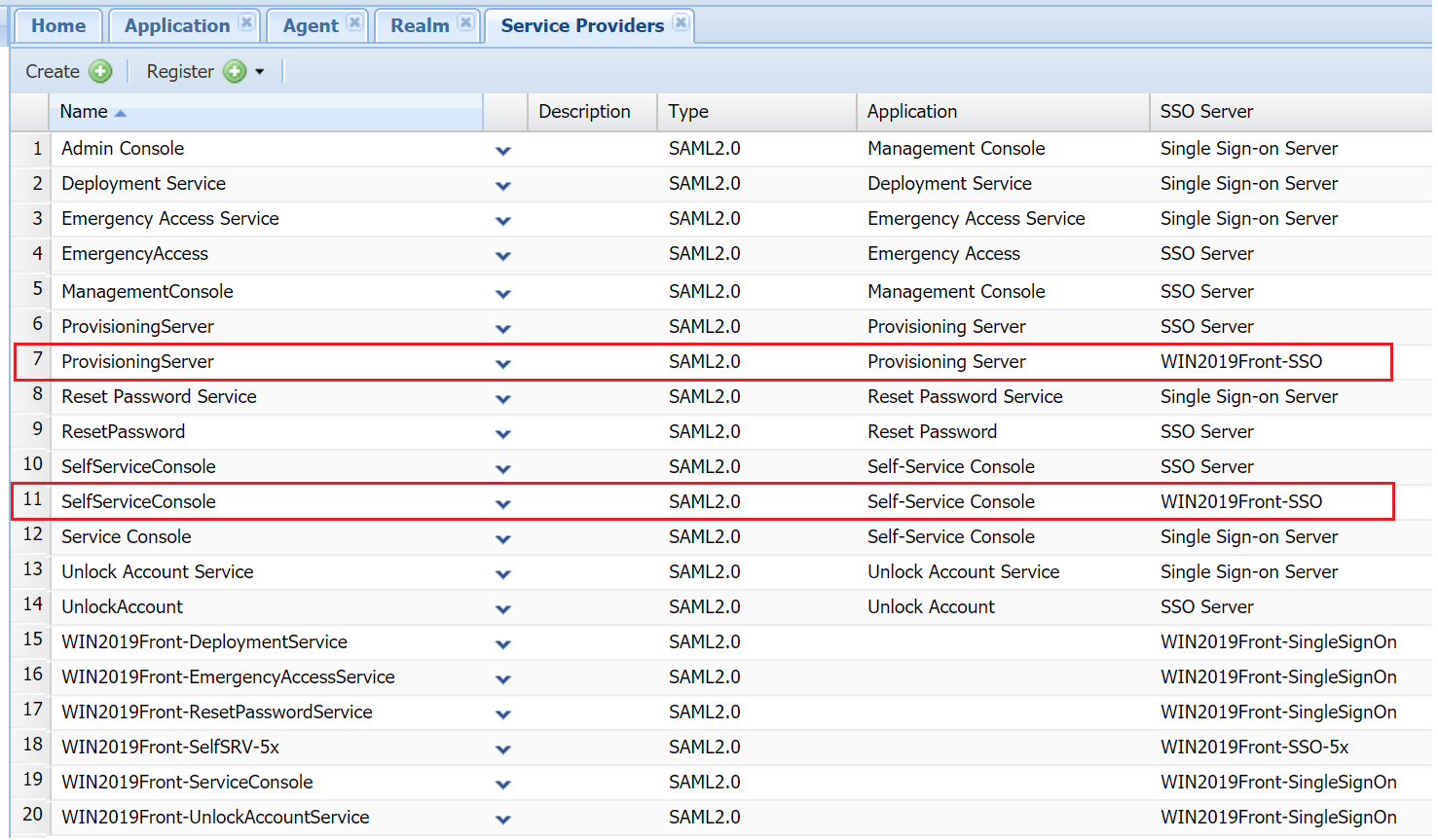
| 8 new service providers added, including 2 legacy components:
and 6 new components:
| The following 2 service providers marked in red color are obsolete:
|

Post Upgrade Checklist
Service Providers
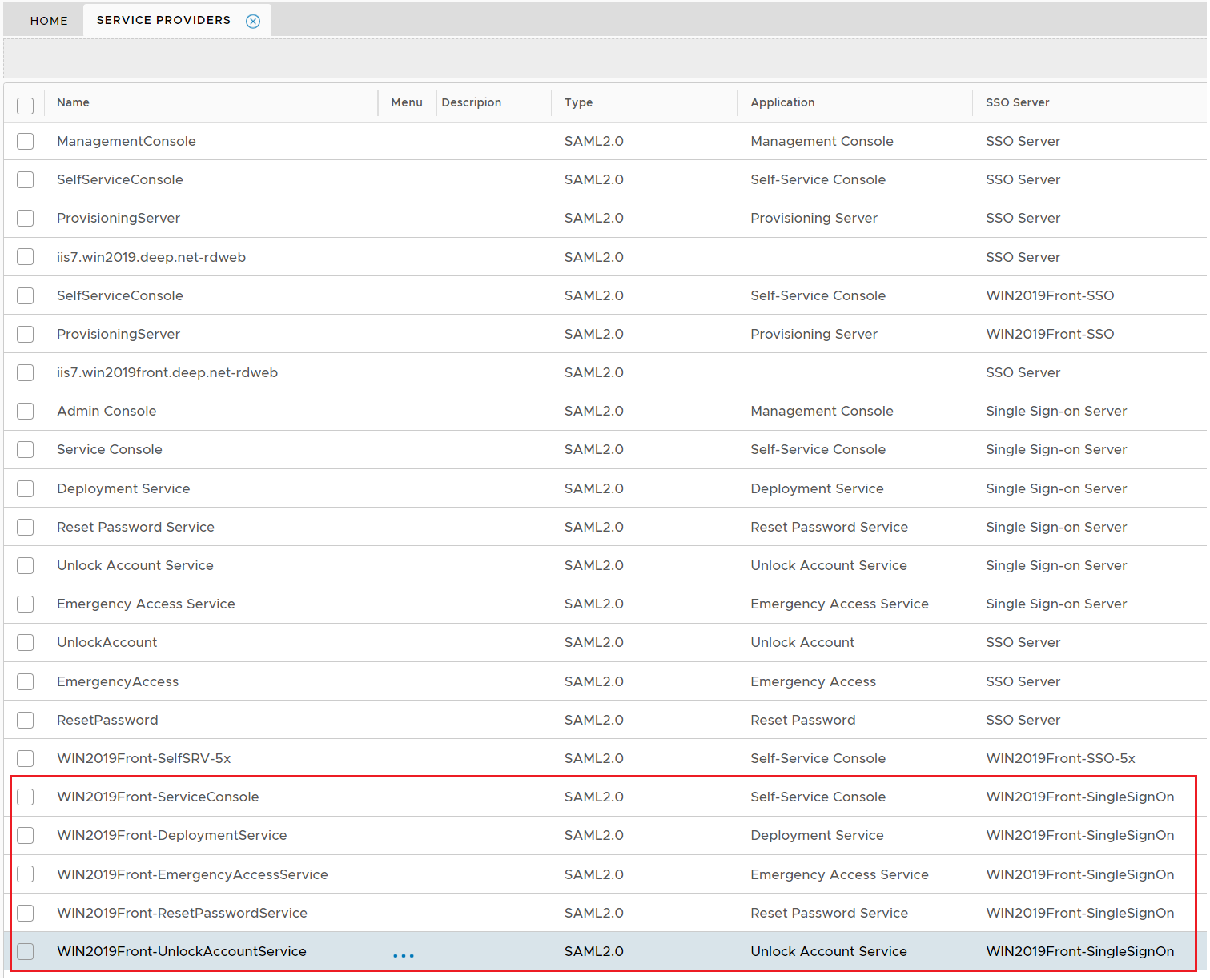
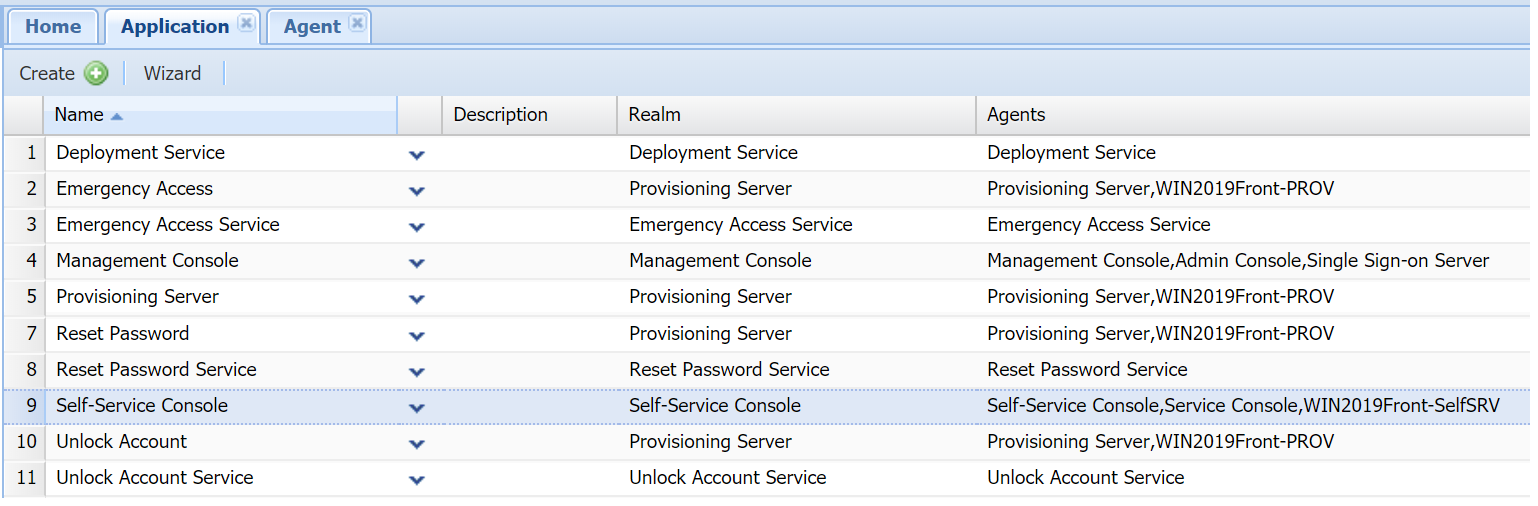
After installation, several new service providers are added, but without associated applications. See below:

You must edit the following service providers and associate them with their applications:
- Machine-Name-SingleSignOn
- Machine-Name-ServiceConsole
- Machine-Name-DeploymentService
- Machine-Name-ServiceConsole
- Machine-Name-EmergencyAccessService
- Machine-Name-UnlockAccountService