After a successful installation of the DualShield Server, you want to login to the admin console and import the license key.
Login to the Admin Console from the Server
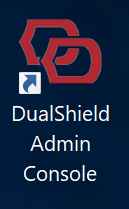
The installer created a shortcut named “DualShield Admin Console” and placed it on the desktop of the server machine.
Click the icon to launch the admin console.
Login to the Admin Console from a PC
If you want to access the DualShield Admin Console from other PCs in you network, then you need to make following changes in your DNS and firewall:
A DualShield server must be given a unique Fully Qualified Domain Name (FQDN) which is provided in the installation process.
The DualShield server includes several web consoles, including
Admin Console
User Console
Single Sign-On Console (mainly used for SAML SSSO)
Deployment Console (for device and tokens)
DualShield consoles are all web-based portals that can be accessed with a web browser. The FQDN is the web address of the DualShield consoles.
If the DualShield server is a backend server located in the internal network and to be accessed from internal PCs and workstations, then the DualShield's FQDN must be added into the internal DNS server.
If the DualShield server is a frontend server located in the DMZ and to be accessed from external PCs and workstations, then the DualShield's FQDN must be added into the external DNS server.
If the DualShield server is an all-in-one server that is accessed from both internal & external PCs and workstations, then its FQDN must be added into both the internal & external DNS servers.
Unable to render {include} The included page could not be found.
To access your DualShield's admin console from other PCs in your network, enter the URL below: