Logon to the NetMotion Mobility Server
Click on Configure>Authetication Settings
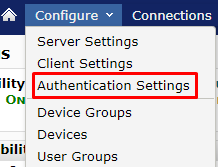
Option - You may set up a separate authentication profile or use the global settings.
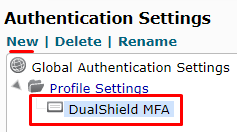
To create a separate Profile simply click New on the top left and give the profile a name, at the prompt.
You can then select the profile you wish to use, here.
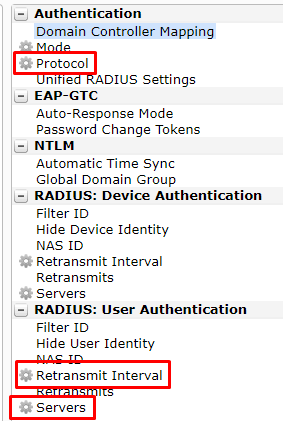
There are three options that need to be set in Authentication settings
| Authentication Protocol |
| Retransmit Interval |
| Radius Server |
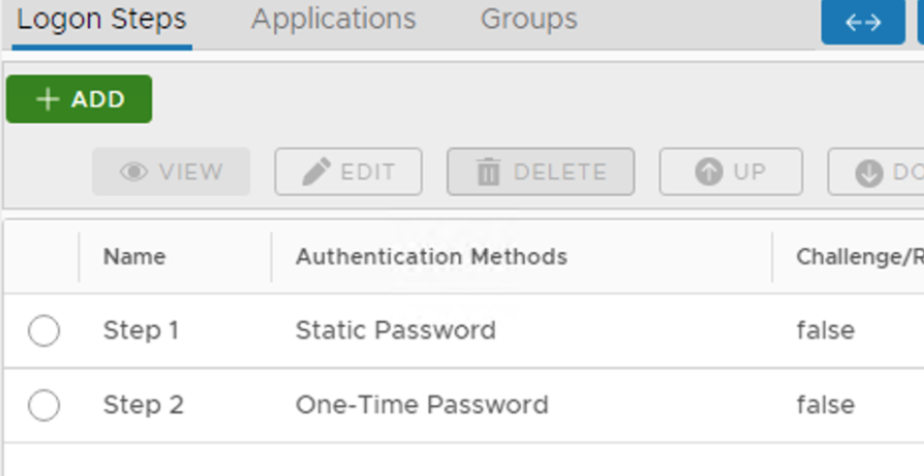
In the Logon Steps Dialogue box, click the  button.
Tick the desired authentication method, e.g. Static Password
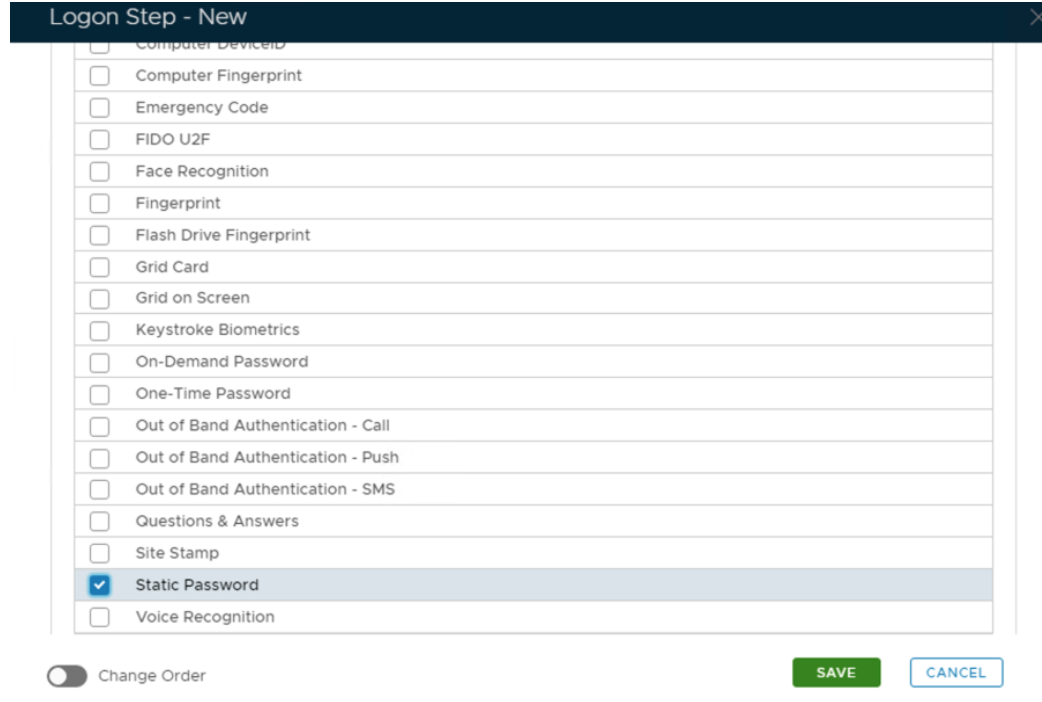
Click Save.
Repeat to add extra steps.
Create an Application:
Authentication> Applications
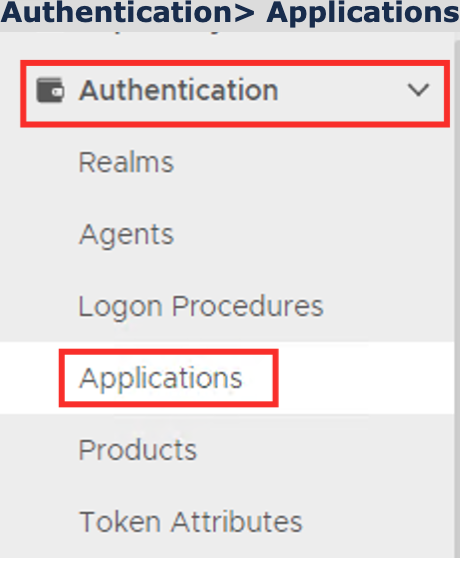
Click on  on the top right.
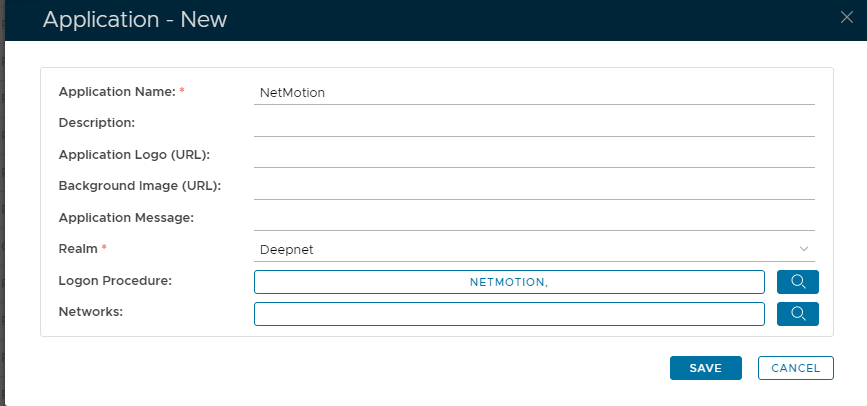
In the new Application window, please enter the following information:
| Option | Value |
|---|---|
| Name: | Enter a friendly name |
| Realm: | Select your Realm |
| Logon Procedure: | Select the Logon Procedure you had created in the previous step |
Click: Save
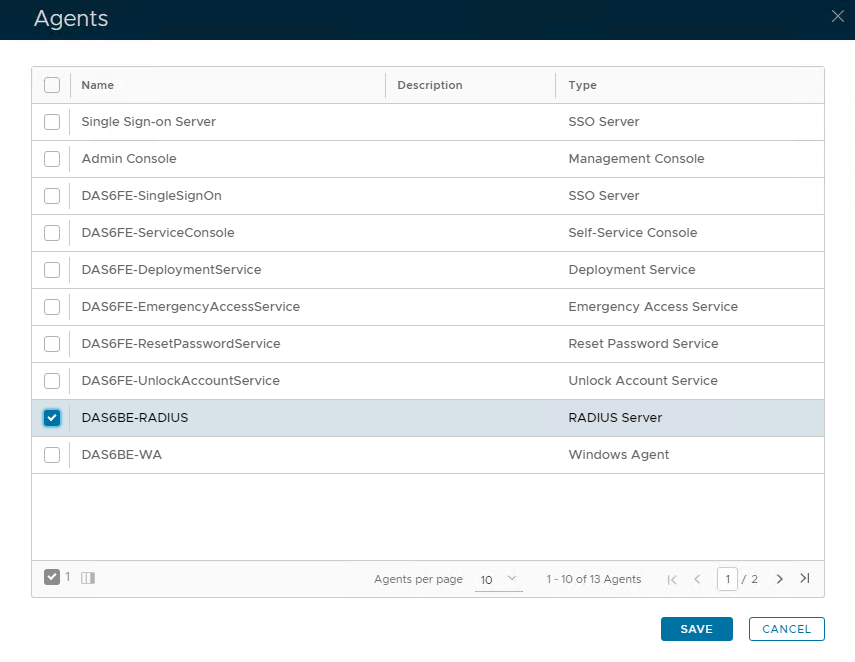
Bind the Application to a RADIUS Server Agent
Select the drop-down menu corresponding to the Application you will be using and click on Agents.
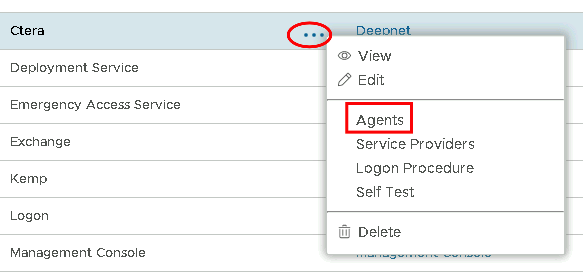
Tick the box of the Radius Server you will be using and click Save below.
Server Settings
Add RADIUS Server
- In the main menu, “Configure | Authentication Settings ”
- Select "Global Authentication Settings" in the left pane
- Select “RADIUS: User Authentication - Servers” in the middle pane
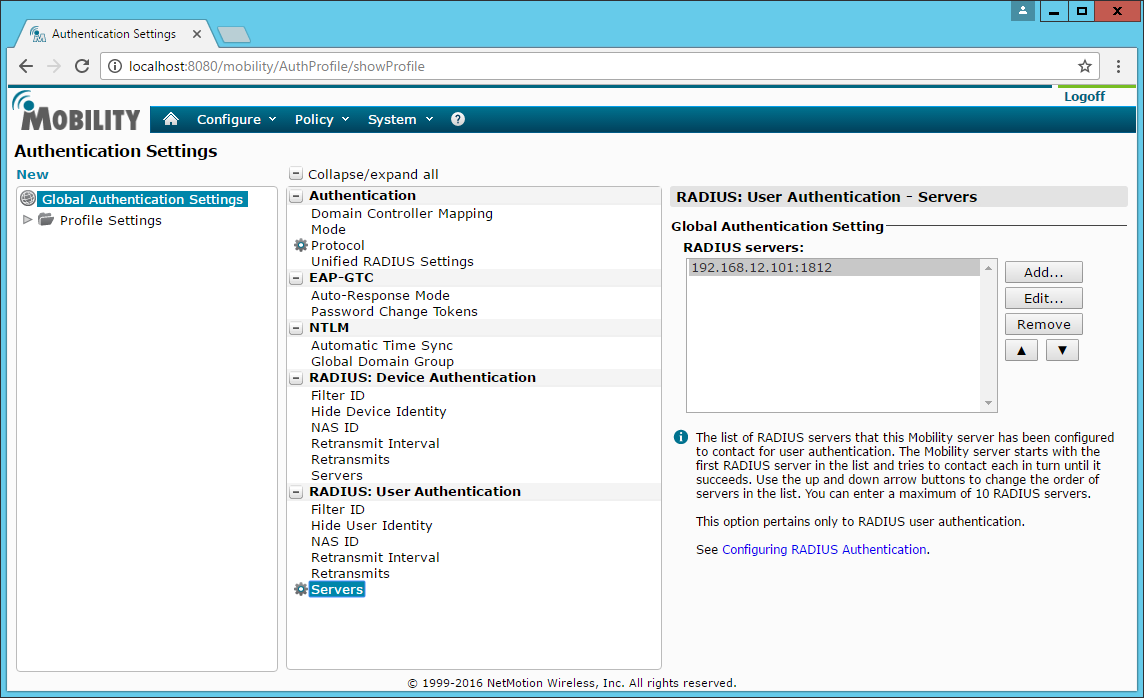
- Click “Add” button in the right pane to add the DualShield Radius Server
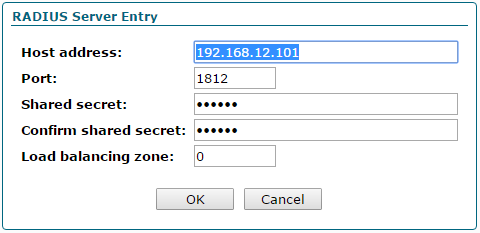
- Enter the Dualshield Radius Server IP address, Port and Shared secret.
- Click "OK" button to save it
Set User Authentication Protocol to RADIUS EAP
- Select “Authentication: Protocol” in the middle pane
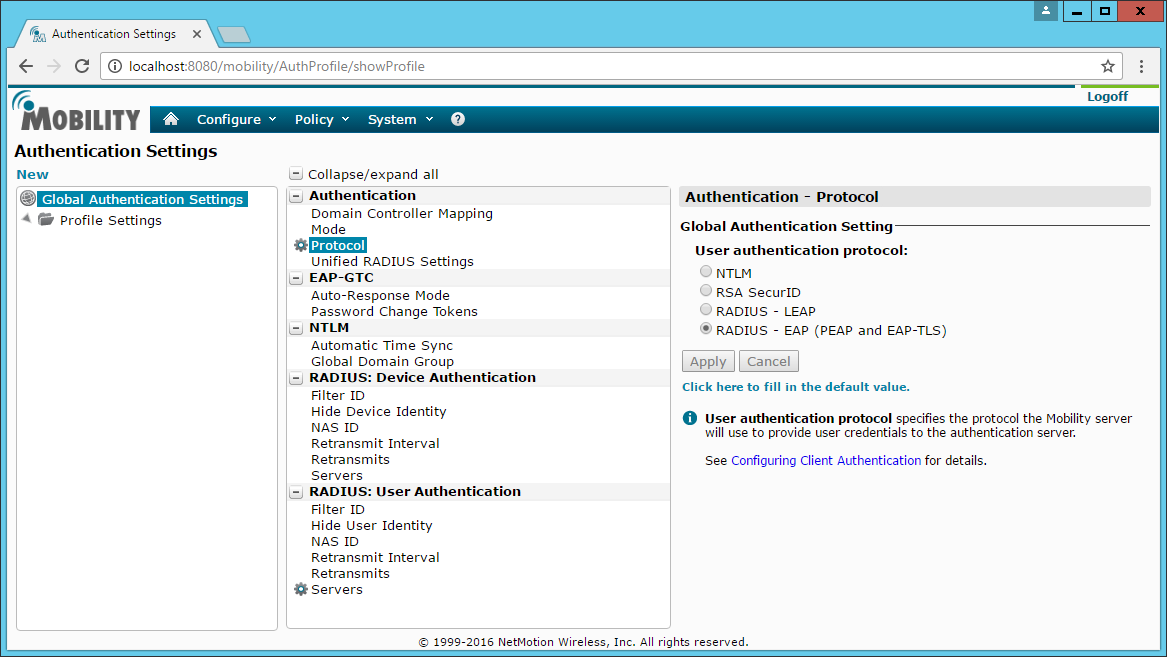
- Select “RADIUS - EAP (PEAP and EAP-TLS)”
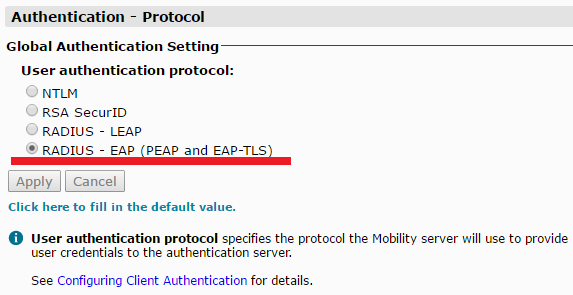
- Click “Apply” to save it
Set RADIUS Retransmit Interval
- Select "RADIUS: User Authentication | Retransmit Interval" setting.
Enter an interval long enough for a user’s mobile device to receive and respond to authentication requests. Recommended: at least 40000 milliseconds.
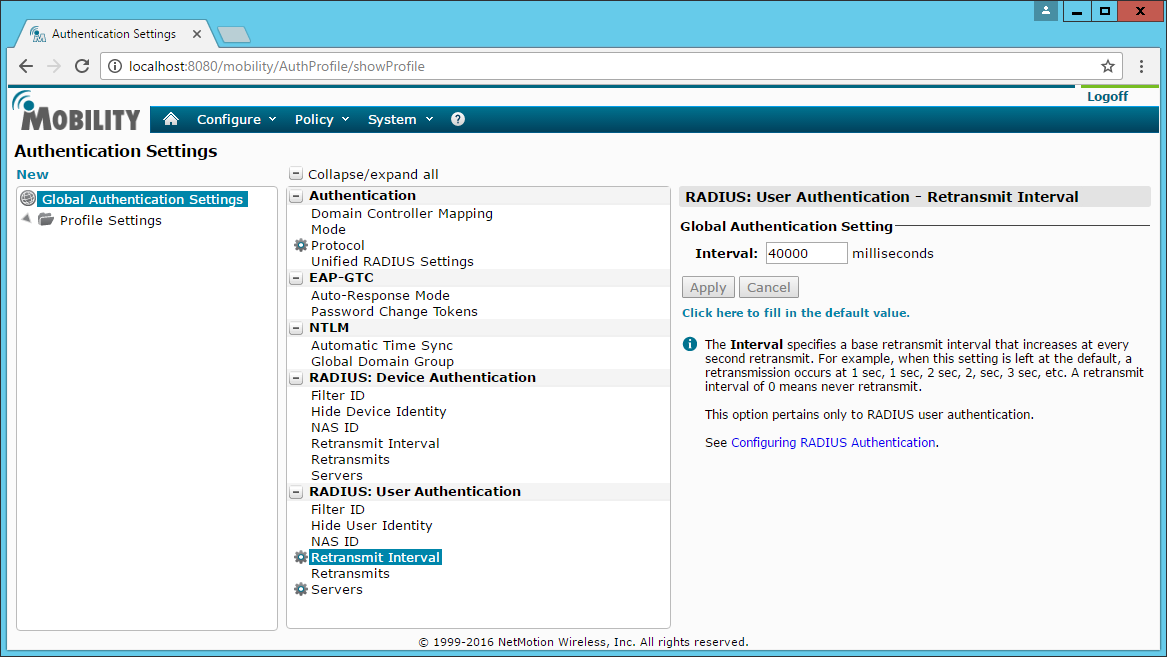
Click Apply.
Client Settings
Enable Always Prompt for User Credentials
- In the main menu, Select “Configure | Client Settings”
- Select "Global Client Settings" in the left pane
- Select “Logon | Always Prompt for User Credentials” in the middle pane
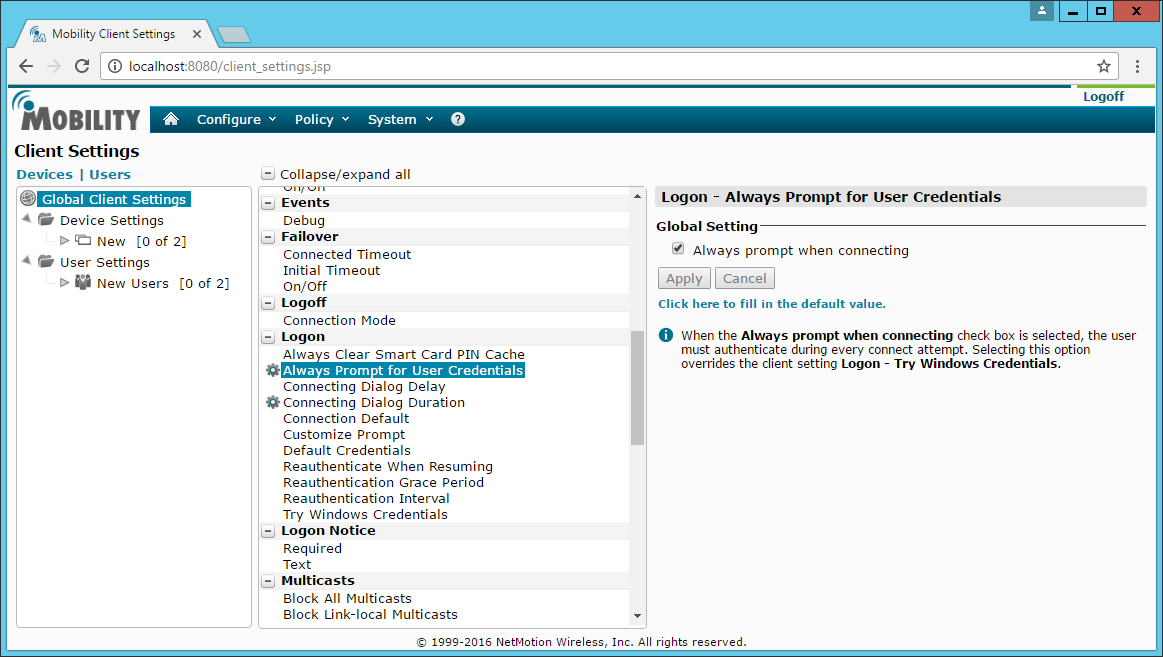
- Enable "Always prompt when connecting
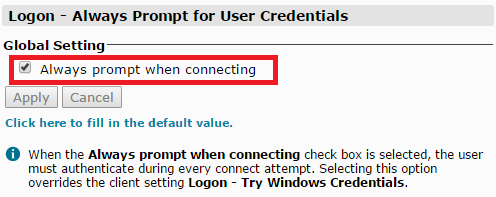
- Click “Apply” to save it
Set Connecting Dialog Duration
- Select "Connecting Dialog Duration" in the middle pane
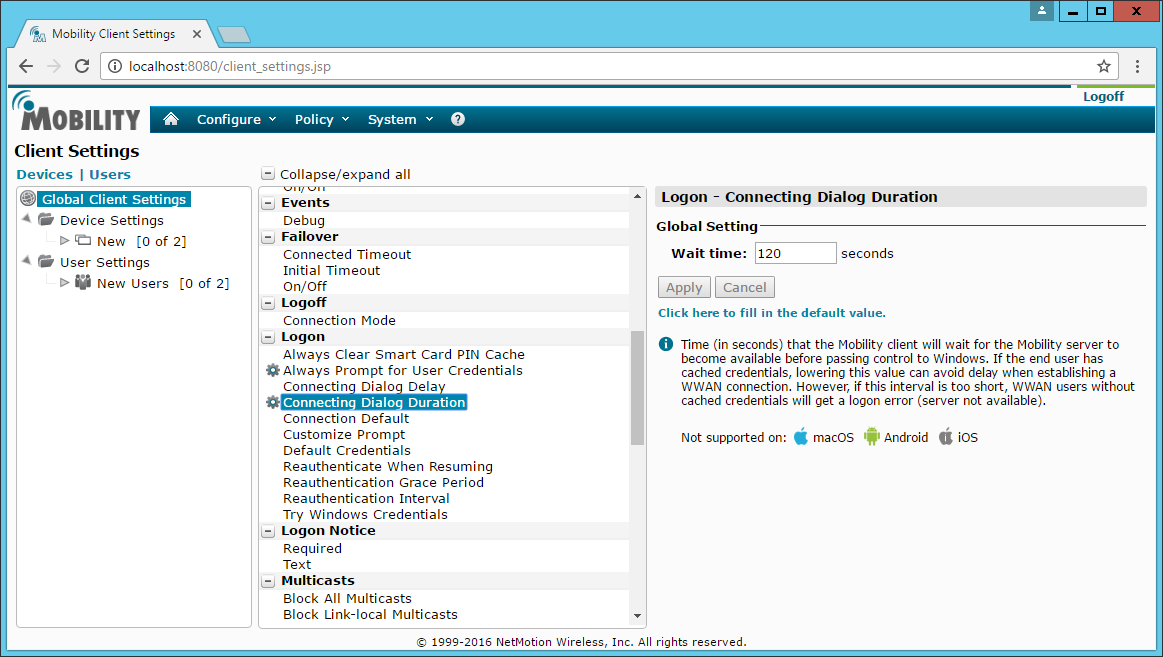
- Change Wait time to 120 seconds
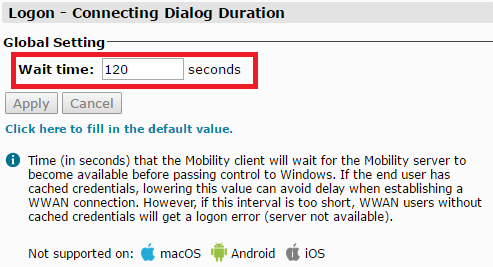
- Click "Apply" to save it