There may be a requirement to protect a PC that is not joined to the domain or even connected to the same network. We have a solution for this. It is fairly easy to set up, but there are a few extra prerequisites needed in order to get this working
Prerequisites
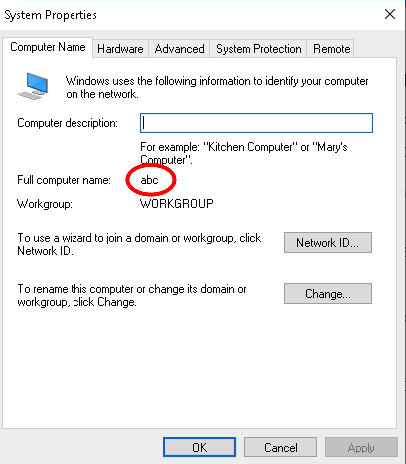
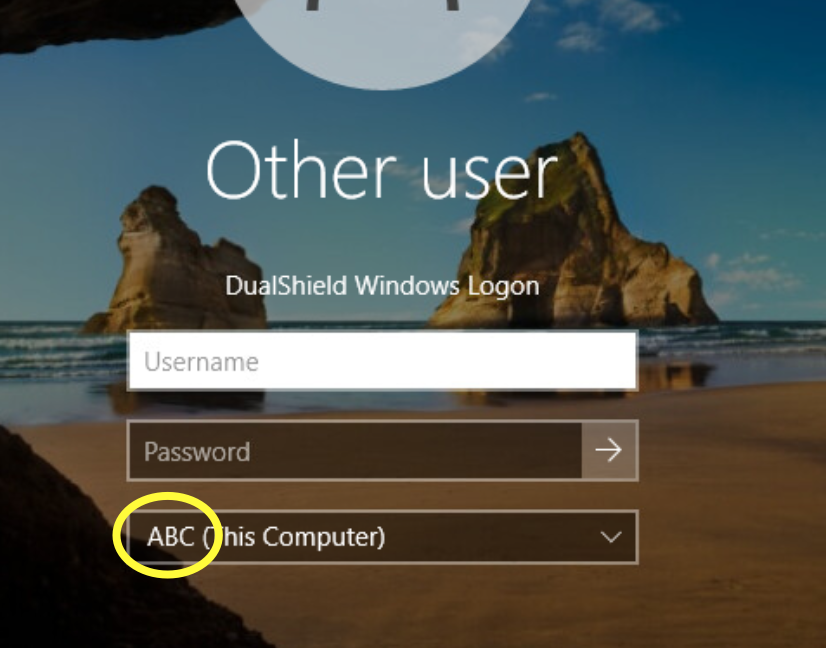
Make a note of the host name of the computer. In this case it is 'ABC'
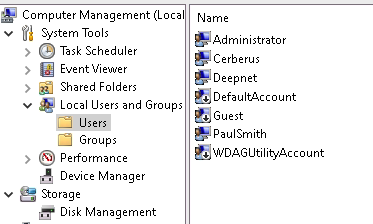
Create some local user accounts and make sure the Administrator account is active.
Add Logon Steps
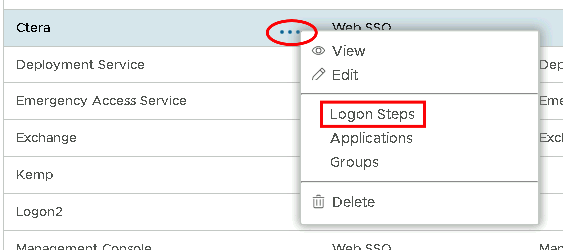
Select the drop down menu corresponding to the Logon Procedure you will be using and click on Logon Steps.
In the Logon Steps Dialogue box, click the  button.
Tick the desired authentication method, e.g. Static Password
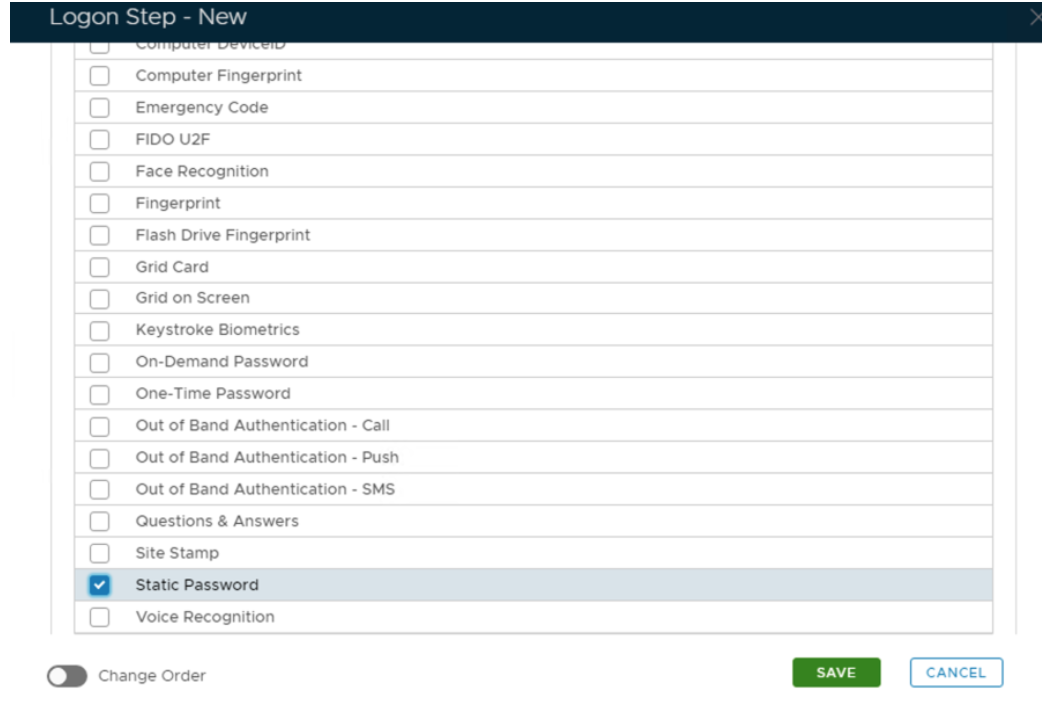
Click Save.
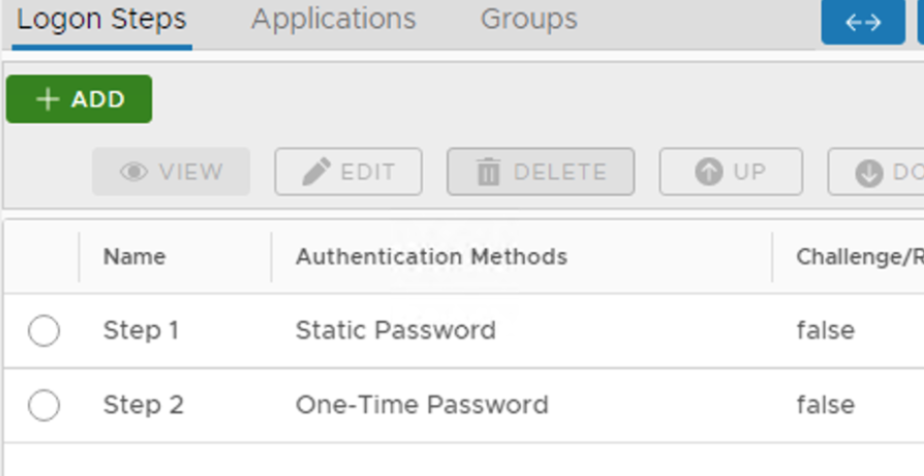
Repeat to add extra steps.
Create an Application
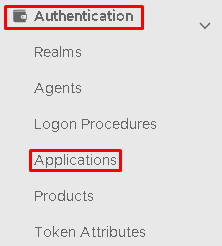
Authentication> Applications
Click on  on the top right.
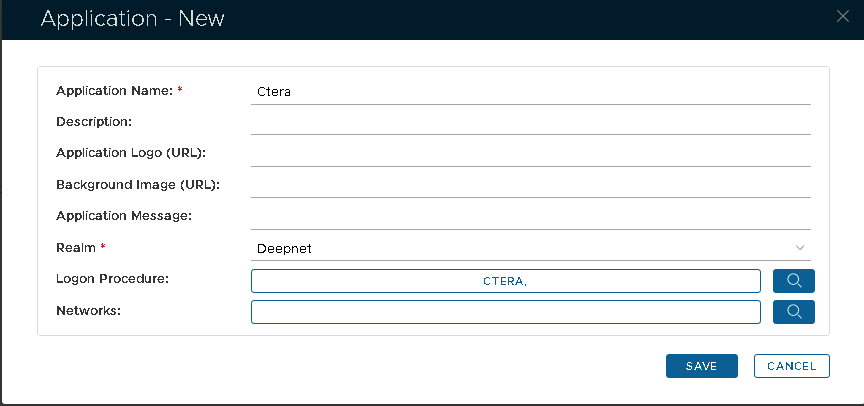
In the new Application window, please enter the following information:
| Option | Value |
|---|---|
| Name: | Enter a friendly name |
| Realm: | Select your Realm |
| Logon Procedure: | Select the Logon Procedure you had created in the previous step |
Click: Save
Bind the Application to an SSO Server Agent
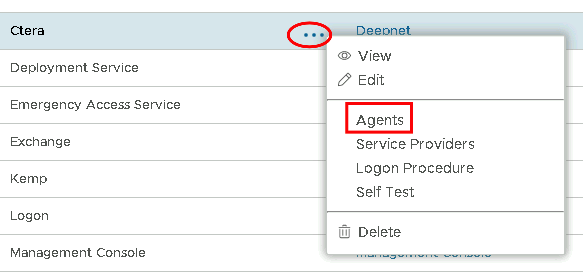
Select the drop down menu corresponding to the Application you will be using and click on Agents.
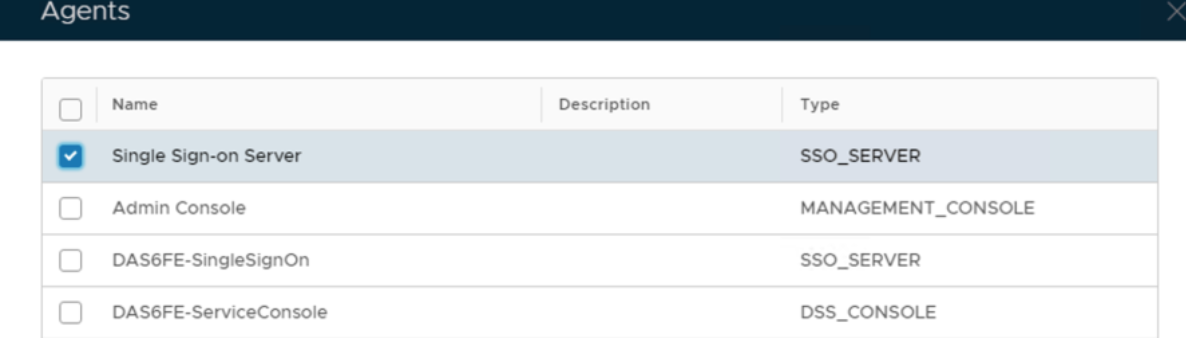
Tick the box of the SSO Server you will be using and click Save below.
Create a Service Provider Profile
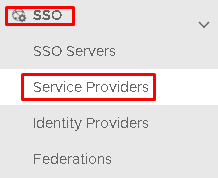
Go to SSO>Service Providers
Click on on the top right.
Fill in the details as per screenshot on right and make sure you select SAML 2.0(Without Metadata) as Type.
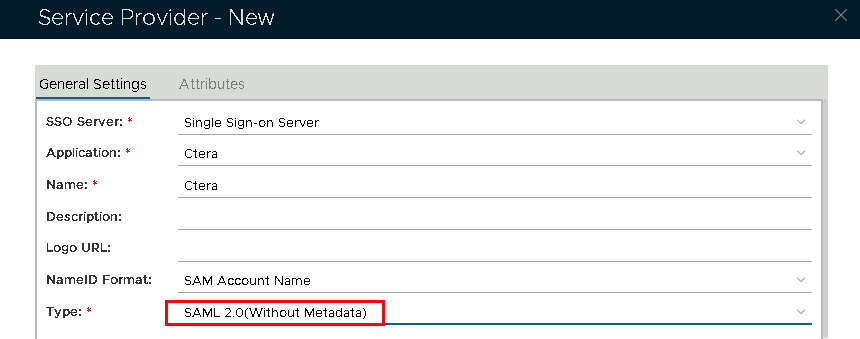
Now fill out Entity ID and ACS URL.
| Option | Value |
|---|---|
| Entity ID: | |
| ACS URL: |

The completed Service Provider dialogue box will look like this:
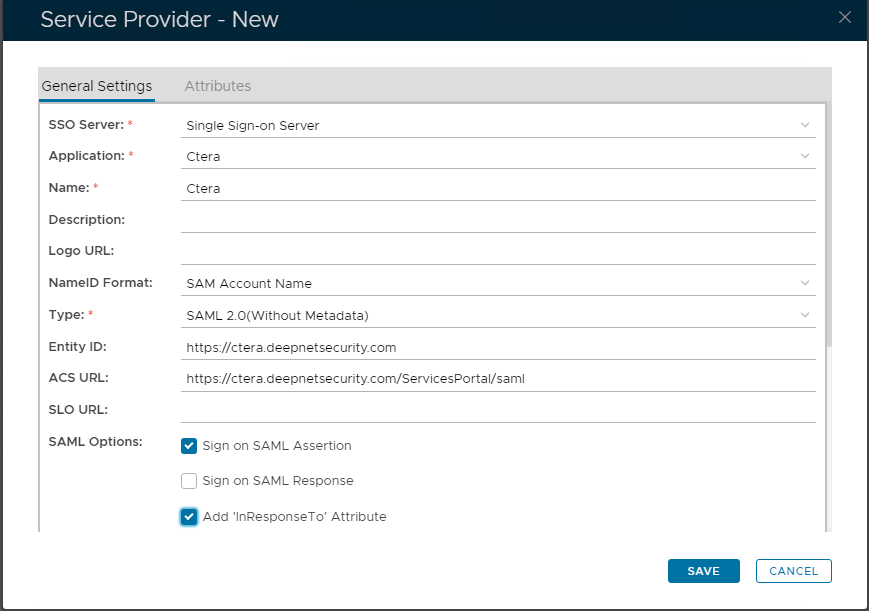
Click Save.
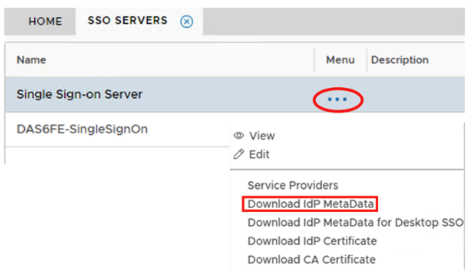
Download the IDP Metadata file.
Go to SSO>SSO Servers
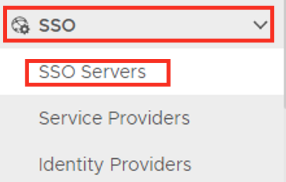
Select the drop down menu corresponding to the SSO server you will be using and click on Download IDP Metadata.